
Open Tickets from Contact Forms
Your contact form already collects support requests, but each one lands in an inbox as a plain email. Someone has to copy it into the help desk, reply from the right address and remember who answered. Requests slip through when that copy step gets skipped on a busy day.
Core Support can open a ticket from each submission instead. It works with Contact Form 7, WPForms (Lite and Pro), Gravity Forms, Fluent Forms and Core Forms, on the same site as the help desk. You choose which forms create tickets, and each form can hold new tickets for review first.
Choose the Forms That Create Tickets
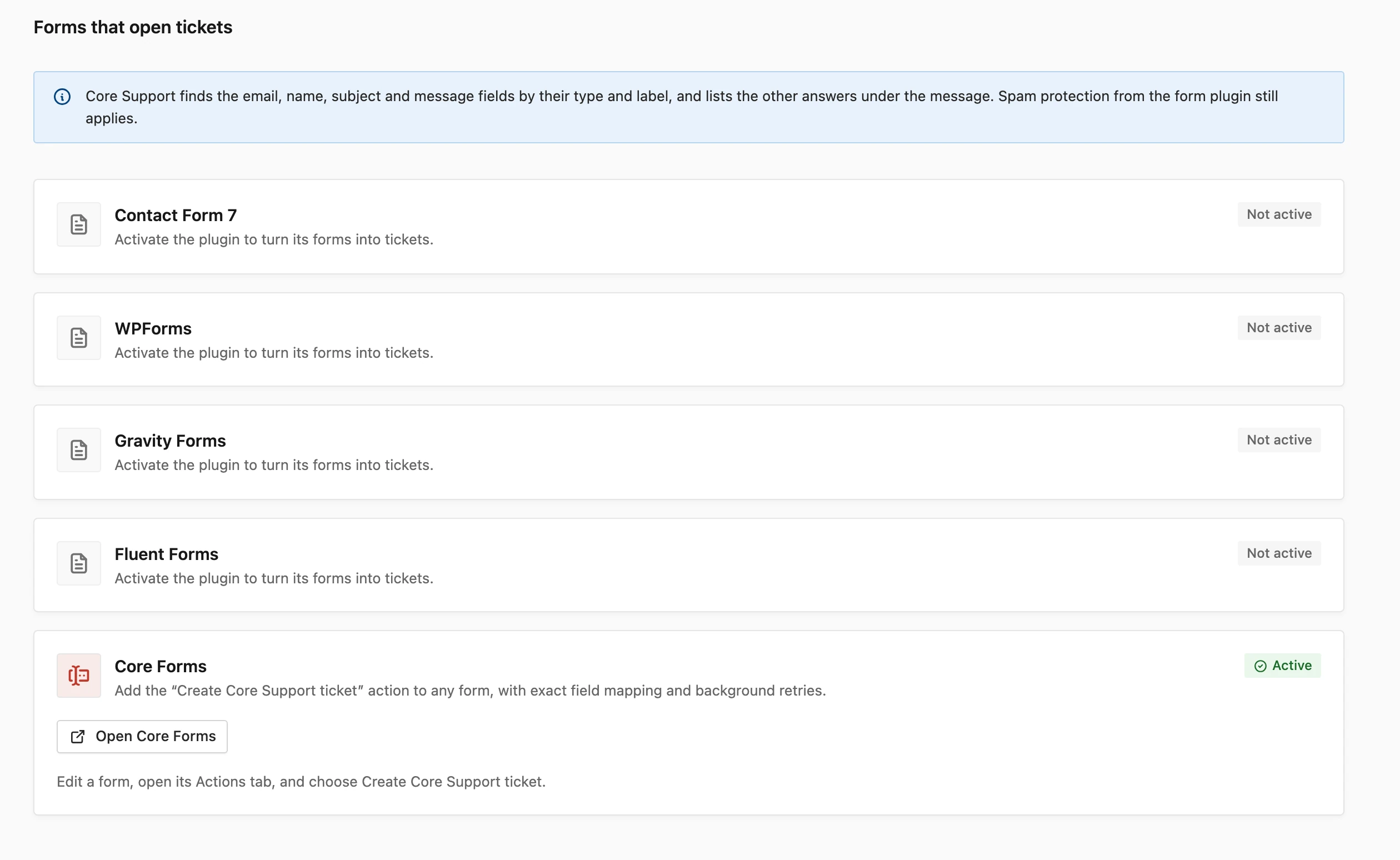
Contact Form 7, WPForms, Gravity Forms and Fluent Forms share one setup screen.
- Go to Core Support → Integrations and scroll to Forms that open tickets.
- Find the card for your form plugin. It lists the plugin’s forms by name and ID.
- Turn on Create tickets for each form that should open tickets.
- Turn on Hold for review for any of those forms whose tickets should wait for an agent first.
- Choose Save integrations.
Both switches are off for every form until you turn them on. Each form name links to its editor in the form plugin. If you deactivate a form plugin for a while, Core Support keeps your choices for its forms.
Which Submissions Count
- Contact Form 7: valid submissions that aren’t spam, just before Contact Form 7 sends its own email.
- WPForms: completed submissions.
- Gravity Forms: saved entries that aren’t marked as spam.
- Fluent Forms: saved submissions.
The form plugin’s own spam protection still applies. Its email notifications keep working too. I’d turn off any notification that goes to your support address, or the same request can arrive twice.
How Fields Become a Ticket
Core Support reads each submission and picks out 4 things by field type and label:
- Email: an email field first, then a field whose label mentions “mail”, then any answer that is a valid address.
- Name: a name field, a field labeled “Name” or “Full name”, or first and last name fields joined together.
- Subject: a short answer labeled with a word such as subject, topic, title, regarding, summary or reason.
- Message: a field labeled with a word such as message, question, details, enquiry, help, issue or problem. Without one, it takes a paragraph field, then the longest answer.
Below the message, Core Support adds a “Sent with” line naming the form, every other answer as “Label: answer” and the page the form was on. A form without a subject field gets the subject “Message from” and the form’s name.
Some fields are always left out:
- password fields
- consent, acceptance, privacy and terms checkboxes
- captcha, honeypot and other anti-spam fields
- file uploads, so uploaded files stay in the form plugin’s entries
A long submission is shortened to fit Maximum message length under Core Support → Settings → Tickets, which defaults to 10,000 characters. The full answers stay in the form plugin’s entries.
Where the Ticket Goes
What happens next depends on who sent the form:
- A signed-in customer using their own account email: the ticket opens in their account straight away.
- Everyone else: the submission goes to Core Support → Incoming mail, then becomes a ticket. Duplicate submissions are merged there.
- A form with Hold for review on: the submission waits in Incoming mail until an agent accepts it.
When the email belongs to an account on your site, the ticket also shows in that customer’s portal. The portal labels it “Sent from a website form”, because anyone can type an address into a form. Agents see the form plugin and form name as the ticket’s source.
The review queue itself is covered in review incoming mail.
Add the Core Forms Action
Core Forms works differently. You add an action to the form itself and map each field exactly, and Core Forms runs it in the background with retries.
- Go to Core Support → Integrations and choose Open Core Forms on the Core Forms card.
- Edit a form and open its Actions tab.
- Choose Create Core Support ticket.
- Fill in the fields below and save the form.
The action has 5 settings:
- Customer email field: the form field holding the customer’s email, default
EMAIL. Required. - Customer name field: the field holding their name, default
NAME. - Ticket subject: default
[SUBJECT]. When that field is empty in a submission, the subject becomes “Message from” and the form name. - Ticket message: default
[MESSAGE]. Required. - New tickets: Open a ticket straight away (default) or Hold in Incoming mail for review.
The action reports one of 2 results back to Core Forms:
- “Core Support ticket #42 created.” when a signed-in customer used their own account email.
- “Sent to Core Support. It appears in Incoming mail, then as a ticket.” for everyone else.
When a Submission Doesn’t Become a Ticket
A help desk problem never breaks the form. The visitor still sees the form’s normal success message.
For Contact Form 7, WPForms, Gravity Forms and Fluent Forms, the Integrations screen shows the latest failure at the top until a later submission works. The notice starts with “The last form submission (5 mins ago) did not become a ticket:” and then gives the reason. The 2 common reasons are:
- “The form has no valid email address to reply to.”
- “The form has no message to open a ticket with.”
The Core Forms action reports its failures back to Core Forms instead.
A form without an email field can’t open tickets, because Core Support has no address to reply to.
Adjust the Fields with a Filter
Developers can change the fields before Core Support reads them with the core_support_form_ticket_fields filter. It receives the fields, the plugin key (cf7, wpforms, gravityforms or fluentforms) and the form ID. Each field has a key, label, value and type.
add_filter('core_support_form_ticket_fields', function (array $fields, string $plugin, string $formId): array {
    if ($plugin === 'gravityforms' && $formId === '3') {
        $fields = array_values(array_filter(
            $fields,
            fn (array $field): bool => $field['label'] !== 'Internal reference'
        ));
    }
    return $fields;
}, 10, 3);
The filter doesn’t run for Core Forms, where the action’s own field mapping decides. The full list of hooks is in the hooks and filters reference.