
How to Make Ticket Replies Land in the Inbox
An agent answers a ticket, the status moves to Waiting on customer, and nothing happens. The customer never saw the reply, because it went to spam or never left the server, and a day later they write again, now annoyed.
To make ticket replies land in the inbox, you send them through a proper mail service from a domain that service has verified, with SPF, DKIM and DMARC in place. Core Support handles the rest of the message: a clean HTML and plain-text email, a short subject and a Reply-To that brings the answer back to the ticket.
Core Support is my help desk plugin for WordPress. It doesn’t run its own mail server. It hands each reply to WordPress mail or to a provider’s API, so how well replies arrive depends mostly on the sending setup you choose.
Before You Start
- Access to your domain’s DNS records.
- An account with a sending service, or an SMTP plugin such as FluentSMTP already sending your site’s mail.
- A mailbox set up in Core Support, so customers can reply. How to Turn Your Support Email Address into a Help Desk covers that part.
Pick How Replies Leave the Site
Core Support → Settings → Notifications → Mail delivery has 6 choices:
| Choice | What it does | Good fit when |
|---|---|---|
| Capture only | Records each reply and sends nothing | You’re still setting up |
| WordPress mail | Hands each reply to wp_mail(), so an SMTP plugin applies | Your site already sends reliably through an SMTP plugin |
| Emailit, Resend, Brevo or SendGrid API | Sends straight through that provider | You’d rather not depend on another plugin, or want each provider error recorded on the ticket |
Never leave a live help desk on PHP’s default mail on a shared host. That mail usually goes out with no DKIM signature from a server address that other sites also use, which is exactly what spam filters look for. Either route above fixes it, as long as the sending domain is verified.
I’d use a provider API for a help desk that runs on its own. Core Support then records the provider’s own error on the ticket, such as an unverified sender, instead of only knowing that WordPress accepted the email.
Send from a Verified Domain
- In your provider’s dashboard, add your sending domain and copy the DNS records it gives you. These usually include DKIM records and an SPF entry.
- Add those records at your DNS host and wait for the provider to show the domain as verified.
- Create an API key with permission to send email.
- In Core Support → Settings → Notifications, set Mail delivery to that provider and paste the key into Mail provider API key.
- Set Sender email to an address on the verified domain, such as
support@example.com. Add a Sender name if you want one. - Save.
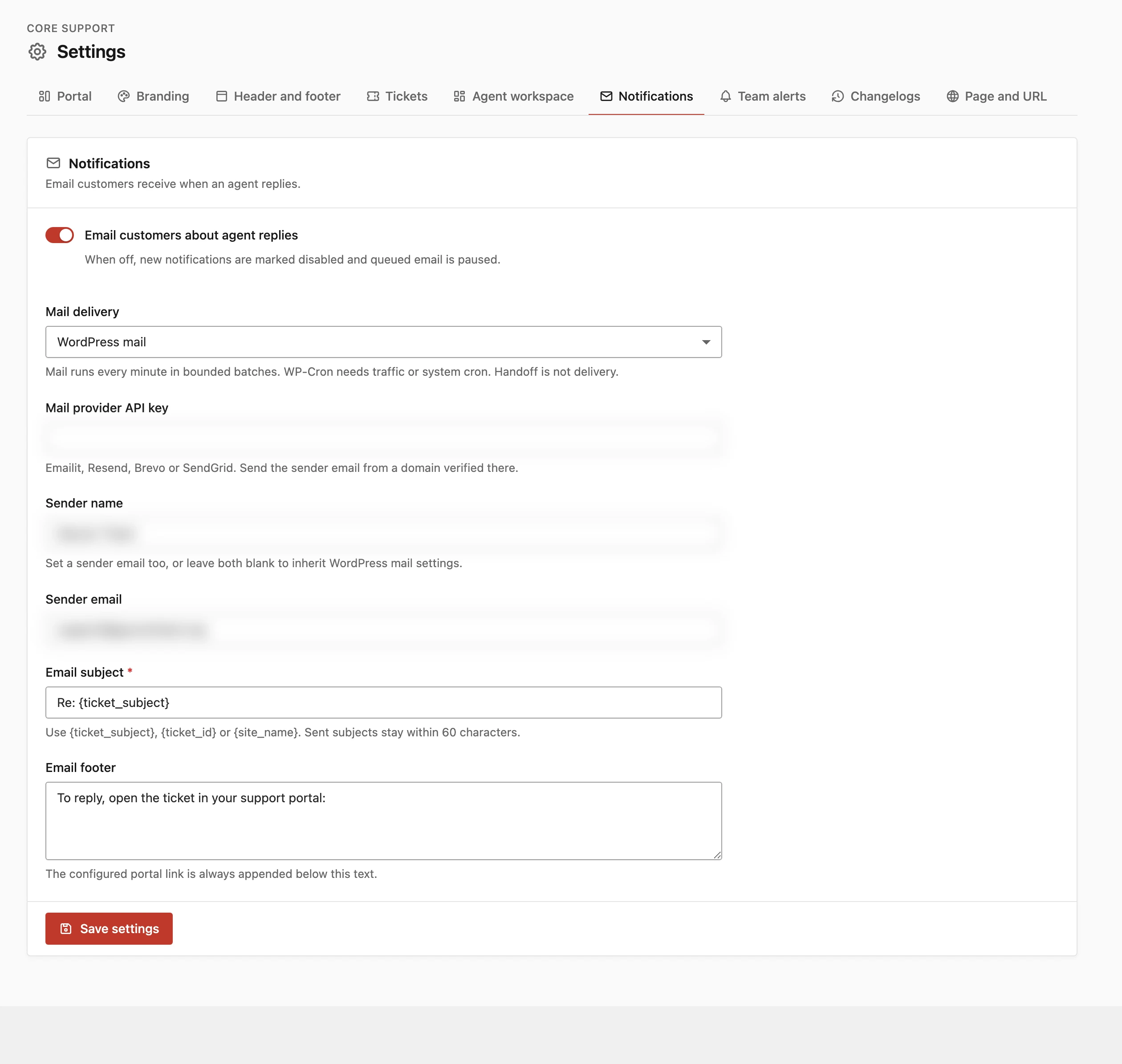
Core Support refuses to save a provider without a sender email or a key, and it names the missing piece. With Sender email blank, replies go out from the ticket’s mailbox address, which then has to be on a verified domain too.
Each provider has a quirk worth knowing first:
- Brevo: accounts created since May 2024 block API calls from unknown IP addresses. Allow your server’s IP under Security → Authorized IPs.
- Resend and Emailit: an unverified domain can send only to your own account address, so a test to a customer fails.
- SendGrid: EU-pinned subusers aren’t supported yet.
Set SPF, DKIM and DMARC
Gmail, Yahoo and Outlook check 3 DNS records before they trust an email:
- SPF lists the servers allowed to send for your domain. Your provider tells you what to add. A domain has one SPF record, so merge a new provider into the existing record instead of adding a second one.
- DKIM adds a signature that proves the email came from your domain and wasn’t changed. The provider’s DKIM records turn it on.
- DMARC tells receivers what to do when SPF or DKIM fails. A record such as
v=DMARC1; p=none; rua=mailto:you@example.comis a safe start, and you tighten it later.
Gmail and Yahoo require SPF or DKIM on every sender and DMARC on anyone who sends in volume. A help desk sends little mail, but its replies go to many different inboxes, and a domain with all 3 records simply gets fewer surprises.
Keep the Reply-To Working
Deliverability is only half the job. The customer’s answer also has to come back to the right ticket.
Core Support puts the ticket’s token in the Reply-To, such as support+token@example.com, with every sending method. The sender and the reply address don’t have to match. You can send from support@example.com through a provider and still receive answers through a Cloudflare relay on help.example.com.
The other tracking mode, Message headers, relies on the Message-ID Core Support sets, and only SendGrid keeps it. Core Support → Diagnostics → Mail delivery fails when a mailbox uses header tracking with any other provider. Plus address tracking is the safer default for every method.
Check It Works
- Reply to a test ticket that you opened from your own Gmail address.
- In Gmail, open the reply, click the 3-dot menu and choose Show original.
- Check that SPF, DKIM and DMARC all show PASS, and that the Reply-To starts with
support+. - On the ticket, open Delivery activity and confirm the reply shows as handed to your provider or to WordPress mail.
If the reply landed in spam, the Show original page usually shows which check failed.
Read the Delivery Activity
Each ticket lists every reply’s state and number of attempts:
| State | What it means |
|---|---|
| Queued or Sending | Waiting for the next run, or being handed over now |
| Handed to WordPress mail · delivery unconfirmed | WordPress accepted it. Core Support can’t see past the handoff |
| Handed to SendGrid (or another provider) | The provider accepted it |
| Mail handoff failed | The provider refused it, often an unverified sender |
| Delivery unknown · do not resend | The handoff timed out, so the email may already be out |
| Captured · no email sent | Mail delivery is still on Capture only |
A rate limit or provider outage puts the email back in the queue, up to 5 attempts. Any other refusal marks it failed, so you can fix the cause and then click Retry notification.
What It Won’t Do
- A handoff isn’t delivery. A provider can still bounce or drop a message after accepting it, and Core Support has no view past that point.
- The queue runs on WP-Cron, which needs site traffic or a server cron. Without either, replies wait.
- Private notes are never emailed, by design.
A help desk that sends from a verified domain with all 3 records is far less likely to land in spam. When it happens anyway, the Show original page and the ticket’s Delivery activity together point straight at the cause.