
Brand the Help Desk: Logo, Colors, Font and Dark Mode
A help desk that looks like someone else’s product makes customers wonder whether they’re still on your site. Blue buttons beside an orange brand or a system font beside your serif headings are small things. Each one still adds a little doubt at the moment a customer needs to trust you.
Core Support → Settings → Branding sets the name, logo, colors, shape, font and color mode once. Every Core Support surface picks them up, from the support page to the agent workspace.
Where Branding Shows
- the support page and every Core Support block on your own pages
- docs and changelog pages
- the chat widget, which takes the accent color and the light or dark mode
- Chat’s answers, which give the brand name when a visitor asks who they’re talking to
- the agent workspace and the other Core Support screens in wp-admin
- reply emails to customers, which carry your brand name or logo and the accent color
Reply emails for a connected site’s tickets use that site’s name and leave your logo out, so its customers never see another brand’s mark.
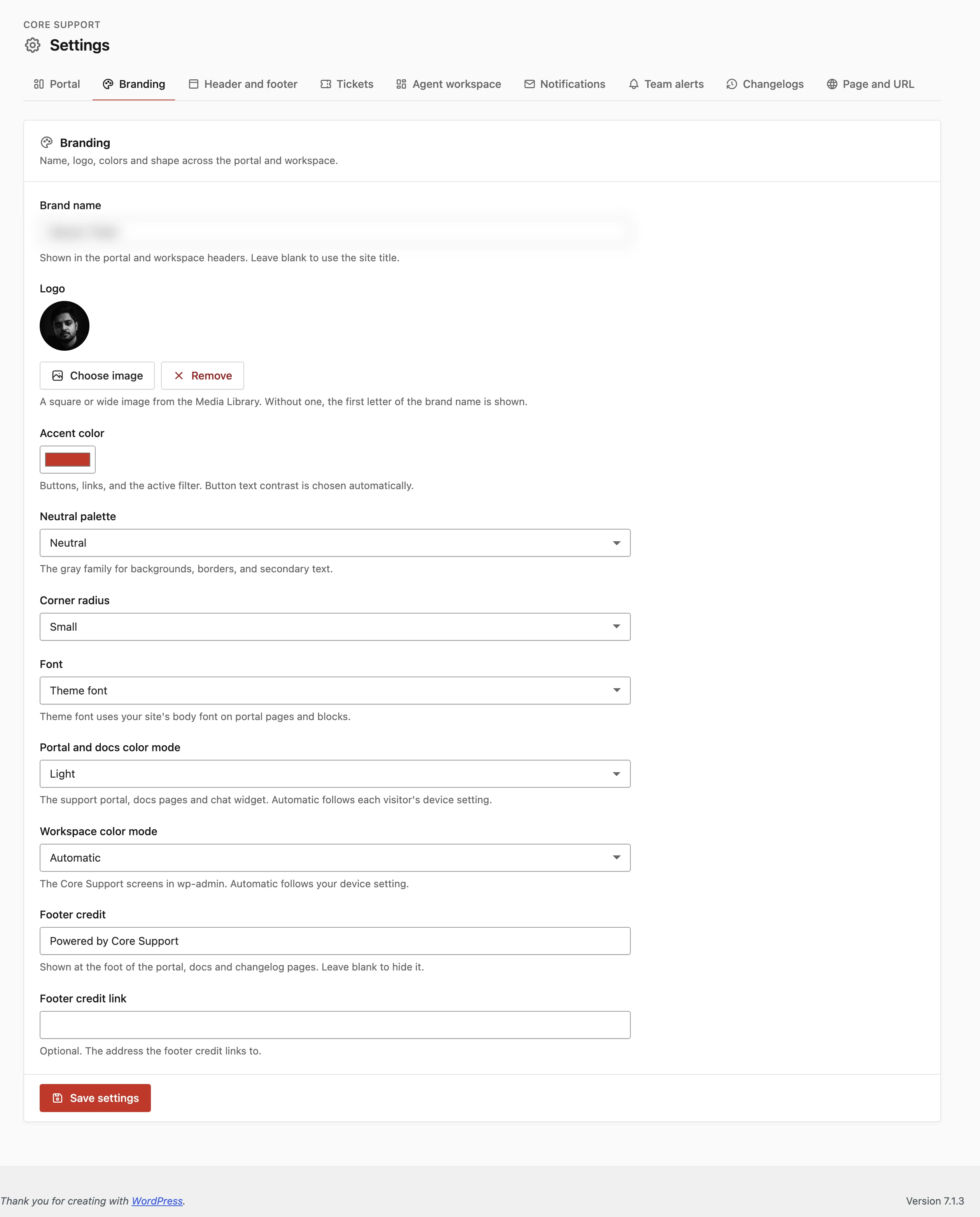
Name and Logo
- Brand name: shown in the portal and workspace headers. Up to 60 characters. Leave it blank to use the site title, and when the site has no title either, Core Support uses “Core Support”.
- Logo: a square or wide image from the Media Library. Choose image opens the Media Library and Remove clears it.
Without a logo, the brand name stands alone in the header. Core Support’s own icon shows only while the brand name is still “Core Support”.
The logo and the name don’t have to show on every page. Each docs, changelog and support portal page can hide either one, as Header, Footer and Share Buttons on Support Pages explains.
Accent Color
- Accent color: buttons, links and the active filter. Default
#066fd1. It takes a six-digit hex code, and anything else stops the save with “Use a six-digit hex color, such as #215b49.”
You pick one color and Core Support works out the rest, so text stays readable whatever you choose:
- button text is black or white, whichever reads better on the accent
- link color is the accent, darkened until it reaches at least 5:1 contrast on a white background
- in dark mode, links use a lighter tint of the accent with at least 4.5:1 contrast on the dark surface
A pale accent such as a light yellow still works this way, because the links darken on their own. I’d still check the buttons on the live portal once after saving.
Palette, Corners and Font
- Neutral palette: the gray family for backgrounds, borders and secondary text. Neutral (default), Slate (cool blue-gray), Gray, Zinc or Stone (warm gray). Each has a matching dark version.
- Corner radius: Square, Small, Default (default) or Large. Square removes rounding, Small rounds corners by 2 to 4 pixels, Default by 4 to 8 and Large by 6 to 14, depending on the element.
- Font: System sans-serif (default), Theme font, Serif or Monospace.
Theme font uses your site’s body font for blocks on your own pages. The support page Core Support created, docs pages and changelog pages don’t load your theme’s styles, so there Theme font falls back to the system sans-serif.
Light, Dark and Automatic
There are 2 separate color mode settings, one for what visitors see and one for wp-admin:
- Portal and docs color mode: the support portal, docs pages and the chat widget. Changelog pages follow it too. Light (default), Dark or Automatic, which follows each visitor’s device setting.
- Workspace color mode: the Core Support screens in wp-admin. Light (default), Dark or Automatic, which follows your own device setting.
Because they’re separate, your team can work in a dark workspace while customers get a light portal. Dark mode keeps the palette you chose, with darker grays from the same family.
Footer Credit
- Footer credit: text at the foot of the portal, docs and changelog pages. Default “Powered by Core Support”. Up to 120 characters. Leave it blank to hide it.
- Footer credit link: an optional address for the credit to link to. It must be a full address starting with
https://, up to 300 characters.
Each page’s card under Settings → Header and footer can also hide the credit on that page only.
Good to Know
- Choose Save settings at the foot of the tab. Nothing changes until you do.
- Blocks on your own pages take the accent, palette, corners and font, but the header, footer and layout around them stay your theme’s.
- Branding has no custom CSS field. A change beyond these settings belongs in your theme, which reaches blocks on your own pages only.