
How Email Reaches Core Support
Customers don’t think about how a help desk receives mail. They write to one address and expect the answer, and their next reply, to stay in the same conversation. When replies lose their thread, agents end up chasing duplicate tickets and asking customers to repeat themselves.
Core Support solves this with mailboxes. Each mailbox is one support address with its own way in, its own reply tracking and its own size limit. Every message it receives goes through the same checks before it becomes a ticket or joins one.
What a Mailbox Holds
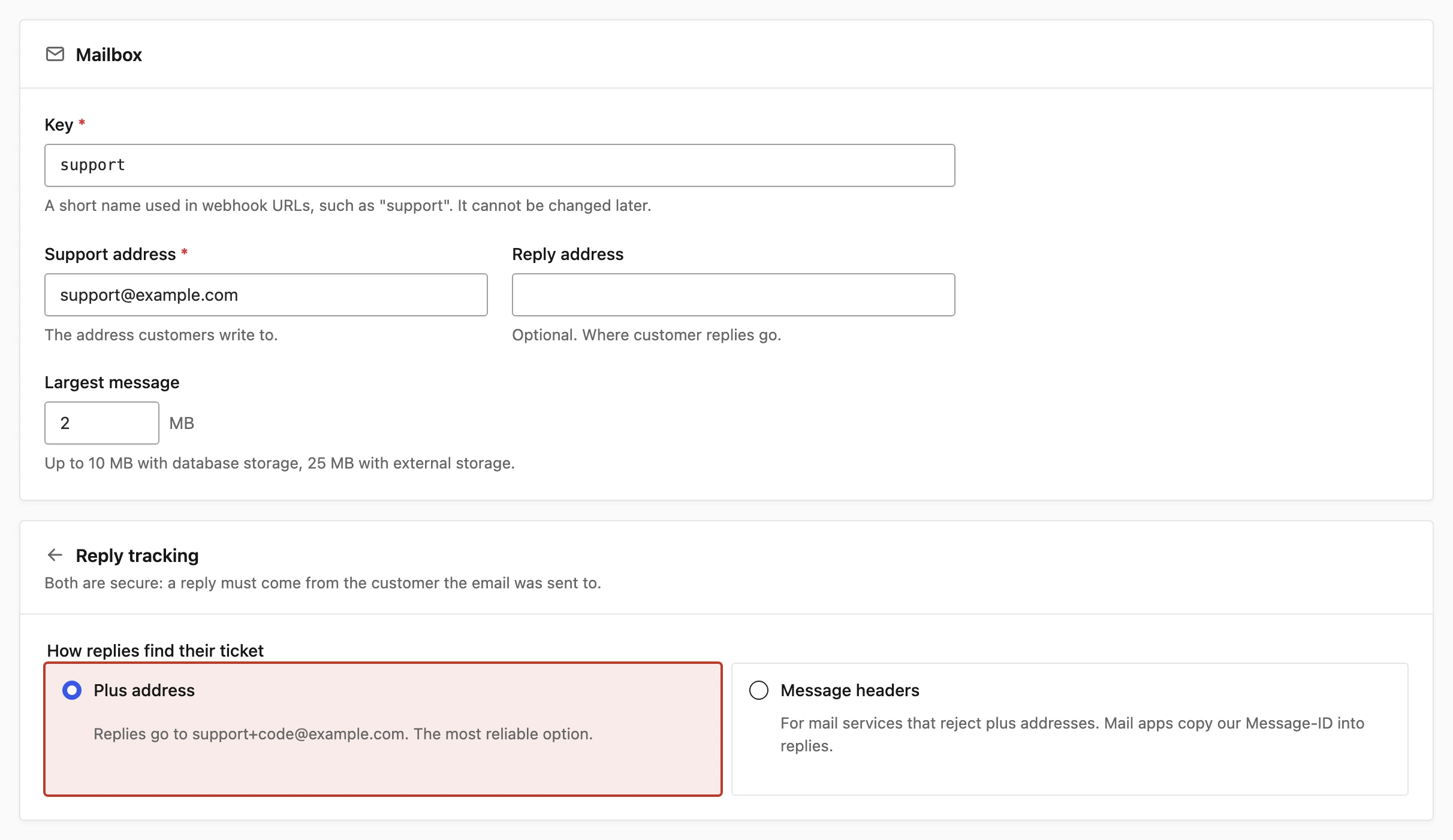
A mailbox is set up under Core Support → Connections → Add mailbox. It has these settings:
- Key: a short name such as
support, used in webhook URLs. It starts with a letter and uses up to 40 lowercase letters, numbers and hyphens. It can’t be changed later. - Support address: the address customers write to.
- Reply address: optional. Where customer replies go, and it defaults to the support address. It can’t contain
+, and the part before@must be 37 characters or fewer. - Largest message: the biggest email this mailbox accepts, default 2 MB. The cap is 10 MB while files are stored in the database and 25 MB with external storage.
- Reply tracking: Plus address or Message headers, explained below.
Core Support encrypts passwords, secrets and tokens in the database. A mailbox can also be defined in wp-config.php with the CORE_SUPPORT_MAILBOXES constant. That version always wins, and the Connections screen shows it read-only.
The Three Ways Mail Arrives
One mailbox can take mail from more than one route at the same time. The Connections list shows the routes for each mailbox under Mail arrives by.
| Route | Good fit | What it needs |
|---|---|---|
| Cloudflare relay | The support domain or a subdomain can use Cloudflare Email Routing | A Cloudflare account and the relay Worker that ships with Core Support |
| IMAP | Mail stays in Google Workspace, Fastmail, Zoho, iCloud or a hosting mailbox | IMAP access, usually with an app password |
| Automation tools | FlowMattic, Zapier, Make or n8n already handles your mail | The mailbox’s automation token |
The relay is the fastest route. Cloudflare receives the email and a small Worker in your own Cloudflare account signs it and posts it to your site, with no password and no polling. Every mailbox gets a relay URL and secret, and Receive Support Email with Cloudflare Email Routing covers the setup.
IMAP suits a mailbox that has to stay where it is. Core Support signs in on its one-minute schedule and imports new mail, and Connect a Mailbox over IMAP explains the settings. Microsoft 365 isn’t supported over IMAP yet, because it needs OAuth.
Automation tools fill the gaps, including Microsoft 365. The tool posts each email to a webhook URL with a secret token, as described in Send Email in from FlowMattic, Zapier, Make or n8n.
Contact forms on this site and forms on connected websites open tickets through the same pipeline. They aren’t email routes, so they’re set up elsewhere.
What Happens to Every Message
Whichever route a message takes, the same steps follow:
- Core Support stores the original email and its attachments, encrypted by default.
- It records the message under Core Support → Incoming mail.
- Auto-replies, bounces, bulk mail and loops are set aside as Automatic mail.
- A reply carrying a valid reply token joins its ticket.
- Any other email waits for review, or opens a new ticket if you allow that.
A delivery that arrives twice, such as a retry, is stored once. If the sender has an account on your site, they own the new ticket, so it also shows in their portal. Review Incoming Mail explains each status you’ll see there.
Reply Tracking: Plus Address or Message Headers
Every reply email an agent sends carries a secret token for that one ticket. When the customer answers, the token tells Core Support which ticket the answer belongs to, and nobody else can post into it.
- Plus address (default): the email’s Reply-To is
support+<token>@example.com. This is the most reliable option. Your mail service must deliver plus-addressed mail to the main mailbox, and Gmail, Google Workspace, Fastmail and Cloudflare Email Routing do. - Message headers: replies go to the plain address. The token travels in the email’s
Message-ID, which mail apps copy intoIn-Reply-ToandReferenceswhen the customer replies. It’s meant for mail services that reject or bouncesupport+...@addresses.
Both modes check that the reply comes from the address the email was sent to. A token expires after 90 days. A reply whose token doesn’t match, or has expired, waits in Incoming mail as Conversation not matched.
Core Support keeps the new text of a reply and trims the quoted earlier message, so the ticket doesn’t fill up with repeated history.
I’d stay on plus addressing unless your mail service refuses it. Header tracking depends on the customer’s mail app copying the headers, and among the sending providers only SendGrid keeps the Message-ID it needs.
Email from New Senders
Email that isn’t a reply to a ticket waits in Incoming mail as Needs review by default. An agent checks the sender and either accepts it as a new ticket or discards it.
The choice lives under Core Support → Settings → Tickets → Email from new senders:
- Hold in Incoming mail for review: the default. Nothing becomes a ticket until an agent accepts it.
- Open a ticket automatically: every new message opens a ticket straight away.
Automatic mail is filtered either way. Spam written to look like a person isn’t, so it becomes a ticket under the second option. Cloudflare Email Routing does no spam filtering of its own, so I’d keep review on for the relay route, or keep your mailbox’s spam filter on for IMAP.
Before testing with a real customer, check Settings → Notifications → Mail delivery. It starts on Capture only, which sends nothing, and Send Replies through WordPress Mail or a Provider API covers the choices.