
Docs Pages, Your Theme and Other Plugins
A theme’s stylesheet is written for blog posts and landing pages, not for a docs layout with navigation, contents and a search dialog. Load it on a docs page and margins shift, headings change size and the theme’s footer scripts run for nothing. Strip every stylesheet instead, and the video player or code block inside a doc breaks.
Core Support draws docs pages as standalone pages and leaves out only your theme. Every plugin’s and block’s styles and scripts still load, so video players, code blocks and analytics keep working in a doc. Changelog and portal pages go further and load only Core Support’s own files.
What Each Page Loads
| Page | Your theme | Other plugins | Core Support |
|---|---|---|---|
| Docs pages | Left out | Load | Loads |
| Changelog pages | Left out | Left out | Loads |
| Support page Core Support set up | Left out | Left out | Loads |
On all 3, titles, meta descriptions, canonical links and structured data from your SEO plugin stay. Blocks you add to your own pages keep your theme’s layout around them.
The WordPress admin bar doesn’t show on any of these pages. A doc shows an Edit link to people who can edit it.
Load Your Theme’s Styles or Scripts on Docs Pages
Go to Core Support → Settings → Header and footer → Your theme on docs pages. The card names your active theme, and its parent when you run a child theme. A Recognized badge means Core Support has built-in rules for it, so leaving it out also covers files its add-on plugins and generated CSS load from elsewhere.
Two switches, both off by default, carry your theme’s name, such as Load Astra’s styles on docs pages:
- Styles: the theme’s stylesheets, theme.json global styles and Additional CSS load too. Its fonts and colors reach the docs, and its CSS can change how they look, so check a doc after saving.
- Scripts: the theme’s scripts load and run, for a theme feature a doc needs.
Either way, the theme’s header, footer and other page markup stay out. From the code the theme adds to the page head and footer, only the style or script tags you chose come through. Changelog and portal pages always load only Core Support’s files.
On docs pages, Core Support leaves out:
- files in the active theme’s folder, or its parent theme’s
- styles and scripts whose handles are named after the theme folder, such as
{theme}-style - handles matched by built-in rules for popular themes and their add-ons, whose files often load from outside the theme folder
- WordPress’s theme layer: theme.json global styles, classic theme styles and the Customizer’s Additional CSS
- code the theme hooks into the page head, the body opening and the footer, which doesn’t run on docs pages at all
The built-in rules cover these themes, with their add-ons where they have them:
- Astra
- GeneratePress and GP Premium
- Kadence
- Blocksy
- OceanWP
- Neve
- Hello Elementor
- Divi and Extra
- Avada
- Bricks
- Storefront
- Flatsome
- Enfold
- The7
- BeTheme
- Salient
- Sydney
- Zakra
- Hestia
- Colibri
- Go
- Twenty Twenty-Five
- Marketers Delight
- Dew Lab
A rule applies only while that theme, or its parent, is active.
Some things stay even when they look like the theme’s:
- Block plugins whose handles start like a theme’s, such as GenerateBlocks and Kadence Blocks.
- A theme file that a plugin’s file depends on, such as a slider library or an icon font, so the plugin keeps working.
- Core Support’s own files.
Docs pages don’t load the theme’s fonts either. With the font set to Theme font under Settings → Branding, standalone pages use the system sans-serif.
Video Players and Other Plugins’ Blocks in a Doc
Core Support styles the ordinary content of a doc: headings, links, lists, images, tables, code and WordPress embeds. A video player from another plugin keeps its own look:
- A player is any block that holds a video, audio, an iframe or something named after a player, plus controls such as buttons and sliders. Core Support doesn’t style anything inside it.
- The player’s volume and seek sliders, buttons, menus, poster image and video size stay as the plugin draws them, the same as on any other page.
- Range sliders, file pickers and input buttons never get Core Support’s text-field look, on any Core Support page.
To keep doc styles off any other block, add csp-not-prose to the block’s Advanced → Additional CSS class(es). That block and everything inside it keep their plugin’s or the browser’s own look.
Leave Out a Plugin’s Files on Docs Pages
A plugin that adds a popup, a chat bubble or a cookie bar to every page will add it to docs pages too. To leave it out there:
- Open a doc on the front end and view the page source.
- Find the plugin’s tag, such as
<link id="acme-popup-css" ...>or<script id="acme-popup-js" ...>. The handle is the id without the-cssor-jsending, hereacme-popup. - Go to Core Support → Settings → Header and footer → Other plugins on docs pages.
- Add the handle to Leave out these scripts and styles on docs pages, one per line.
- Save and reload the doc.
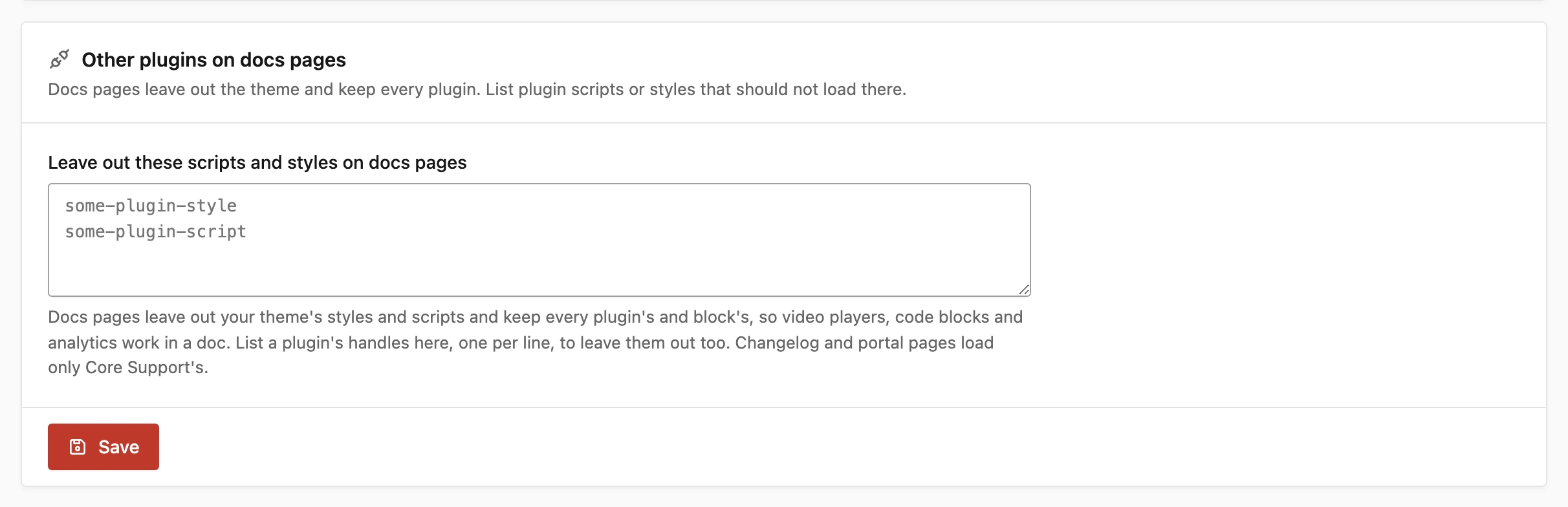
A pasted id such as acme-popup-js works too, because Core Support drops the ending. Script modules with a listed handle are left out as well.
The list affects docs pages only. Changelog and portal pages already load nothing but Core Support’s files.
Keep a Script with a Filter
The core_support_standalone_handles filter keeps chosen handles. It works differently on the 2 kinds of page:
- Docs pages: the list starts empty. A handle you add stays even when the theme rules would remove it, such as a theme add-on plugin’s file or
global-styles. - Changelog and portal pages: the list holds Core Support’s handles and everything they depend on. A handle you add loads beside them, such as an analytics script.
add_filter('core_support_standalone_handles', function (array $handles): array {
    $handles['my-analytics'] = true;
    return $handles;
});
The filter keeps a handle only when something enqueues it on that page. The theme’s own hooks don’t run on docs pages, so a script that your theme adds by itself never reaches the page to be kept. Load such a script from a small plugin instead.
Change What Counts as the Theme
The core_support_theme_handle_prefixes filter receives the handle prefixes treated as the active theme’s, and the active theme’s folder name with its parent’s. Add a prefix for a theme add-on the rules don’t know:
add_filter('core_support_theme_handle_prefixes', function (array $prefixes, array $themes): array {
    if (in_array('my-theme', $themes, true)) {
        $prefixes[] = 'my-theme-addon-';
    }
    return $prefixes;
}, 10, 2);- A prefix ending in
-or_matches any handle that starts with it. - Any other prefix matches a handle equal to it, or one that starts with it followed by
-.
Removing a prefix from the list keeps the files it matched outside the theme folder. Handles named after the theme folder itself are matched separately, so this filter doesn’t change them.
When Another Plugin Takes Over the Template
Core Support leaves out the theme only when the docs page is still drawn with its own template. If another plugin swaps in a template of its own for docs pages, that page gets your theme as it was.
Faster Pages
Release builds include a minified copy of every stylesheet and script, which Core Support serves unless SCRIPT_DEBUG is on. Its scripts load deferred. Stylesheets still load in the head, because standalone pages need them for their first paint.
When Something Looks Wrong
- A block from another plugin picks up doc styles: add the
csp-not-proseclass to it. - A plugin’s feature is missing in a doc: check that its handle isn’t in Other plugins on docs pages. If its handle starts like your theme’s, keep it with
core_support_standalone_handles. - Docs should use your theme’s fonts or colors: turn on the theme’s styles under Your theme on docs pages.
- A theme style still shows on docs pages: add its handle to Other plugins on docs pages, or add its prefix with
core_support_theme_handle_prefixes. - Analytics doesn’t run on changelog or portal pages: that’s by design. Add its handle with
core_support_standalone_handles.
The header, footer and share buttons on these pages have settings of their own, covered in Header, Footer and Share Buttons on Support Pages. Every filter is listed in the Hooks and Filters Reference.