
Sync Customers from FluentCart, WooCommerce, EDD and FluentCRM
Your store already knows who your customers are, what they bought and where they live. The help desk knows none of it unless someone copies it over. So agents ask for an order number the customer already gave the store, and nobody looking at the ticket knows what they bought.
Core Support → Customers → Sync reads your buyers from FluentCart, WooCommerce and Easy Digital Downloads, and fills in details from FluentCRM. New orders arrive as they happen, an hourly pass catches anything missed and nothing is ever written back to those plugins.
Open the Sync Tab
Go to Core Support → Customers and choose the Sync tab. Only managers see it: Support Managers and administrators.
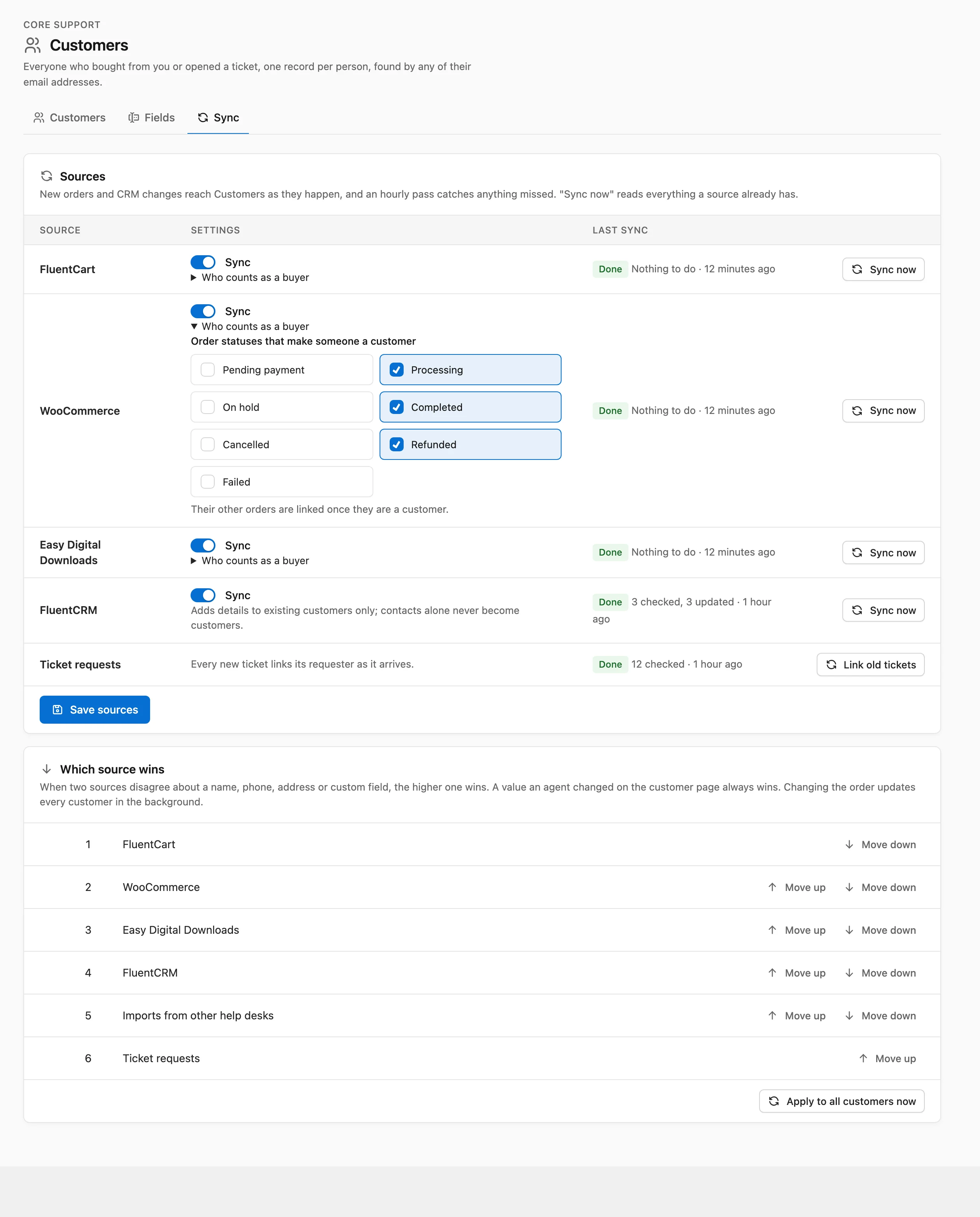
The Sources card lists each source with its settings, its last sync and a Sync now button. A plugin that isn’t active shows “Not active on this site”. The last row, Ticket requests, has no switch, because every new ticket links its requester as it arrives.
Turn Each Source On or Off
Each active source has a Sync switch, on by default. Turn one off and choose Save sources to stop reading from it. What it already added stays on your customers.
Here is what each source gives:
- FluentCart: the name and the saved address with its phone, plus their orders except renewals.
- WooCommerce: the billing name, company, phone and address of the newest order or the account, plus all their orders. Guest checkouts count, on HPOS and the older posts storage alike. An order that leaves the phone or address empty keeps the earlier one.
- Easy Digital Downloads: the name, every address EDD holds for the person, the primary postal address and their sales orders.
- FluentCRM: name, phone and address, for existing customers only. A contact alone never becomes a customer.
Custom fields you map on the Fields tab come along with each source too.
Choose Who Counts as a Buyer
Only buyers become customers from a store. Open Who counts as a buyer under a store and tick the Order statuses that make someone a customer. The defaults are:
- FluentCart: Paid, Partially paid, Partially refunded and Refunded
- WooCommerce: the statuses WooCommerce treats as paid (Processing and Completed, unless another plugin changes them), plus Refunded
- Easy Digital Downloads: the statuses EDD treats as complete
A person’s other orders, such as a pending or failed one, are linked once they are a customer. Choose Save sources after any change.
Bring In Customers a Store Already Has
The hourly pass reads only what changed since it first saw a source. So after you update to 1.3.0, or turn on a store for the first time, its existing buyers wait for you.
- Go to Core Support → Customers → Sync.
- Choose Sync now on the store’s row.
- Keep the page open, or come back later.
Sync now reads everything the source already has, in the background. The Last sync column shows its state (Queued, Running, Waiting, Done or Stopped) with counts such as “1,204 checked, 37 new, 1,167 updated, 52 orders”. People whose orders don’t count as buying show as skipped. The page reloads when the sync finishes.
For FluentCRM, Sync now goes through your customers once and fills in each one that has a matching contact. Link old tickets on the Ticket requests row runs the same pass over existing tickets that runs after the update.
How Changes Arrive
- As they happen: new orders, status changes, refunds and CRM edits reach Customers after the page or checkout finishes, never during checkout itself. Up to 25 changed records are read per page load, and the rest wait for the hourly pass.
- Every hour: a pass reads each store from where the last pass stopped, so a missed change heals. FluentCRM has no hourly pass, because it only fills in.
- On request: Sync now reads everything a source holds.
Nothing goes back the other way. Core Support never changes an order, a store customer or a FluentCRM contact.
Orders Linked to Customers
Every synced order is linked to its customer with its number, status, total and date. The customer page lists them with the tickets about each one, and the customer card on a ticket lets agents link one to that ticket.
The “Get help with this order” button in WooCommerce and Easy Digital Downloads links its order to the new ticket by itself. It does so only when the order belongs to the person who opened the ticket.
Which Source Wins
When 2 sources disagree about a name, phone, address or custom field, the higher one in the Which source wins card wins. The default order is:
- FluentCart
- WooCommerce
- Easy Digital Downloads
- FluentCRM
- Imports from other help desks
- Ticket requests
Move up and Move down change the order, and every customer is updated in the background. Apply to all customers now runs that update again without changing anything.
A few rules sit on top of the order:
- A value an agent changed on the customer page always wins.
- The name and the postal address each come whole from one source, so parts from 2 records never mix.
- Between 2 records from the same source, the newer one wins.
I’d keep the default order unless you know one source holds better details than the others.
Sites Where WP-Cron Doesn’t Run
Syncs run as background jobs on WP-Cron, which only runs when someone visits the site. The Sync tab keeps a running sync moving while it’s open, even where WP-Cron doesn’t run at all. So does the Customers list for the pass over old tickets.
From a terminal, wp core-support jobs list shows each job’s number and wp core-support jobs run <id> runs one to the end. Diagnostics and WP-CLI Commands lists both, and the Background jobs check on Diagnostics flags a job that hasn’t moved for over an hour.
Store syncs map only the fields you set up, so add your custom fields before the first Sync now to fill everything in one pass.