
Add the Customer Portal, New Ticket and My Tickets Blocks
Customers shouldn’t have to email you again just to ask whether you got the first message. Without a place to check, every follow-up lands in your inbox as one more message, and the customer still can’t see where things stand.
Core Support gives them that place as 3 blocks. Customers open tickets, read your replies, answer and resolve their own conversations on your site. Activation already sets up one portal page, and you can add the blocks to any other page you like.
The Support Page Core Support Creates
When you activate the plugin, Core Support creates a published page called Support at /support/, holding the Customer Portal block at wide width. If a published page with that slug already holds a Core Support block, Core Support uses it instead. Setup never changes your homepage.
This page is drawn as a standalone Core Support page:
- your theme’s header, footer, styles and scripts are left out
- Core Support draws its own header and footer, set under Settings → Header and footer
- the WordPress admin bar is hidden
- titles, meta tags and structured data from SEO plugins stay
Core Support also asks search engines not to index whichever page is set as the support page. You can choose another page, change the slug or use the support page as your homepage under Settings → Page and URL. Set Up the Support Page and Customer Portal walks through those steps.
The 3 Blocks
- Customer Portal (
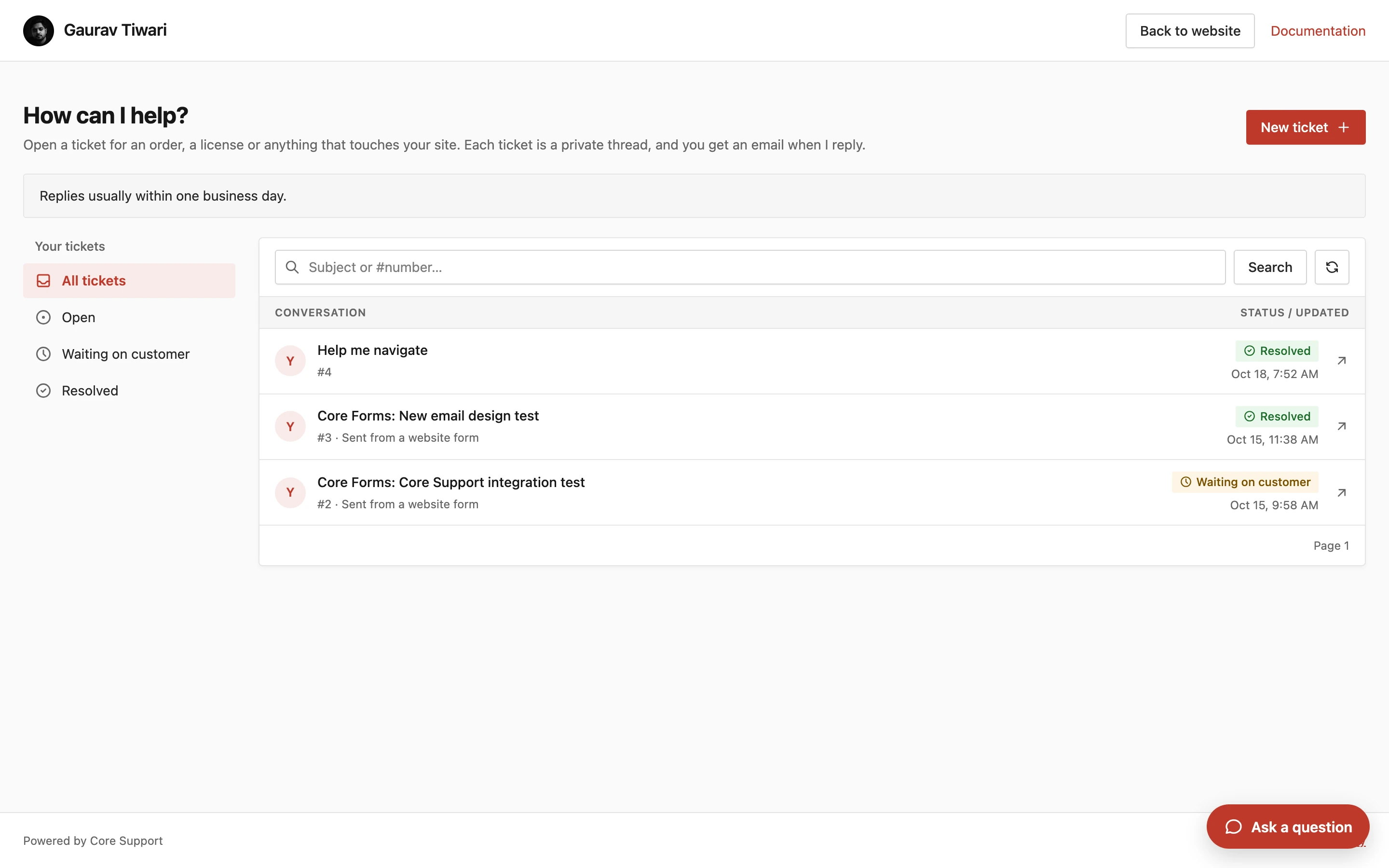
core-support/portal): the full portal. The customer’s ticket list with filters and search, a New ticket button and each conversation with its replies. Default heading: “How can we help?” - New Ticket (
core-support/new-ticket): opens straight on the ticket form for a signed-in customer. The status filters and the New ticket button are hidden. Default heading: “Open a ticket” - My Tickets (
core-support/my-tickets): the customer’s ticket list and conversations. Default heading: “Your tickets”
In 0.9.2, My Tickets shows the same list and New ticket button as Customer Portal. The heading is what sets them apart, so pick the one whose wording fits the page.
Add a Block to a Page
- Open the page in the Block Editor.
- Open the block inserter and search for Core Support, ticket or helpdesk.
- Choose Customer Portal, New Ticket or My Tickets.
- Optional: in the block sidebar, open Portal content and type a Heading. Leave it blank to use the heading from Settings → Portal.
- Publish or update the page.
The editor shows a placeholder, not the live form, with the note “Customers see only their own tickets. The live form appears on the published page.” Open the published page to see the block working.
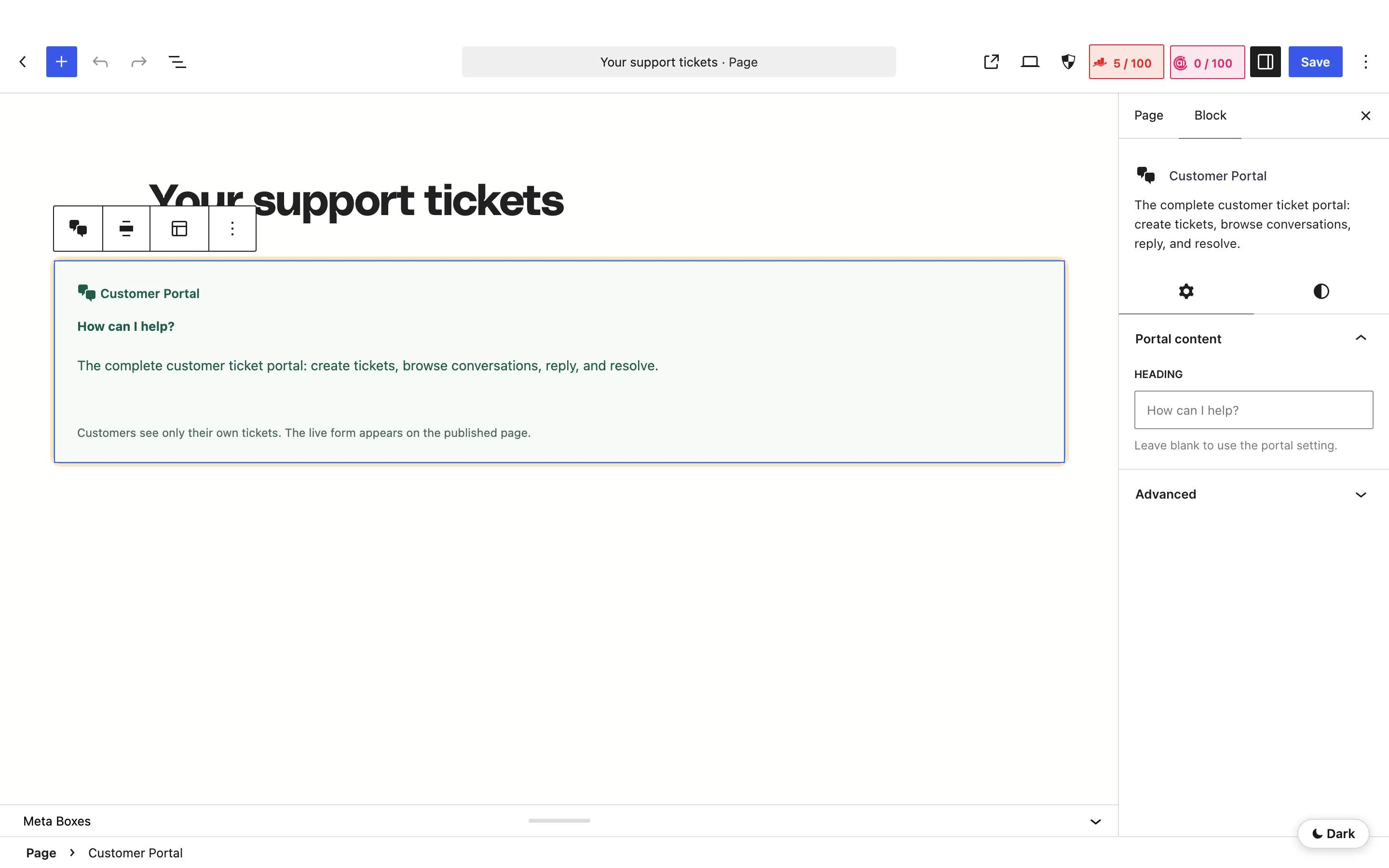
Each block supports wide and full alignment and an HTML anchor, plus margin and padding controls. You can place more than one block on a page, and each keeps its own form and state.
For templates and patterns, these are the block comments:
<!-- wp:core-support/portal {"align":"wide"} /-->
<!-- wp:core-support/new-ticket {"heading":"Report a bug"} /-->
<!-- wp:core-support/my-tickets /-->
Blocks on your own pages keep your theme’s header, footer and layout. Only the page Core Support created is drawn standalone. When you choose a support page, a block inside a synced pattern on that page counts too.
What Customers Can Do in the Portal
- open a ticket with a subject (up to 180 characters) and a message, up to the Maximum message length set under Settings → Tickets
- filter their tickets by All tickets, Open, Waiting on customer and Resolved
- search by subject or ticket number
- page through the list, 25 tickets at a time by default (Tickets per page under Settings → Agent workspace)
- open a conversation and reply
- mark a ticket as resolved, or reopen it, when Settings → Tickets allows that
Each customer sees only their own tickets. A ticket that arrived some other way carries a label such as “Sent by email” or “Sent from a website form”. That way the customer can tell it didn’t come from their own session.
Customers can’t upload files from the portal in 0.9.2. Attachments reach a ticket by email, an automation tool or a server request.
How Customers Sign In
The portal works with the WordPress accounts on your site. There’s no separate customer login and no guest view of tickets.
- A signed-out visitor sees “Your conversations live here.” and a Sign in button. It goes to the WordPress login page and brings them back to the same page.
- Filters, search, Refresh and New ticket stay hidden until the visitor signs in.
- Core Support doesn’t create accounts. Customers use the account they already have on your site.
Which Tickets a Customer Sees
A ticket belongs to the WordPress account with the exact email address it came from. That covers tickets from email, website forms, Core Forms and connected sites, not only the ones opened in the portal.
- A ticket from an address that has an account belongs to that account as soon as it arrives.
- Tickets that came in before the account existed are linked the next time the customer opens the portal.
- A ticket that already belongs to an account never moves to another one.
Customers who write in without an account still get your replies by email. Those emails ask them to reply to the email, because the portal would have nothing to show them. Customers with an account get a link to the conversation in the portal.
Other Places Customers Find Their Tickets
Core Support can show the same portal inside account areas your customers already use. These switches live under Core Support → Integrations → Customer accounts:
- Support tab in My Account: a Support tab in WooCommerce My Account with the signed-in customer’s tickets.
- “Get help with this order” on each order: a button on each WooCommerce order that opens a new ticket with the order number filled in.
- Support tab in the customer dashboard: a Support tab in the FluentCart customer dashboard.
All 3 are on by default and appear once WooCommerce or FluentCart is active. Customers of another website you connect use that site’s own portal instead, where they sign in with an emailed 6-digit code. Host the Customer Portal on a Connected Site covers that setup.
The wording customers read in every block is set in one place, and Portal Settings and Wording is the next stop.