
Send Replies through WordPress Mail or a Provider API
An agent reply that never leaves the site looks fine in the workspace. The customer just never sees it, and the ticket sits on Waiting on customer while the customer waits on you.
Core Support sends customer email through the method you pick under Core Support → Settings → Notifications. It can hand mail to WordPress, so an SMTP plugin applies, or send it straight through a provider’s API. Until you choose one, it captures every email and sends nothing.
What Core Support Sends
- Reply notifications: an email to the customer for each public agent reply. Private notes are never emailed.
- Sign-in codes: the one-time codes customers use to sign in to a portal hosted on a connected site.
Reply notifications go through a queue that runs every minute. Sign-in codes go out immediately, and with Capture only they can’t be sent at all.
Choose How Email Leaves the Site
Mail delivery has 6 choices:
- Capture only (the default): nothing is sent. Each notification is recorded as “Captured · no email sent”. Use it while setting up.
- WordPress mail: hands each email to
wp_mail(), so an SMTP plugin such as FluentSMTP applies. - Emailit API, Resend API, Brevo API and SendGrid API: send through that provider directly, without an SMTP plugin.
WordPress mail is the simplest choice when the site already sends reliably through an SMTP plugin. A provider API makes sense when you’d rather not depend on another plugin, or when you want Core Support’s own record of each provider error.
Notification Settings
- Email customers about agent replies: on by default. When off, new notifications are marked disabled and queued email is paused.
- Mail delivery: the method above, default Capture only.
- Mail provider API key: the key for Emailit, Resend, Brevo or SendGrid. It’s saved encrypted and never shown again. A
CORE_SUPPORT_MAIL_API_KEYconstant inwp-config.phpwins over the saved key. - Sender name: optional, up to 80 characters. It needs a Sender email too.
- Sender email: the From address. A provider needs one on a domain you verified with it.
- Email subject: default
Re: {ticket_subject}. It takes{ticket_subject},{ticket_id}and{site_name}, and sent subjects stay within 60 characters. - Email footer: default “Continue the conversation in your support portal:”. The portal link is always added below it.
With Sender email blank, replies go out from the ticket’s mailbox address. A ticket from a connected site uses that site’s name as the sender name, so its customers see the brand they wrote to.
Customers without an account on the site would find an empty portal. Their emails end with “Reply to this email to continue the conversation.” instead of the footer and link.
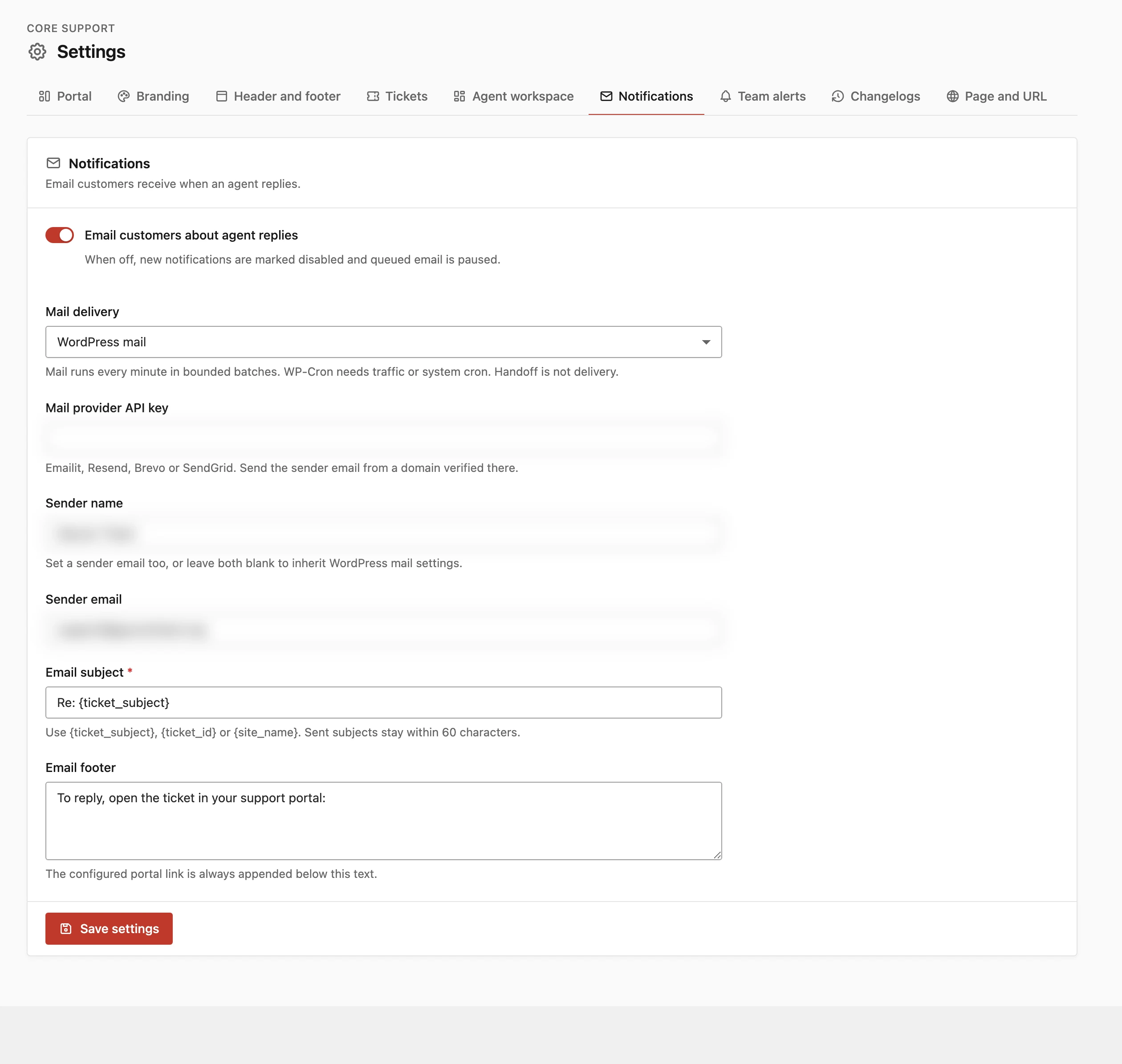
Send through a Provider API
- Verify your sending domain with the provider and create an API key with permission to send email.
- Go to Core Support → Settings → Notifications.
- Set Mail delivery to the provider’s API.
- Paste the key into Mail provider API key, or define
CORE_SUPPORT_MAIL_API_KEYinwp-config.php. - Set Sender email to an address on the verified domain, then save.
Core Support won’t save a provider without a sender email or an API key. It names the missing piece, such as “Add your Resend API key.”
Each provider has a quirk worth knowing before the first send:
- Brevo: accounts created since May 2024 block API calls from unknown IP addresses. Allow your server’s IP under Security → Authorized IPs in Brevo.
- Resend and Emailit: an unverified domain can only send to your own account address.
- SendGrid: EU-pinned subusers aren’t supported yet. The API host is
api.sendgrid.com.
Every email goes out as HTML with a plain-text part. Customer replies are always read from the plain-text part.
Reply Tracking and Your Sender
Plus-address reply tracking works with every method, because the token sits in the Reply-To address. Header tracking matches replies on the Message-ID Core Support sets, and only SendGrid keeps it:
- Emailit always sets its own Message-ID.
- Resend and Brevo don’t document keeping one.
Core Support → Diagnostics → Mail delivery fails when a mailbox uses header tracking with any provider except SendGrid. How Email Reaches Core Support compares the two tracking modes.
The sender and the reply address don’t have to match. You can send from your usual address through WordPress mail and still receive replies through the relay, as Receive Support Email with Cloudflare Email Routing shows.
Check Delivery on a Ticket
Agents see a Delivery activity list on each ticket. Each reply shows its state and the number of attempts:
- Queued: waiting for the next run.
- Sending: being handed over now.
- Handed to WordPress mail · delivery unconfirmed: the transport accepted it. Core Support can’t confirm it reached the inbox. With a provider API, the entry names that service instead, such as “Handed to SendGrid”.
- Mail handoff failed: the provider refused it, such as an unverified sender.
- Delivery unknown · do not resend: the handoff timed out, so the email may already have gone out.
- Captured · no email sent: Mail delivery was on Capture only.
- Email notifications disabled: Email customers about agent replies was off.
- Notification cancelled: an agent cancelled it. The reply stays in the conversation.
A rate limit or provider outage puts the email back in the queue, up to 5 attempts. Any other refusal marks it failed, so you can fix the cause first. A failed notification with attempts left shows Retry notification, and a queued or failed one shows Cancel notification.
Diagnostics → Mail delivery shows the latest provider error from the last day. It never shows keys or message text. Diagnostics → Mail queue flags failed and unknown deliveries, and email queued for more than 10 minutes.
Limits
- Handoff isn’t delivery. A provider or SMTP server can still drop or bounce a message after accepting it.
- The queue runs on WP-Cron, which needs site traffic or a server cron. Diagnostics and WP-CLI Commands covers running it from the command line.
- Each notification gets at most 5 handoff attempts.
Send yourself a test reply from a ticket after switching away from Capture only, and check the Reply-To before a real customer depends on it.