
Work Tickets in the Agent Workspace
Support requests pile up fast when they live in a shared mailbox. Two people answer the same customer, nobody knows who owns a thread and a week-old question sits unread under newer mail.
The agent workspace keeps every conversation in one inbox inside wp-admin. Each ticket carries a status, a priority and an assigned agent, so the team can see what needs an answer and whose turn it is.
Open the Workspace
Go to Core Support in the wp-admin menu. The workspace opens on the Inbox, at /wp-admin/admin.php?page=core-support.
Anyone with the core_support_work_tickets capability can open it. That covers administrators and the Support Agent and Support Manager roles, and Agents, Roles and Permissions explains who gets what. Agents who sign in without a specific destination land here instead of the dashboard.
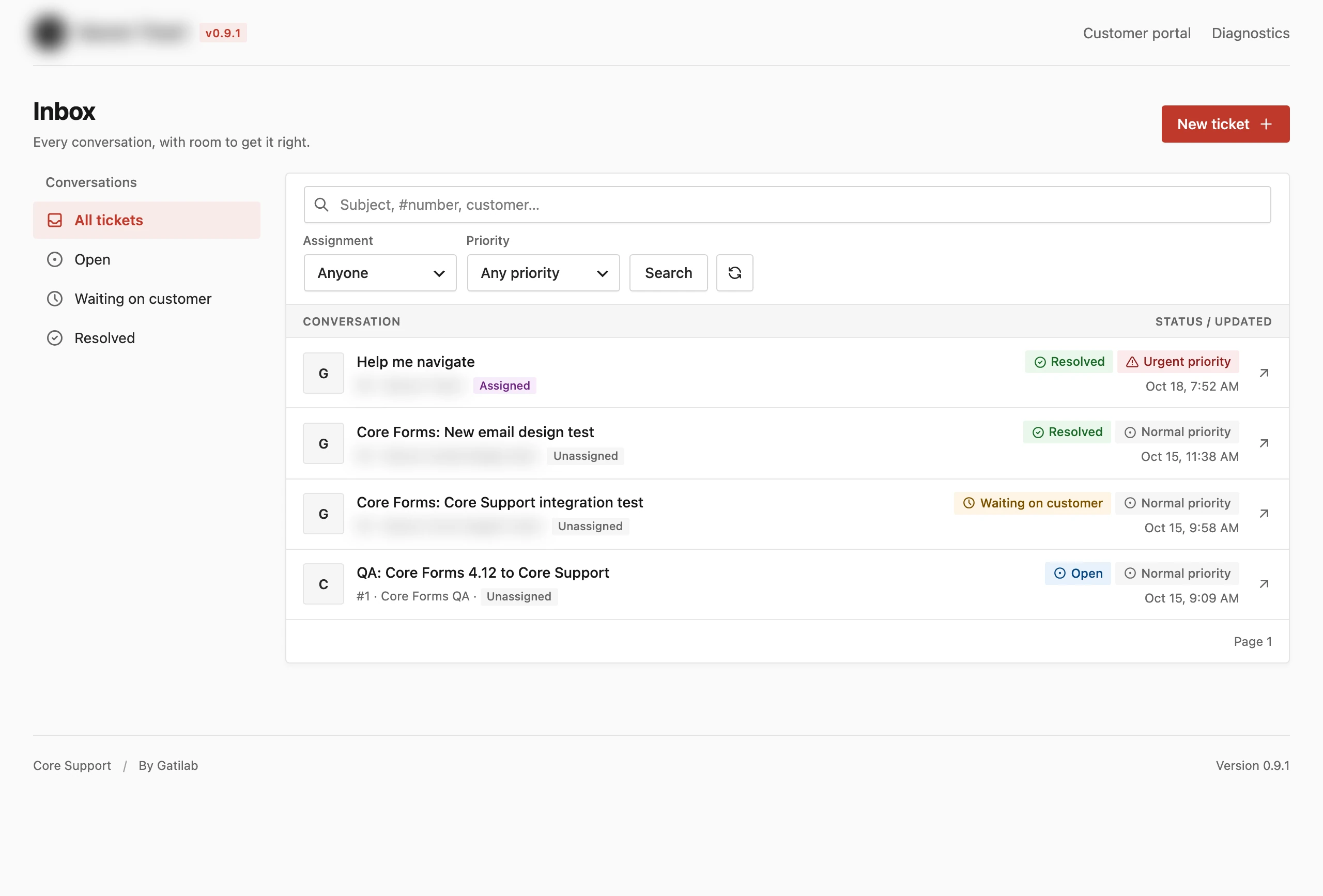
Read the Ticket List
Each row in the list shows:
- the subject
- the ticket number, such as
#42 - the customer’s name
- Assigned or Unassigned
- the status and priority badges
- when the ticket last changed
The most recently updated tickets come first. Tickets per page under Core Support → Settings → Agent workspace sets the page length, 25 by default. Previous and Next move between pages.
Ticket Statuses
Every ticket has one of three statuses:
- Open: the customer is waiting for the team. New tickets start here, and a customer reply moves a ticket back to Open.
- Waiting on customer: the team answered and the next move is the customer’s. A public agent reply moves a ticket here by default.
- Resolved: the conversation is done. Customers can resolve and reopen their own tickets unless you turn that off.
Private notes never change the status. Which status a public reply sets is a setting, covered in Reply to Customers and Add Private Notes.
Filter and Search
The Conversations sidebar filters by status: All tickets, Open, Waiting on customer and Resolved. A click applies the filter straight away.
The toolbar adds 2 more filters:
- Assignment: Anyone, Assigned to me or Unassigned
- Priority: Any priority, Normal, High or Urgent
These two and the search box apply when you choose Search. All filters combine, so open, urgent tickets assigned to you make one view. The refresh button reloads the list without changing the filters.
The search box (Subject, #number, customer…) matches:
- any part of a ticket subject
- an exact ticket number, typed as
123or#123 - any part of the customer’s name or email address
Search doesn’t look inside messages, and private notes are never searched. A ticket number is the quickest way to reach a ticket a customer quotes back to you.
Open a Ticket
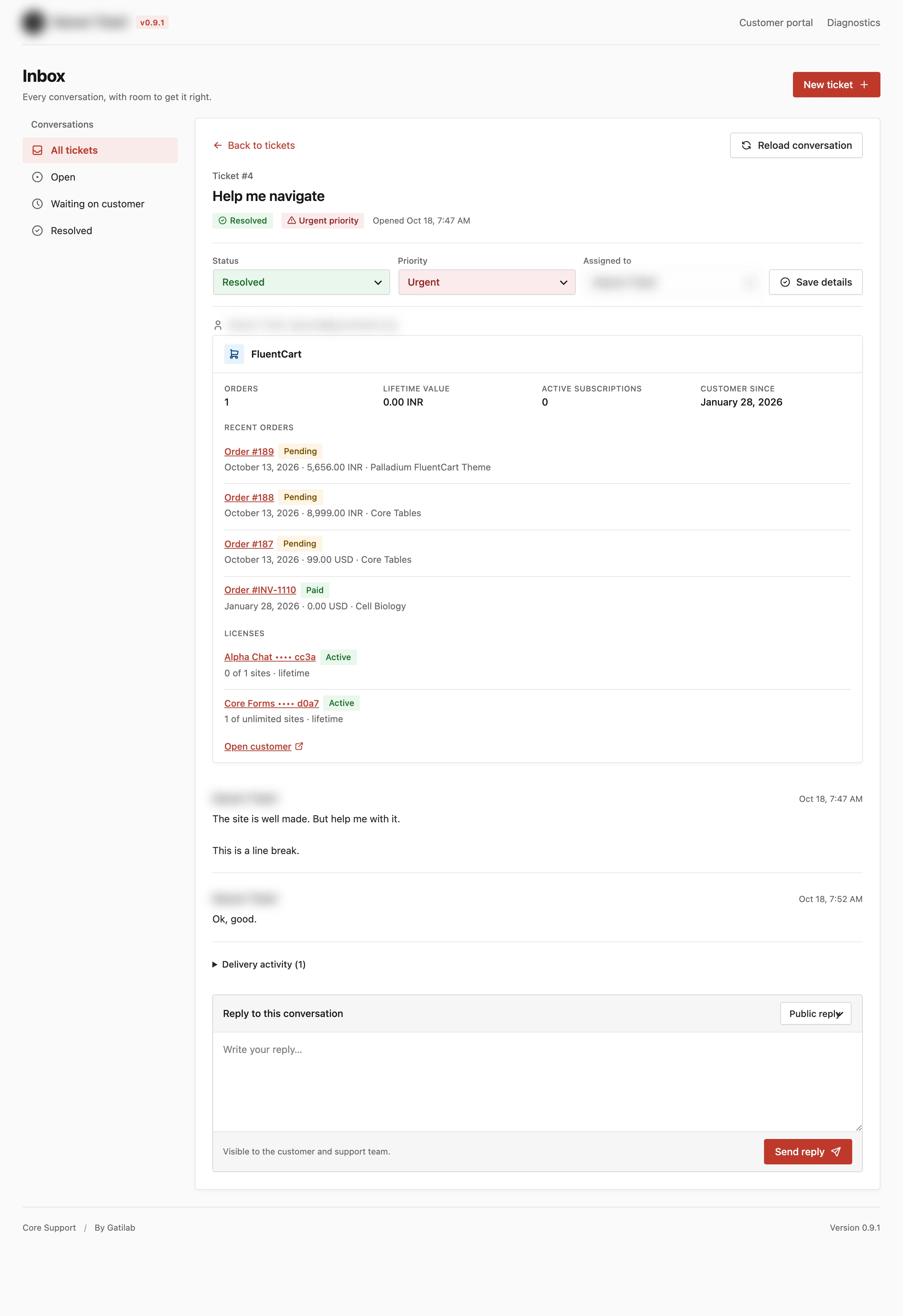
Choose a row to open the conversation. The top shows the ticket number, the subject, the status and priority badges and when the ticket was opened.
Below that sit:
- the Status, Priority and Assigned to fields with a Save details button
- the customer’s name and email, plus where the ticket came from when it was Chat, a connected site or a website form
- order, license and CRM details from your other plugins, when customer context finds a match
- every message, oldest first, with attachments under the message they came with
- Delivery activity for reply emails, and Received email with a Download original email link for each message that arrived by mail
- the reply composer
Reload conversation fetches the latest messages without losing what you’ve typed. Back to tickets returns to the list with your filters as they were.
Assign and Prioritize a Ticket
- Open the ticket.
- Pick a Status, a Priority and an agent under Assigned to, or choose Unassigned.
- Choose Save details.
Priority has 3 levels: Normal, High and Urgent. Customers never see it, because it exists only to order the team’s work. It is wise to keep Urgent rare, or every ticket ends up urgent and the filter stops helping.
The Assigned to list holds everyone who can work tickets on this site. New tickets can also start with a default priority and assignee, set as described in Ticket Intake, Priorities and New Senders.
When Two Agents Edit the Same Ticket
Core Support checks every save against the version of the ticket you loaded. If someone else replied or changed the ticket in the meantime, it stops your save with “This ticket changed. Reload it before trying again. Your draft is kept.”
Choose Reload conversation, read what changed, then save again. Your text stays in the composer through the reload.
Drafts and Retries
The workspace holds unsent text for you while you work:
- A draft stays with its ticket when you open another ticket, change filters or reload the conversation.
- The public reply and the private note on one ticket keep separate drafts.
- If a save fails, for example on a dropped connection or a server error, the text stays in the composer.
- Sending again after a failure never posts the same reply twice. Each retry carries the same request key, so the server recognizes the repeat.
Drafts live in the browser tab, not on the server. Closing the tab or reloading the whole page clears them, so the browser asks you to confirm before it leaves a page with unsent text.
Link Straight to a Ticket
Every ticket has its own address: /wp-admin/admin.php?page=core-support&ticket=123. Team alerts and the Chat conversation list use these links to open a ticket directly. You can paste one into your team’s chat too.
Good to Know
- New ticket in the workspace opens a ticket under your own name and email. There’s no field to choose a customer, so it suits internal requests better than opening a ticket on someone’s behalf.
- A ticket holds up to 500 messages. After that, Core Support asks for a new ticket.
- The workspace has its own light, dark or automatic look, set by Workspace color mode under Core Support → Settings → Branding.
- An agent who opens the customer portal sees it as a customer: only their own tickets, with no assignment or priority filters.
Saved replies, tags and bulk actions aren’t part of the workspace in 0.9.2, so each reply is written in the composer and each ticket is updated on its own.