
Custom HTML and CSS on Support Pages
Core Support draws its docs, changelog, roadmap and support portal pages on its own, without your theme. That keeps them fast and consistent, but it also means the analytics tag your theme prints, or the rules in the Customizer’s Additional CSS, never reach them.
The Custom code module puts custom HTML and CSS on those support pages on your terms: once for every page, and once more for each kind of page that needs something of its own.
Turn On Custom Code
Custom code is a module and starts switched off. While it’s off, nothing loads and its settings tab is hidden.
- Go to Core Support → Settings → Modules.
- Switch on Custom code and click Save modules.
- Open the new Custom code tab, or follow Custom code settings on the Modules card.
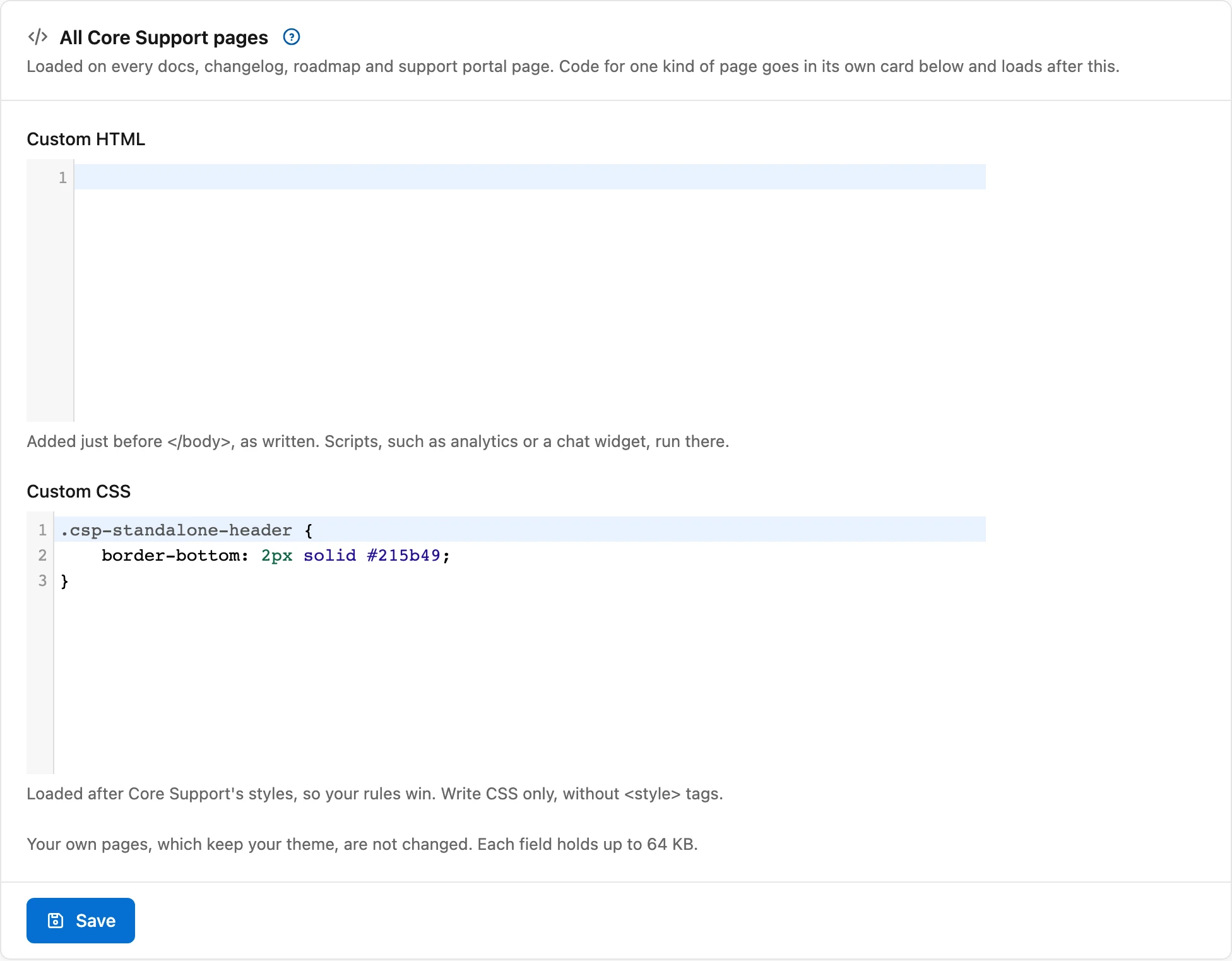
Each field uses WordPress’s code editor, with syntax highlighting and line numbers, unless you turned syntax highlighting off in your profile.
All Pages or One Kind of Page
The tab has a card for every page, then one for each kind of page. Each card has a Custom HTML and a Custom CSS field and saves on its own, so changing one never touches another.
- All Core Support pages: every page in the cards below.
- Docs pages: the docs home, each collection and each doc.
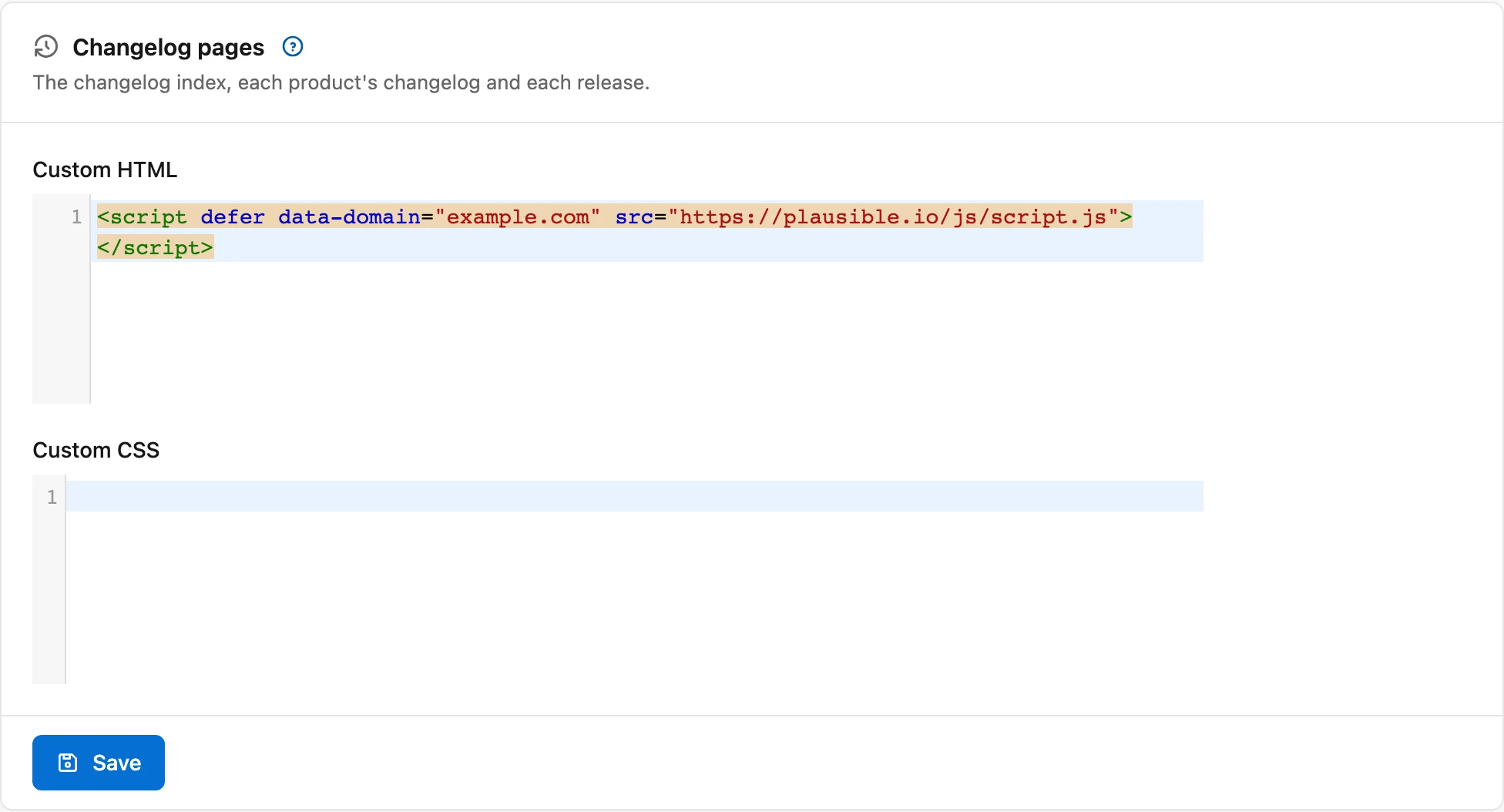
- Changelog pages: the changelog index, each product’s changelog and each release.
- Roadmap pages: the roadmap home, each roadmap and each item. This card shows while the Roadmaps module is on.
- Support portal: the support page Core Support set up.
A page gets the code for all pages first, then its own kind’s, and never another kind’s. Its own CSS loads after the shared CSS, so it wins where both set the same thing.
Custom code doesn’t load on pages of your own. A support block placed on one of your pages keeps your theme’s header, footer, scripts and styles, so your theme already handles that page. It doesn’t load in wp-admin either.
Add an Analytics Tag to the Right Pages
Portal, changelog and roadmap pages load only Core Support’s own scripts and remove what your theme and other plugins add. Docs pages remove only the theme’s, so a tag another plugin prints on every page of your site is likely there already. Docs Pages, Your Theme and Other Plugins explains what loads where.
So check a docs page before you add a tag everywhere:
- If the docs page already has the tag, add it to the Changelog pages, Roadmap pages and Support portal cards only. Adding it to all pages would load it twice on docs and count each visit twice.
- If no page has it, add it once to All Core Support pages.
For example, a Plausible analytics tag:
<script defer data-domain="example.com" src="https://plausible.io/js/script.js"></script>Custom HTML
Whatever you enter goes just before </body>, exactly as written, after the page’s own footer scripts and after the clean-up that removes other plugins’ scripts. A script you put here always runs. That makes it the right place for:
- an analytics tag, such as Plausible, Fathom, Rybbit or Google Analytics
- a chat or feedback widget
- a cookie banner your site already uses
- a small notice or banner, positioned with your custom CSS
Scripts here run on pages where customers sign in and read their tickets. Add only code you trust.
Custom CSS
Your CSS loads in the page head, after Core Support’s own styles, so a rule of the same strength wins without !important.
Write CSS on its own. If you paste it with a <style> tag around it, the tag is taken off when you save. A <style> or </style> tag inside the CSS is refused.
Core Support’s elements use class names that start with csp-. .csp-standalone-header is the header on every page and .csp-standalone-footer the footer. Inspect a page in your browser to find others.
.csp-standalone-header {
    border-bottom: 2px solid #215b49;
}
For the logo, colors, corner radius and font, use Brand the Help Desk first, and the Header and footer settings for links. Custom CSS is for what those settings don’t cover.
Who Can Change It
Only people who may add unfiltered HTML to WordPress can change custom code: administrators on a single site, and super admins on a multisite network. Support Managers, who can change Core Support’s other settings, see the code read-only. If DISALLOW_UNFILTERED_HTML is set in wp-config.php, nobody can change it.
Turn It Off
Switching the module off under Core Support → Settings → Modules stops every card’s code from loading straight away and hides the Custom code tab. The saved code is kept, and comes back when you switch the module on again. The same goes for the Roadmap pages card while the Roadmaps module is off.
If you use a page cache, clear it after you change custom code so cached pages pick up the change.
Limits
- Each field holds up to 64 KB.
- The HTML goes in one place, before
</body>. Code that must sit in the head, such as a site verification meta tag, belongs in your SEO plugin, which still prints its tags on these pages. - Docs shown on another website through the docs embed script get your custom CSS, so they look the same, but not your custom HTML. A chat widget or analytics tag belongs on that website’s own page, around the docs.
- Code saved before Core Support 1.0.2, when there was one card, is now the code for all Core Support pages.