
Receive Support Email with Cloudflare Email Routing
Customers write to one address. Every email becomes a Core Support ticket, and every reply they send lands back on the same ticket. No IMAP password, no polling, no third-party inbox in the middle.
This guide sets that up with the Cloudflare relay Worker that ships with Core Support. The example address is support@send.gauravtiwari.org. Swap in your own.
How it works
- Cloudflare receives the email for your support address.
- An Email Routing rule hands it to a small Worker in your own Cloudflare account.
- The Worker signs the raw message and posts it to your WordPress site.
- Core Support verifies the signature, stores the message and opens a ticket (or adds a reply).
- When you answer, Core Support sets
Reply-To: support+<code>@your-domain, so the customer’s reply comes back through the same path and finds its ticket.
The email never passes through Gatilab servers. If your site is down, the Worker retries three times and then forwards the message to a fallback address, so nothing is lost silently.
Before you start
- The domain is on Cloudflare DNS. Email Routing only works on zones Cloudflare manages.
- Use a receiving subdomain if your main domain already has mail. If
example.comruns on Google Workspace or Microsoft 365, keep its MX records. Receive support mail on a subdomain such assend.example.comorhelp.example.cominstead. This guide does exactly that. - Check the subdomain is free. It must not already have MX records. Sending services often use subdomains too: Emailit, for example, keeps its records on
emailit.send…andinbound.send…, which is fine. An MX record on the subdomain itself is a conflict. - Core Support 0.9.1 or later, with a mail transport that can actually send (Core Support → Settings → Notifications).
- Messages up to 2 MB pass through the relay. Larger ones go to the fallback address.
Step 1: Add the mailbox in Core Support
Go to Core Support → Connections and choose Add mailbox.

Fill in:
- Key:
support. It becomes part of the webhook URL and cannot be changed later. - Support address: the address customers write to,
support@send.gauravtiwari.org. - Reply address: leave empty. It defaults to the support address.
- Largest message: leave at 2 MB for the relay.
- Reply tracking: Plus address. Cloudflare Email Routing delivers
support+code@to the same rule, which makes this the most reliable option.
Leave Automation tools and IMAP off. The relay doesn’t need them.
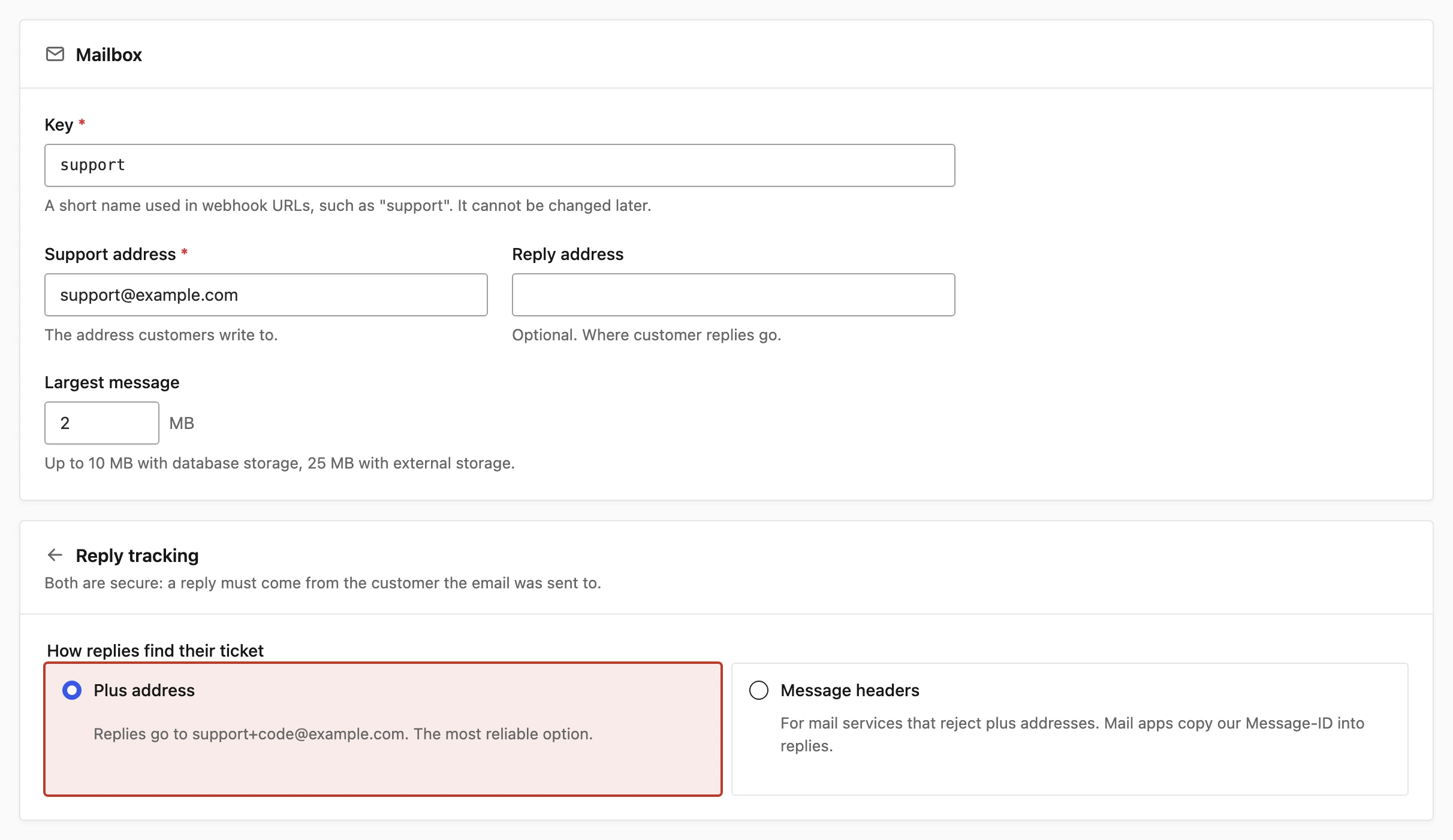
Save. The mailbox page now shows the Cloudflare relay URL and the Relay secret.

Note the last part of the relay URL, for example site-1-support. That full string is the mailbox key the Worker needs, not just support.
Treat the relay secret like a password. Use the Copy button rather than Show, and never paste it into chat, tickets or screenshots.
Step 2: Turn on Email Routing for the subdomain
In Cloudflare, open Email Service → Email Routing for your domain, then Settings → Subdomains. Add send and wait for the status to read Enabled. Cloudflare adds the MX and SPF records on the subdomain itself and locks them.
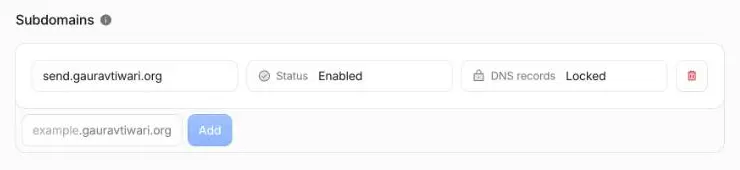
On the same page, switch on Enable subaddressing. Without it, replies to support+code@ are not routed and customers’ answers bounce.

Do not press Add missing records, and do not delete the records marked “Conflicting” under DNS records, if your main domain uses Google Workspace or another provider. Those warnings are about the root domain. Accepting them moves your main mail to Cloudflare.
Step 3: Deploy the relay Worker
Use the Worker from Core Support 0.9.1 or later. It ships in the plugin ZIP at core-support/mail-relay/worker.js (in the source repository, tools/mail-relay/worker.js). The Worker in 0.9.0 and earlier never delivers: every message ends up at the fallback address. If you deployed it before, redeploy from 0.9.1.
Copy the mail-relay folder somewhere outside the plugin and add a wrangler.jsonc:
{
	"name": "core-support-relay",
	"main": "./worker.js",
	"compatibility_date": "2026-09-16",
	"workers_dev": false,
	"preview_urls": false,
	"vars": {
		"ENDPOINT": "https://example.com/wp-json/core-support/v1/webhooks/relay/site-1-support",
		"MAILBOX_KEY": "site-1-support",
		"FALLBACK_ADDRESS": "you@example.com"
	}
}- ENDPOINT: the relay URL from Step 1, exactly as shown.
- MAILBOX_KEY: the last part of that URL.
- FALLBACK_ADDRESS: an address already verified under Email Routing → Destination addresses. Oversized mail and messages your site could not accept go here.
Deploy it, then store the secret. On a Mac, click Copy next to the relay secret in Core Support, then run this so the secret goes from the clipboard to Cloudflare without being printed:
pbpaste | npx wrangler secret put RELAY_SECRETClear the clipboard afterwards (printf '' | pbcopy).
The Worker’s settings should look like this, with RELAY_SECRET shown only as an encrypted secret:
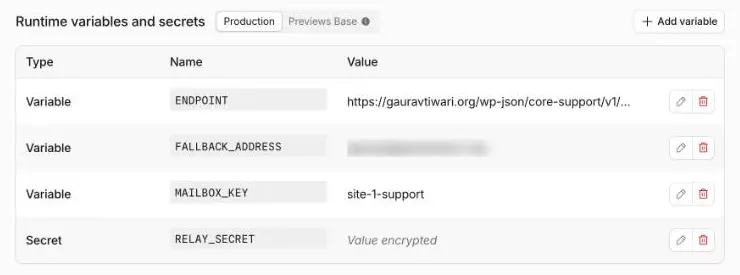
The Worker has no web route. It only handles email, so it needs no custom domain.
Step 4: Route the support address to the Worker
In Email Routing → Routing rules, create a rule:
- Custom address:
support@send.gauravtiwari.org - Action: Send to a Worker
- Destination: your relay Worker
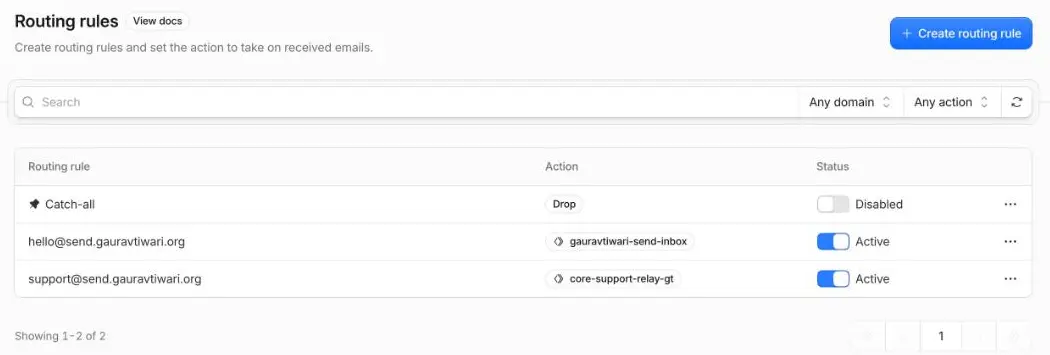
Leave the catch-all alone unless you want every address on the subdomain to become a ticket.
Step 5: Check outgoing mail
Core Support sends replies through the transport under Settings → Notifications. Two setups work:
- Keep your current sender. Replies go out from your usual support address (say,
support@example.comthrough WordPress mail and an SMTP plugin). Core Support still setsReply-To: support+code@send.example.com, so answers come back through the relay. Nothing else to change. - Send from the relay address. Choose Emailit, Resend, Brevo or SendGrid, paste an API key with send permission, and set Sender email to the support address. The sending domain must be verified with that provider first.
Capture mode sends nothing. Switch away from it before testing with real customers.
Step 6: Test it
- From an outside mailbox (not the fallback address), send a short email to the support address.
- Within a few seconds the message appears under Core Support → Incoming mail. By default any email that isn’t a reply to an existing ticket is held there as Needs review, including a new email from a returning customer. Open it and accept it to create the ticket. To open tickets straight away, set Settings → Tickets → Email from new senders to Open a ticket automatically. Cloudflare Email Routing does no spam filtering of its own, so automatic tickets also let spam through.
- Answer the ticket. Check the customer copy: its Reply-To should be
support+…@send…. - Reply from the outside mailbox. The answer should join the same ticket, not open a new one.
- Optional: send something over 2 MB and confirm it arrives at the fallback address.
Troubleshooting
- The ticket never appears. Open the Worker in Cloudflare and check its logs (Observability).
http_401means the signature failed: the secret or the mailbox key doesn’t match Core Support.http_404usually means the ENDPOINT is wrong.http_503means Core Support couldn’t store the message (check attachment storage under Connections); the Worker retries it. Ahttp_403or an HTML page in place of JSON points to a security plugin or firewall blocking/wp-json/. - The email went to the fallback address instead. Your site refused or timed out three times. Check Core Support → Diagnostics and your server’s error log, then forward the message back to the support address once fixed.
- Customer replies bounce. Subaddressing is off in Email Routing settings, or the reply address points somewhere without plus-address support.
- Replies open new tickets. The customer’s mail app replied to the From address instead of Reply-To. With plus-address tracking this is rare; check that the outgoing message actually carries the Reply-To header.
- Sending fails with an “unverified domain” error. Verify the sender domain with your mail provider, or go back to the first option in Step 5.
Limits
- The relay accepts messages up to 2 MB. Raising Largest message in Core Support doesn’t change the Worker’s cap.
- Cloudflare Email Routing receives mail only. It is not an IMAP mailbox, so you can’t open the support address in a mail app. Core Support is the inbox.
- One address, one destination. An Email Routing rule sends to a single Worker, so the same address can’t feed Core Support and another inbox at once without extra code.
Turning it off
Disable or delete the routing rule first, so mail stops reaching the Worker. Then delete the Worker, and remove the mailbox from Core Support → Connections if you no longer need its history. Leave other records on the subdomain (sending services, DKIM) untouched.