
How to Turn Your Support Email Address into a Help Desk
Your support address works until two people answer the same email, or nobody does. A shared inbox has no owner per conversation, no status and no record of who promised what, so customers end up writing twice to get one answer.
To turn a support email address into a help desk, you connect the address to Core Support and keep using it as before. Every email becomes a ticket with a status, an assignee and a full conversation, and agents answer from WordPress while customers keep replying by email.
Core Support is my help desk plugin for WordPress. The setup has 4 parts:
- how mail reaches the help desk
- how replies leave it
- what happens to email from new senders
- a test before a real customer depends on it
Before You Start
- Core Support installed and active. Install Core Support and Activate Your License covers the requirements.
- Access to where your support mail lives: Cloudflare DNS for the domain, the mailbox’s IMAP details or an automation tool that already sees the mail.
- A way for WordPress to send email, such as an SMTP plugin or an account with Emailit, Resend, Brevo or SendGrid.
Pick How Mail Reaches Core Support
Core Support reads mail in 3 ways, and the right one depends on where your support address lives today. One mailbox can use more than one route at the same time.
| Your support mail lives in | Use this route | Why |
|---|---|---|
| A domain or subdomain on Cloudflare DNS | Cloudflare relay | Mail arrives in seconds, with no password and no polling |
| Gmail, Google Workspace, Fastmail, Zoho, iCloud or a hosting mailbox | IMAP | The mailbox stays where it is and keeps working in your mail app |
| Microsoft 365, or a mailbox a FlowMattic, Zapier, Make or n8n workflow already watches | Automation tools | The tool posts each email to a webhook, so no password sign-in is needed |
I’d pick the relay whenever Cloudflare can receive mail for a subdomain such as help.example.com. It’s the fastest route, and your main domain’s mail stays with Google Workspace or whoever runs it now.
IMAP is the right call when the address has to stay in an existing mailbox. Microsoft 365 needs the relay or an automation tool, because it turned off password sign-in for IMAP and Core Support doesn’t include OAuth yet.
Add the Mailbox
A mailbox is one support address with its own route, reply tracking and size limit.
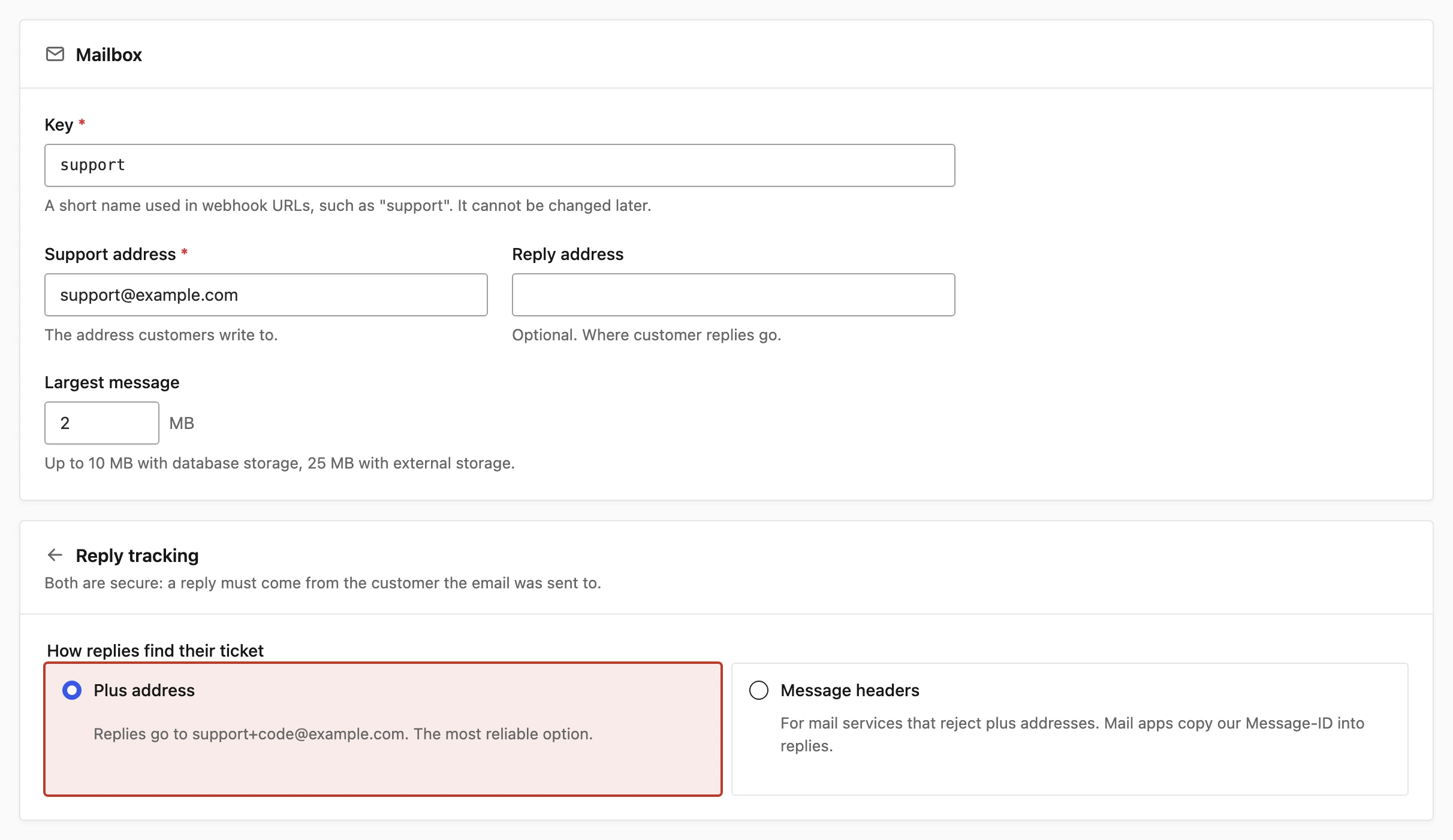
- Go to Core Support → Connections and choose Add mailbox.
- Enter a Key, such as
support. It becomes part of the webhook addresses and can’t be changed later. - Enter the Support address customers write to.
- Leave Reply address empty, so replies come back to the support address.
- Keep Reply tracking on Plus address.
- Turn on the route you picked, then save.
Each route has its own setup steps, and the reference docs walk through them in full:
- Receive Support Email with Cloudflare Email Routing
- Connect a Mailbox over IMAP
- Send Email in from FlowMattic, Zapier, Make or n8n
Plus address tracking is the part that keeps conversations together. Every reply an agent sends carries a secret token in its Reply-To, such as support+token@example.com. When the customer answers, the token puts the answer on the right ticket.
Gmail, Google Workspace, Fastmail and Cloudflare Email Routing all deliver plus-addressed mail to the main mailbox.
Let Replies Leave the Site
A new install sends no email at all. Core Support starts on Capture only, which records each reply and sends nothing, so you can set up without emailing anyone by accident.
- Go to Core Support → Settings → Notifications.
- Set Mail delivery to WordPress mail if an SMTP plugin already sends your site’s email. Otherwise pick Emailit API, Resend API, Brevo API or SendGrid API and paste the key.
- Set Sender email to an address on a domain your provider has verified, or leave it blank to send from the mailbox address.
- Save.
How to Make Ticket Replies Land in the Inbox covers the sending side in more depth, including the DNS records that keep replies out of spam.
Decide What New Senders Do
Email that isn’t a reply to a ticket is a new sender. Core Support gives you 2 choices under Core Support → Settings → Tickets → Email from new senders:
- Hold in Incoming mail for review: the default. An agent accepts each new email as a ticket or discards it.
- Open a ticket automatically: every new email becomes a ticket straight away.
Core Support filters auto-replies, bounces, bulk mail and mail loops either way. Spam written to look like a person still gets through, and Cloudflare Email Routing does no spam filtering of its own. So I’d keep review on for the relay route, and for IMAP only switch to automatic tickets if your mailbox’s spam filter already does a good job.
Review costs one click per real email, which is cheap next to cleaning spam tickets out of the queue.
Test It Before a Customer Does
Run this once from a personal address that isn’t connected to the help desk:
- Send a short email to the support address.
- Open Core Support → Incoming mail. With review on, the email waits under Needs review. Click Accept as new ticket.
- Reply to the ticket from the agent workspace.
- In your personal inbox, open the reply and check that its Reply-To starts with
support+. - Reply to that email. The answer should join the same ticket instead of opening a new one.
If step 5 opens a new ticket, the customer’s mail app replied to the wrong address, or the route dropped the plus address. The table below covers the usual causes.
Problems in the First Week
| What you see | Usual cause | Fix |
|---|---|---|
| An email never shows up in Incoming mail | It never reached the site | Check the route: the Worker’s logs for the relay, the last check on the mailbox for IMAP, or the tool’s run history |
| Replies show “Captured · no email sent” | Mail delivery is still on Capture only | Pick a delivery method under Settings → Notifications |
| Customer replies bounce | The mail service rejects support+...@ addresses | Turn on subaddressing in Cloudflare, or switch Reply tracking to Message headers |
| A reply waits as “Conversation not matched” | The token expired after 90 days, or the reply came from another address | Accept it as a new ticket from Incoming mail |
| Email sits as Queued for minutes | WP-Cron isn’t running | Add a server cron, as Diagnostics and WP-CLI Commands shows |
Core Support → Diagnostics checks mail delivery, the mail queue and IMAP polling in one place. It is wise to open it once after setup, before you announce the new support address anywhere.
What It Won’t Do
- It won’t confirm delivery to the inbox. Core Support knows when a provider accepted a reply, not whether it reached the customer.
- Customers can’t upload files from the portal. Attachments arrive by email, an automation tool or a server request.
- IMAP reads one folder. Mail your filters move into other folders isn’t imported.
- Microsoft 365 over IMAP isn’t supported yet, because it needs OAuth.
If your support address lives in Gmail or Google Workspace, How to Connect a Gmail or Google Workspace Support Inbox covers the Google-specific steps.