
How to Run Support for Several Product Sites from One WordPress Install
You sell 3 products, and each has its own website, its own contact form and its own inbox. Questions get missed because nobody checks the third inbox, and nobody can see the whole support load in one place.
To run support for several product sites from one install, you put Core Support on one WordPress site and connect the others to it. Each product site keeps its own contact form, portal, docs and chat, while every ticket lands in the same help desk, labeled with the site it came from. Customers see the product’s name, not the help desk’s.
Core Support is my help desk plugin for WordPress. The connected sites don’t need Core Support installed. A connected site can be another WordPress site, a static site or a page builder site, because everything on it is a small snippet or a server request.
Before You Start
- One site to be the help desk. It runs Core Support with a working mailbox and mail delivery, as How to Turn Your Support Email Address into a Help Desk sets up.
- The exact addresses of each product site, including the
wwwversion if it has one. - Edit access to each product site, to paste a snippet or add a server call.
Plan What Each Site Gets
A connected site can use any of these pieces, and each is switched on separately:
| Piece | What the customer gets | What it needs on the product site |
|---|---|---|
| Contact form | A form that opens a ticket | One snippet on the contact page |
| Server requests | Tickets from your own code, such as a checkout question | A call with the site key from your server |
| Customer portal | Sign-in with an emailed code and their tickets, on the product site | One snippet on a support page, plus working mail delivery |
| Docs | Your docs collections in a frame, with search | One snippet on a docs page |
| Chat | The AI chat, answering from your docs | One script tag before </body> |
You don’t need all 5 on every site. A small product often needs only the contact form and the docs. A product with paying customers gets the most from the portal, because its customers can follow their tickets without visiting another domain.
Connect Each Site
- Go to Core Support → Connected sites.
- Fill in Website name, such as the product’s name. Agents see it on every ticket, and portal customers see it as the sender of reply emails.
- List the site under Website addresses, one per line, such as
https://example.comandhttps://www.example.com. Paths and wildcards aren’t accepted. - Click Connect website and copy the site key from the yellow notice. Core Support shows it once and keeps only a hash.
- Open the site from the Websites list. Its page holds the snippet for every piece in the table above.
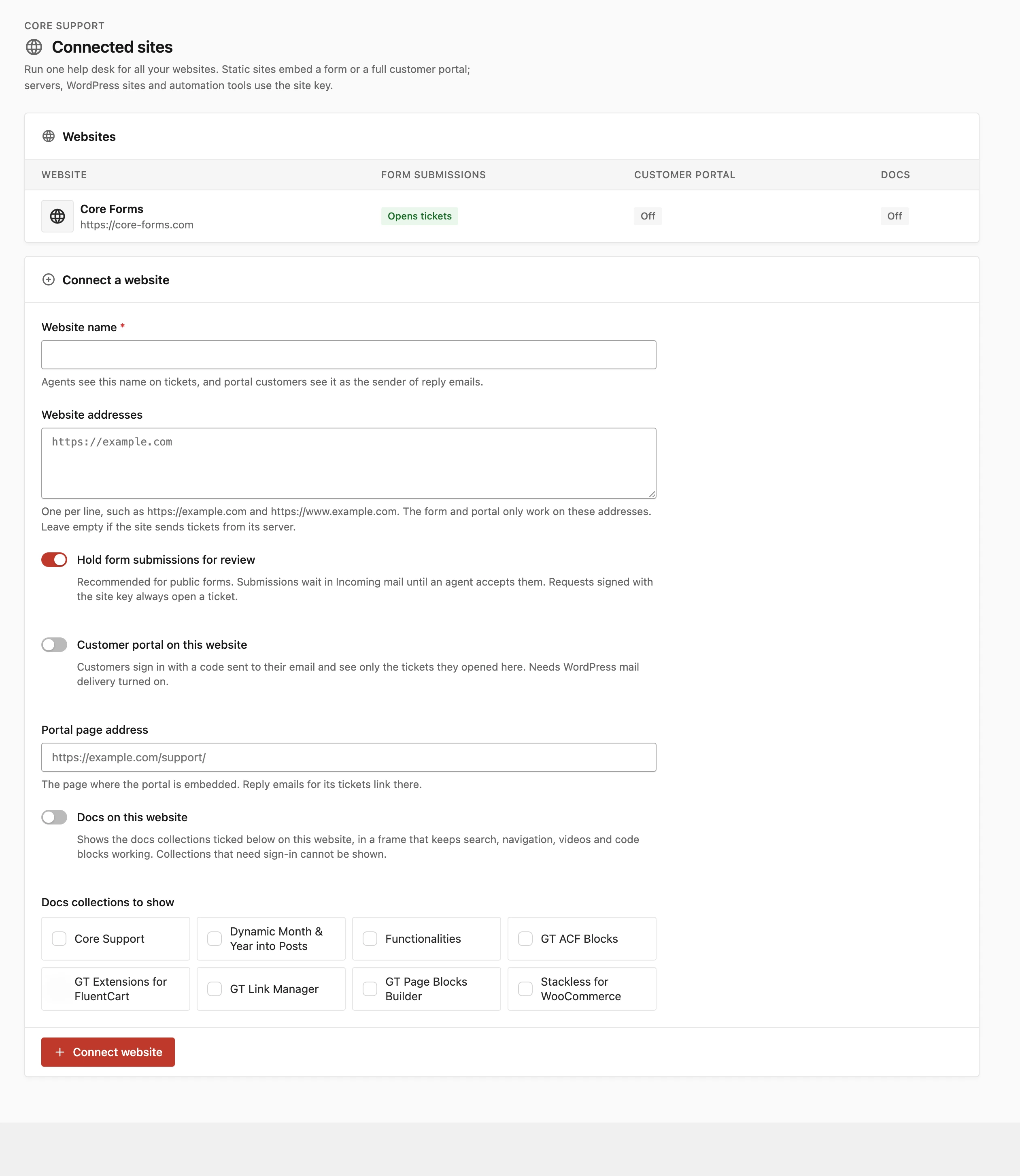
Store the site key in your server code or a secrets manager, never in a page’s HTML. If it leaks into a public repository or a log, Create new site key replaces it and the old one stops working at once.
Add the Pieces
Each piece has a ready snippet on the site’s page in Core Support, with the help desk address and the site’s ID filled in:
- Contact form: paste the Contact form code where the form should show. On WordPress, a Custom HTML block works.
- Portal: turn on Customer portal on this website, enter the Portal page address and paste the portal code on that page. Host the Customer Portal on a Connected Site covers the details.
- Docs: turn on Docs on this website, tick the collections to show and paste the docs code. For a product site, use the start address of that product’s own collection. Show Your Docs on Another Website explains the options.
- Chat: copy the site’s line from Core Support → Chat → Embed and paste it before
</body>.
I’d keep Hold form submissions for review on for every public form. A public form is the first thing spam bots find, and review costs an agent one click per real message.
Keep Each Brand’s Name on Replies
Customers should never wonder why an email about Product A comes from a name they don’t know. Core Support handles most of this once the portal is on:
- Reply emails for that site’s tickets use the Website name as the sender name.
- A
{site_name}placeholder in your Email subject becomes the website’s name. - The email footer links to the product site’s portal instead of the help desk’s.
Without the portal, replies still go out, but under your help desk’s sender name. If brand matters for a product, turning on its portal is the simplest fix.
How Tickets Show Up for Your Team
Every ticket from a connected site shows “via” and the site’s name beside the customer. The message ends with a short “Sent from” footer with the page address and any metadata your server sent, such as an order number.
All tickets share one queue, one set of agents and one set of settings, so nothing depends on someone remembering to check another inbox.
Check It Works
For each connected site:
- Send a test message through its contact form and accept it in Core Support → Incoming mail if review is on.
- Check that the ticket shows “via” the site’s name.
- Reply, and check that the email uses the site’s name if its portal is on.
- Open the site’s docs page and search for a word you know is in its collection.
What It Won’t Do
- The form can’t send attachments. Files arrive by email or a signed server request.
- A portal shows only tickets opened on that site. A customer who also emailed the help desk directly sees those tickets in the main portal, not on the product site.
- Sign-ins don’t carry across sites. Each connected site has its own portal sessions.
- Up to 100 websites can connect to one help desk, and each site takes up to 20 addresses.
For the full list of settings, form attributes and server request fields, see Run One Help Desk for Many Websites.