
Introduction to Core Support
Support for a plugin, theme or digital product tends to spread out. Questions come in through a shared inbox, a contact form and a chat bubble. The docs live on another platform, and the release notes sit in a readme nobody opens.
Core Support brings all of it onto your own WordPress site. Customers open tickets from a support page or by email, and your team answers them in wp-admin. The docs, changelogs and a chat assistant run from the same install, so a customer’s question, their order and the answer stay in one place.
Tickets and the Agent Workspace
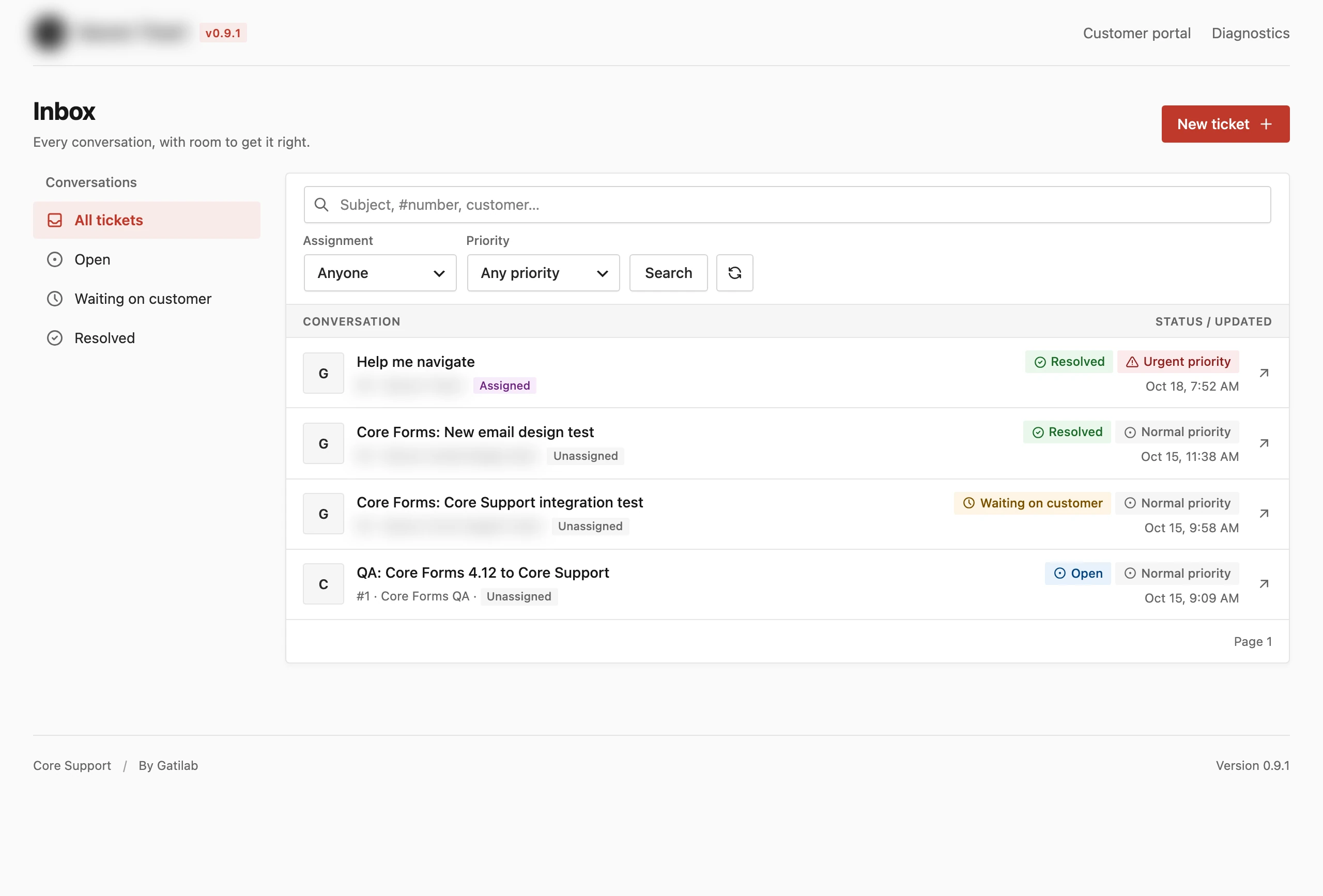
Every support request becomes a ticket, which is one conversation between a customer and your team. Agents work them on the Core Support screen in wp-admin, with filters for status, assignment and priority and a lookup by ticket number or customer.
- Statuses: Open, Waiting on customer and Resolved.
- Priorities: Normal, High and Urgent.
- Public replies: reach the customer by email and in the customer portal.
- Private notes: stay with your team. Customers never see them.
- Assignment: each ticket can have one agent, and new tickets can go to a default assignee.
Administrators can work tickets from the start. The Support Agent role gives team members the help desk without making them site administrators, and the Support Manager role adds the settings. The full tour is in working tickets in the agent workspace.
The Customer Portal
When you activate Core Support, it creates a Support page, normally at /support/. Signed-in customers see their own tickets there, open new ones and reply to your team. Tickets they sent by email from their account’s address show up there too.
The Customer Portal, New Ticket and My Tickets blocks put the same features on any page you build. WooCommerce gets a Support tab in My Account, and FluentCart gets one in its customer dashboard. Setting up the Support page covers the page, its URL and its design.
Email In and Out
Customers who prefer email can keep writing to your support address. Core Support receives that mail through:
- Cloudflare Email Routing, with a signed relay Worker
- built-in IMAP polling of an existing mailbox, such as Gmail, Fastmail, Zoho or cPanel hosting
- automation tools such as FlowMattic, Zapier, Make and n8n
Each message lands in Core Support → Incoming mail first. Replies to a ticket join it right away. Any other email waits there for review by default, then becomes a new ticket when you accept it. Mailboxes are set up under Core Support → Connections.
Your replies go out through WordPress mail or the Emailit, Resend, Brevo or SendGrid API. A new install starts on Capture only, which keeps outgoing email inside Core Support without sending it. How email reaches Core Support explains each route and when to pick it.
Attachments are stored encrypted in the database by default. They can move to private files in wp-content/uploads, Cloudflare R2, an S3-compatible bucket or Bunny Storage instead.
Docs and Changelogs
Core Support publishes your product documentation and release history on the same site as the help desk.
- Docs appear at
/docs/, grouped into collections, with sections and pages inside each one. You write them in the Block Editor or import existing docs from a sitemap, Markdown files, a GitHub wiki, a wordpress.org readme or a FluentCommunity course. - Changelogs appear at
/changelogs/, with one changelog per product. You write releases by hand or sync them from a readme.txt, a CHANGELOG.md, GitHub releases or a wordpress.org plugin page.
Both render as standalone pages in your branding. Start with writing product docs with collections.
Chat
Chat is an AI assistant that answers visitors from your docs and any other public content you choose, including store products and their prices. It runs on your own API key from OpenAI, Anthropic, xAI or DeepSeek.
When a person should step in, the visitor leaves an email address and the conversation becomes a ticket with the full transcript. Chat is off until you turn it on, and it never replies to tickets. Setting up Chat walks through the provider, models and placement.
Connected Sites
One help desk can serve many websites. You add a website under Core Support → Connected sites and paste a snippet on it. That website can then:
- send tickets from a form
- host its own customer portal
- show the docs collections you pick
- run the Chat widget
The other website doesn’t need Core Support installed. It can be a static site, a site builder or another WordPress install. Running one help desk for many websites covers the setup.
Integrations and Alerts
Core Support → Integrations lists what each detected plugin adds. Each feature switches on when its plugin is active, and you can turn it off there.
- Customer details beside each ticket: orders, subscriptions and licenses from WooCommerce, FluentCart and Easy Digital Downloads 3, and contact details from FluentCRM.
- Forms that open tickets: Contact Form 7, WPForms, Gravity Forms, Fluent Forms and Core Forms.
- FluentCRM sync: adds people who open tickets as transactional contacts with a tag, never as subscribers.
Team alerts live under Core Support → Settings → Team alerts. New tickets can reach Telegram, Pushover, Discord, Slack or any webhook. The order and license panels are explained in showing customer and order details beside each ticket.
None of these plugins is required. Core Support receives and answers tickets on its own.
Price and License
Core Support costs $199 once, for a lifetime license on unlimited sites, from the Core Support product page. The license brings plugin updates. Tickets and every support feature keep working if a license becomes inactive.
Services you connect charge for their own use separately. That includes a mail provider, a storage bucket or an AI provider for Chat.
Current Limits
- Microsoft 365 mailboxes can’t connect over IMAP yet, because they need OAuth.
- Customers can’t upload files from the portal. Attachments arrive by email, an automation tool or a server request.
- A connected site’s portal shows only the tickets opened on that site, not tickets the same customer sent by email.
The first step is to install Core Support and activate your license.