
Sync Customers to FluentCRM
People who ask for help are some of the most useful contacts you have. They’re already customers or close to buying. But if they live only in the help desk, your CRM never hears about them. Nobody can segment them, follow up or see their support history next to their purchases.
Core Support can add each ticket customer to FluentCRM with a tag of your choice. New contacts are created as transactional, never subscribed, so a support request never signs anyone up for marketing email.
Turn On the Sync
The sync is off by default. You switch it on under Core Support → Integrations, in the CRM section.
- Go to Core Support → Integrations and scroll to CRM.
- On the FluentCRM card, turn on Add ticket customers to FluentCRM.
- Pick a tag in Tag to apply, or leave it on No tag.
- Choose Save integrations.
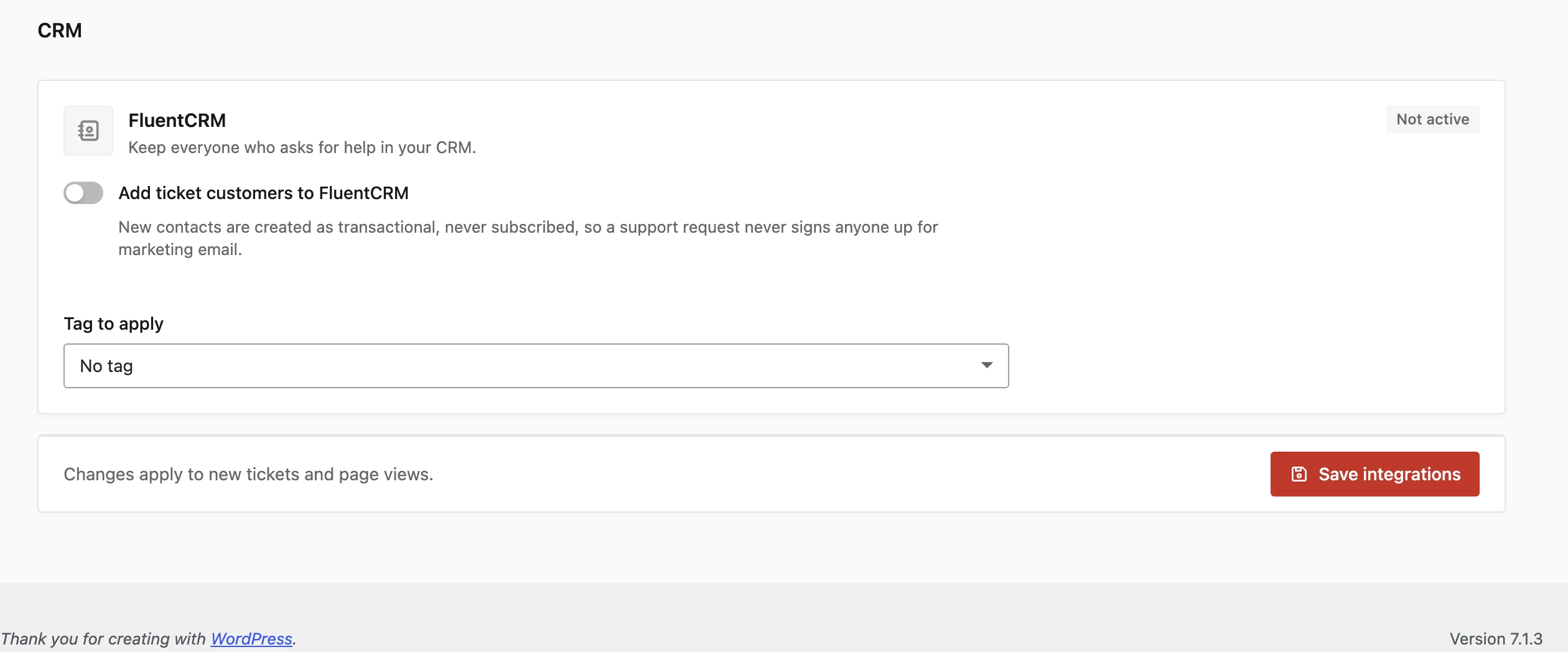
The tag list comes from your existing FluentCRM tags. Create the tag in FluentCRM first if you want a new one, such as “Support”.
What Happens When a Ticket Opens
Every time a customer opens a new ticket, Core Support checks FluentCRM for a contact with that email address:
- No contact yet: Core Support creates one with the email, a first name and a last name. The name is split at the first space of the customer’s name. The status is Transactional.
- The contact already exists: their status stays exactly as it was. A subscribed contact stays subscribed, and an unsubscribed one stays unsubscribed.
- A tag is chosen: it’s added to the contact in both cases.
This runs for tickets from every source, such as the portal, email, website forms, connected sites and chat handoffs. Tickets that an agent opens don’t trigger it, and neither do replies on an existing ticket.
Things to Know
- Only new tickets sync. Customers from tickets opened before you turned the sync on aren’t added.
- A ticket without a valid email address is skipped.
- Removing a tag here doesn’t remove it from contacts that already have it.
- If FluentCRM is deactivated, the sync stops quietly and tickets keep working.
The FluentCRM contact also shows beside each ticket, with status, tags and lists. That panel is described in show customer and order details beside each ticket.