
Send Email in from FlowMattic, Zapier, Make or n8n
Some support mail never reaches a route Core Support can read directly. It sits in Microsoft 365, or a FlowMattic or Zapier workflow already watches the inbox for other jobs. Copying those emails into tickets by hand is slow, and the replies lose their thread.
Each mailbox can accept email from an automation tool instead. The tool posts every email to a webhook URL with a secret token. Core Support then treats it like mail from the relay or IMAP, with the same reply tracking, review and attachment handling.
Turn On Automation Tools for a Mailbox
- Go to Core Support → Connections and open the mailbox.
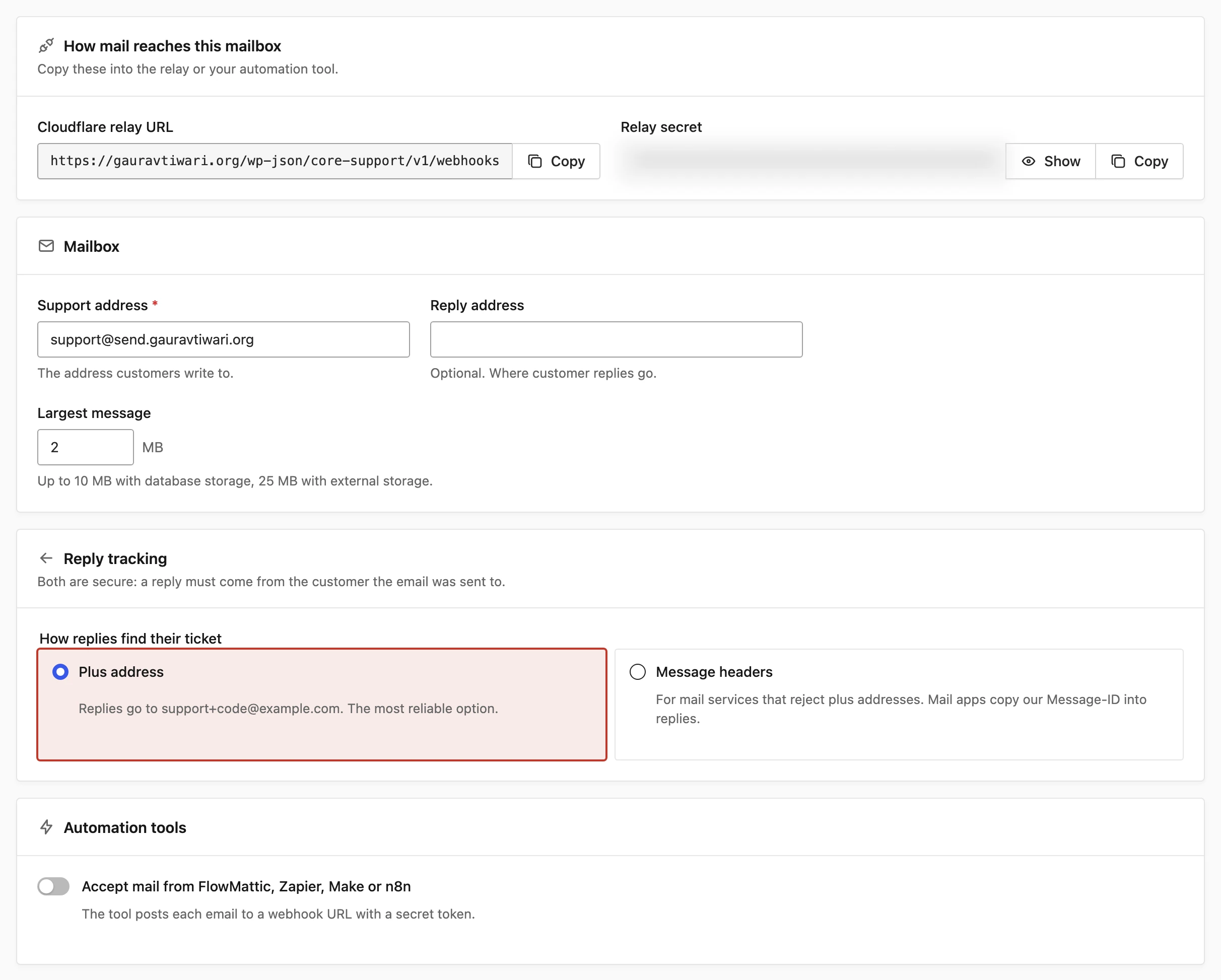
- In the Automation tools card, switch on Accept mail from FlowMattic, Zapier, Make or n8n.
- Click Save mailbox.
- In the How mail reaches this mailbox card, copy the Automation webhook URL and the Token (send as a Bearer token).
Use the Copy button for the token and keep it out of tickets, chat and screenshots. To replace it, switch on Create a new token and save, and the old token stops working. Switching the card off removes the token, and the endpoint then refuses every request.
The URL follows this pattern, where the blog ID is 1 on a single site:
POST https://example.com/wp-json/core-support/v1/webhooks/inbound/site-<blog-id>-<mailbox-key>
Authorization: Bearer <token>
Content-Type: application/json
The same URL is listed under Core Support → Incoming mail → Connection details. If your server strips the Authorization header, send the token as X-Core-Support-Token: <token> instead.
Test the Connection
A GET request to the same URL with the token tests the connection without sending anything:
curl -H "Authorization: Bearer <token>" \
  https://example.com/wp-json/core-support/v1/webhooks/inbound/site-1-support
A working connection answers with the mailbox address and its size limit in bytes:
{ "ok": true, "mailbox": "support@example.com", "max_bytes": 2097152 }Send the Raw Message When You Can
The raw message is the most faithful option, because Core Support keeps the original headers. Send it as raw:
{ "raw": "From: Ada <ada@example.net>\r\nTo: support@example.com\r\n..." }Or send it base64-encoded as raw_b64. When either one is present, the parsed fields below are ignored.
Or Send Parsed Fields
When your tool only gives you parts of the email, send them as fields. Core Support builds the message from them.
| Field | Required | Notes |
|---|---|---|
from | Yes | ada@example.net or Ada Lovelace <ada@example.net> |
from_name | No | Overrides the name in from |
to, cc | No | A string or a list, up to 50 addresses each. Include to so customer replies (sent to support+token@) reach the right ticket |
envelope_to | No | The address the email was delivered to. It must belong to this mailbox |
subject | No | Shows as “(No subject)” when empty |
text, html | One of them | Text is derived from HTML when only HTML is sent |
message_id, in_reply_to, references | No | Help duplicate detection. in_reply_to and references take a list or a space-separated string |
date | No | Any date PHP’s strtotime() understands |
auto_submitted, precedence | No | Pass these through so auto-replies and bulk mail are filtered |
headers | No | An object of extra headers, such as Authentication-Results |
attachments | No | Up to 25 items: { "filename", "content_type", "content_b64" } or { "filename", "url" } with a public https URL |
delivery_id | No | Your tool’s unique ID for this email. Retries with the same ID are stored once |
A full request with parsed fields looks like this example:
{
  "from": "Ada Lovelace <ada@example.net>",
  "to": ["support+abc123@example.com"],
  "subject": "Re: License key not working",
  "text": "Thanks, the new key works.",
  "message_id": "<reply-42@example.net>",
  "in_reply_to": "<notification@example.com>",
  "delivery_id": "flow-run-8842",
  "attachments": [
    { "filename": "screenshot.png", "content_type": "image/png", "content_b64": "iVBORw0KGgo..." }
  ]
}
A few rules apply to the fields:
- Headers:
headersadds extra headers, but it can’t replace the address, subject, threading or MIME headers Core Support builds itself. - Attachment URLs: Core Support downloads each
urlwith a 20-second timeout and up to 2 redirects. A URL that fails returns503, so the tool can retry. - Size: attachments count toward the mailbox’s Largest message limit.
Retries and Duplicates
Automation tools retry failed steps, so Core Support makes retries safe. Core Support takes the delivery ID from the first valid one of these:
- An
Idempotency-Keyheader. - An
X-Core-Support-Deliveryheader. - The
delivery_idfield.
The ID must be 8 to 200 characters of letters, digits and ._:@<>+=/-. Without any ID, a retry of the identical request body is still stored once. Reusing an ID for different content returns 409.
Responses
202: accepted. The body includesaccepted,delivery_idandreceipt_id.400: the body isn’t a JSON object.401: the token is missing or wrong.403: automation tools are switched off for this mailbox.404: no mailbox uses this URL. Check the webhook URL, and don’t retry.409: this delivery ID was already used for different content.413: the message is larger than the mailbox limit.422: missing or invalid fields, such as nofromor no body. Fix the mapping, because retrying won’t help.503: temporarily unavailable, for example while attachment storage is down. Retry later.
FlowMattic Example
FlowMattic, a WordPress automation plugin, can watch the support mailbox and post each email on. Use an IMAP or email trigger on the mailbox, then add an API request step:
- Set the method to
POSTand the URL to the automation webhook URL. - Add the headers
Authorization: Bearer <token>andContent-Type: application/json. - Map the trigger’s sender, recipient, subject, body and Message-ID into the JSON fields above.
- Use the trigger’s message ID as
delivery_id.
Zapier, Make, n8n and Pipedream follow the same shape: a trigger that receives the email, then an HTTP request step with the same URL, headers and fields.
What Happens Next
Messages from automation tools show the source Automation in Core Support → Incoming mail. A reply carrying a valid reply token goes straight onto its ticket. Any other email follows the Email from new senders setting, which holds it for review by default, and Review Incoming Mail shows what to do with it there.
If replies keep opening new tickets, the to field is usually missing. Without it, Core Support can’t see the plus-addressed reply token, and How Email Reaches Core Support explains how that token works.