
Ticket Intake, Priorities and New Senders
A help desk without intake rules takes whatever arrives. Every unknown email can become a ticket, spam included, and a holiday week leaves the portal accepting requests nobody will answer for days.
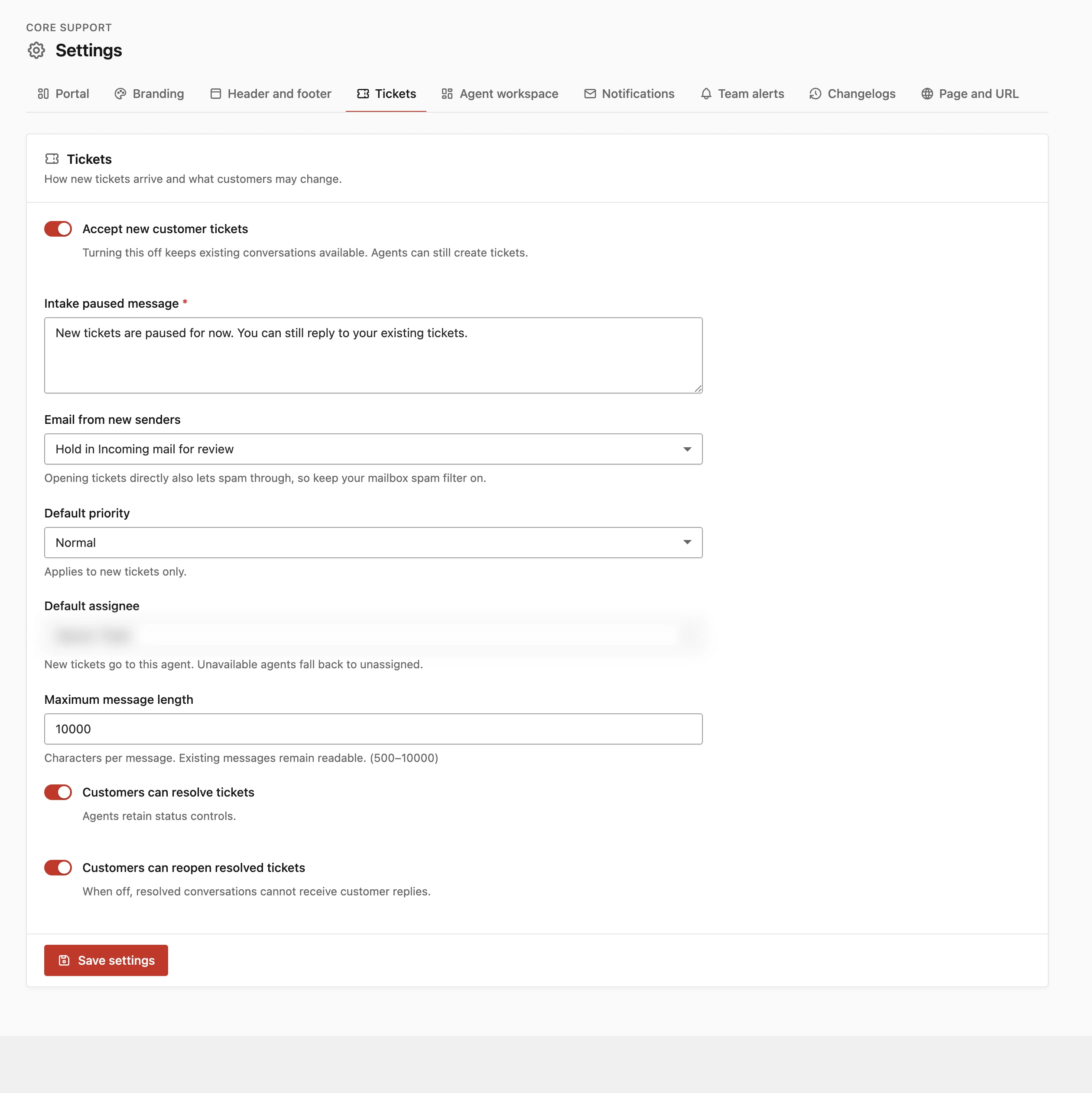
The Tickets settings decide how new tickets get in, how they start and what customers may change once they exist. They sit under Core Support → Settings → Tickets, next to the Agent workspace defaults for the team.
Open the Ticket Settings
- Go to Core Support → Settings.
- Choose the Tickets tab.
- Change what you need and choose Save settings.
The Tickets tab has 8 settings. Each is covered below with its default.
Pause New Tickets
- Accept new customer tickets: on by default. Turning it off stops customers from opening new tickets. Existing conversations stay available and agents can still create tickets.
- Intake paused message: what customers read while intake is off. Required, up to 300 characters. The default is “New tickets are temporarily paused. You can still follow up on existing conversations.”
While intake is paused:
- The portal and blocks hide the New ticket button and show the Intake paused message.
- Forms on connected websites are turned away with the same message.
- An email that would start a new conversation waits in Core Support → Incoming mail, marked “New tickets are paused”. Once intake is back on, an agent can accept it from there.
- Customers can still reply to their open tickets, from the portal or by email.
Email from New Senders
- Email from new senders: what happens to an email that isn’t a reply to one of your tickets. Hold in Incoming mail for review (default) or Open a ticket automatically.
Core Support recognizes a reply by the reply address on its own notification emails, or by the notification’s message ID. Anything else counts as a new sender, even a past customer writing a fresh email.
With the default, each new email waits in Incoming mail as “New sender” until an agent chooses Accept as new ticket or Discard. With automatic opening, it becomes a ticket straight away and Incoming mail lists it as “New sender, opened automatically”.
Automatic replies, delivery reports and bulk mail stay out of the ticket queue with either choice. Spam is different. Opening tickets automatically lets it through too, so keep your mailbox’s own spam filter on.
I’d keep review on until you’ve watched the mailbox for a while. Switching to automatic opening makes sense once most of what arrives is real customer mail. Review Incoming Mail covers the review queue itself.
Set the Default Priority and Assignee
- Default priority: the priority every new ticket starts with. Normal (default), High or Urgent. Changing it affects new tickets only.
- Default assignee: the agent every new ticket goes to. Unassigned by default. The list holds everyone who can work tickets on this site.
Both apply to every new ticket, whether it came from the portal, email, a form or an agent. If the chosen agent later loses access to tickets, new tickets fall back to unassigned instead of going nowhere.
A single default assignee suits a one-person help desk, or a team where one person triages and hands tickets on. On a larger team, leaving it unassigned and working the Unassigned filter in the agent workspace keeps every new ticket from landing on one person.
Limit Message Length
- Maximum message length: characters allowed per message, from 500 to 10,000. Default 10,000. Existing messages stay readable after you lower it.
The limit applies everywhere a message enters a ticket:
- The portal and the agent composer stop accepting text at the limit. The portal hint starts with “Up to 10,000 characters.” followed by your Message field guidance text.
- An email longer than the limit waits in Incoming mail as “Message length needs checking”.
- A form on a connected website asks the customer to shorten the message.
- A long entry from a contact form plugin is shortened to fit. The full answers stay in the form plugin’s entries.
Let Customers Resolve and Reopen
- Customers can resolve tickets: on by default. Customers see a Mark as resolved button on any ticket that isn’t resolved yet.
- Customers can reopen resolved tickets: on by default. Customers see a Reopen ticket button, and a customer reply to a resolved ticket moves it back to Open.
With reopening off, a resolved ticket can’t take customer replies. The portal says “This conversation is resolved. Customer reopening is disabled.” and an email reply waits in Incoming mail as “This ticket is closed”.
Agents keep full control of status either way. I’d leave reopening on. A customer answering a resolved ticket can mean the fix didn’t hold, and a fresh ticket would lose that history.
Agent Workspace Defaults
The Agent workspace tab, next to Tickets, holds 3 more settings:
- Tickets per page: list length in the agent inbox and the customer ticket lists. 10 to 50, default 25.
- Status after an agent reply: Waiting on customer (default), Open or Resolved. Public replies only, since private notes never change status.
- Agent composer starts with: Public reply (default) or Private note. Agents can switch before saving, and customer replies are always public.
Reply to Customers and Add Private Notes shows how the last two play out on a ticket. The portal wording customers see, such as the headings and the confirmation after a new ticket, lives on the Portal tab and is covered in Portal Settings and Wording.