
Team Alerts on Telegram, Pushover, Discord, Slack or a Webhook
A new ticket doesn’t help anyone while it sits unread in wp-admin. If your team only checks the help desk a few times a day, customers wait hours for a first reply that could have taken minutes. An email notification gets buried with everything else.
Core Support can send a short alert to the apps your team already watches: Telegram, Pushover, Discord, Slack or any webhook. Each alert names the ticket and the customer and links straight to the ticket. You set it up under Core Support → Settings → Team alerts.
Choose When Alerts Go Out
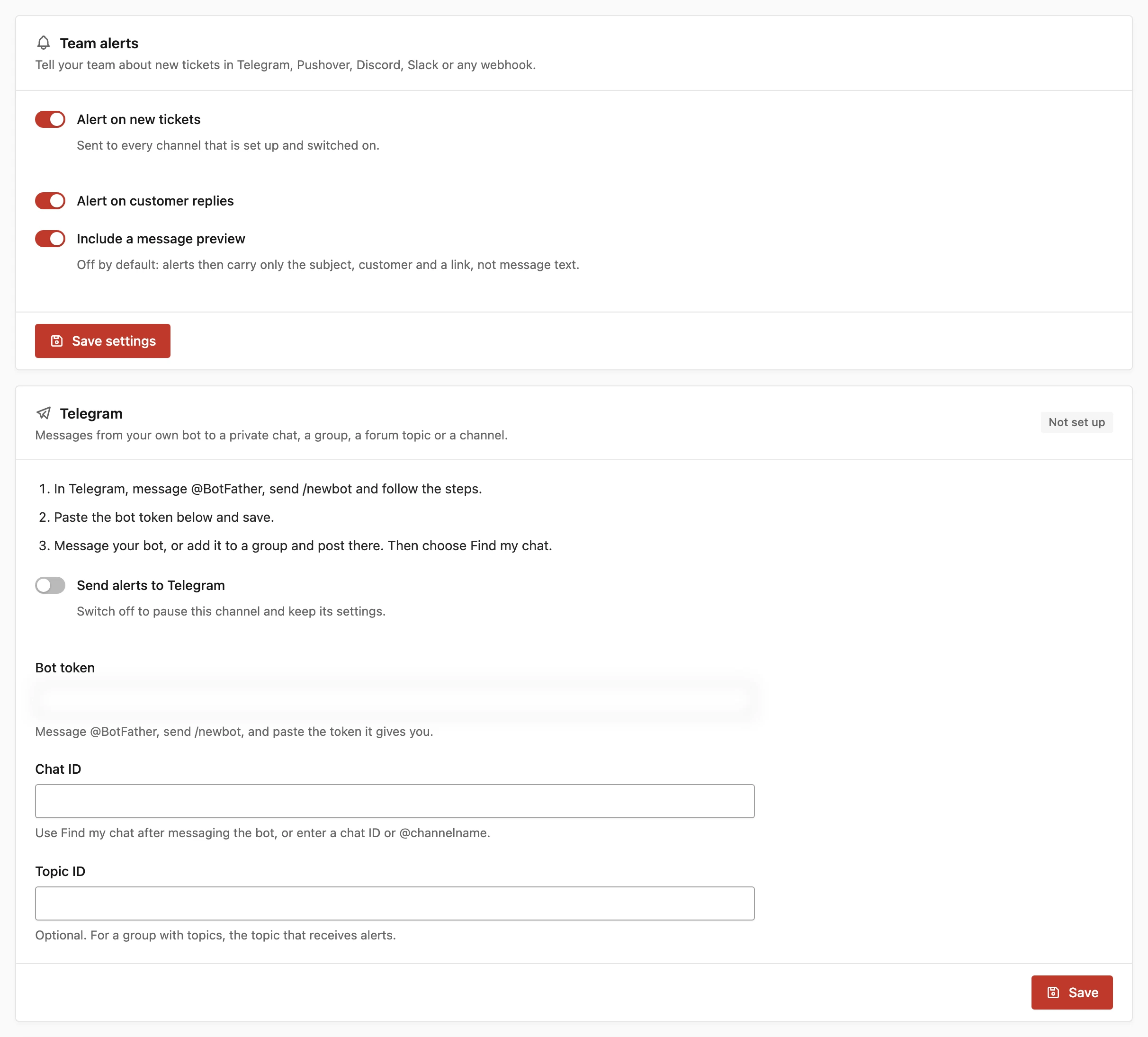
The first card on the Team alerts tab decides which events send an alert:
- Alert on new tickets: on by default. Sent to every channel that is set up and switched on.
- Alert on customer replies: off by default. Sends an alert when a customer answers on an existing ticket.
- Include a message preview: off by default. Without it, alerts carry only the subject, the customer and a link.
Choose Save settings on that card after changing it.
I’d leave the preview off unless the channel is private to your support team. Every channel here is a third-party service, and customer messages can hold order details or personal information.
What an Alert Contains
Every channel gets the same alert:
- Title: “New ticket #42: (subject)” or “Customer replied on #42: (subject)”.
- Details: “From” the customer’s name and email, plus “via” the source when the ticket came from a form, a connected site or chat.
- Preview: with Include a message preview on, the first 280 characters of the message.
- Link: the ticket in the agent workspace.
Set Up Each Channel
Each channel has its own card with its own Save button, so saving one never touches the others. Every card has a Send alerts to (channel) switch, on by default. Turn it off to pause the channel and keep its settings.
The badge on each card shows where the channel stands:
- Not set up: a required setting is missing.
- Paused: the channel is set up but switched off.
- Ready: set up, with nothing sent yet.
- Working: the last alert was delivered.
- Retrying: the last alert failed and another try is scheduled.
- Failed: the last alert didn’t arrive and no retry is left.
Once a channel is set up and switched on, Send a test alert sends “Core Support test alert” to that channel only.
Telegram
Alerts come from your own bot and can go to a private chat, a group, a topic in a group or a channel.
- In Telegram, message @BotFather, send
/newbotand follow the steps. - Paste the token into Bot token and choose Save. Core Support checks the token with Telegram and refuses one that Telegram rejects.
- Message your bot, or add it to a group and post there.
- Choose Find my chat. The card lists the chats your bot has seen.
- Choose Use this chat next to the right one.
The 3 Telegram settings are:
- Bot token: the token from @BotFather, such as
123456789:AA…. - Chat ID: filled in by Use this chat, or typed in as a number such as
-1001234567890or a public@channelname. - Topic ID: optional. For a group with topics, the topic that gets the alerts.
If Find my chat shows “Your bot has no chats yet”, message the bot again and retry. Telegram keeps those messages for 24 hours. A bot that already sends its updates to a webhook somewhere else can’t list chats, so type the chat ID yourself.
Telegram alerts show the title in bold and the ticket link as an Open ticket button when your site uses HTTPS. Link previews are off. If a group is upgraded and its ID changes, the card tells you the new chat ID to enter.
Pushover
Pushover sends push notifications to iPhone, Android and desktop.
- Pushover user key: your user or group key from pushover.net.
- Pushover API token: create an application at pushover.net/apps and paste its API token.
Each notification has an Open ticket link.
Discord
- Discord webhook URL: in the Discord channel, go to Channel settings → Integrations → Webhooks → New Webhook → Copy Webhook URL.
Mentions are turned off in every alert, so customer text can’t ping @everyone or a role.
Slack
- Slack webhook URL: an incoming webhook URL that starts with
https://hooks.slack.com/.
Webhook
The webhook channel sends each alert as JSON to FlowMattic, Zapier, Make, n8n or your own endpoint.
- Webhook URL: any
https://address. It receives a JSON POST for each alert. - Webhook signing secret: optional. With a secret, every request is signed.
Webhook Payload and Signature
Each request is a POST with these headers:
Content-Type: application/jsonX-Core-Support-Event: the event nameX-Core-Support-Signature: sha256=<hex>: only when a signing secret is saved
The body has 5 top-level fields:
event:ticket_createdorcustomer_replied. A test alert sendstest.title: the alert title, such as “New ticket #42: Can’t activate my license”.url: the ticket’s link in wp-admin.ticket: the ticket details, listed below.sent_at: when the alert was sent, in ISO 8601 UTC.
The ticket object has 9 fields:
id: the ticket number.subjectstatus: such asopen.priority:normal,highorurgent.source: the source label, such as a form or connected site name, oremailwhen there’s no other source.customer_namecustomer_emailcreated_at: when the ticket was created, in UTC, asYYYY-MM-DD HH:MM:SS.message: the message text, or an empty string when Include a message preview is off.
A new ticket alert looks like this:
{
  "event": "ticket_created",
  "title": "New ticket #42: Can't activate my license",
  "url": "https://example.com/wp-admin/admin.php?page=core-support&ticket=42",
  "ticket": {
    "id": 42,
    "subject": "Can't activate my license",
    "status": "open",
    "priority": "normal",
    "source": "email",
    "customer_name": "Jane Doe",
    "customer_email": "jane@example.com",
    "created_at": "2026-10-18 09:30:00",
    "message": ""
  },
  "sent_at": "2026-10-18T09:30:04+00:00"
}
The signature is an HMAC-SHA256 of the raw request body, keyed with your signing secret and written in hex. Check it against the body exactly as it arrived, before your tool parses or reformats the JSON.
$body = file_get_contents('php://input');
$expected = 'sha256=' . hash_hmac('sha256', $body, 'your-signing-secret');
$valid = hash_equals($expected, $_SERVER['HTTP_X_CORE_SUPPORT_SIGNATURE'] ?? '');
A test alert sends the same shape with event set to test, a ticket id of 0 and a source of test.
How Delivery and Retries Work
- Alerts are sent from WP-Cron, never while a customer waits.
- Each channel gets its own job, so one slow service never holds up the others.
- Rate limits, server errors and timeouts are retried after 1, 5 and 30 minutes. A service that asks for a longer wait gets it, up to 1 hour.
- Other rejections, such as a deleted webhook, aren’t retried. The card shows the problem straight away.
- Requests time out after 8 seconds and don’t follow redirects, so use the final URL.
- Like other safe WordPress requests, alerts refuse local and private network addresses. A self-hosted n8n needs a public HTTPS address.
- Test alerts are sent once, with no retries.
WP-Cron runs when your site gets traffic. On a quiet site, a real server cron keeps alerts on time.
Saved tokens, keys and webhook URLs are encrypted in the database. They never appear in the problems a card reports.
Keep Alert Settings in wp-config.php
You can define any alert setting with the CORE_SUPPORT_ALERTS constant instead. Those values show read-only on the screen with “Set by CORE_SUPPORT_ALERTS in wp-config.php.” and are never saved to the database.
define('CORE_SUPPORT_ALERTS', [
    'telegram_token' => '123456789:AA…',
    'telegram_chat' => '-1001234567890',
    'telegram_topic' => '15',
    'discord_webhook' => 'https://discord.com/api/webhooks/…',
    'slack_enabled' => false,
]);
The keys are the setting names:
alert_new_ticket,alert_customer_replyandalert_previewtelegram_enabled,pushover_enabled,discord_enabled,slack_enabledandwebhook_enabledtelegram_token,telegram_chatandtelegram_topicpushover_userandpushover_tokendiscord_webhookandslack_webhookwebhook_urlandwebhook_secret
On multisite, use a map of blog IDs to arrays. A value that fails validation is ignored, and the saved value stays in use. The other constants are listed in the wp-config constants reference.
Developers can add more channels with the core_support_alert_channels filter, described in the hooks and filters reference.