Stackless for FluentCart
Multi-currency, invoices, checkout layouts and more for FluentCart.
 Gaurav TiwariDocs
An unpaid invoice usually needs a nudge or two, and chasing each one by hand is the part of invoicing nobody enjoys. Custom Invoices can send those nudges for you: a reminder before the due date, one on the day, and an overdue message after it. Every reminder stops the moment the invoice is paid or cancelled.
Reminders follow the due date you set on each invoice. An invoice without a due date can still get one reminder a set number of days after you issue it.

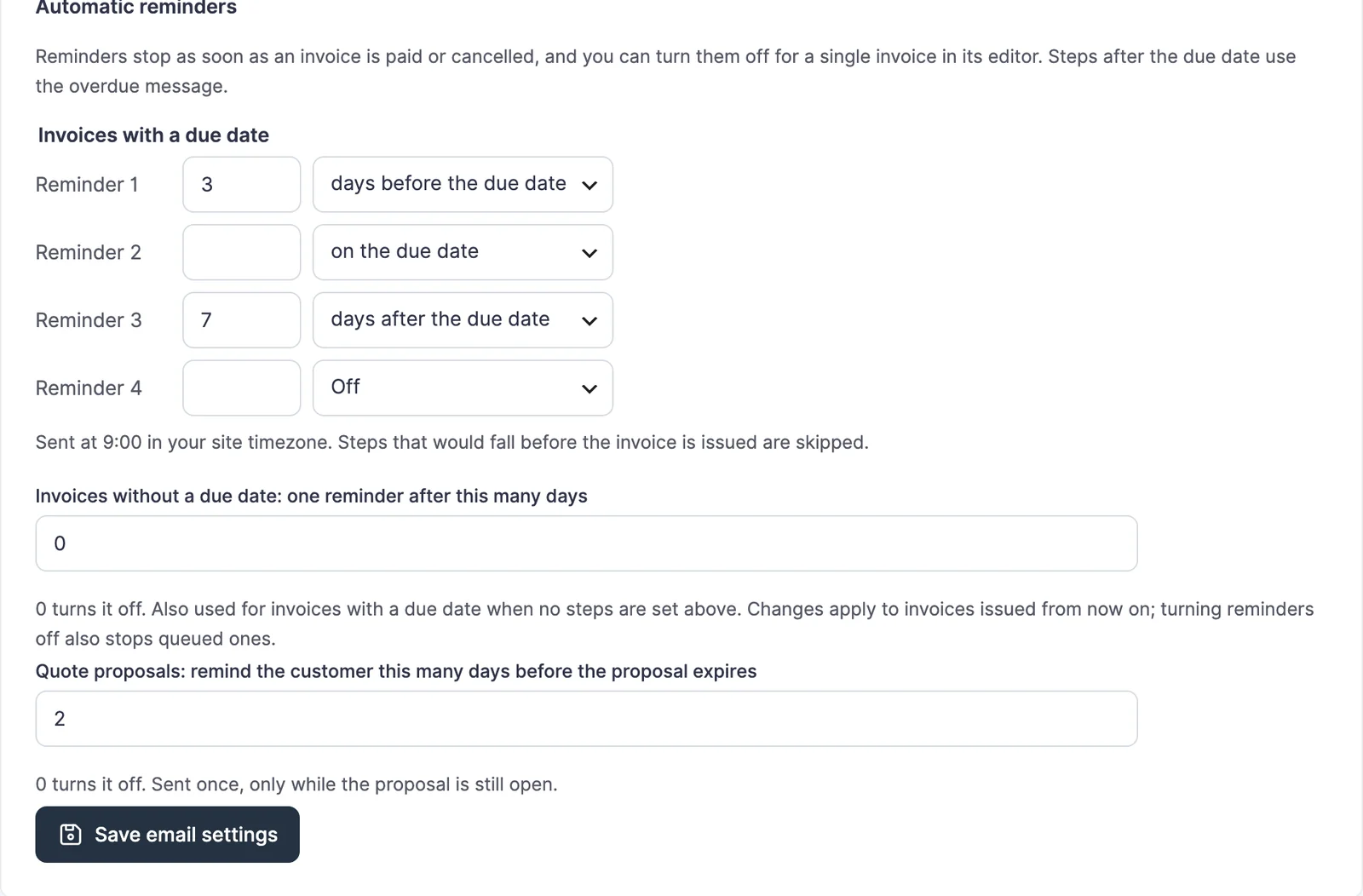
Open FluentCart → Invoices → Email settings and scroll to Automatic reminders. Each row is one reminder:
You get up to four steps. Reminders go out at 9:00 in your site timezone, and a step that would fall before the invoice was issued is skipped. Save email settings when you’re done.
Email settings has a Reminder message and an Overdue reminder message. Steps before the due date and on the day use the reminder message. Steps after the due date use the overdue one, which says the invoice was due on a date and is still unpaid. Both messages take the same placeholders as the payment request, including {due_date}, {amount} and {pay_url}. The due date prints in your site’s date format.
Keep the overdue message polite and short. A customer who already paid by bank transfer will read it too, so the default text tells them to ignore it if they’ve paid.
The field Invoices without a due date: one reminder after this many days covers invoices with no due date. Set it to 0 to turn it off. The same setting also applies to invoices with a due date when you haven’t set any steps above.
Some customers don’t need reminders, such as a client on a standing payment arrangement. In the invoice editor, the Reminders box beside the form has Send automatic reminders. Clear it before issuing, and that invoice gets no automatic email. You can still send a reminder yourself with Send reminder on the issued invoice.
An issued, unpaid invoice lists its upcoming reminders under the payment link, with the date and the step for each. This list shows only what is actually queued, so changing the settings later doesn’t change an invoice that was already issued. To apply new settings to an existing invoice, edit it and issue it again.
Queued reminders are removed when the invoice is:
A reissued invoice is scheduled again from its new due date. Each step is sent once per due date, so a retry or a repeated background job never emails the customer twice.
Send reminder on an issued invoice emails the customer straight away. Before the due date it uses the reminder message, and after the due date it uses the overdue message.
With Request a Quote on, Email settings also has Quote proposals: remind the customer this many days before the proposal expires. Set it to 2 and a customer who hasn’t accepted a proposal gets one reminder two days before the valid-through date. It goes out once, only while the proposal is still open. Withdrawn and accepted proposals get nothing.
Still stuck? Open a support ticket