
Sell Downloads as Subscriptions
Selling memberships, software updates or template libraries on a schedule usually means another add-on and a separate way of building products. Your downloads already exist. What’s missing is a way to say “charge this every month.”
The Subscriptions module adds that as a checkbox on the downloads you already sell. A single-price download, or any one of its price options, becomes a subscription with its own billing schedule, free trial, signup fee and length. Nothing changes about how you build the download itself.
Turn On Subscriptions
- Go to Stackless → Dashboard and switch on Subscriptions.
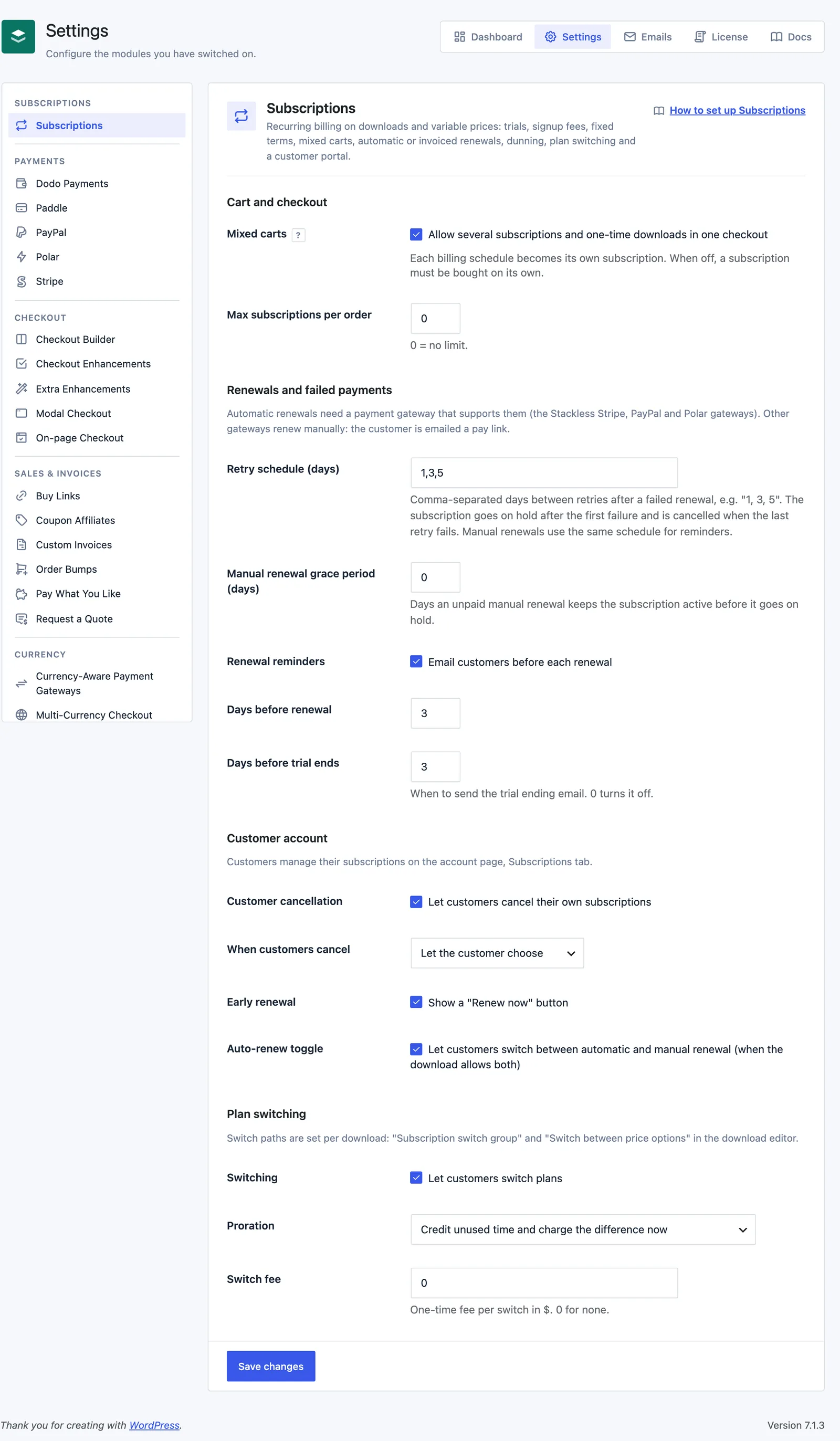
- Go to Stackless → Settings → Subscriptions and review the cart, renewal, account and switching settings.
- Click Save changes.
The module pauses itself while EDD Recurring Payments is active, so the two never bill the same customers. Its card on the Dashboard then reads “Paused because EDD Recurring Payments is active and does the same job.”
Make a Single-Price Download a Subscription
- Go to Downloads → Add New, or edit an existing download.
- Leave variable pricing off and set the price. That’s the price per billing period.
- Tick Subscription under the price field.
- Fill in the schedule fields that appear.
- Publish or update the download.
The schedule fields are:
- Bill and Billing period: every, every 2 up to every 12, in day(s), week(s), month(s) or year(s). Default every month.
- Free trial length and Trial period: 0 for no trial. The first payment is taken when the trial ends.
- Signup fee: a one-time amount added to the first order, in your store currency. Empty means no fee.
- Renewals: the number of renewal payments after the first paid period. 0 renews until cancelled.
- Renewal mode: “Automatic when the gateway supports it, otherwise manual” (default), “Automatic only (requires a gateway that saves cards)” or “Manual only (customer pays each renewal invoice)”.
- One per customer: customers with an active subscription to this price can’t buy it again.
So a monthly plan with Renewals set to 11 bills 12 times, and the price reads “for 12 months.”
If you pick Automatic only and none of your enabled payment methods can take automatic renewal payments, the editor shows a warning under Renewal mode. Customers can’t buy that plan until you enable a gateway that can.
Set Up Variable Price Subscriptions
With variable pricing on, each price option row gets its own Subscription checkbox. Tick it and the same schedule fields appear inside that row, so a Monthly option and a Yearly option can bill on different schedules.
You can mix one-time and subscription price options on one download. When every price option is a subscription on the same schedule, the download’s price gets the schedule added, such as “/ month”. A mix of schedules, or of one-time and subscription options, keeps the plain price. Each option in the price list still shows its own plan.
What Customers See
The price carries the whole plan in one line, for example “$10 / month for 12 months, 7-day free trial, $5 signup fee.”
At checkout, a subscription line shows its recurring price, like “$15.00 / month”. Lines with a trial, fixed length, signup fee or quantity add the full plan wording, and trials add a “First payment” date. A signup fee shows as its own fee named “[Download] signup fee”.
Below the cart, a Recurring totals block shows each future charge with its discount, tax, Recurring total, the First payment or First renewal date, and an Ends date for fixed-length plans.
Today’s charge is the first period’s price plus any signup fee. With a free trial, the subscription line costs nothing today, so only the signup fee is charged.
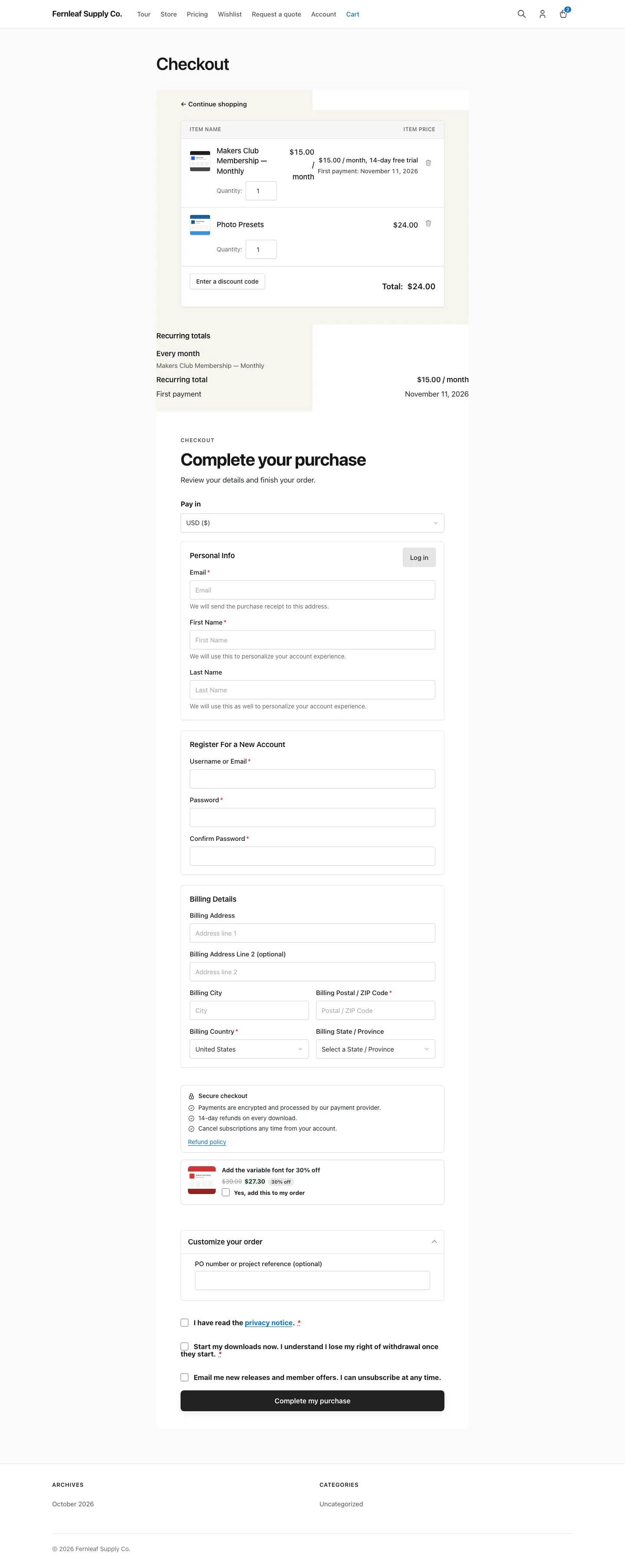
A cart holding a subscription also requires an account at checkout, so the customer can manage the subscription later from the account page.
Allow Mixed Carts
These settings live under Stackless → Settings → Subscriptions, in the Cart and checkout section:
- Mixed carts: allow several subscriptions and one-time downloads in one checkout. On by default.
- Max subscriptions per order: the most subscription items one order can hold. 0 means no limit, the default.
With mixed carts on, items whose plans share the same period, interval, trial, length and renewal mode become one subscription. Different schedules become separate subscriptions from the same order. Signup fees and the One per customer limit don’t split a group.
With mixed carts off, a subscription has to be bought on its own. Adding one to a cart with other items empties the cart first and tells the customer why. Adding another download to a cart that holds a subscription is refused.
How Renewal Mode Picks the Gateway
Renewal mode decides which payment methods show at checkout and how the subscription renews:
- Automatic only: checkout shows only the gateways that can renew on their own. If none is enabled, checkout explains that the subscription can’t be bought right now.
- Automatic when the gateway supports it: every gateway shows. A gateway that can renew makes the subscription automatic. Any other gateway makes it manual.
- Manual only: always renews by emailed invoice, whatever the customer pays with.
Which gateways renew automatically:
| Gateway | How renewals are paid |
|---|---|
| Stackless Stripe | The store charges the saved card or payment method on each renewal date. |
| Stackless PayPal | The store charges the saved PayPal account on each renewal date. |
| Stackless Polar, Paddle and Dodo Payments | The provider runs the billing schedule. The renewal is recorded when the provider reports the charge. |
| Any other EDD gateway | Manual: the customer is emailed a renewal invoice with a pay link. |
One exception for “Automatic when the gateway supports it”: when nothing is due today, such as a free trial with no signup fee, and an automatic gateway is available, checkout shows only the gateways that can renew. That way a payment method is saved for the first real charge.
Set up each gateway in its own guide: Stripe, PayPal, Polar, Paddle and Dodo Payments.
Discount Codes on Subscriptions
Every EDD discount code gets a Subscription payments setting on its edit screen. Save a new code first, then edit it to see the field:
- First payment only: plain EDD behavior. The default.
- Every payment: the discount stays on every renewal.
- A set number of payments: with a number field. The count includes the first payment, but a signup with a free trial doesn’t use one up.
When a code runs out of discounted payments, it’s removed from the subscription and later renewals bill the full price. Renewal orders record the code without applying it again, so they don’t use up the code’s uses.
Good to Know
- Subscriptions are a setting on a download or price option, not a new download type.
- Changes to a download don’t touch existing subscriptions. Each subscription keeps the items, prices and schedule it was bought with.
- One per customer also counts subscriptions that are in trial, on hold or pending cancellation, and it limits the cart quantity to one.
- With Automatic only and more than one subscription in the cart, only Stripe and PayPal qualify. Polar, Paddle and Dodo Payments handle one subscription per checkout.
- Plan switching paths are set on the download too. See Let Customers Manage Subscriptions.
- Renewals, retries and reminders are covered in Handle Renewals and Failed Payments.