
Add a Currency Selector
Enabling a second currency doesn’t help if shoppers can’t find a way to choose it. Most themes have no spot for a currency switcher, and a switcher that only changes the price labels leaves the cart total in the old currency.
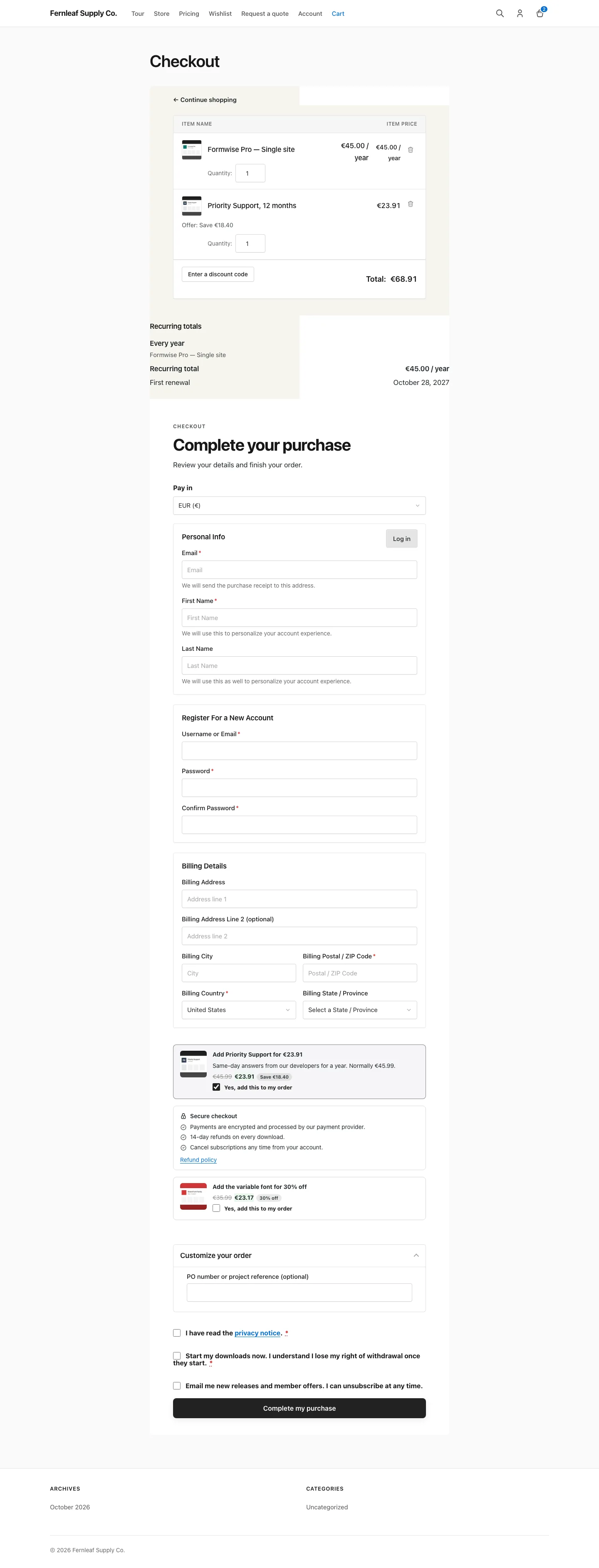
Storefront Currency Selector gives shoppers a currency dropdown as a shortcode, a block or a selector on the checkout. Switching reprices the cart on the server, so download prices, the cart and the checkout all move to the new currency together.
Turn It On
This module needs Multi-Currency Checkout. Switch on both from Stackless → Dashboard, then open Stackless → Settings and choose Storefront Currency Selector under Currency.
The selector only shows when two or more currencies are enabled. It hides itself on EDD’s purchase confirmation page, and while a shopper pays an existing order through a payment link, because those are fixed to the order’s currency.
Set the Defaults
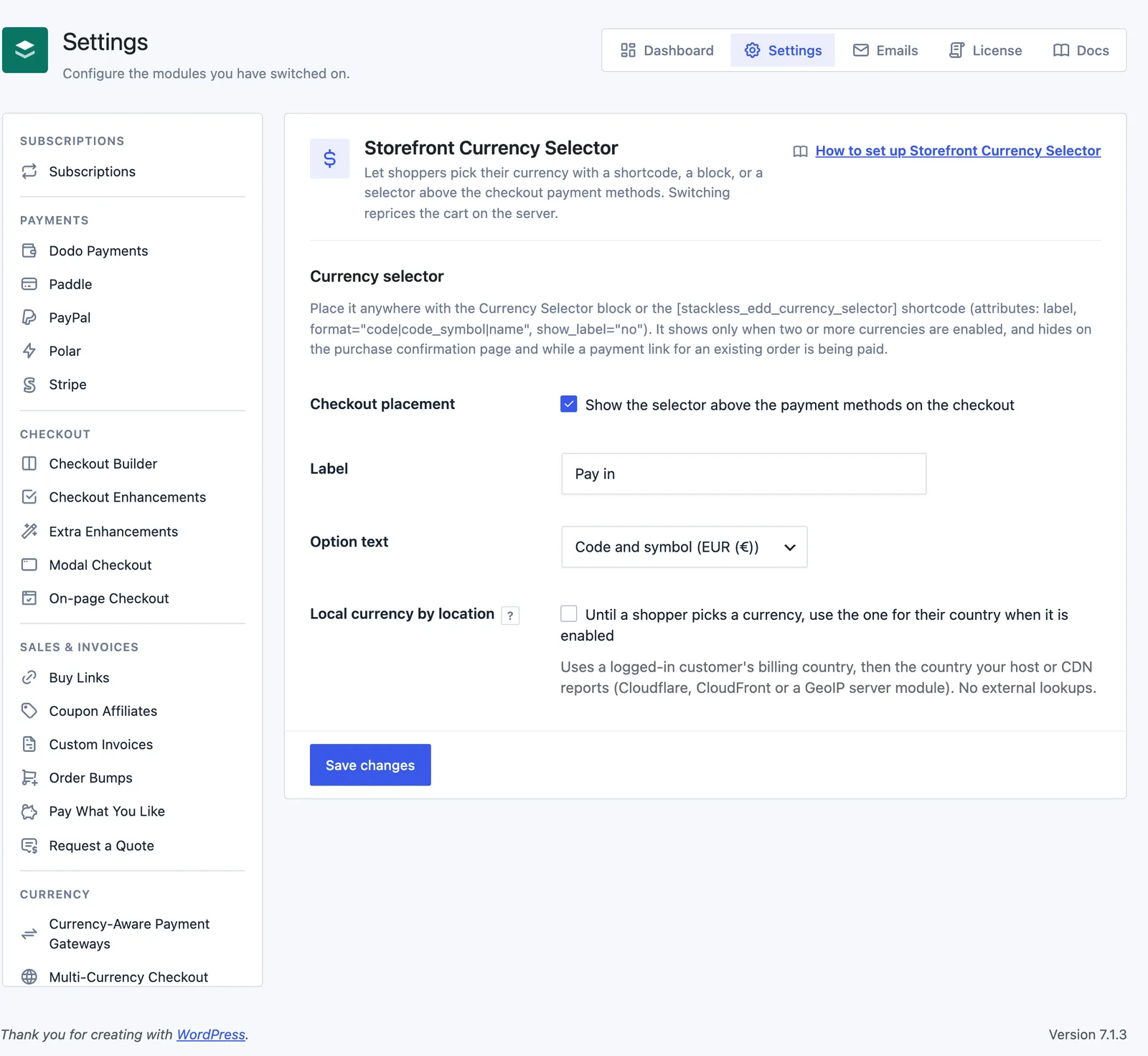
Under Currency selector:
- Checkout placement: “Show the selector above the payment methods on the checkout”. On by default. It works on EDD’s shortcode checkout and block checkout and prints once, just before the purchase form.
- Label: “Currency” when left empty.
- Option text: Code (EUR), Code and symbol (EUR (€)) as the default, or Name and code (Euros (EUR)). Names come from EDD’s currency list.
- Local currency by location: off by default. Until a shopper picks a currency, it uses the one for their country, when that currency is enabled.
Label and Option text apply to the checkout selector and act as the shortcode defaults.
Add the Selector with a Shortcode
Use [stackless_edd_currency_selector] anywhere shortcodes work, such as a page, a widget or a header area.
Attributes:
label: the label textformat:code,code_symbolornameshow_label:nohides the visible label and keeps it for screen readersclass: extra CSS classes
[stackless_edd_currency_selector label="Pay in" format="name" show_label="no"]Add the Selector with a Block
Search for the Currency Selector block (stackless-edd/currency-selector) in the Easy Digital Downloads category. Its settings are:
- Label: empty by default, which shows “Currency”
- Show label: on by default. When off, the label stays available to screen readers.
- Option text: Code (EUR), Code and symbol (EUR (€)) as the default, or Name and code (Euros (EUR))
The block supports left, center and right alignment, margin and padding, and font size. It keeps its own settings, so changing Label or Option text in Stackless settings doesn’t change blocks you’ve already placed. With fewer than two currencies enabled, the editor shows a reminder to enable more under Stackless → Settings → Multi-Currency Checkout.
How Switching Works
When a shopper picks a currency:
- The selector shows “Updating prices…”, switches the currency through an admin-ajax request and reloads the page, so prices, the cart and the payment methods all follow.
- Without JavaScript, a Change currency button submits the form.
- If a cached page carries an expired security token, the selector falls back to a currency link.
- Any storefront URL with
?stackless_edd_currency=EURswitches the currency, then redirects to the same page without the parameter. Use this for currency links in menus or campaigns.
The choice is saved in the EDD session and the stackless_edd_currency cookie. A switch is refused in these cases:
| Case | Message |
|---|---|
| The cart holds downloads with no price in the new currency | “Your cart has items without a price in EUR: [names]. Remove them to pay in EUR.” |
| The cart is paying an existing order through a payment link | “This payment is in EUR and keeps its currency.” |
| The currency isn’t enabled | “That currency is not available in this store.” |
Pick a Local Currency by Location
With Local currency by location on, a shopper who hasn’t chosen yet gets their country’s currency. The country comes from:
- a logged-in customer’s billing country from their EDD customer record
- otherwise, the country header your host or CDN sends: Cloudflare, CloudFront or a MaxMind or GeoIP server module
The module makes no external lookups. Unknown codes, such as the ones Cloudflare sends for Tor or unknown visitors, are ignored. If the country’s currency isn’t enabled, the shopper gets your Default currency from Multi-Currency Checkout.
Good to Know
- Override the markup by copying
templates/currency_selector/selector.phptostackless-edd/currency_selector/selector.phpin your theme. Keep thedata-stackless-currency-*attributes and the select name, because the script and the no-JavaScript fallback rely on them. - Developers can change the detected country with the
stackless_edd_currency_selector_countryfilter and the country-to-currency map withstackless_edd_currency_selector_country_currencies. - After a switch, the
stackless_edd_currency_switchedaction fires with the new currency, the previous currency and the source (manual,link,ajaxorapi). - Pages that change by currency need a page cache that varies on the
stackless_edd_currencycookie. See Sell in Multiple Currencies.