
Restrict Pages to Buyers
You sell a course, a template pack or a members-only guide, and the content lives on a WordPress page. Without a gate, anyone with the URL can read it, and a membership plugin is a lot of machinery for “people who bought X can open page Y.”
Page Access links pages to downloads. A customer who bought one of those downloads can read the page after signing in. Everyone else sees an access notice that points them to the download, and subscription downloads can keep access only while the subscription is active.
Turn It On
Switch on Page Access from Stackless → Dashboard, then open Stackless → Settings and choose Page Access under Access & licensing.
The module pauses itself if the EDD Content Restriction extension is active, because both do the same job.
Link a Page to a Download
You can set the link from either side. Both write the same data, so the page box and the download box always agree.
From the page:
- Open the page in the editor.
- In the Customer access box in the sidebar, tick the downloads that unlock it. A Filter downloads field appears when you have more than eight downloads.
- Update the page.
From the download:
- Edit the download and find the Page access box below the editor.
- Tick the pages this download unlocks, using Filter pages by title if the list is long.
- Update the download.
Any one ticked download is enough to open the page. Leave every download unticked and the page stays open to everyone. Restricted pages show a Customers only label in your Pages list.
Store pages can’t be restricted: EDD’s checkout, receipt, failed transaction, purchase history, login and login redirect pages, the confirmation page, the Stackless account page and the privacy policy page. They aren’t listed in the download box, and their Customer access box says the page stays open to every customer.
Published Versus Private Pages
The page’s WordPress visibility decides how a locked page behaves:
- Published: visitors without access see the page title and the access notice instead of the content. Excerpts and comments stay hidden too.
- Private: buyers can read it, and the “Private:” prefix is dropped from the title. Signed-out visitors are sent to the sign-in page. Signed-in accounts without access get WordPress’s usual not-found response.
Anyone who can edit the page, such as admins and editors, can always read it.
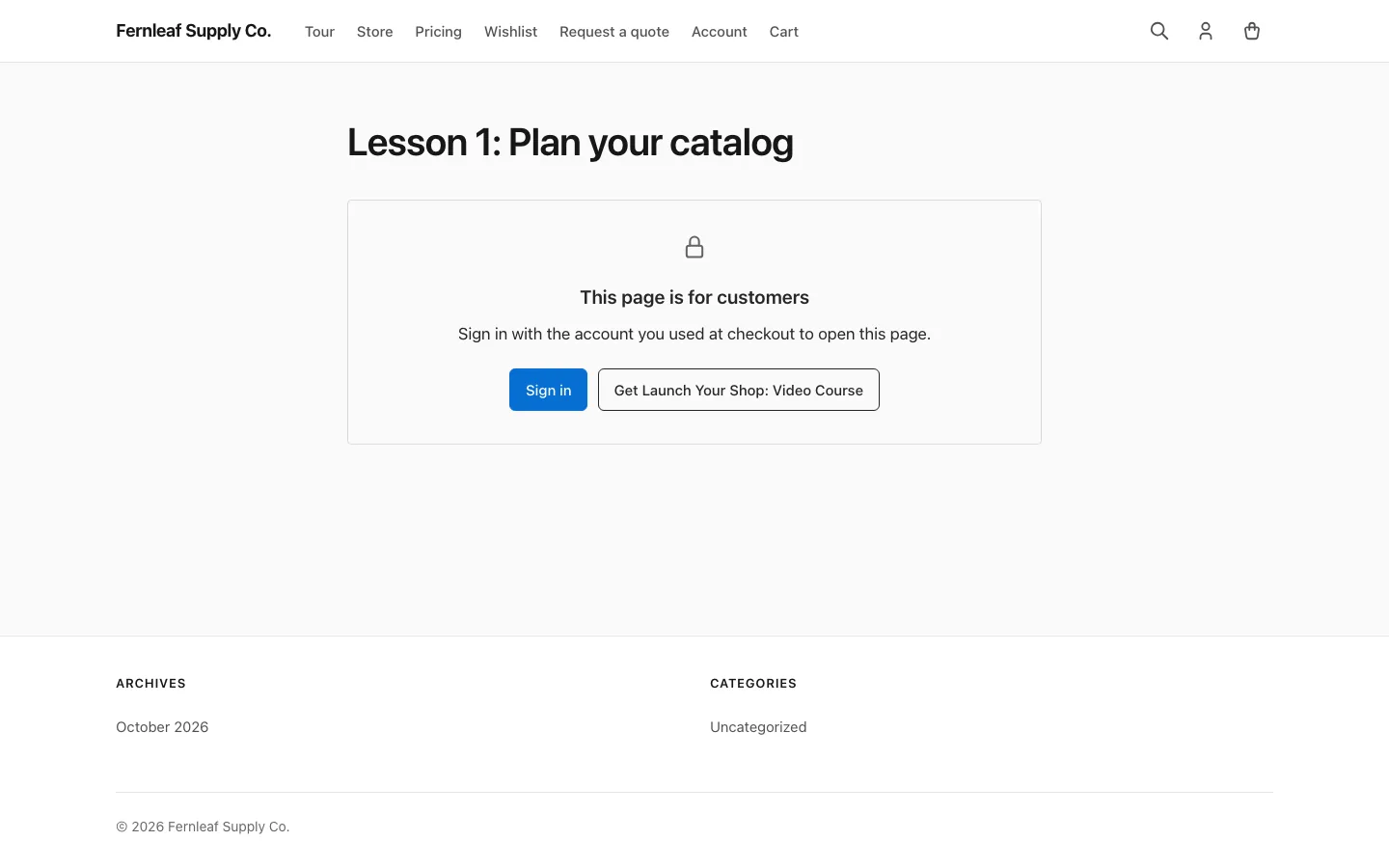
Who Gets In
A customer owns a download when it appears on one of their orders with a paid status (Completed or Partially Refunded) and the line isn’t fully refunded. Orders count whether they sit on the WordPress account or on the EDD customer record that account belongs to. A partial refund keeps access. A line that’s refunded in full, or a free line whose whole quantity is refunded, loses it.
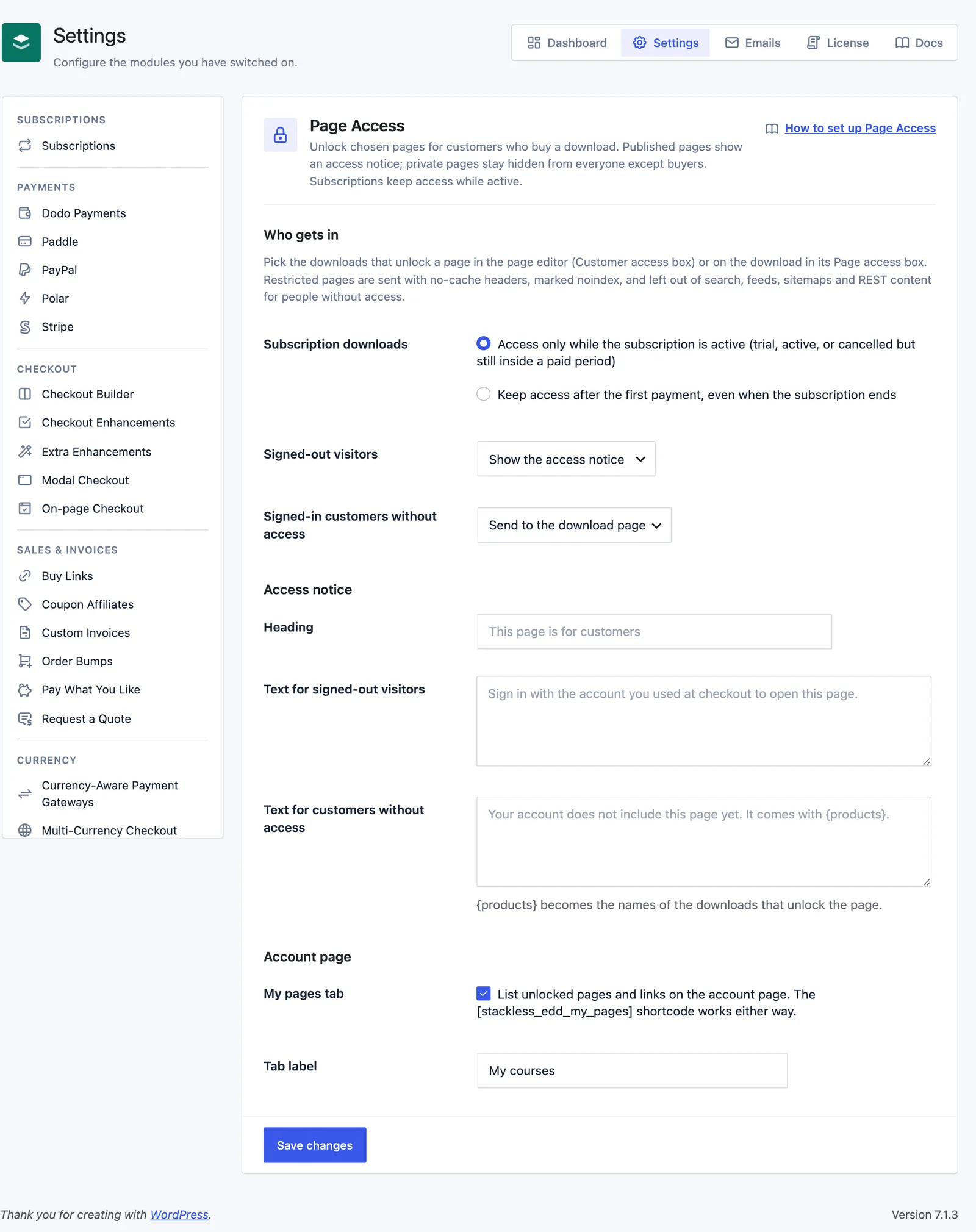
Configure the rest under Stackless → Settings → Page Access, in the Who gets in section:
- Subscription downloads: Access only while the subscription is active (trial, active, or cancelled but still inside a paid period), which is the default, or Keep access after the first payment, even when the subscription ends.
- Signed-out visitors: Show the access notice (default) or Send to the sign-in page.
- Signed-in customers without access: Show the access notice (default) or Send to the download page. The redirect goes to the first published download that unlocks the page. If none is published, the notice shows instead.
Customize the Access Notice
The Access notice section has three fields. Leave them empty to use the built-in wording:
- Heading: defaults to “This page is for customers”.
- Text for signed-out visitors: defaults to “Sign in with the account you used at checkout to open this page.”
- Text for customers without access: defaults to “Your account does not include this page yet. It comes with {products}.”
{products}becomes the names of the downloads that unlock the page, or “a qualifying purchase” when none is published.
The notice shows a Sign in button for guests and up to three “Get download name” buttons that link to published downloads. Override its markup by copying templates/page_access/notice.php to stackless-edd/page_access/notice.php in your theme.
Add Links on Other Sites
In the download’s Page access box, Links on other sites holds up to 20 label and URL pairs, such as a Notion template, a shared folder or an unlisted video. Buyers find them under My pages. Use Add another link for a new row, and leave a row empty to remove it. Rows that aren’t http:// or https:// addresses aren’t saved, and a warning says how many were skipped.
These links can’t be paywalled. Anyone with the address can open them on the other site, so use unlisted links and replace a link if it gets passed around.
The My Pages Tab
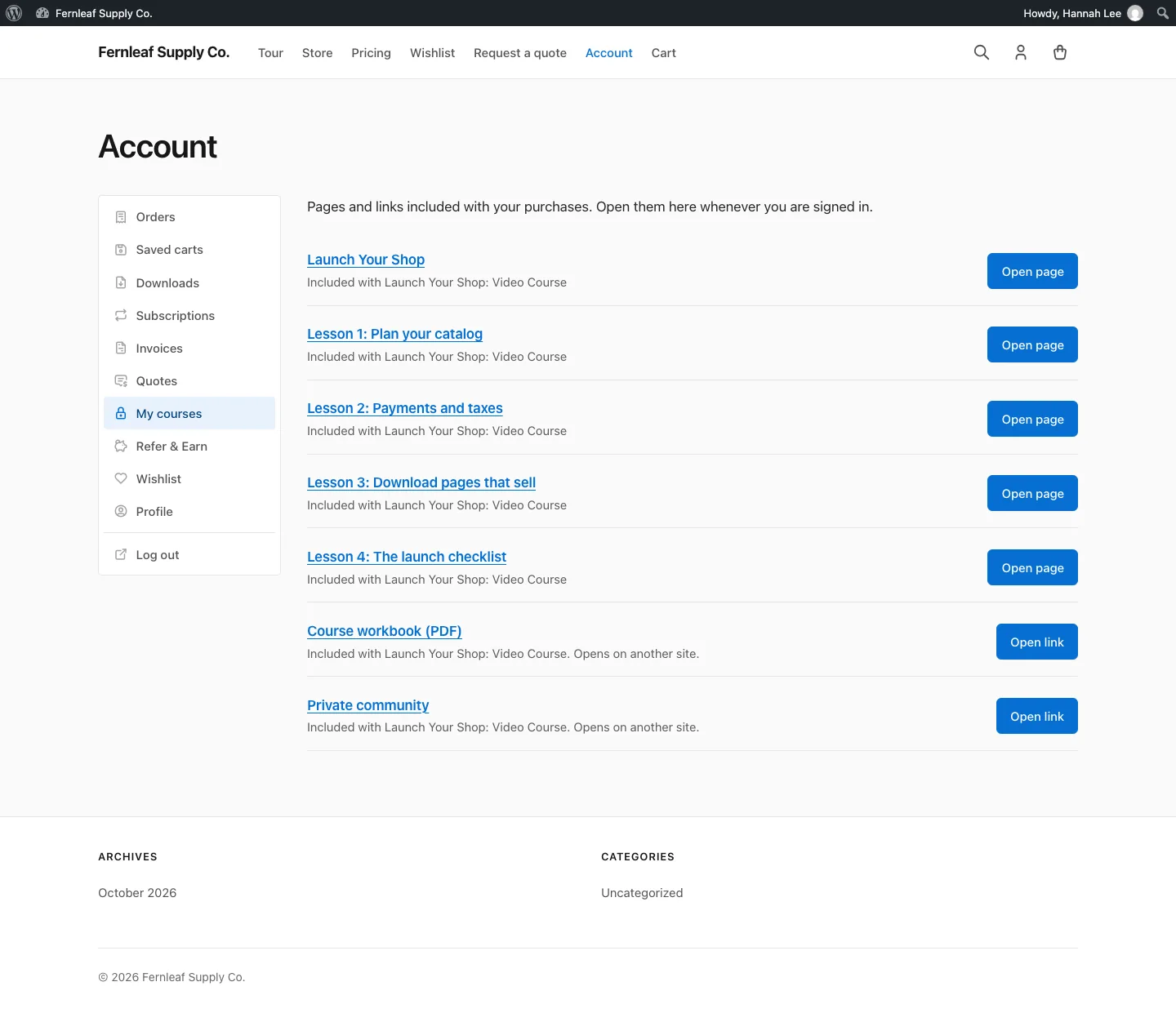
Under Account page, My pages tab is on by default. It adds a tab to the [stackless_edd_account] account page that lists the customer’s unlocked pages and outside links, each with an Open page or Open link button. The tab only appears once the customer has something to open. Change its name with Tab label, which defaults to “My pages”. The tab opens at the account page with ?account-tab=pages.
The [stackless_edd_my_pages] shortcode prints the same list on any page and works even when the tab is off. Signed-out visitors see a Sign in button instead. Override the list by copying templates/page_access/my-pages.php to stackless-edd/page_access/my-pages.php in your theme.
For more on the account page, see Customer Account.
Good to Know
- Restricted pages are sent with no-cache headers and marked noindex, including in Rank Math and Yoast. Pages a viewer can’t open are left out of site search, feeds and REST search, and every restricted page is left out of the WordPress sitemap.
- REST page responses drop the content and excerpt for people without access.
- Only pages are covered by default. Developers can add post types with the
stackless_edd_page_access_post_typesfilter, change which order statuses count as bought withstackless_edd_page_access_paid_statuses, and override a decision withstackless_edd_page_access_can_view. - The page box and download box list up to 500 items each. Items already linked beyond that limit still show, so saving doesn’t drop them. Pages you can’t edit appear greyed out in the download box.
- AI agents can list and change page links with the
page_access.pages,page_access.addandpage_access.removecommands. See AI Agents.