
Sell Downloads on Another Website
Some things you list aren’t sold through your own checkout. A paperback a partner prints and ships, a course on a marketplace, an affiliate product. Easy Digital Downloads has no external download type, so its purchase button always adds to your cart.
Free in Lite: this module is also in Stackless Lite for EDD, the free edition, and works the same way there.
External Downloads turns a download’s purchase button into a real link to another website. It adds link attributes and a target, optional price hiding and outbound click counts. An external download can also never end up in the cart.
Make a Download External
- Edit the download and open the Settings section under Download Details.
- Tick Sold on another website (external download).
- Enter the External buy URL. It must be an
http://orhttps://address. - Optionally enter Button text, up to 80 characters. Leave it blank to use the store default.
- Update the download.
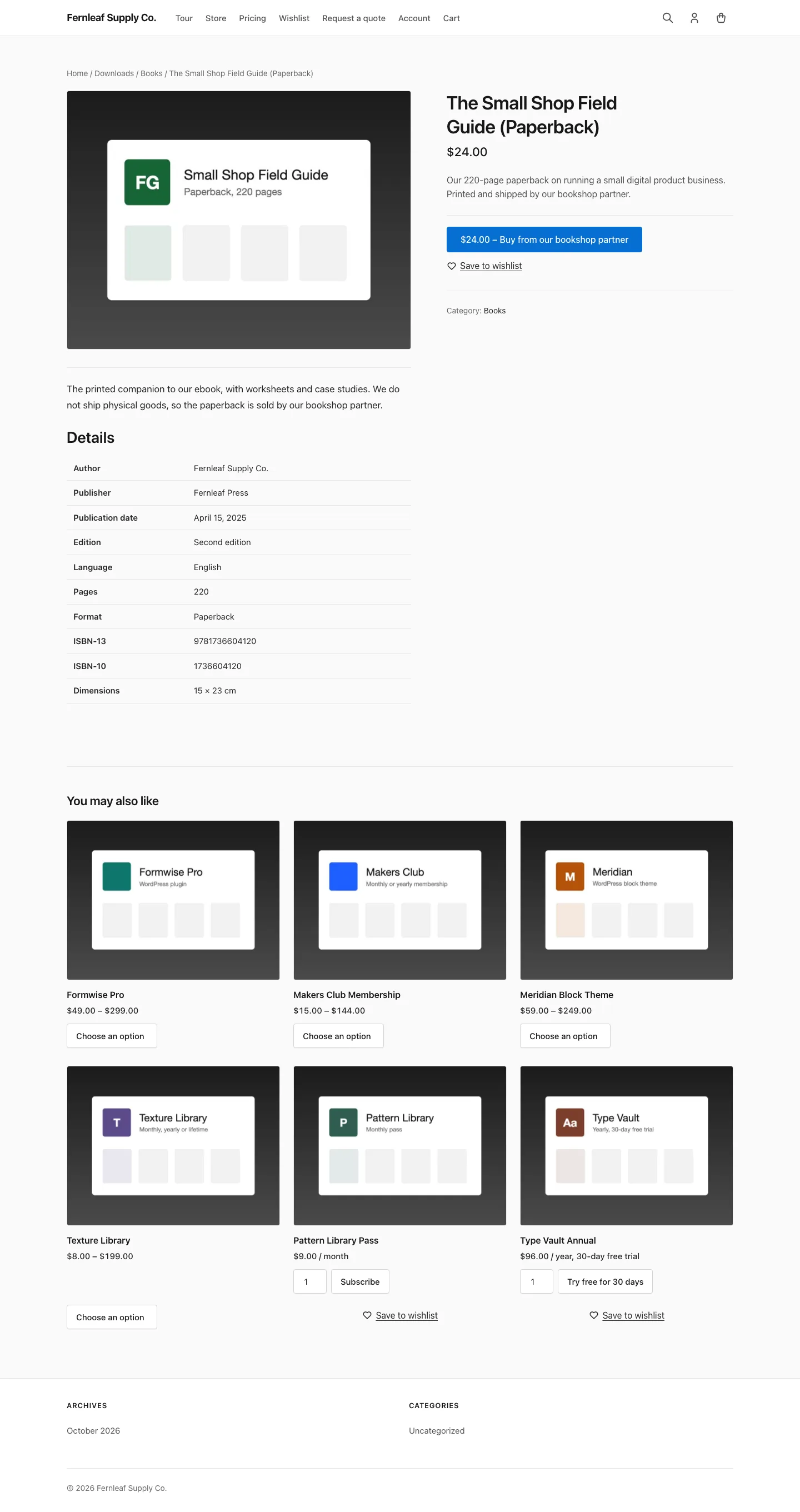
The purchase form becomes a link to that URL wherever EDD prints it: download pages, [downloads] grids, the EDD downloads block and the Buy Button block. If the URL is missing or invalid, no button shows.
Set the Store Defaults
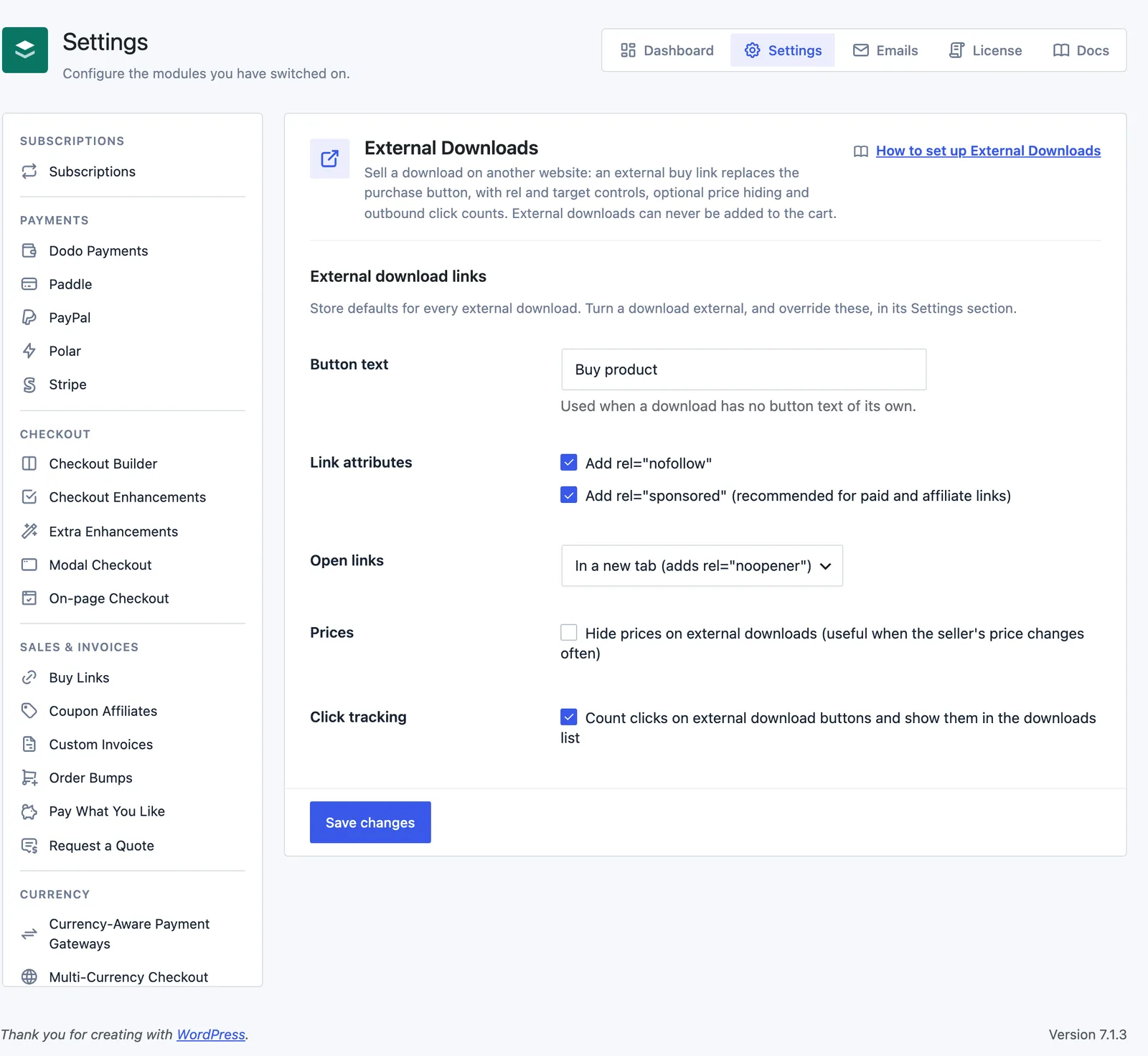
Go to Stackless → Settings → External Downloads. Under External download links:
- Button text: defaults to “Buy product”. Used when a download has no button text of its own.
- Link attributes: Add rel=”nofollow” and Add rel=”sponsored” (recommended for paid and affiliate links). Both are on by default.
- Open links: In a new tab (adds rel=”noopener”), the default, or In the same tab.
- Prices: hide prices on external downloads, useful when the seller’s price changes often. Off by default.
- Click tracking: count clicks on external download buttons and show them in the downloads list. On by default.
Override One Download
With the external box ticked, the download’s Settings section shows four more fields. Each defaults to Store default:
- rel=”nofollow”: Add or Do not add.
- rel=”sponsored”: Add or Do not add.
- Open link: In a new tab or In the same tab.
- Price display: Hide price or Show price.
When the price shows and EDD would put it on the button, it stays in front of your text, as in “$24.00 – Buy from our bookshop partner”. With the price hidden, it’s removed from the price line, the button and the download’s structured data.
Count Outbound Clicks
With Click tracking on, the Downloads list in wp-admin gets an Outbound clicks column next to Price. External downloads show their count, and other downloads show a dash.
The download’s Settings section shows the same count and the time of the last click. To start over, tick “Set the click count back to zero when you update the download.” and update the download.
A click is counted once per visitor per download every 10 minutes, so refreshes and repeat clicks don’t inflate the number. Middle-clicks count too. Only published external downloads can be counted.
The Cart Guard
External downloads are never purchasable on your store, even if another plugin tries to change that:
- EDD’s purchase check refuses them, so purchase forms, AJAX add to cart,
/edd-add/links and EDD’s cart REST routes reject them with “This download is sold on another website and cannot be added to the cart.” - If one is already in the cart, checkout stops with “An external download is in your cart. It can only be bought on the seller’s website; remove it to continue.”
Good to Know
- Turning Click tracking off removes the column and stops counting. Existing counts are kept.
- With Hide Price Until Login also covering the download, guests see its login button in place of the external link.
- Clicks are recorded through the
stackless-edd/v1/external-click/<id>REST route.