
Install Stackless for EDD and Activate Your License
You’ve bought Stackless for EDD and want it running without upsetting a live store. The install is a normal WordPress plugin upload. The parts worth getting right are the order (Easy Digital Downloads first), the license, and what happens when you copy the site to staging.
Nothing in Stackless is locked behind the license. Every module works without it. Activating it adds automatic updates and support, and if it ever expires, your store keeps working as before.
Install the Plugin
- Make sure Easy Digital Downloads is installed and active. Stackless needs version 3.5 or later.
- Go to Plugins → Add New → Upload Plugin and upload the Stackless for EDD ZIP, or upload the
stackless-eddfolder to/wp-content/plugins/. - Activate Stackless for EDD.
- Open Stackless → Dashboard and switch on the modules you need.
- Configure each module under Stackless → Settings.
- Activate your license under Stackless → License.
The plugin declares Easy Digital Downloads as a required plugin, so WordPress expects it to be active first. If it’s missing or too old, Stackless starts no modules and shows one of these notices:
- “Stackless for EDD needs Easy Digital Downloads installed and active.”
- “Stackless for EDD needs Easy Digital Downloads 3.5 or newer. You have (your version).”
On activation, Stackless does a few things:
- records this site as your live store, unless one is already recorded (more on that below)
- creates a page called Account with the
[stackless_edd_account]shortcode, if no account page is set yet - refreshes WordPress permalinks
Modules prepare their database tables on the next page load, once Easy Digital Downloads is available. If a module can’t finish, administrators see “Stackless could not finish setting up these modules:” with the module and the error. Setup retries on the next page load.
Upgrade From Stackless Lite for EDD
If you run Lite, install and activate Stackless for EDD as above. Lite goes idle on its own, and your settings, wishlists and saved carts carry over. Activate your license, then deactivate and delete Lite. The full steps are in Stackless Lite for EDD: The Free Edition.
Activate Your License
Your key lives in your account at gauravtiwari.org. No key yet? The License screen has a “Get one here” link to the product page.
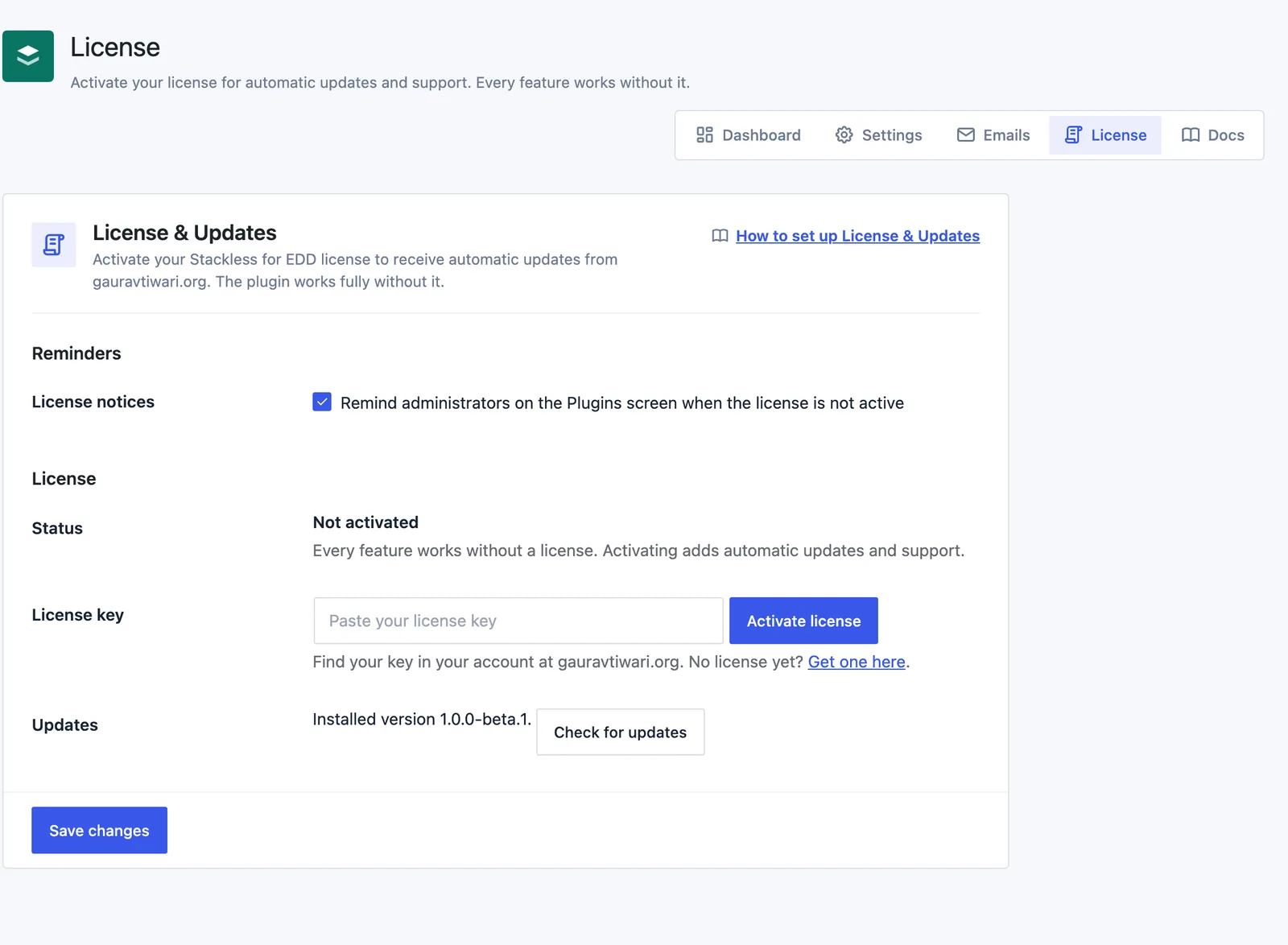
- Go to Stackless → License.
- Paste your key into the License key field.
- Click Activate license.
On success you’ll see “License activated. Updates will arrive through Dashboard → Updates.” The Status row turns to Active and shows either the renewal or expiry date, or Lifetime license. The key is then shown masked, with a Deactivate license button beside it.
A few rules apply:
- Only administrators can activate or deactivate the license. Anyone else who can open the screen sees “Ask a site administrator to activate the license.”
- Activation sends your key, your site address and your installed version to the license server at gauravtiwari.org. Each activation uses one of your license’s site slots.
- If activation fails, the server’s reason is shown. The fallback message is “That license key could not be activated. Check the key and that it has a free site activation.”
- If the server can’t be reached, you’ll see “Could not reach the license server. Please try again in a few minutes.”
What the License Screen Shows
The License screen is the License & Updates module’s settings page. It has a reminder setting and three rows:
- Status: Active, Expired (with a Renew your license link), Not activated or Activated for a different site address.
- License key: the key field and Activate license button, or the masked key and Deactivate license.
- Updates: your installed version and a Check for updates button.
Check for updates asks WordPress to check right away. It then tells you “Version (number) is available.” with an Update now link, “You have the latest version.” or “Activate the license to check for updates.” Below it, “License last confirmed … ago” shows when the license server last confirmed your key.
Under Reminders there’s one setting:
- License notices: reminds administrators to activate when the license isn’t active. On by default. Untick it and click Save changes to hide the reminders.
While the license isn’t active, those reminders show on the Plugins screen, the Updates screen and the Stackless screens, but not on the License screen itself. The Plugins screen also gets an Activate license link under Stackless for EDD.
Updates and Renewals
Once the license is active, Stackless updates arrive through Dashboard → Updates like any other plugin. Stackless asks the license server for a new version and caches the answer for 12 hours. If the server can’t be reached, it waits 30 minutes before asking again, so a slow server never slows your admin.
Once a week, Stackless asks the license server whether your key is still valid. A network error never changes your local status. Only a real answer from the server does.
When a license expires, every feature keeps working. Automatic updates stop until you renew, and the Plugins screen shows “Activate your license to update automatically.” on the update row.
Staging Copies and Moving Sites
The license is tied to your site’s address. If you clone the site to staging or change its address, the status reads “Activated for a different site address” and updates stop on that copy. Deactivate and activate again to use the license there.
To move a license to a new site, click Deactivate license on the old site first. If the license server can’t be reached at that moment, Stackless still removes the license locally. It warns you that the activation may still count against your limit until you remove it from your account.
Billing Pauses on a Copy of Your Store
A copy of a production database keeps every saved payment method, schedule and customer address. Stackless protects you from charging real customers from staging. It records which site is the live store, using the site address and the WordPress environment type.
When the current site doesn’t match that record, administrators and shop managers see “Stackless paused automatic billing on this site.” with the reason. While it’s paused:
- saved payment methods aren’t charged
- failed payments aren’t retried and dunning doesn’t run
- customer emails aren’t sent (emails to the store still go out)
- scheduled renewals and reminders are held, not lost
If the copy really is your live store, for example after a move to a new domain, click This is the live store in the notice. A prompt asks you to confirm first, because customers with saved payment methods will be charged from this site. Held renewals and reminders then run straight away. On a real staging site, click Keep paused and hide this notice instead.
Hosts can decide this in wp-config.php. Set STACKLESS_EDD_LIVE_STORE to true on the live store or false on a copy. While the constant is set, it decides, and the notice has no button to change it. Developers can also use the stackless_edd_live_store filter.
License Constants
Stackless knows which product to check your key against through the STACKLESS_EDD_LICENSE_ITEM_ID constant, set in the main plugin file. You don’t need to touch it. It’s overridable in wp-config.php, along with STACKLESS_EDD_LICENSE_SERVER for the license store address, which defaults to https://gauravtiwari.org/.
If a build has no product ID, the Status row says “License server not configured yet”. Nothing is sent anywhere, no reminder asks you to activate, and every feature still works.
Remove Stackless Without Losing Data
Deactivating Stackless leaves subscription schedules in place and only clears its own housekeeping tasks. Deleting the plugin keeps your data too: subscriptions, licenses, invoices and settings all stay.
To wipe Stackless data on delete, add this to wp-config.php before deleting the plugin:
define('STACKLESS_EDD_REMOVE_ALL_DATA', true);With that set, deleting the plugin drops the Stackless database tables and removes its options, transients and scheduled actions. Easy Digital Downloads orders, including renewal orders, are never deleted.
Good to Know
- The License screen needs the License & Updates module switched on. It’s on by default. If someone switches it off, the screen says “Turn on the License & Updates module on the Dashboard to manage your license.”
- Check for updates only shows for users who can update plugins.
- Activating on a new site records it as the live store only when no live store is recorded yet. A staging copy made from your live database carries the live record with it, so it starts paused.
- Problems with the license server are written to the Easy Digital Downloads debug log under Downloads → Tools → Debug Log, tagged
stackless-edd-plugin_license.