
Take Quote Requests and Send Proposals
Some downloads don’t have a fixed price. Custom work, team licenses and bulk deals need a conversation first, and that conversation usually lives in your inbox. You end up typing prices into an email, then building an order by hand once the customer says yes.
Request a Quote moves that flow into your store. Customers ask for a quote from any page or download. You reply with a proposal, which is a draft invoice with your prices. The customer accepts it online, and accepting issues the invoice and takes them straight to payment.
Turn It On
Proposals are invoice drafts, so Request a Quote needs the Custom Invoices module. Switch on both from Stackless → Dashboard. If Custom Invoices is off, the module stays paused with the note “Needs the Custom Invoices module enabled.”
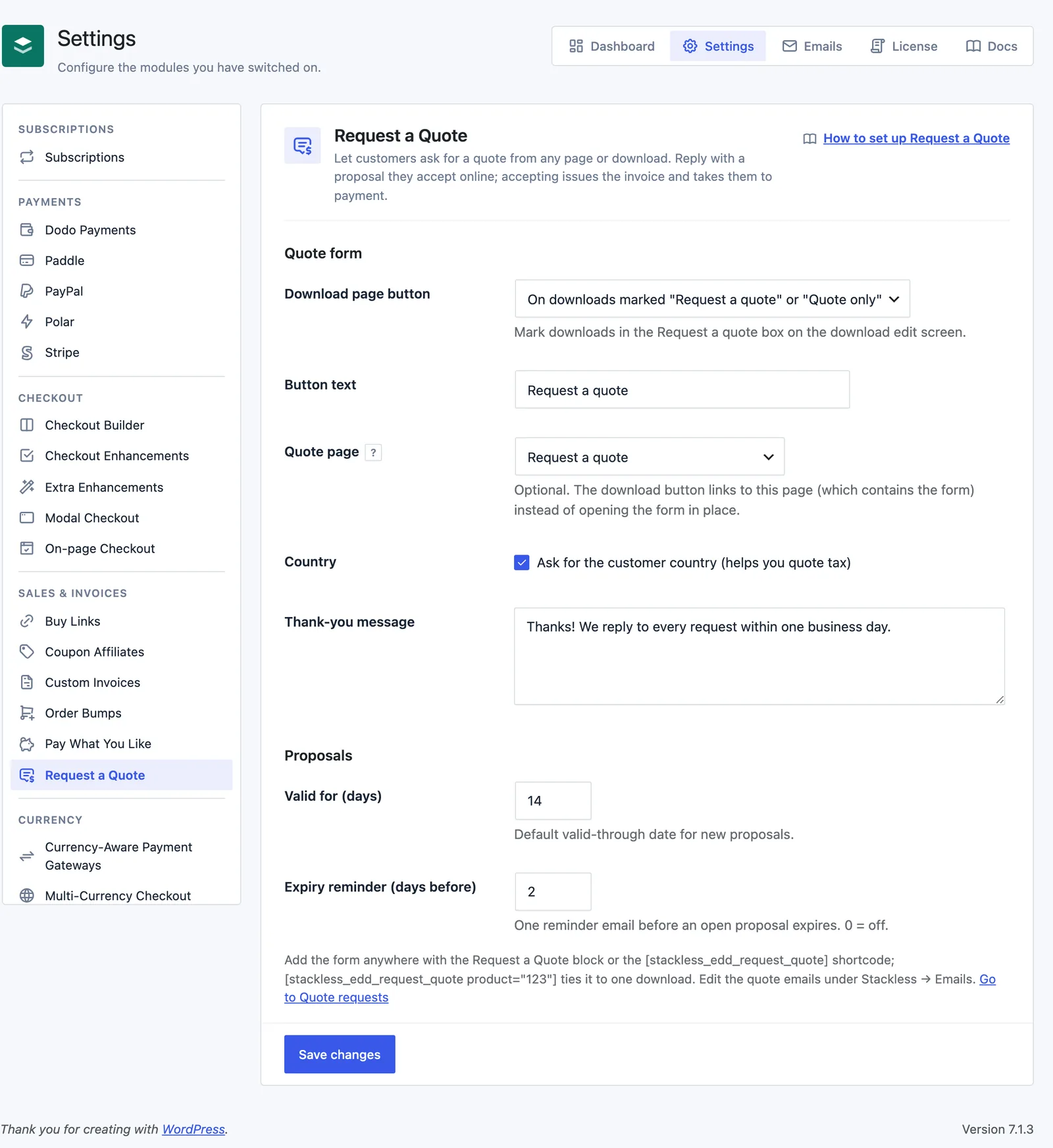
Then open Stackless → Settings and choose Request a Quote under Sales & invoices.
Add the Quote Form
You have three ways to show the form:
- The Request a Quote block (
stackless-edd/request-quote). Its only setting is Download ID (optional). Leave it at 0 for a general request. - The
[stackless_edd_request_quote]shortcode. Use[stackless_edd_request_quote product="123"]to tie it to one download. - A button on download pages, controlled by the Download page button setting below.
The form asks for Your name, Email, Company (optional), Phone (optional), Country, Quantity and What do you need?. Quantity runs from 1 to 10,000.
When the form is tied to a download with variable pricing, it adds an Option for dropdown with the price options and a “Not sure yet” choice. Signed-in customers get their name, email, phone, company and country filled in from their EDD customer record.
Set Up the Download Page Button
Under Quote form:
- Download page button: Off, On downloads marked “Request a quote” or “Quote only”, or On every download. The default is the middle one.
- Button text: reads “Request a quote” when left empty.
- Quote page: optional. The button links to this page, which holds the form, instead of opening the form in place. The link adds
?quote_download=<id>, so the form on that page is already tied to the download. - Country: “Ask for the customer country (helps you quote tax)”. On by default. When it’s on, the country is required.
- Thank-you message: shown after a request is sent. Left empty, the customer sees “Request received. We will email you a proposal you can review before paying.”
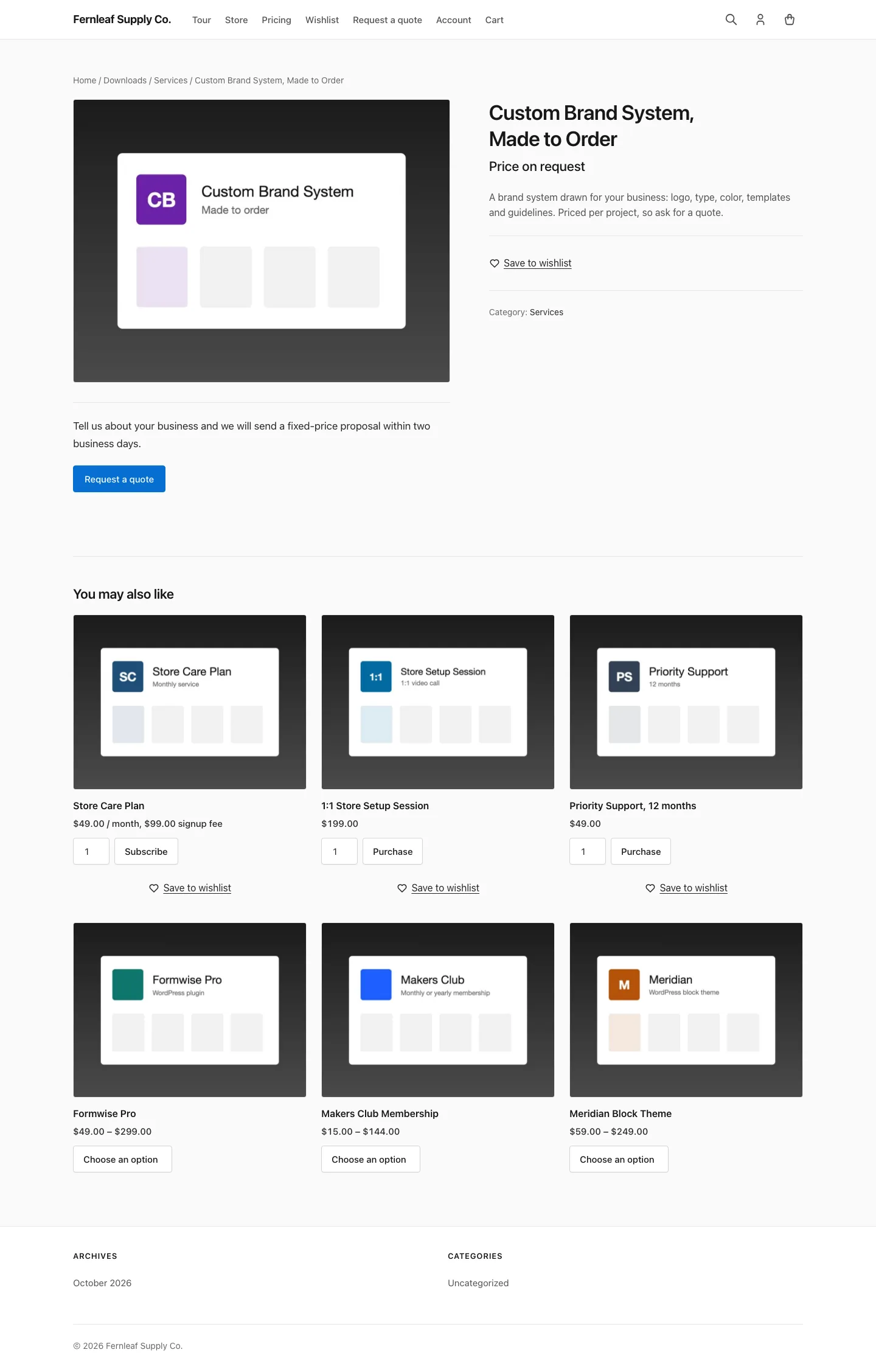
Without a quote page, the button sits below the download content and opens the form right there. It uses EDD’s own button style and color.
To mark a download, edit it and find the Request a quote box in the sidebar. It has two checkboxes:
- Show the Request a quote button on this download.
- Quote only: hides the price and purchase button. Customers can only request a quote. The price reads “Price on request”, even for variable pricing, and the download can’t be added to the cart.
Handle a New Request
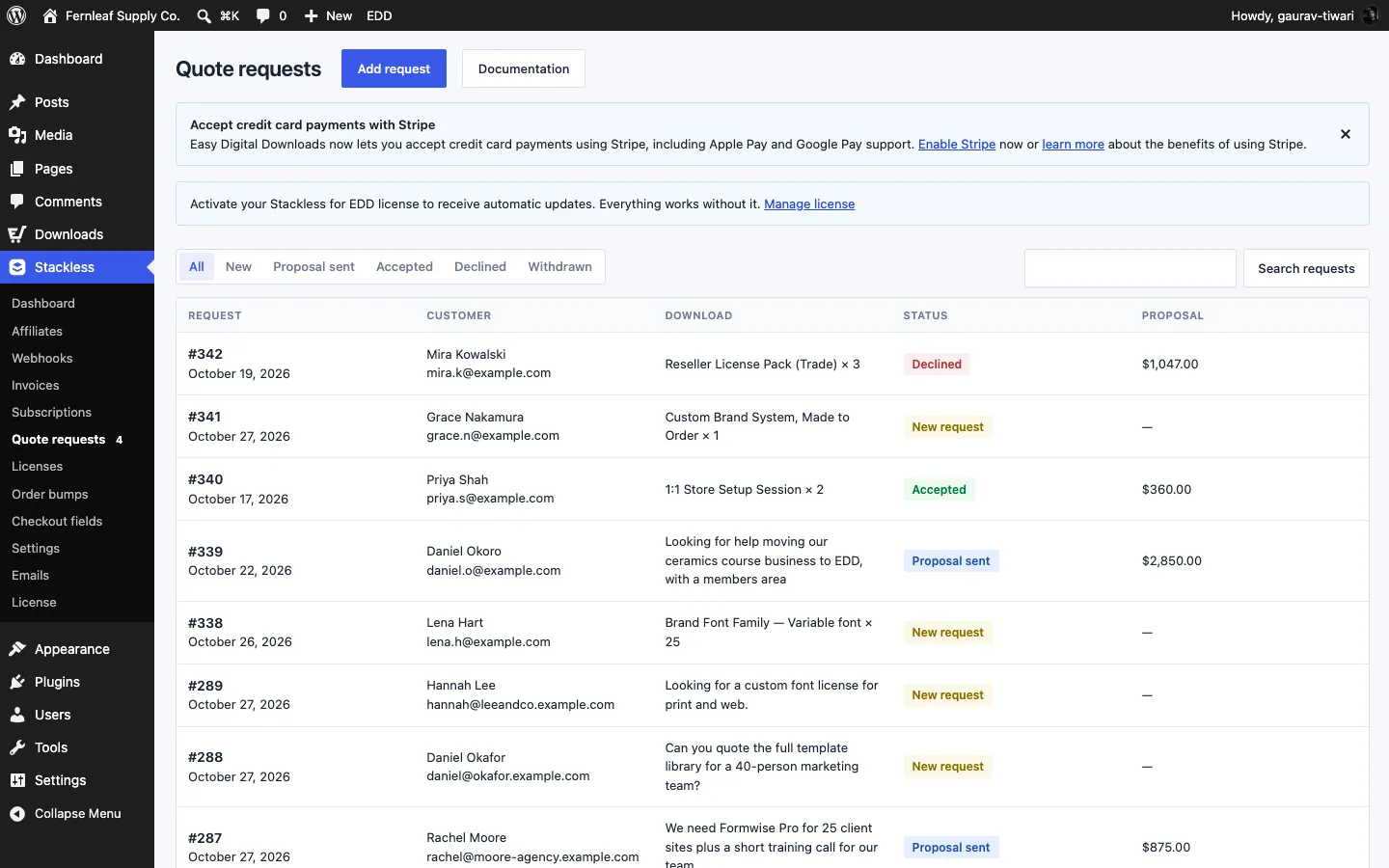
Every request lands in Stackless → Quote requests. The menu shows a count of new ones. The store gets the New quote request email, and the customer gets Quote request received.
Filter the list by All, New, Proposal sent, Accepted, Declined or Withdrawn, or use Search requests. Requests that came in by phone or email can be added with Add request. Those don’t send any emails.
To reply:
- Open the request and click Prepare proposal. This creates a draft invoice with the requested download, price option and quantity. A request without a download gets a “Custom work” line with no price yet.
- Click Edit proposal to set prices, items, discounts or a deposit in the invoice editor.
- Set Valid through. It defaults to today plus the Valid for (days) setting.
- Send it with Save and send proposal in the editor, or with Send proposal on the request.
The customer gets the Quote proposal email with a link to their proposal page. The request also shows that Customer link, so you can copy it into a chat or another email.
Each request shows one of these statuses: New request, Proposal draft, Proposal sent, Proposal expired, Accepted, Declined or Withdrawn.
What the Customer Does
The proposal page shows the items, totals and the valid-through date. It has an Accept proposal and continue button and a Decline this proposal option.
- Accepting issues the invoice and sends the customer to the invoice page to pay. The store gets the Quote proposal decision email.
- Declining takes an optional reason. The store is told, and the reason shows on the request.
- If the proposal has a deposit, the page explains that accepting asks for the deposit now. The balance is invoiced after the deposit is paid.
A proposal can’t be accepted when:
- it has expired
- it was withdrawn
- it was edited after sending
If you change a sent proposal, the request warns you. Click Resend proposal so the customer can accept the new version.
Signed-in customers also see a Quotes tab on the [stackless_edd_account] page. It lists their requests made with any email on their account, with a link to each sent proposal. Proposal drafts stay hidden until you send them. See Customer Account.
Proposal Reminders and Expiry
Under Proposals:
- Valid for (days): the default valid-through date for new proposals. 14 by default, from 1 to 365. You can pick any date from today up to a year ahead.
- Expiry reminder (days before): one reminder email before an open proposal expires. 2 by default, up to 60. 0 turns it off.
Reminders go out at 9:00 in your site’s timezone. Withdraw proposal turns off the customer link right away.
Quote Emails
| Goes to | When | |
|---|---|---|
| New quote request | Store | A customer sends the form |
| Quote request received | Customer | A customer sends the form |
| Quote proposal | Customer | You send or resend a proposal |
| Quote proposal reminder | Customer | Before an open proposal expires |
| Quote proposal decision | Store | The customer accepts or declines |
Edit all five under Stackless → Emails. See Emails.
For Developers
- REST routes under
stackless-edd/v1:GETandPOST /quotes,GET /quotes/<id>, andPOST /quotes/<id>/prepare,/sendand/withdraw. They need theedit_shop_paymentscapability. stackless_edd_create_quote_request()records a request from a workflow tool. It needs theintegration_keyfrom Stackless → Invoices → Automation and anidempotency_key.stackless_edd_create_quote_request_trusted()is the same-site version for form plugins and needs only theidempotency_key. Neither can set prices or issue an invoice.- Actions:
stackless_edd_request_quotes_requested,stackless_edd_request_quotes_proposal_sent,stackless_edd_request_quotes_acceptedandstackless_edd_request_quotes_declined.
Good to Know
- The form allows 5 submissions per connection every 10 minutes. Developers can change that with the
stackless_edd_request_quotes_rate_limitfilter. A hidden honeypot field also catches bots. - The form works without JavaScript. It falls back to a normal page submit.
- A proposal draft can’t be issued from the invoice editor. The customer issues it by accepting.
- An accepted request stays with its invoice and can’t be trashed.
- The proposal and the quote request must use the same customer email.
- Quote requests are included in WordPress’s personal data export and erase tools.
- For the invoice side of the flow, see Custom Invoices.