
Set Up the Customer Account Page
Easy Digital Downloads gives you separate shortcodes for purchase history, download history and the profile editor. Once you add subscriptions, licenses and invoices, customers need one place to find all of it, and you don’t want to build that page by hand.
Free in Lite: the account page is also in Stackless Lite for EDD, the free edition, with the tabs of the Lite modules you switch on.
Stackless for EDD adds a single account page. It shows EDD’s own orders, downloads and profile in tabs, and every module you switch on adds its own tab next to them.
Find the Account Page
When you activate Stackless for EDD, it creates a published page called Account (slug account) that holds one shortcode:
[stackless_edd_account]In Pages → All Pages, that page carries the label “Stackless Account Page”. Add it to your menu so customers can reach it.
Stackless remembers this page in the stackless_edd_account_page_id option, and every tab link points to it. There’s no setting to pick another page. If the page is deleted, Stackless creates a new one the next time the plugin is activated or updated.
Keep the shortcode on the page Stackless created. If you put it on a different page, the tabs still render, but their links go back to the recorded page.
What Customers See
A customer who isn’t logged in sees the Easy Digital Downloads login form. After logging in, they come back to the account page.
A logged-in customer sees a menu of tabs on the left and the open tab on the right. The first tab, Orders, opens by default. A Log out link sits at the bottom of the menu.
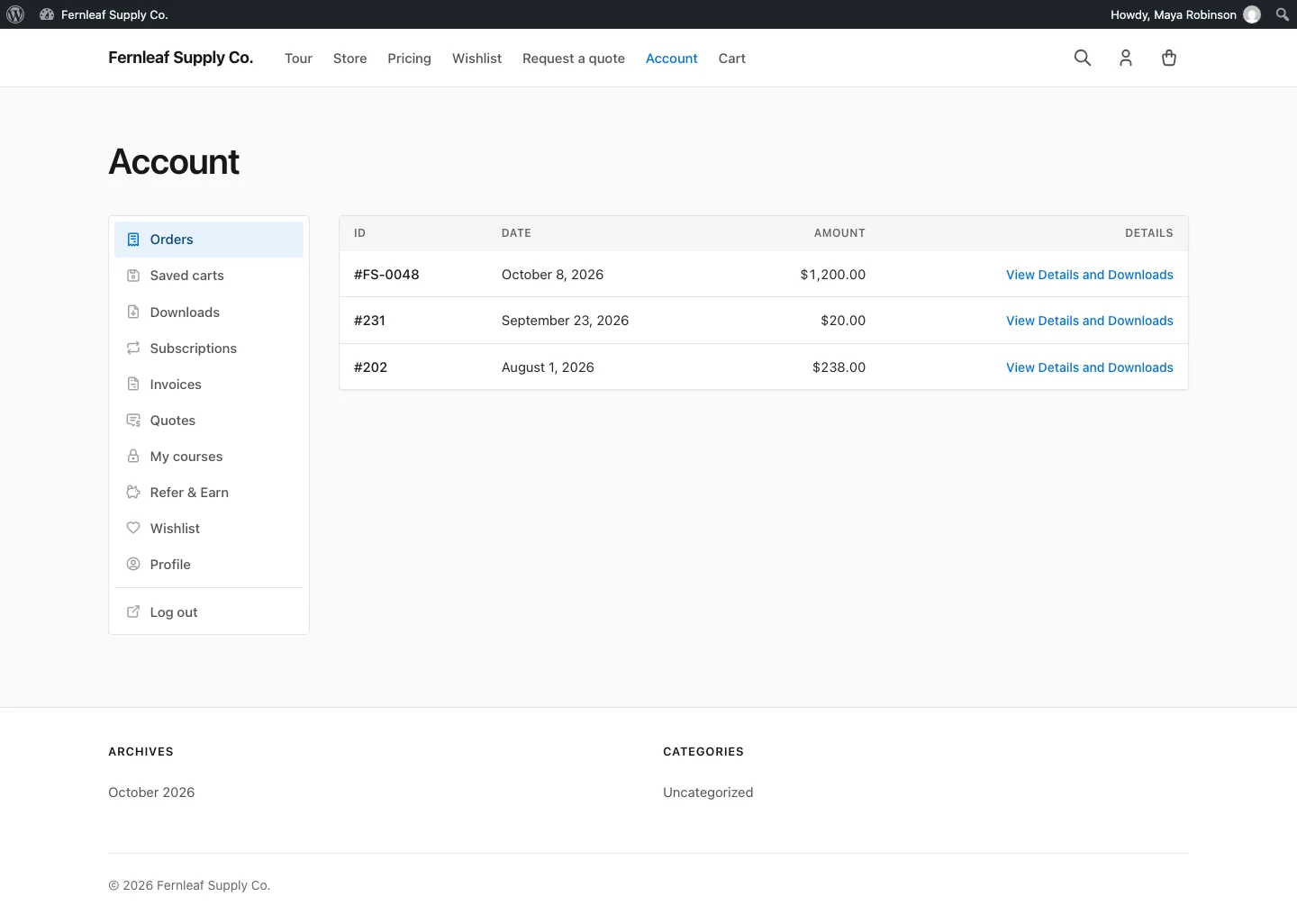
Messages from Stackless, such as a confirmation after an action, show at the top of the page.
The Account Tabs
Three tabs are always there. They show Easy Digital Downloads’ own screens:
- Orders: EDD’s purchase history, from the
[purchase_history]shortcode. Each order links to its receipt. - Downloads: EDD’s download history, from
[download_history]. - Profile: EDD’s profile editor, from
[edd_profile_editor].
Modules add the rest. Here’s every tab in the order customers see it:
| Tab | Added by | When it shows |
|---|---|---|
| Orders | Stackless core | Always |
| Saved carts | Saved Carts & Order Again | While the module’s Account page setting is on (default) |
| Downloads | Stackless core | Always |
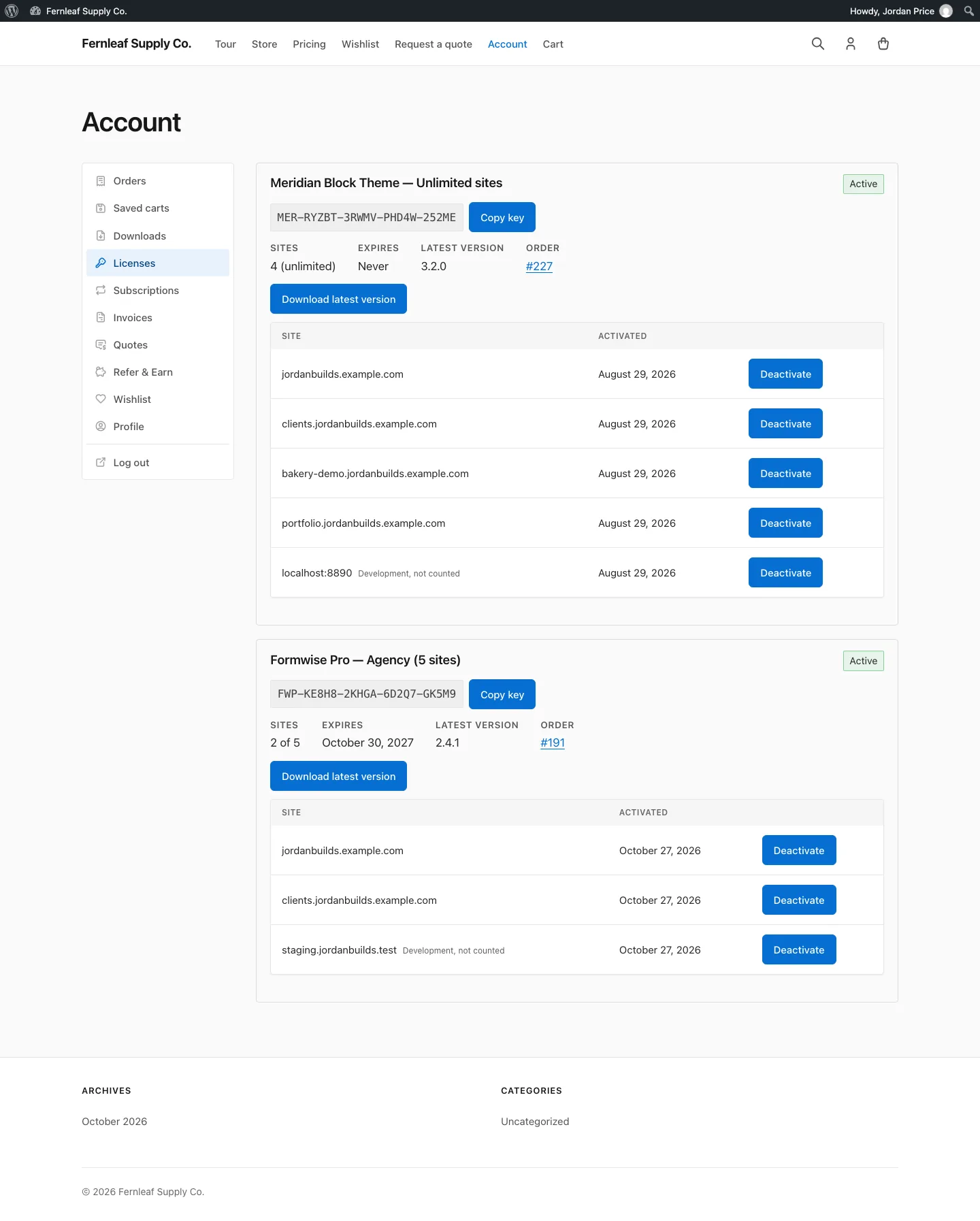
| Licenses | Software Licensing | When the customer has at least one license |
| Subscriptions | Subscriptions | Always, while the module is on |
| Invoices | Custom Invoices | Always, while the module is on |
| Quotes | Request a Quote | Always, while the module is on |
| My pages | Page Access | When the My pages tab setting is on (default) and the customer has unlocked pages or links |
| Payment methods | Stripe and PayPal | When Stripe is set up, PayPal is on with credentials or the customer has a saved PayPal account |
| Refer & Earn | Coupon Affiliates | When the customer is an affiliate, or has a qualifying paid order and Joining isn’t limited to accounts you add |
| Wishlist | Wishlist | While the module’s Account page setting is on (default) |
| Profile | Stackless core | Always |
Stripe and PayPal share one Payment methods tab, so a customer with both sees their saved cards and PayPal accounts in the same place.
Rename or Hide a Tab
A few tabs have settings under Stackless → Settings:
- Page Access → My pages tab: list unlocked pages and links on the account page. On by default. The
[stackless_edd_my_pages]shortcode works either way. - Page Access → Tab label: rename My pages, for example to My courses.
- Coupon Affiliates → Tab label: rename Refer & Earn.
- Saved Carts & Order Again → Account page: show the Saved carts tab. On by default. The shortcode still works without it.
- Wishlist → Account page: show the Wishlist tab. On by default.
Switching a module off removes its tab.
Link to a Tab
Each tab has its own address. Add ?account-tab= and the tab’s ID to the account page URL:
| Tab | ID |
|---|---|
| Orders | orders |
| Saved carts | saved-carts |
| Downloads | downloads |
| Licenses | licenses |
| Subscriptions | subscriptions |
| Invoices | invoices |
| Quotes | quotes |
| My pages | pages |
| Payment methods | payment-methods |
| Refer & Earn | refer-and-earn |
| Wishlist | wishlist |
| Profile | profile |
For example, https://example.com/account/?account-tab=subscriptions opens the Subscriptions tab. An unknown or hidden tab ID opens the first tab instead. In code, stackless_edd_account_url( 'subscriptions' ) returns the same link.
Change the Layout or Add a Tab
The page layout comes from templates/account/account.php in the plugin. To change it, copy it to your theme as stackless-edd/account/account.php. The account styles load only on the account page.
Developers can add a tab with the stackless_edd_account_tabs filter. Lower priority numbers show first, so 35 lands between My pages and Payment methods:
add_filter( 'stackless_edd_account_tabs', function ( $tabs ) {
    $tabs['support'] = [
        'title'    => 'Support',
        'icon'     => 'mail',
        'priority' => 35,
        'callback' => function ( array $query ) {
            echo '<p>Need help? Reply to any receipt email.</p>';
        },
    ];
    return $tabs;
} );
The callback prints the tab’s content and receives the page’s other query args, such as ['id' => 42] for a detail view. A tab without a working callback is skipped.
Good to Know
- Hide Price Until Login can send guests to this page to log in. Its Login page setting defaults to Stackless account page.
- The account page doesn’t replace EDD’s shortcodes. You can still use
[purchase_history],[download_history]and[edd_profile_editor]on other pages. - Developers can point Stackless at a different page with the
stackless_edd_account_page_idfilter. - Tab icons come from the plugin’s
assets/icons/folder, such asmailorheart. A custom tab with no icon getssparkles, and a name that isn’t in the folder shows no icon.