
Google Product Feed
Google lists downloads in free listings across Search, Shopping, Images and Lens, and in Shopping ads, but only when Merchant Center has a product feed for them. Easy Digital Downloads has no feed, so most stores never show up there, or keep a spreadsheet of products by hand that drifts out of date with every price change.
Google Product Feed builds that feed from your downloads and keeps it current. Merchant Center fetches it on a schedule, and the feed screen shows what went in and what was left out, with the reason for each.
Set Up the Feed
- Go to Stackless → Dashboard, switch on Google Product Feed and save. The first build starts within a few minutes.
- Open Stackless → Product feed and copy the feed URL. It is
/stackless-feed/google.xmlon your site, or/?stackless_feed=googlewithout pretty permalinks. - In Google Merchant Center, verify and claim your site.
- Go to Products → Add product source → Add products from a file, choose to enter a link to your file, paste the feed URL and set a daily fetch.
- Set your return policy in Merchant Center. Each item is listed with free shipping to your target country.
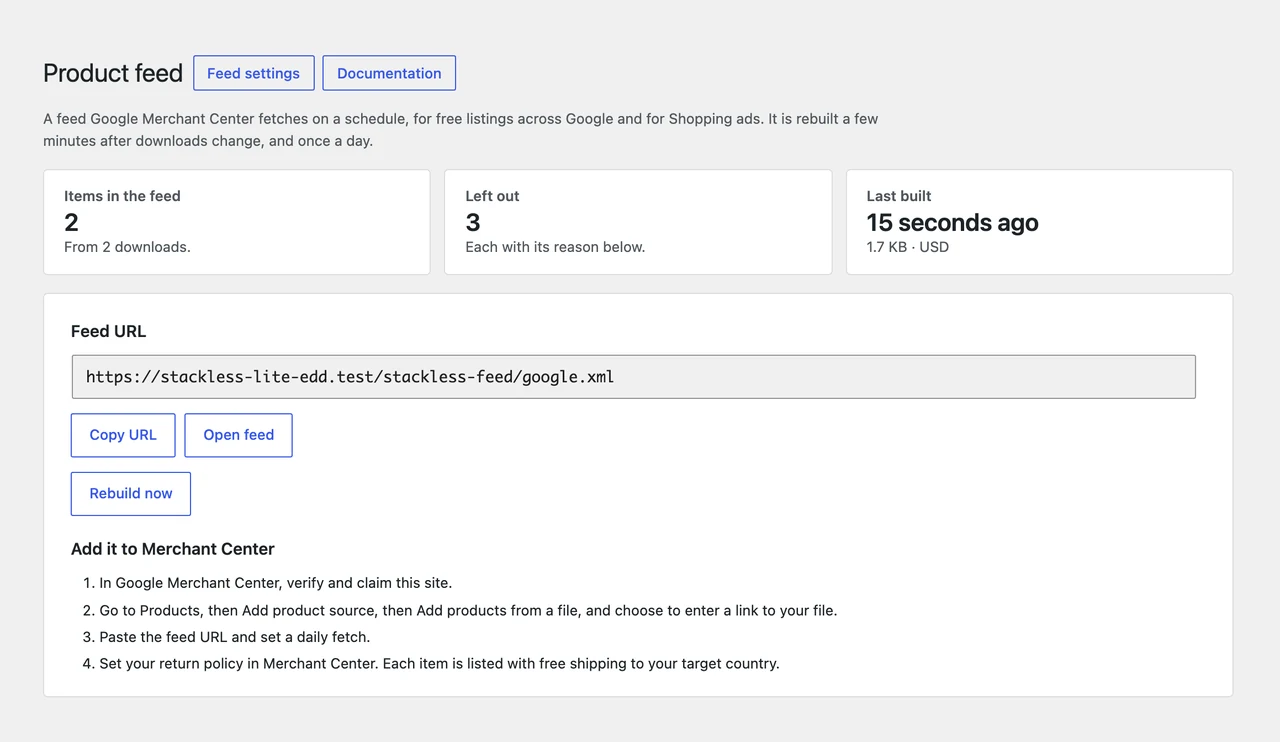
The screen shows how many items are in the feed, how many were left out and when it was last built. Use Rebuild now when you want a change in the feed straight away.
What Goes Into Each Item
A download with one price is one item. A download with variable prices becomes one item per price option, grouped so Google shows them as options of one product. Prices are your store prices in the store currency, never a visitor’s switched currency.
| Feed attribute | Where it comes from |
|---|---|
| Title and description | The download title, plus the price option name, and the excerpt or the opening of the description |
| Image | The featured image. EDD has no gallery, so there are no extra images |
| Price | The download or price option price. A subscription is listed at the price of its first year, signup fee included |
| Brand | The brand setting, or your site name when it is empty. That is also the brand EDD puts in its own product data |
| Condition | New, unless you change the setting |
| Google category and product type | Your category mapping, and the download category path |
| Shipping | Free shipping to your target country |
What Is Left Out
Google doesn’t allow some products. The feed leaves these out and lists each one under Left out of the feed with the reason:
- Downloads you exclude on the feed screen
- Password-protected downloads
- Free downloads and free price options. Google rejects free items
- Service downloads, external downloads and price-on-request downloads
- Downloads a logged-out visitor cannot buy, for example when the price is hidden until login
- Subscriptions billed more often than yearly, and plans with a set number of payments. Google allows only yearly prepaid software subscriptions
- Downloads with no featured image
Downloads in an ebook category stay in the feed for free listings and are kept out of Shopping ads, which don’t allow ebooks. Digital goods that are not software, such as template or content libraries sold as subscriptions, are often refused by Google. Exclude them if Merchant Center disapproves them.
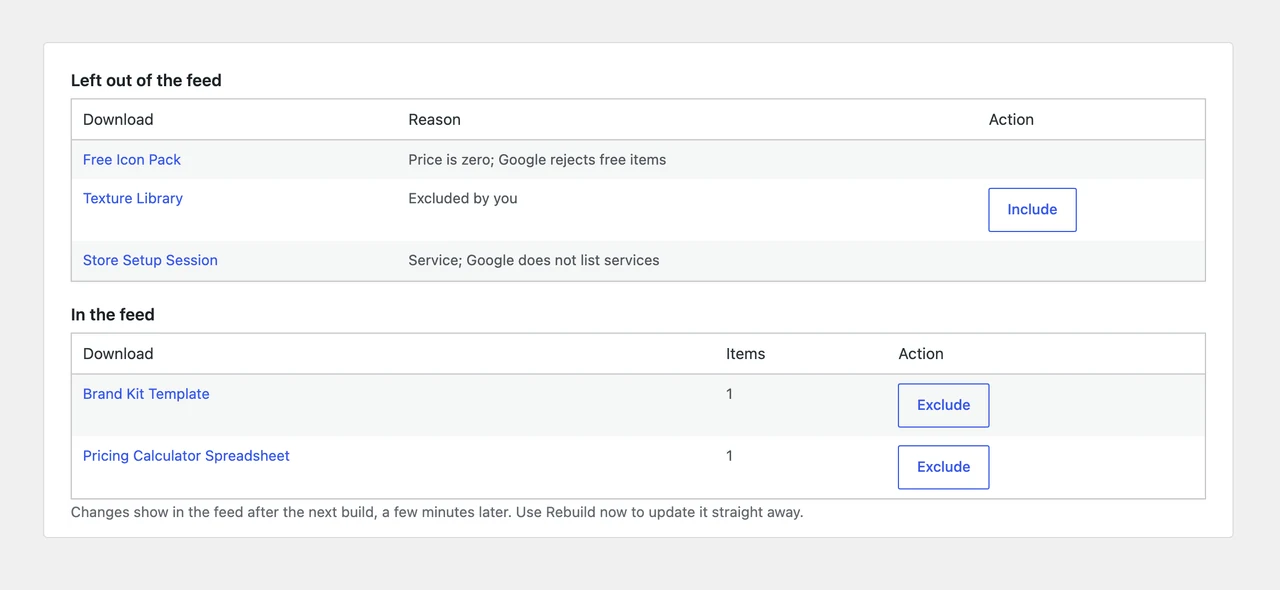
Under In the feed, click Exclude to leave a download out. It moves to the left-out list, where Include puts it back. Changes show in the feed after the next build.
Feed Settings
Click Feed settings at the top of the feed screen:
- Brand: leave it empty to use your site name.
- Condition: New, Used or Refurbished.
- Target country: the two-letter country on each item’s free shipping line. It starts as your store’s base country.
- Subscriptions: include yearly subscriptions only, or leave out all subscriptions.
- Secret key: adds a key to the feed URL, and the feed refuses requests without it. Your download pages already show this data, so most stores leave the feed public. A new key stops the old URL, so update it in Merchant Center.
Google Categories
Mapping is optional. On the feed screen, enter a Google product category ID or full path from Google’s list next to each download category, then save. A category without one uses its parent’s. Tick Ebooks for a category of ebooks to keep it out of Shopping ads.
Good to Know
- Updates: a burst of edits makes one rebuild, five minutes after the first change. Completed payments and category edits also schedule one. Large stores are built in batches in the background.
- No half-built feeds: the feed file is replaced only when a build finishes, so Merchant Center always gets a complete file.
- Caching: the feed tells caches they can keep it for an hour and answers repeat fetches with “not modified”. Nothing is purged when it rebuilds, so a CDN may serve the previous copy for up to an hour.
- Item IDs:
edd_plus the download ID, and the price ID for price options. They never change, so Merchant Center keeps each item’s history. - Turning the module off: the feed URL stops working. Your settings, mapping and exclusions stay saved.
For Developers
stackless_edd_product_feed_item changes one item before it is written. It receives the item’s attributes, the download ID and the price ID (null for single-price downloads). Return null to leave the item out:
add_filter('stackless_edd_product_feed_item', function ($item, $download_id, $price_id) {
    $item['custom_label_0'] = 'launch';
    return $item;
}, 10, 3);
stackless_edd_product_feed_built runs after each build with the build summary. WP-CLI can build the feed, show its status, or print one download’s item and why it was left out:
wp stackless-edd feed build
wp stackless-edd feed status
wp stackless-edd feed item 123 --price=2