
Sell Through Dodo Payments as Merchant of Record
Selling digital downloads to buyers in India, Europe and the US means charging GST, VAT and US sales tax, each with its own rules and filings. Most small stores either skip whole countries or lose hours to tax paperwork.
Dodo Payments is a merchant of record: it sells to the buyer, works out the tax and remits it. With the Dodo Payments module, buyers pay on Dodo’s hosted checkout by card, UPI, Apple Pay, Google Pay or a local method. Orders, renewals, refunds and cancellations stay in step with Easy Digital Downloads through signed webhooks.
Turn On the Gateway
- Switch on the Dodo Payments module under Stackless → Dashboard.
- Add your API key and webhook secret under Stackless → Settings → Dodo Payments and save.
- Go to Downloads → Settings → Payments and switch on Dodo Payments (Stackless) under Active Gateways. Save.
Dodo stays off the checkout until the current mode has an API key.
Add Your API Keys
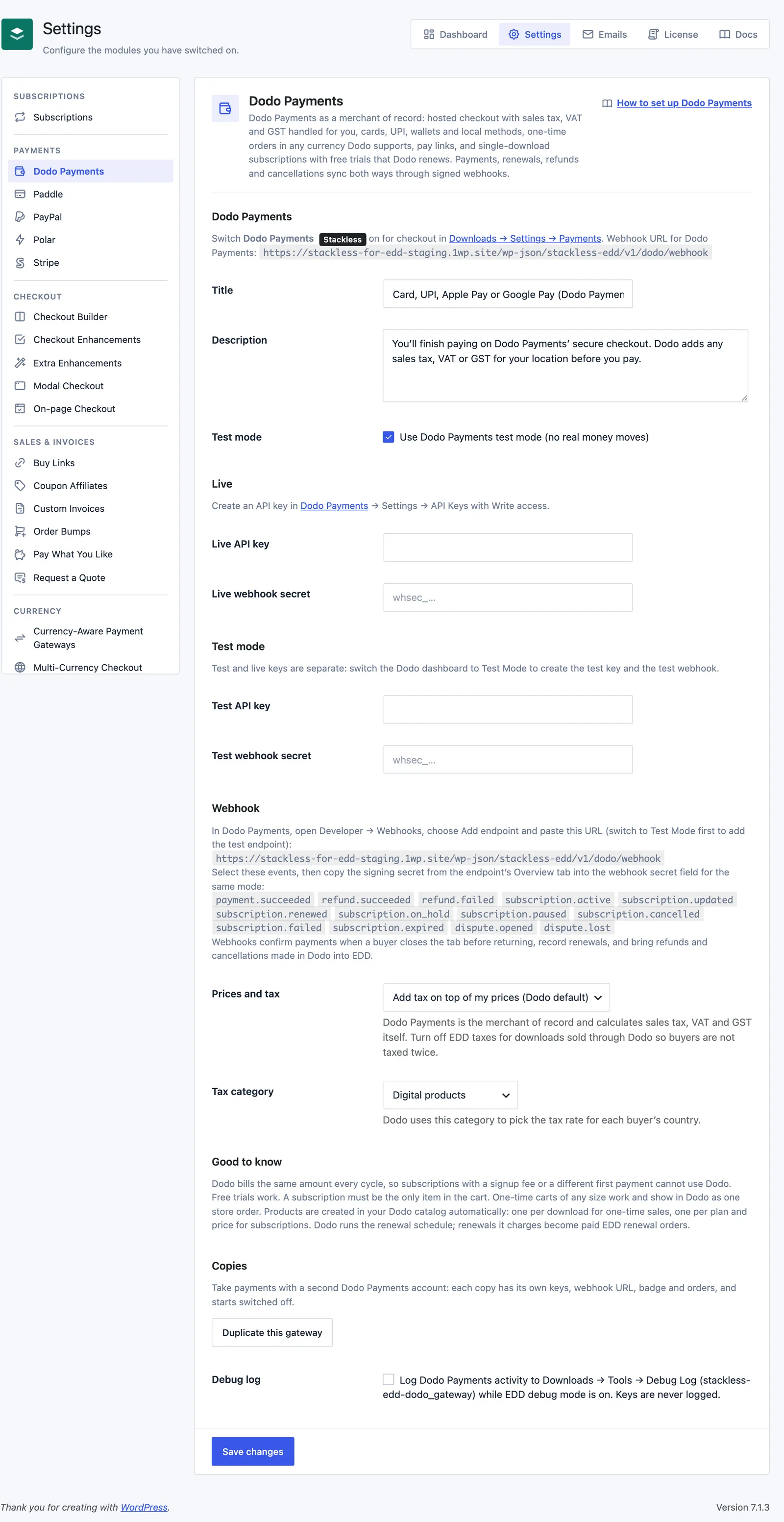
In the Dodo Payments dashboard, open Settings → API Keys and create a key with Write access. For the test key, switch the dashboard to Test Mode first. Then fill in:
- Test mode: on by default. Uses Dodo Payments test mode, so no real money moves. This switch is separate from EDD’s Enable Test Mode.
- Live API key and Live webhook secret
- Test API key and Test webhook secret
When you save, Stackless checks each new key with Dodo and shows “Connected to [business].” If Dodo rejects the test key, the error says to create it with Test Mode switched on, because a live key doesn’t work there. Switching a mode to another Dodo business clears the products remembered for that mode.
You can also set these as wp-config.php constants, which win over saved settings and hide their fields: STACKLESS_EDD_DODO_LIVE_API_KEY, STACKLESS_EDD_DODO_LIVE_WEBHOOK_SECRET, STACKLESS_EDD_DODO_TEST_API_KEY and STACKLESS_EDD_DODO_TEST_WEBHOOK_SECRET.
Connect the Webhook
In Dodo Payments, open Developer → Webhooks, choose Add endpoint and paste https://yoursite.com/wp-json/stackless-edd/v1/dodo/webhook. The gateway settings show your exact URL. Add it once in live mode and once in Test Mode, and select these events:
payment.succeeded
refund.succeeded
refund.failed
subscription.active
subscription.updated
subscription.renewed
subscription.on_hold
subscription.paused
subscription.cancelled
subscription.failed
subscription.expired
dispute.opened
dispute.lost
Copy the signing secret from the endpoint’s Overview tab into the webhook secret field for the same mode. Webhooks confirm payments if the buyer closes the tab before coming back, and bring renewals, refunds, cancellations and disputes into EDD. Each delivery is signature-checked and applied once.
Set How Tax Works
- Prices and tax: Add tax on top of my prices (Dodo default), which is the default, or My prices already include tax.
- Tax category: Digital products (default), Software as a service, E-books, or Education and courses. Dodo uses it to pick the tax rate for each buyer’s country.
Turn off EDD taxes for downloads you sell through Dodo, or buyers get taxed twice. With tax on top, the order total stays your price, and the order note shows what Dodo charged including tax. Changing either setting starts fresh Dodo products.
What Buyers See
At checkout, Dodo shows with its default title, “Card, UPI, Apple Pay or Google Pay (Dodo Payments)”, and a description saying the buyer finishes paying on Dodo’s secure checkout. Both are editable. Test mode adds “Test mode: no real payment will be taken.”
- Purchasing sends the buyer to Dodo’s checkout with their email, name and billing address filled in. Dodo discount codes and currency switching are off, so Dodo charges the order total in the order’s currency, plus any tax it adds on top.
- After paying, the buyer comes back to the EDD receipt for the order. A failed or cancelled payment sends them back to pay the order again, with a notice that the payment didn’t go through.
- If Dodo reports a payment in a different currency or for a different amount, the order goes on hold with a note to check it.
Products in Your Dodo Catalog
Stackless creates Dodo products on first use and remembers them for each mode, so there’s nothing to set on your downloads.
- One-time sales use a pay-what-you-want product per download or price option and currency. Price changes, discount codes and Pay What You Like amounts need no new product.
- Carts with several items share one product named “[Store name] order”.
- Subscriptions use one product per download or price option, schedule, recurring amount and currency. A price change creates a new product for new sales.
- A product archived or deleted in Dodo is created again on the next checkout.
Subscriptions on Dodo
Dodo runs the renewal schedule for subscriptions it bills:
- Daily, weekly, monthly and yearly plans work, including schedules such as every 3 months.
- Free trials work. The subscription shows as Trial until Dodo’s first billing date.
- Each renewal Dodo charges becomes one paid EDD renewal order. The next payment date follows Dodo’s.
- Dodo’s on hold, past due and paused show as On hold, cancelled as Cancelled, failed and expired as Expired, and a cancellation set for the next billing date as Pending cancellation.
- After the last payment of a fixed-length plan, Stackless tells Dodo to stop at the next billing date.
Cancelling from the EDD admin or the customer account cancels at Dodo too, at the next billing date or straight away. If Dodo doesn’t confirm, the cancellation is refused.
A subscription with the Renewal mode “Manual only (customer pays each renewal invoice)” isn’t billed by Dodo. Its first order and each renewal are paid through Dodo as one-time payments.
Refunds and Disputes
- The EDD refund form gets a Refund transaction in Dodo Payments box. It’s unticked by default, so tick it to send the refund to Dodo. Dodo is called before EDD records the refund, so a refund Dodo refuses is never recorded.
- A partial refund is sent in the order’s own terms, and Dodo adds the matching tax when it charged tax on top. If Dodo can’t take a partial refund for the order, make it in the Dodo dashboard instead.
- Refunds made in the Dodo dashboard are recorded on the order once, scaled back to the pre-tax amount when Dodo added tax on top.
- Failed refunds, and disputes opened or lost in Dodo, add an order note.
Currencies
Dodo is offered for 138 currencies, including USD, EUR, GBP and INR, and only when the cart’s currency is one of them. Three-decimal currencies such as KWD and OMR are left out. It works with Multi-Currency Checkout, and Currency-Aware Payment Gateways knows its list.
More Than One Dodo Business
Dodo Payments can be duplicated for a second Dodo business, each copy with its own keys, products, orders and webhook URL ending in /webhook/copy2 and so on. See Duplicate a Payment Gateway.
Limits
- Dodo takes one subscription per checkout, with no other items in the cart, and isn’t offered for carts it can’t take. One-time carts can be any size.
- Dodo bills the same amount every cycle, so a subscription with a signup fee or a different first payment is refused at checkout.
- Dodo doesn’t save cards in EDD. Customers can’t renew early, resume a pending cancellation, switch renewal mode or change the payment method from their account, and you can’t change the next payment date.
- Turn on Debug log to write Dodo activity to Downloads → Tools → Debug Log, tagged
stackless-edd-dodo_gateway, while EDD debug mode is on. Keys are never logged.