
Connect FluentCRM
FluentCRM already knows when someone buys from your Easy Digital Downloads store. It doesn’t know when their subscription goes on hold, when a renewal fails or when a license key is created. So your “active members” tag drifts out of date, and the win-back email never goes out.
The FluentCRM module connects Stackless to FluentCRM. It keeps tags and lists in step with each customer’s subscriptions, adds automation triggers for subscriptions, renewals, licenses, invoices and quotes and gives you smart codes, automation conditions and a Stackless panel on each contact’s profile.
Before You Start
- Install and activate FluentCRM. Until it’s active, the settings screen only says “Install and activate FluentCRM to use this integration.”
- Go to Stackless → Dashboard and switch on FluentCRM. It’s off by default.
- Switch on the modules whose events you want: Subscriptions, Software Licensing, Custom Invoices or Request a Quote.
FluentCRM’s own EDD integration keeps handling EDD purchases and refunds. This module adds the Stackless records it can’t see. The two work side by side.
Configure Tags and Lists
Go to Stackless → Settings → FluentCRM. Under Tags and lists from subscriptions:
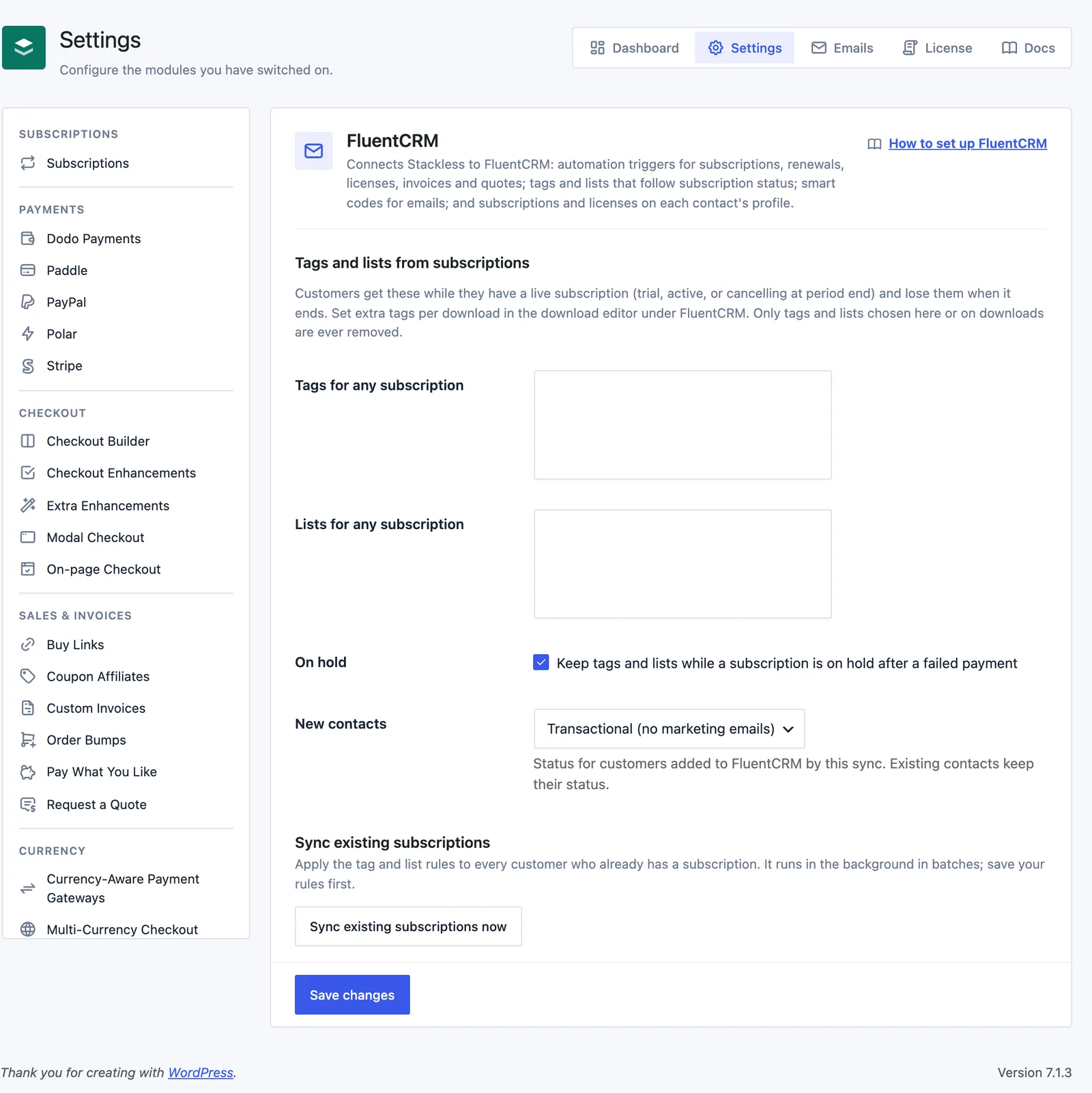
- Tags for any subscription: FluentCRM tags a customer gets while they have any live subscription. Empty by default.
- Lists for any subscription: FluentCRM lists, the same way. Empty by default.
- On hold: keep tags and lists while a subscription is on hold after a failed payment. On by default.
- New contacts: the status for customers this sync adds to FluentCRM: Transactional (no marketing emails), Subscribed or Pending (sends double opt-in). Defaults to Transactional. Existing contacts keep their status.
A live subscription is one in trial, active or cancelling at the end of its paid period. With On hold ticked, on-hold counts as live too.
Per-Download Tags and Lists
To tag customers by what they subscribe to, edit the download. The FluentCRM box in the sidebar has Tags and Lists. They’re applied while the customer has a live subscription to that download, and removed when it ends.
How the Sync Works
Every time a subscription is created, changes status or switches plans, Stackless queues a background sync for that customer. The sync looks at all of the customer’s subscriptions from scratch, so it’s safe to run twice and never depends on event history.
- Tags and lists from the settings screen and from the customer’s downloads are added while any matching subscription is live.
- They’re removed when nothing live maps to them anymore. Only tags and lists chosen here or on downloads are ever removed, so tags you add by hand stay.
- After a plan switch, the old download’s tags and lists come off, unless another live subscription still maps to them.
- A customer without a FluentCRM contact gets one, with the New contacts status and the source
stackless-edd. Name and address come from the order’s billing details or the WordPress account. - Guest subscriptions are matched by email through the EDD customer record.
Syncs run on Action Scheduler in the group stackless-edd-fluentcrm, so checkout never waits on FluentCRM.
Sync Existing Subscriptions
New rules only apply as subscriptions change. To apply them to every customer who already has a subscription, save your rules first, then click Sync existing subscriptions now below the settings.
It walks through subscriptions in batches of 50 in the background. While it runs, the screen shows “Running: N customers queued so far.” When it’s done, it shows how many customers were queued and when.
Automation Triggers
In FluentCRM, create an automation and look for the Stackless category. Each trigger shows up only while its module is on.
| Trigger | Starts when | Module |
|---|---|---|
| Subscription activated | a subscription becomes active: first payment, end of a trial, or reactivation | Subscriptions |
| Subscription trial started | a subscription begins its free trial | Subscriptions |
| Subscription cancellation requested | a subscription is set to end at the close of its paid period | Subscriptions |
| Subscription cancelled | a subscription is cancelled | Subscriptions |
| Subscription expired | a subscription reaches its end date or last billing cycle | Subscriptions |
| Subscription on hold | a subscription is put on hold, usually after a failed renewal payment | Subscriptions |
| Subscription renewal paid | a renewal order is paid | Subscriptions |
| Subscription renewal payment failed | a renewal payment fails | Subscriptions |
| Subscription plan switched | a customer switches to another plan | Subscriptions |
| License key created | an order creates license keys | Software Licensing |
| Invoice paid | a Stackless invoice is paid | Custom Invoices |
| Quote accepted | a customer accepts a quote proposal | Request a Quote |
Every trigger has these settings:
- Contact status for new contacts: the FluentCRM status for someone who isn’t a contact yet. Defaults to Subscribed. Pending sends FluentCRM’s double opt-in email.
- Target downloads: run only for these downloads. Leave it empty to run for every download. Subscription triggers list downloads sold as subscriptions.
- Restart the automation for a contact who is already in it (once per subscription or order): off by default, so a contact runs through the automation once.
Subscription activated, Subscription trial started and Subscription cancelled also have Previous status. Use it to run only when the subscription comes from certain statuses, such as Activated from On hold for a “welcome back” email. Leave it empty for any.
Smart Codes
Use these in FluentCRM emails. Subscription codes need Subscriptions on, and license codes need Software Licensing on.
| Smart code | Shows |
|---|---|
{{stackless_edd_sub.products}} | Downloads on the subscription |
{{stackless_edd_sub.status}} | Status |
{{stackless_edd_sub.recurring_amount}} | Recurring amount, in the subscription’s currency |
{{stackless_edd_sub.schedule}} | Billing schedule, such as “every month” or “every 3 weeks” |
{{stackless_edd_sub.next_payment_date}} | Next payment date |
{{stackless_edd_sub.trial_end_date}} | Trial end date |
{{stackless_edd_sub.end_date}} | End date |
{{stackless_edd_sub.payment_method}} | Payment method |
{{stackless_edd_sub.manage_url}} | Manage subscription URL on the account page |
{{stackless_edd_sub.pay_renewal_url}} | Pay outstanding renewal URL, for a pending or failed renewal |
{{stackless_edd_sub.id}} | Subscription number |
{{stackless_edd_license.keys}} | Active license keys (comma-separated) |
{{stackless_edd_license.latest_key}} | Newest license key |
{{stackless_edd_license.latest_expires}} | Newest license expiry date |
{{stackless_edd_license.active_count}} | Number of active licenses |
Subscription codes describe the subscription that started the automation. In other emails they use the contact’s newest live subscription, or their newest one if none is live. A code with nothing to show falls back to the default you set in FluentCRM.
Automation Conditions
With Subscriptions on, FluentCRM’s condition blocks get a Stackless subscriptions group:
- Has an active subscription? Yes or No. Active includes trials and subscriptions set to cancel at period end.
- Active subscription to: includes any of, or includes none of, the downloads you pick.
- Has a subscription with status: any of, or none of, Pending, Trial, Active, On hold, Pending cancellation, Cancelled and Expired.
Subscriptions and Licenses on the Contact Profile
Each FluentCRM contact gets a Stackless panel. It lists their subscriptions with downloads, status and next payment date, and their licenses with a masked key, the download, status and expiry date. Subscription numbers link to the subscription’s admin screen. Only users with the edit_shop_payments capability see the panel.
Good to Know
- Tags and lists follow subscriptions only. License keys, invoices and quotes start automations but don’t add tags.
- Addresses on the internal and test list in Extra Enhancements never reach FluentCRM, as long as its Integrations option is on.
- Existing contacts are never changed by the sync beyond their tags and lists. Someone who unsubscribed stays unsubscribed.
- Changing the rules doesn’t touch existing customers until their subscription changes or you run Sync existing subscriptions now.
- For subscription statuses and renewals, see Manage Subscriptions.