
Send Custom Invoices and Payment Links
Not every sale goes through your checkout. A client wants a quote turned into a bill, a retainer needs charging every month, or a project needs a deposit before work starts. Building a manual order in EDD for that is clumsy, and the customer gets a purchase receipt instead of a proper invoice.
Custom Invoices bills customers for your downloads or custom line items. Each invoice is a real EDD order with its own number, a branded page the customer can print and a secure pay link that works with every gateway you have enabled. It also handles recurring invoices, deposits and due-date reminders.
Set Up Numbering and Your Invoice Profile
Switch on Custom Invoices from Stackless → Dashboard. Then open Stackless → Settings and choose Custom Invoices under Sales & invoices.
Invoice numbering:
- Prefix: default
INV-. - Suffix: blank by default.
- Minimum digits: pads with zeros, so 4 gives 0042. 0 means no padding, which is the default.
- Format: default
{prefix}{number}{suffix}. Tokens are{prefix}{number}{suffix}{year}{yy}{month}{day}. For example{prefix}{year}-{number}gives INV-2026-42. - Next number: can move forward, never backward.
- Order number: shows the invoice number as the EDD order number for issued invoices. On by default.
Numbers are assigned when an invoice is issued and never reused. Below the settings, a line tells you what the next invoice will be numbered.
Invoice profile holds Business name, Logo URL, Business address, Contact email, Contact phone, Tax ID label, Tax ID, Legal company name, VAT ID, Registration label, Registration number, Accent color (default #1f5eff), Payment terms and Footer. A blank Business address uses the address in Downloads → Settings → General.
The profile is captured on each invoice when it’s issued, so later changes never rewrite invoices you’ve already sent. Two more settings sit here:
- Invoice layout: Classic (default), Centered, Compact, Amount first, Letterhead or Ledger. Each invoice can choose another, and an issued invoice keeps the layout it was issued with.
- Customer details: remembers billing details, delivery address and VAT number from invoices, so the next invoice to the same customer fills in. On by default. Account customers get them on their EDD customer record. Guests get a private profile kept by email.
Create an Invoice
Go to Stackless → Invoices and click Add invoice.
- Under Customer, search for an existing customer or leave it blank for a guest. Fill in First name, Last name, Email, Company, Phone, Tax / VAT number and the Billing address. Tick Deliver physical items to a different address if you need one.
- Under Items, search for a store download or type a custom item. Each item has a Name, Qty, Unit price, Type (Service / digital or Physical), Tax (Standard rate or No tax) and Description. An invoice holds 1 to 100 items.
- Set the Discount, Shipping (physical items only) and Item prices: follow the store setting, Exclude tax (tax is added) or Include tax.
- Under Invoice details, set the Title (optional), Currency, Due date, Layout, a Message for the customer and Internal notes.
- Click Save draft, Save and issue, or Save, issue and email.
The Total panel updates as you type. The due date is pre-filled from your payment terms, and a blank due date means due on receipt. Use Preview customer page to check the result before issuing.
Tick Save to item library on a custom line to reuse it later from Add a saved item. Saved items live on the Saved items tab and never appear in your shop.
A few rules apply when you save:
- Subscription downloads can’t go on an invoice. They’re sold through checkout. Use a recurring invoice to bill a custom amount on a schedule.
- A download with variable pricing needs a price option.
- Quantities are whole numbers from 1 to 10,000.
- Physical items need a delivery address with a street, city and country.
- Invoice amounts must stay below 1 billion, and the discount must stay below the items subtotal.
What the Customer Gets
Issuing moves the order from the Invoice draft status to Pending and locks it. The customer page is a standalone document with a Print or save as PDF button. Its Pay button hands the invoice to EDD’s own checkout, so every enabled gateway can take the payment.
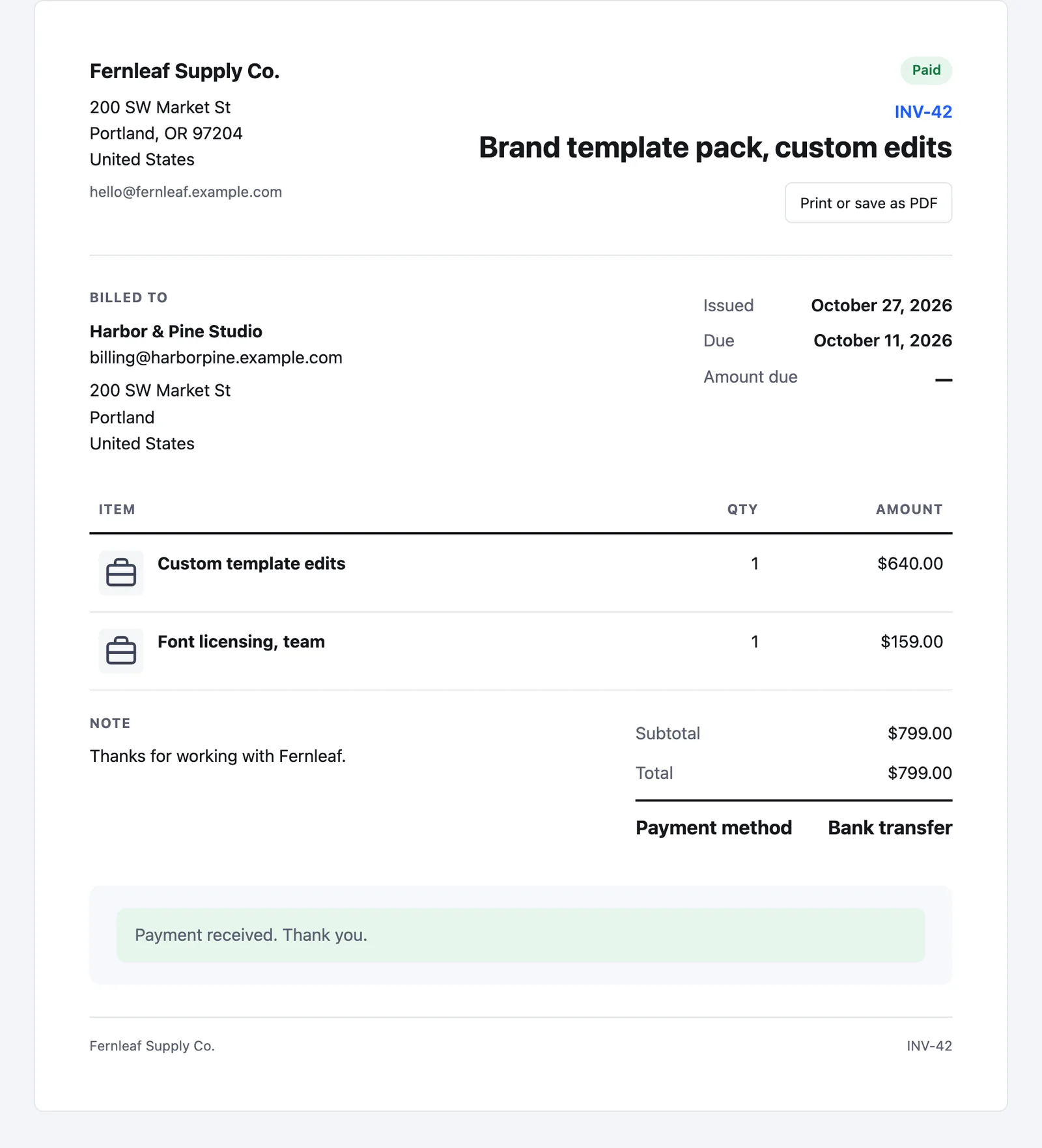
At checkout, the cart holds exactly the invoice. Customers can’t add items or use a discount code, and the amounts come from the invoice. An invoice sent to an account asks the customer to sign in with that account first. A guest invoice can be paid by a guest or by a signed-in customer who owns the invoice email.
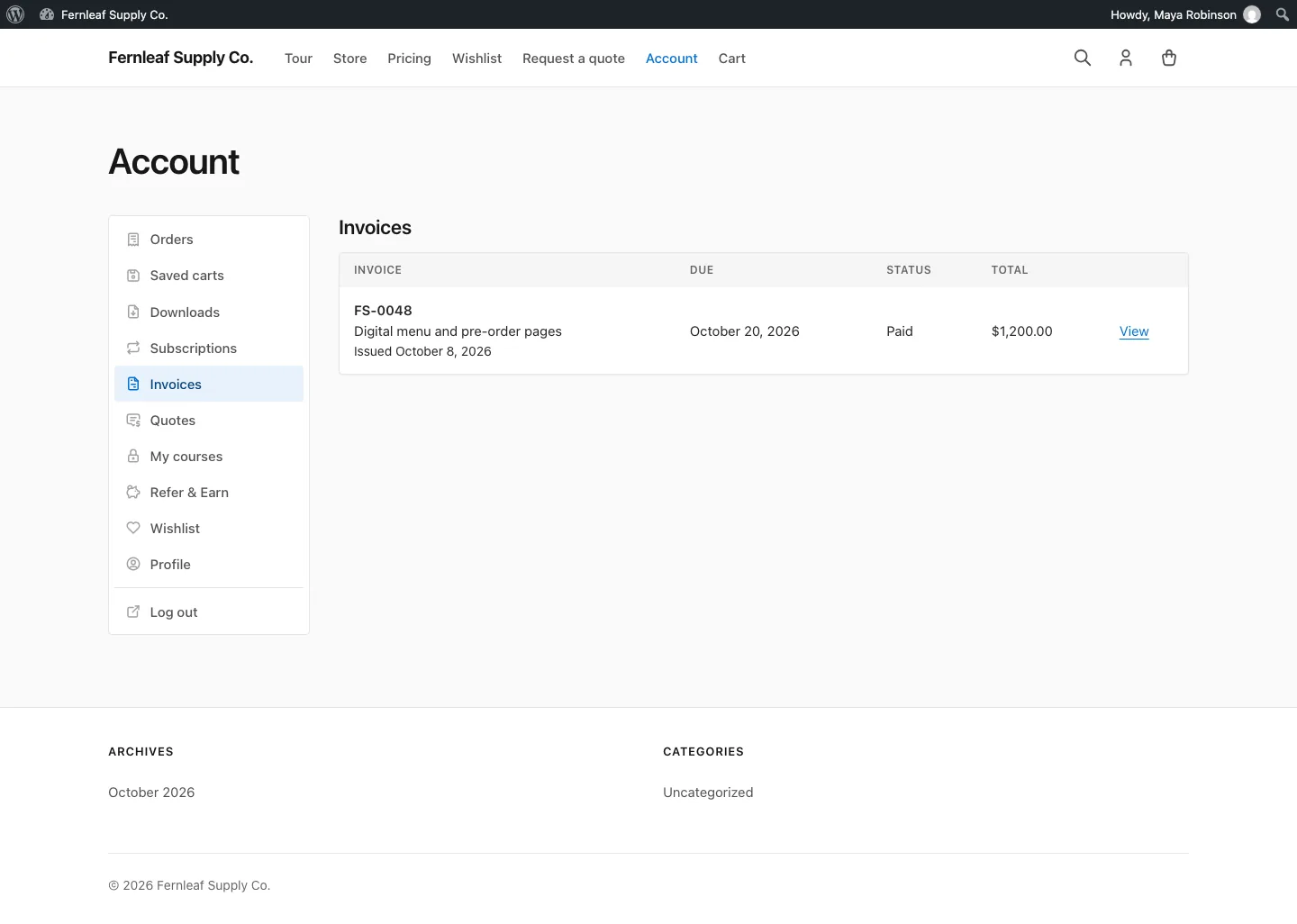
Customers also see their issued invoices in the Invoices tab of the account page built with [stackless_edd_account]. Each row shows the number, title, issue date, due date, status and total, with View and pay or View.
From the invoice screen you can:
- Open customer page or Copy link
- Email invoice (Resend invoice after the first send)
- Send reminder or Send overdue notice once it’s past due
- Duplicate
- Reopen for editing
- Cancel invoice
- Record a payment received by Bank transfer, Check or Cash, with an optional reference, then click Mark paid
Reopening turns the invoice back into a draft, and the old payment link stops working until you issue it again. Only unpaid invoices can be reopened. An invoice with a recorded payment can’t be cancelled. Refund the order in EDD instead.
Track Invoices
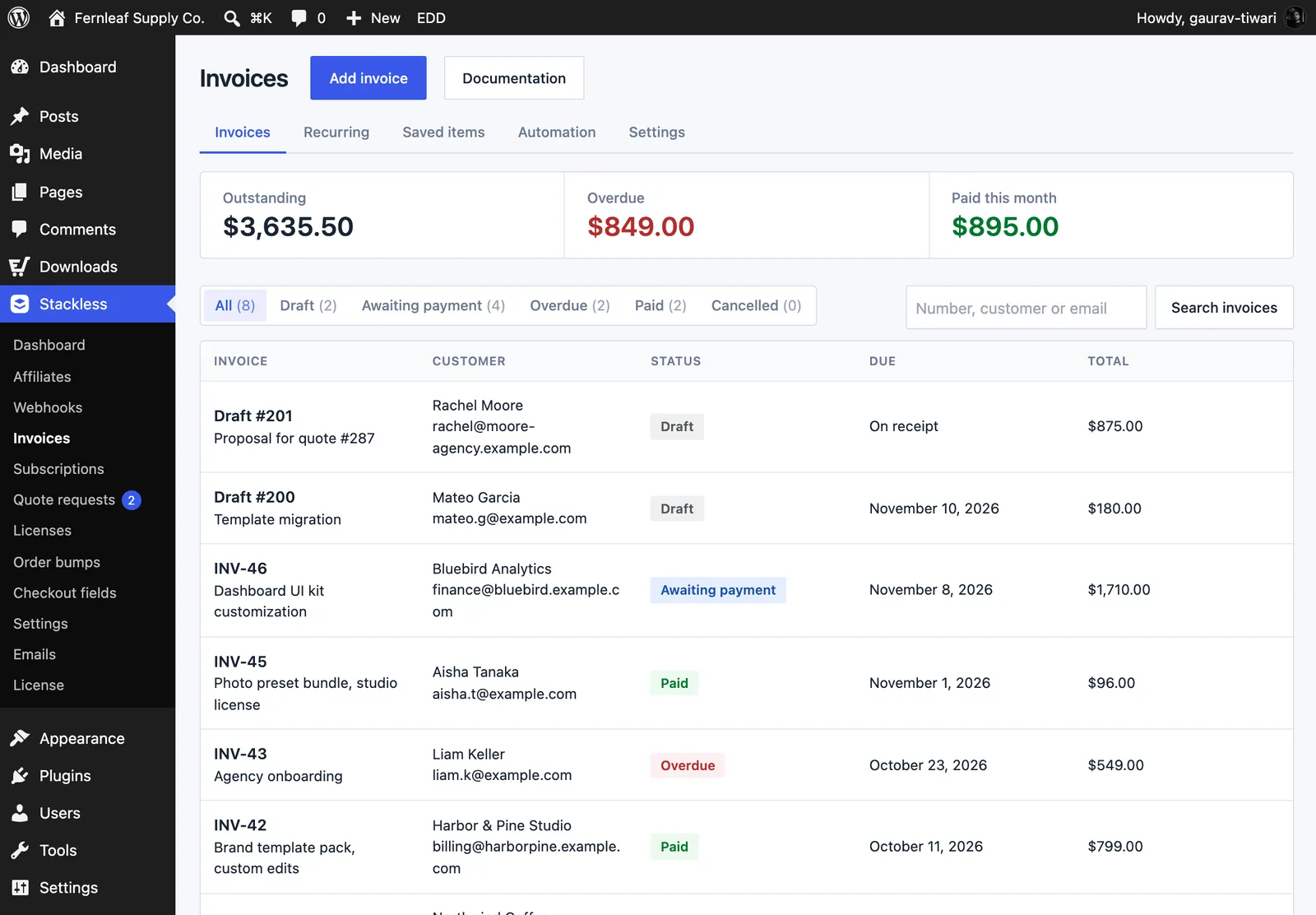
The Stackless → Invoices list shows Outstanding, Overdue and Paid this month totals. Filter by Draft, Awaiting payment, Overdue, Paid and Cancelled, or search by number, customer or email. An awaiting-payment invoice counts as overdue from the day after its due date.
Set Up Payment Reminders
Under Due dates and reminders:
- Default payment terms (days): 0 to 365. Default 14. 0 means due on receipt.
- Reminder schedule: up to four day offsets from the due date. Default
-3, 0, +7. Negative numbers are days before and 0 is the due date. Positive numbers are days after, sent as an overdue notice. Blank turns due-date reminders off. - Reminder without a due date (days): invoices due on receipt get one reminder this many days after issue. Default 7. 0 turns it off.
Reminders go out at 9:00 in your site’s timezone through Action Scheduler. They stop as soon as an invoice is paid or cancelled. To turn them off for one invoice, untick Send automatic payment reminders for this invoice.
Edit the email wording under Stackless → Emails, where you’ll find three emails:
| When it’s sent | |
|---|---|
| Invoice | When you email an invoice. Always sent when you choose to email one. |
| Invoice reminder | Before or on the due date, following the reminder schedule. |
| Invoice overdue | After the due date, following the reminder schedule. |
Repeat an Invoice on a Schedule
Open an issued invoice and use Repeat this invoice:
- Every: 1 to 12, with the Unit set to Weeks, Months or Years.
- First invoice on: a date after today.
- Ends: Never, After a number of invoices (1 to 500) or On a date.
- Each new invoice: Issue and email it or Save as a draft for review.
Click Start schedule. Each copy gets its own number and payment link. Its due date keeps the same gap from the run date that the original had from its issue date.
A schedule on the 31st uses the last day of shorter months and goes back to the 31st afterwards. Periods missed while scheduled tasks didn’t run are skipped and noted on the invoice. Manage schedules on the Recurring tab, where you can Pause, Resume or Stop them.
Take a Deposit First
In the Deposit section, tick Ask for a deposit first. Then set:
- Deposit type: Percentage of the total or Fixed amount.
- Deposit: 1 to 99 for a percentage. Default 50.
- Balance due after (days): 0 to 365. Default 14.
- Email the balance invoice automatically: on by default.
The customer pays the deposit first. Once it’s paid, a balance invoice is issued automatically. Tax is split in the same proportion as the total, and any rounding remainder goes to the balance.
Limits
- Deposits are for service and digital items only.
- Deposit and balance invoices, and recurring copies, can’t repeat on a schedule.
- Only drafts that aren’t linked to a quote can be deleted. A draft created as a quote proposal is issued when the customer accepts it.
- The Let the customer pay in any enabled currency option appears only when Multi-Currency is on. Amounts are converted at checkout rates from the issued amounts.
- The module won’t start while the EDD Invoices plugin is active.
- Managing invoices needs the
edit_shop_paymentscapability. - Developers get
stackless_edd_create_invoice(), a REST API at/wp-json/stackless-edd/v1/invoicesand an integration key on the Automation tab. See Hooks and Functions and the REST API.