
Sell Plugins and Themes with License Keys
Selling a plugin or theme through Easy Digital Downloads usually means adding a separate licensing extension. That’s one more thing to update, one more set of emails and one more place to look when a buyer moves sites. Without any licensing, nothing stops one purchase from running on fifty client sites.
Software Licensing creates a license key for every paid order of a licensed download, limits how many sites each key can activate and serves updates from your own store. Keys follow refunds and subscriptions on their own, and customers manage their sites from the account page.
Turn On Licensing for a Download
Switch the module on under Stackless → Dashboard. It’s in the Access & licensing group. Then edit the download and find the Licensing box below the editor.
- Tick License keys (“Create a license key for every paid order of this download”).
- Set the key fields below.
- Click Update.
The first group of fields controls the key itself:
- Site limit: sites one key can activate.
0means unlimited. Default 1. - Validity: Lifetime, Follows subscription or Number of days. Default Lifetime.
- Valid for (days): used with Number of days. Default 365.
- Key prefix: optional, up to 20 characters. It’s upper-cased and joined to the key with a dash, so
FWPgivesFWP-ABCDE-.... - Key format: every X becomes a random character. The default is
XXXXX-XXXXX-XXXXX-XXXXX. A format needs at least 16 X characters and only letters, numbers and dashes, or the default is used.
Keys use an alphabet without 0, O, 1, I and L, so they survive being read aloud. Customers can type a key in any case, with or without dashes.
The Software, WordPress updater listing, Update package and Previous versions groups are for automatic updates. Add Licensing and Automatic Updates to Your Plugin or Theme covers them.
Sell Tiers with Price Options
For “1 site, 5 sites, unlimited” pricing, turn on variable pricing for the download and add one price option per tier. Once License keys is ticked, each price option row shows three more fields:
- License site limit:
0means unlimited. Leave it empty to use the download’s Site limit. - License validity: Same as download, Lifetime, Follows subscription or Number of days.
- License valid for (days): empty uses the download setting.
Everything else stays on the download, so every tier shares one software slug, one version and one changelog.
Configure the Module
Store-wide settings live under Stackless → Settings → Software Licensing.
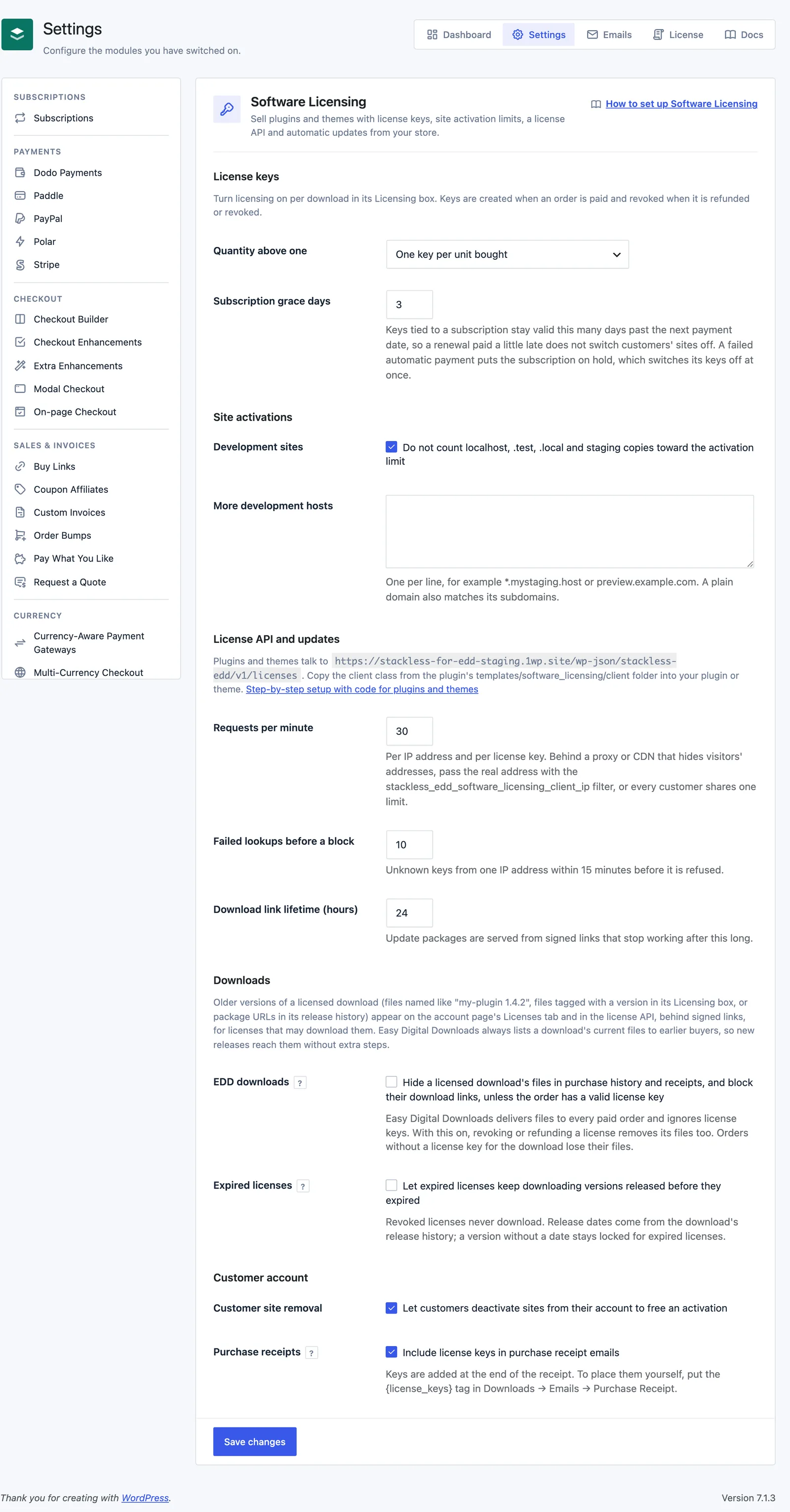
- Quantity above one: One key per unit bought (default), or One key, activation limit multiplied by quantity.
- Subscription grace days: days a subscription key stays valid past the next payment date. Default 3, from 0 to 60.
- Development sites: don’t count localhost, .test, .local and staging copies toward the activation limit. On by default.
- More development hosts: extra development hosts, one per line, such as
*.mystaging.hostorpreview.example.com. A plain domain also matches its subdomains. - Requests per minute, Failed lookups before a block and Download link lifetime (hours): limits for the license API. License API Reference explains them.
- EDD downloads: hide a licensed download’s files in purchase history and receipts, and block their download links, unless the order has a valid license key. Off by default.
- Expired licenses: let expired licenses keep downloading versions released before they expired. Off by default.
- Customer site removal: let customers deactivate sites from their account to free an activation. On by default.
- Purchase receipts: include license keys in purchase receipt emails. On by default.
When Keys Are Created and Revoked
Keys are created when an order is paid, meaning its status is Complete (or Partially Refunded). The order gets a note such as “1 license key created.”
- Subscription renewal orders never create new keys.
- A bundle gets no keys, and neither do the downloads inside it. Keys come from licensed downloads bought directly.
- Setting an order to Refunded or Revoked revokes its keys. If you set it back to Complete, those keys come back.
- A partial refund revokes only the refunded units’ keys, least-used keys first.
- If an order was paid before you turned licensing on, open it under Downloads → Orders and click Create missing keys in its License keys box.
With Quantity above one set to One key per unit bought, a quantity of 3 gives three keys. With One key, activation limit multiplied by quantity, a quantity of 3 on a 1-site download gives one key for 3 sites. A partial refund then lowers that key’s limit instead of revoking it.
Keys follow the order’s customer. When a guest order is attached to an account later, or you change the customer on an order, the keys move with it.
Tie Keys to a Subscription
When the download is sold as a subscription, set Validity to Follows subscription. The key then expires at the subscription’s next payment date plus Subscription grace days, so a renewal paid a little late doesn’t switch customers’ sites off.
| Subscription event | What happens to the key |
|---|---|
| Renewal paid | Expiry moves to the new period end plus grace days |
| Active or trial | Key is active, expiring at the period end plus grace days |
| Pending cancellation | Key stays active until the period end, with no grace |
| On hold (a failed automatic payment) | Key is set to inactive at once |
| Cancelled or expired | Key expires straight away |
| Plan switch | Key moves to the new download and price option, with its site limit |
A switch to a plan without licensing ends the keys. A switch from an unlicensed plan to a licensed one creates fresh keys. With Number of days, each paid renewal adds the days on top of any time left. Without a subscription, Follows subscription acts as lifetime.
Manage Keys from the Licenses Screen
Stackless → Licenses lists every key with its download, customer, order, status, sites used against the limit, expiry and creation date. Development sites show separately, as “(+1 dev)”. Don’t mix it up with Stackless → License, which holds your own Stackless for EDD license.
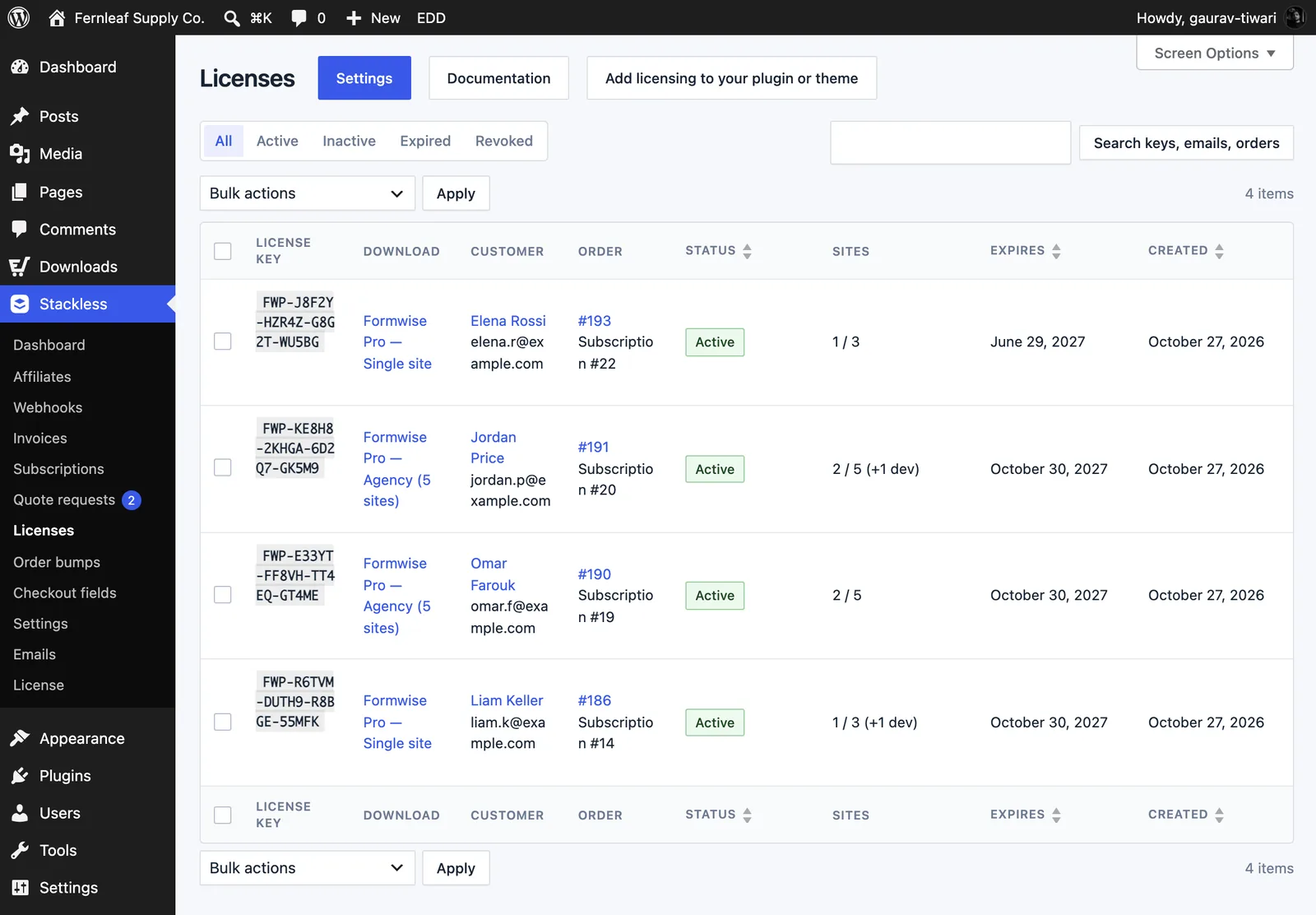
- Filter by All, Active, Inactive, Expired or Revoked.
- Search keys, customer emails and names, or an order, license or subscription ID.
- Bulk actions: Set active, Set inactive, Revoke and Resend keys to customer.
Click a key to edit its Status, Site limit and Expires date, or tick Never expires. Setting a future date on an expired key makes it active again. The Activated sites table lists each site with its activation date and last check, and a Deactivate button frees the slot. Email key to customer and Revoke license sit below it.
Each order’s details screen also has a License keys box with Create missing keys, Resend keys to customer and Open in Licenses.
Emails and Receipts
With Purchase receipts on, keys are added to the end of EDD’s purchase receipt email. To place them yourself, put the {license_keys} tag in Downloads → Emails → Purchase Receipt. The tag prints a table of each key with its download and expiry.
Resending uses a separate License keys email that you can switch off or edit under Stackless → Emails. Its default subject is “Your license keys for order #{order_number}”. It’s only sent when you click a resend button.
The purchase confirmation page and each receipt in the order history also show a License keys table, with a Copy button for each key and a “Manage your licenses and sites” link for signed-in customers.
What Customers See
Signed-in customers who own keys get a Licenses tab on the account page, placed after Downloads.
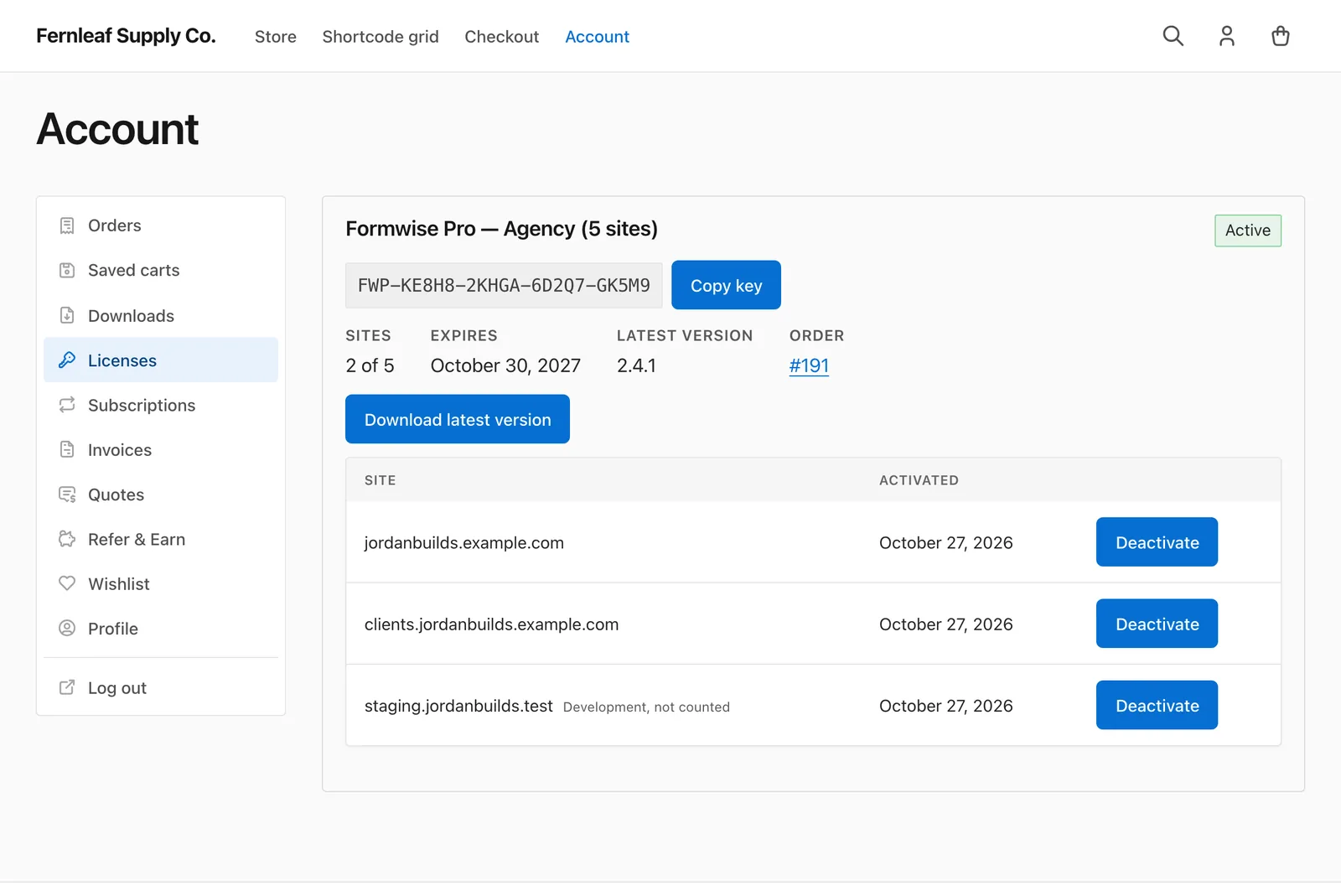
Each license card shows:
- the download, status and key, with a Copy key button
- sites used against the limit, the expiry date, the latest version and the order
- a Download latest version button while the license may download it
- earlier releases under “previous versions”, when the download has any the license may download
- each activated site, with development sites tagged “Development, not counted”
With Customer site removal on, customers can deactivate a site themselves to free the activation. An expired, revoked or inactive license shows a short note explaining why there’s no download.
Offer Previous Versions
Customers can roll back to an older release from the Licenses tab. A version counts as a previous version when it’s one of these:
- a file of the download named like “my-plugin 1.4.2”
- a file you tag with a version in the Previous versions group of the Licensing box
- a line in Release history with a package URL
Release history takes one version per line: the version, its release date (YYYY-MM-DD) and, for versions that aren’t a file of this download, a package URL. The current version is dated when you save it. With Expired licenses on, an expired key can still download versions released on or before its expiry date. A version without a date stays locked for expired licenses.
Tie EDD File Downloads to the License
Easy Digital Downloads delivers a download’s files to every paid order and ignores license keys. Turn on EDD downloads if revoking or refunding a license should take the files away too.
With it on, a licensed download’s files leave the purchase receipt and the signed-in customer’s purchase history, and their download links stop working, unless the order has a license that may download them. Orders without a license key for the download lose their files, so create missing keys for older orders first.
Good to Know
- The Licenses tab lists keys bought while signed in and keys of the EDD customer record linked to the account. Guest purchases aren’t matched by email alone. EDD links a guest customer to an account once the account is verified.
- License keys and their sites are included in WordPress’s personal data export. Erasing a person’s data removes their site list and unlinks the key from them, but the key keeps working. Revoke it separately if you need to.
- The module pauses while EDD Software Licensing is active.
- Expiry is checked live on every request. A daily background job also marks overdue keys as expired in the list.
- Keys for a deleted download stay in the list as “Deleted download”, and update checks and “View details” stop answering for them.