
Add a Wishlist to Your Store
Plenty of shoppers aren’t ready to buy on the first visit. They mean to come back, then forget which download they liked. Making them create an account just to save it loses even more of them.
Free in Lite: this module is also in Stackless Lite for EDD, the free edition, and works the same way there.
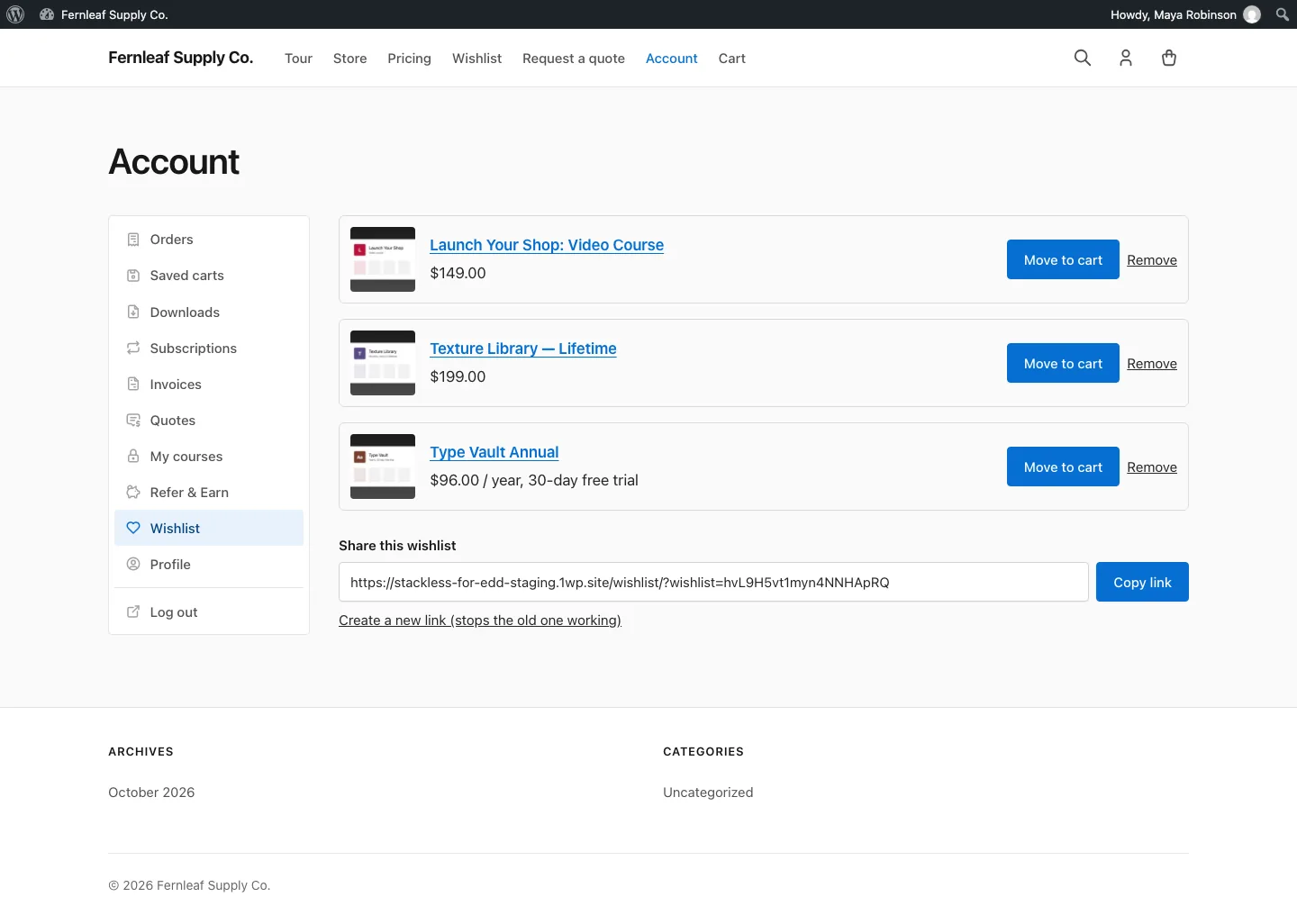
Wishlist gives guests and customers a saved list. Guests can save without an account, and their list merges into their account when they sign in. The list lives on a wishlist page and an account page tab and can be shared with a link. Each saved download has a Move to cart button.
Create the Wishlist Page
- Create a page, for example “Wishlist”, and add the
[stackless_edd_wishlist]shortcode or the Wishlist block (in the Easy Digital Downloads block category). - Publish it.
- Go to Stackless → Settings → Wishlist and pick it under Wishlist page.
The page works without this setting, but share links need it.
Configure the Wishlist
The other settings on the same screen:
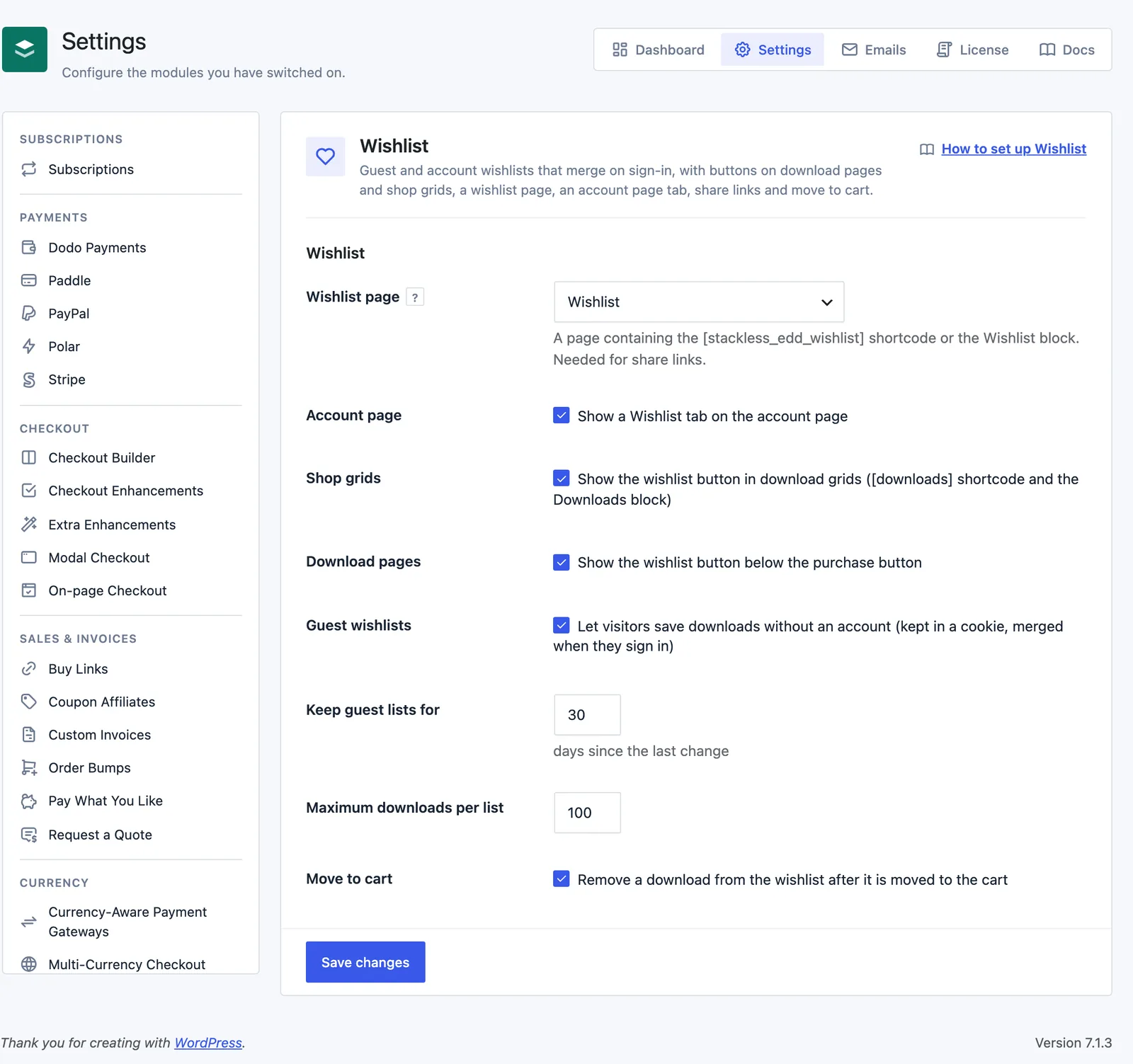
- Account page: show a Wishlist tab on the account page. On by default.
- Shop grids: show the wishlist button in download grids, meaning the
[downloads]shortcode and the Downloads block. On by default. - Download pages: show the wishlist button below the purchase button. On by default.
- Guest wishlists: let visitors save downloads without an account. The list is kept in a cookie and merged when they sign in. On by default.
- Keep guest lists for: days since the last change. Defaults to 30, between 1 and 365.
- Maximum downloads per list: defaults to 100, up to 500.
- Move to cart: remove a download from the wishlist after it’s moved to the cart. On by default.
How the Button Works
The button reads Save to wishlist, and Saved to wishlist once the download is in the list. Clicking it again removes the download. It still works without JavaScript.
The button sits right after the purchase button, so it shows wherever EDD prints one: download pages, the [downloads] grid, [purchase_link] and EDD’s download blocks. A download page whose purchase button is hidden still gets the button after its content.
On a download with variable pricing, the download page button saves the price option the shopper has picked. With no option picked, it saves the download itself. A purchase link fixed to one price option saves that option.
With Guest wishlists off, signed-out visitors don’t see the button.
The Wishlist List
Each saved download shows its image, name and price, with these actions:
- Move to cart: adds the download to the cart and takes the shopper to checkout. It’s offered when the download can be bought and, for variable pricing, a price option was saved.
- View download: shown instead when a price option needs choosing first or the download can’t be bought right now.
- Remove: takes the download off the list.
An empty list shows “No saved downloads yet.” with a Browse downloads button that opens your download archive. Guests see a note that the list is saved on this device, with a link to sign in and keep it in their account.
Share a Wishlist
Signed-in customers with saved downloads see Share this wishlist on the wishlist page, with a Copy link button. The link opens a read-only copy of the list on your wishlist page, marked as downloads saved by the customer, and it’s set to noindex. Visitors who open it see Add to cart buttons.
Create a new link (stops the old one working) replaces the share link if the customer wants to revoke it. Guest lists can’t be shared.
Good to Know
- When a guest signs in, or gets an account at checkout, their saved downloads merge into their account list, up to the Maximum downloads per list.
- Expired guest lists are removed during EDD’s daily scheduled events.
- If a saved price option is deleted from the download, that entry drops off the list. Unpublished downloads are hidden too.
- Deleting a user deletes their wishlist. Wishlists are included in WordPress’s personal data export and erase tools.
- Wishlist pauses itself while EDD Wish Lists is active, and its Dashboard card says why.
- The list template can be overridden in your theme at
stackless-edd/wishlist/list.php, and the button atstackless-edd/wishlist/button.php.