
Manage Stackless Emails
Subscriptions, licenses, invoices and quotes all need emails, and a customer shouldn’t be able to tell which part of your store sent which one. You also want one place to switch an email off or reword its subject, without hunting through four settings pages.
Stackless → Emails is that place. It lists every email the modules you’ve switched on can send, and each one uses your Easy Digital Downloads email template, so it looks like your EDD receipts.
Open the Emails Screen
Go to Stackless → Emails. The table has one row per email:
- Email: the email’s name and what it’s for.
- Module: the module that sends it.
- Recipient: Customer, or the store address it goes to.
- Status: On or Off.
Click the email’s name or Manage to edit it.
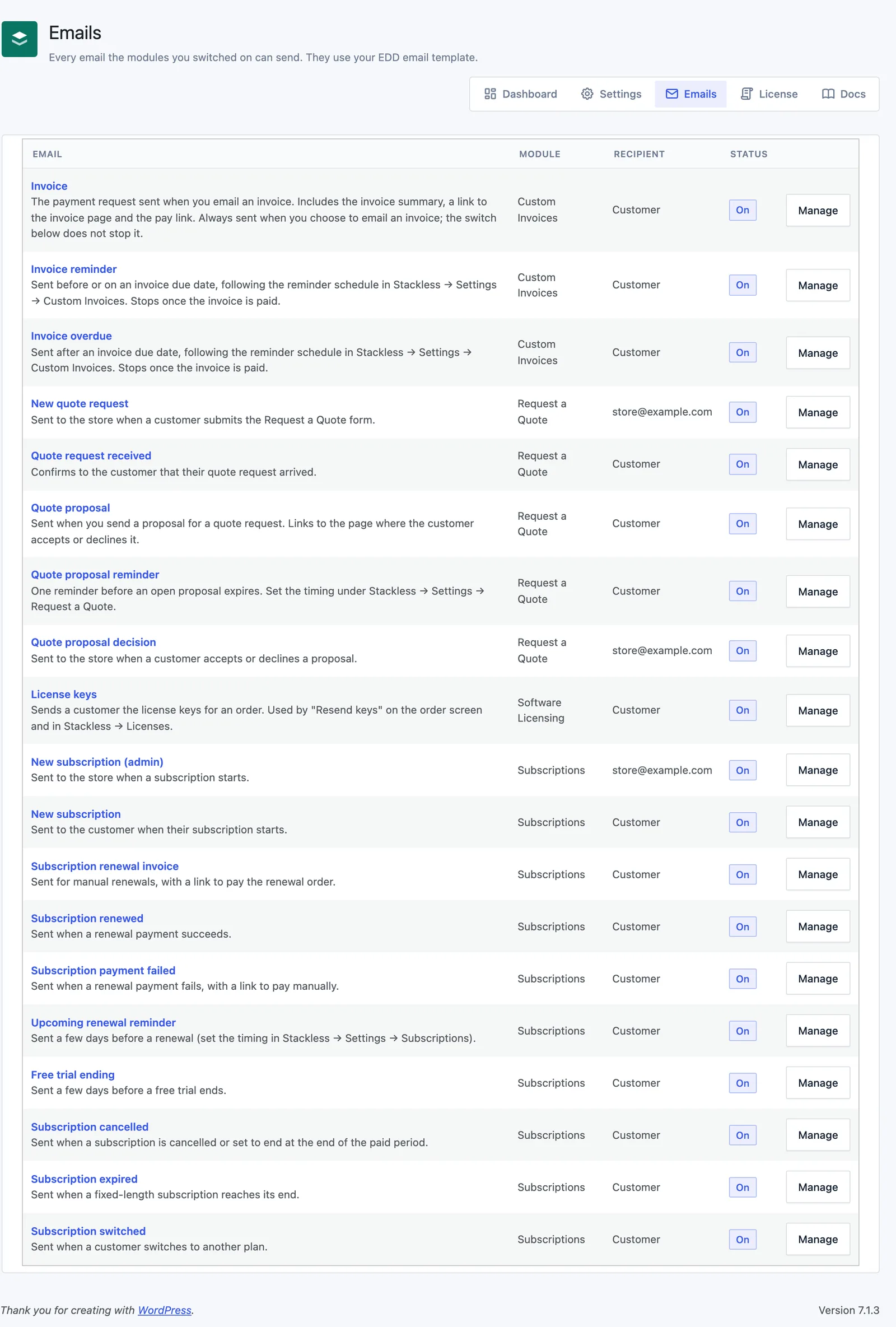
An email only shows up while its module is on. If none of the modules you’ve switched on send email, the screen says “Switch on a module that sends email (Subscriptions, Software Licensing, Invoices, Quotes) to manage its emails here.”
Edit an Email
Each email has the same short form:
- Enable: Send this email. On by default for every email.
- Recipients: only on emails sent to the store. A comma-separated list of addresses. Empty uses the admin notification emails from Downloads → Settings → Emails.
- Subject: the subject line. Leave it empty for the default, which shows as the placeholder text.
- Heading: the heading inside the email. Leave it empty for the default.
Click Save changes. You’ll see “Settings saved.” and can go back with the All emails link.
The body of each email comes from a template in the plugin. To change the body text, copy the template into your theme’s stackless-edd/ folder at the same path, for example stackless-edd/subscriptions/emails/renewal-invoice.php.
Every Email on the Emails Screen
These are the emails modules register, in the order the screen lists them.
| Goes to | Module | Sent when | |
|---|---|---|---|
| Invoice | Customer | Custom Invoices | You email an issued, unpaid invoice. |
| Invoice reminder | Customer | Custom Invoices | Before or on the due date, on the reminder schedule. Stops once the invoice is paid. |
| Invoice overdue | Customer | Custom Invoices | After the due date, on the reminder schedule. Stops once the invoice is paid. |
| New quote request | Store | Request a Quote | A customer submits the Request a Quote form. |
| Quote request received | Customer | Request a Quote | A customer submits the Request a Quote form. |
| Quote proposal | Customer | Request a Quote | You send a proposal for a quote request. |
| Quote proposal reminder | Customer | Request a Quote | Once, a set number of days before an open proposal expires. |
| Quote proposal decision | Store | Request a Quote | A customer accepts or declines a proposal. |
| License keys | Customer | Software Licensing | You click Resend keys on the order screen or in Stackless → Licenses. |
| New subscription (admin) | Store | Subscriptions | A subscription starts. |
| New subscription | Customer | Subscriptions | A subscription starts. |
| Subscription renewal invoice | Customer | Subscriptions | A manual renewal is due, or a manual renewal reminder is sent. Links to the renewal order to pay. |
| Subscription renewed | Customer | Subscriptions | A renewal payment succeeds. |
| Subscription payment failed | Customer | Subscriptions | A renewal payment fails. Links to pay manually. |
| Upcoming renewal reminder | Customer | Subscriptions | A few days before a renewal. |
| Free trial ending | Customer | Subscriptions | A few days before a free trial ends. |
| Subscription cancelled | Customer | Subscriptions | A subscription is cancelled, or set to end at the end of the paid period. |
| Subscription expired | Customer | Subscriptions | A fixed-length subscription reaches its end. |
| Subscription switched | Customer | Subscriptions | A customer switches to another plan. |
Store emails go to the Recipients you set, or to EDD’s admin notification emails when that’s empty. If EDD has none, they go to the WordPress admin email.
Where the Timing Is Set
A few emails run on a schedule you set in the module’s settings:
- Upcoming renewal reminder: Stackless → Settings → Subscriptions, under Renewal reminders and Days before renewal. Defaults: on, 3 days.
- Free trial ending: Stackless → Settings → Subscriptions, Days before trial ends. Default 3. Set 0 to turn it off.
- Subscription renewal invoice: manual renewals repeat it on the Retry schedule (days) in Stackless → Settings → Subscriptions. Default
1,3,5. - Invoice reminder and Invoice overdue: Stackless → Settings → Custom Invoices, Reminder schedule. Default
-3, 0, +7. Invoices due on receipt use Reminder without a due date (days), default 7. - Quote proposal reminder: Stackless → Settings → Request a Quote, Expiry reminder (days before). Default 2. Set 0 to turn it off.
When Days before trial ends is above 0, Stackless skips the upcoming renewal reminder for the first charge after a free trial. The trial ending email covers it.
The Subscriptions admin screen can also send two of these by hand: the renewal invoice for an unpaid renewal, and the upcoming renewal reminder.
Use Placeholders
Subjects and headings accept placeholders. The help text under each field lists the ones that email supports.
| Emails | Placeholders |
|---|---|
| Every email | {site_title} |
| Subscription emails | {subscription_number}, {order_number}, {next_payment_date} |
| Invoice, Invoice reminder, Invoice overdue | {invoice_number}, {invoice_title}, {amount}, {due_date}, {customer_name}, {order_number} |
| Quote emails | {quote_id}, {customer_name} |
| Quote proposal decision | {decision} (accepted or declined), plus the quote placeholders |
| License keys | {order_number}, {order_date} |
For example, the default subject of the upcoming renewal reminder is:
Your {site_title} subscription renews on {next_payment_date}How Emails Look
Stackless sends its emails through Easy Digital Downloads’ own mailer. Each email gets the email template and sender details from your Easy Digital Downloads email settings, and the Heading field becomes the email heading. Change the EDD template and Stackless emails follow. Stackless only supplies the body.
Good to Know
- The Invoice email always sends when you choose to email an invoice. Its Enable switch doesn’t stop it. Reminders and overdue notices do follow their switches.
- On a copy of your store, such as staging, customer emails aren’t sent. Store emails still go out. See Install Stackless for EDD and Activate Your License for how Stackless spots a copy.
- An email that fails to send is noted in Downloads → Tools → Debug Log.
- EDD’s own purchase receipts and sale notifications are managed by Easy Digital Downloads. Stackless doesn’t list them here.
- The failed payment alerts from Extra Enhancements are plain-text alerts set up in that module’s settings. They aren’t on this screen.
- Developers can add or remove emails on this screen with the
stackless_edd_emailsfilter.