
Create Direct Checkout Links
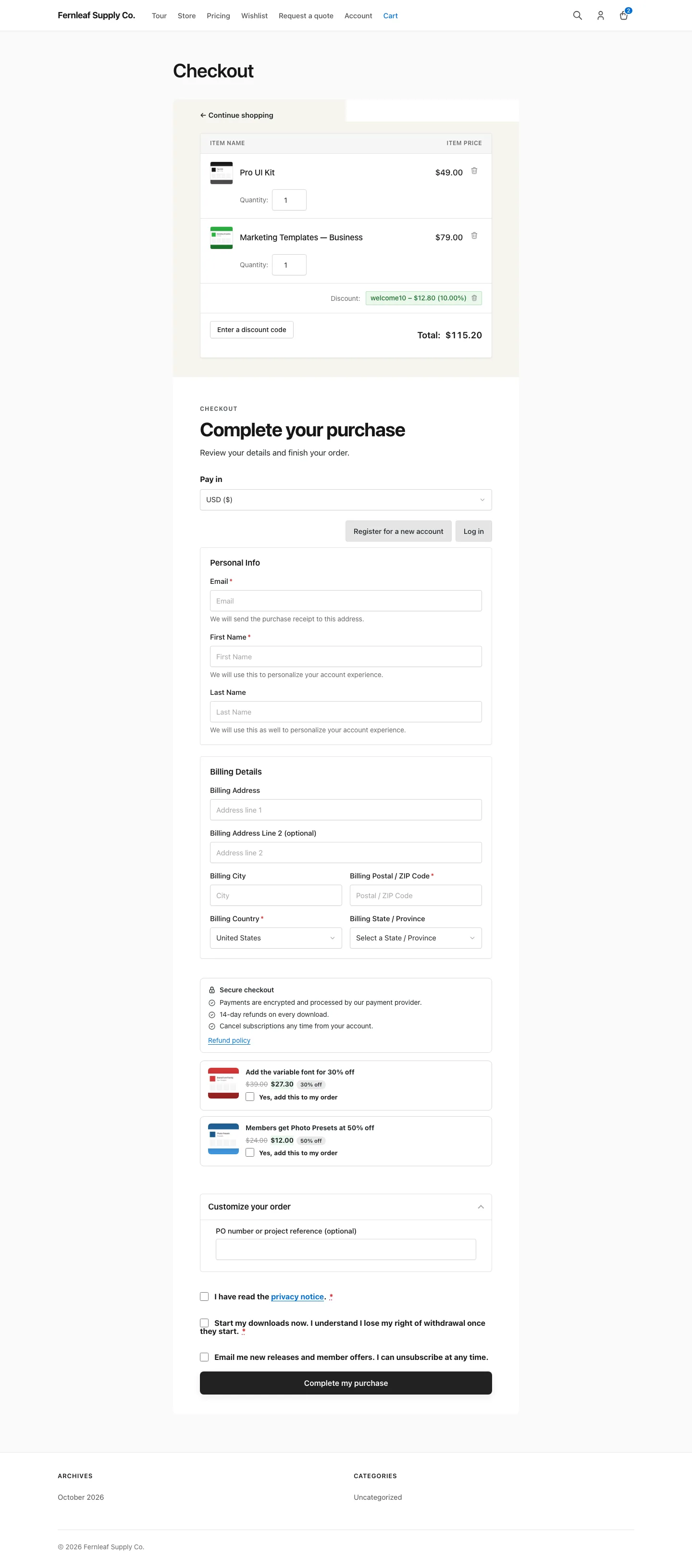
You send a download link in an email or a sales page, and the buyer lands on the download page. Then they pick a price option, add to cart and click through to checkout. Every step loses people, and there’s no clean way to hand someone a discounted bundle in one click.
Free in Lite: this module is also in Stackless Lite for EDD, the free edition, and works the same way there.
Buy Links turns any page URL into a direct checkout link. The link fills the cart with the downloads you choose, applies a discount code if you want and opens checkout. Links can be signed so nobody can change the quantity or the code. The module also adds an optional Buy now button beside Purchase.
How a Buy Link Is Built
A buy link is any page on your site with ?stackless-edd-buy= and one or more items:
https://example.com/?stackless-edd-buy=123
https://example.com/?stackless-edd-buy=123:2
https://example.com/?stackless-edd-buy=456:1:3
https://example.com/?stackless-edd-buy=123,456:2&coupon=SPRING
Each item follows these rules:
downloadadds one of that download.download:secondadds that price option when the download has variable prices. Otherwise the second number is a quantity.download:price:quantitygives you full control.- Commas separate items. A link can hold up to 20 items, and quantities are capped at 9999.
A download with variable prices and no price option in the link gets its default price option. Quantities above 1 only apply when cart quantities are enabled in EDD and the download allows them.
You can add these parameters:
coupon=CODEapplies an EDD discount code. Separate several codes with commas, up to 5.clear=1empties the cart first.clear=0keeps it.utm_parameters are carried over to the checkout URL.
EDD has no separate cart page, so every link opens checkout. Subscription downloads work like any other download, because a link adds normal cart items.
Set the Link Defaults
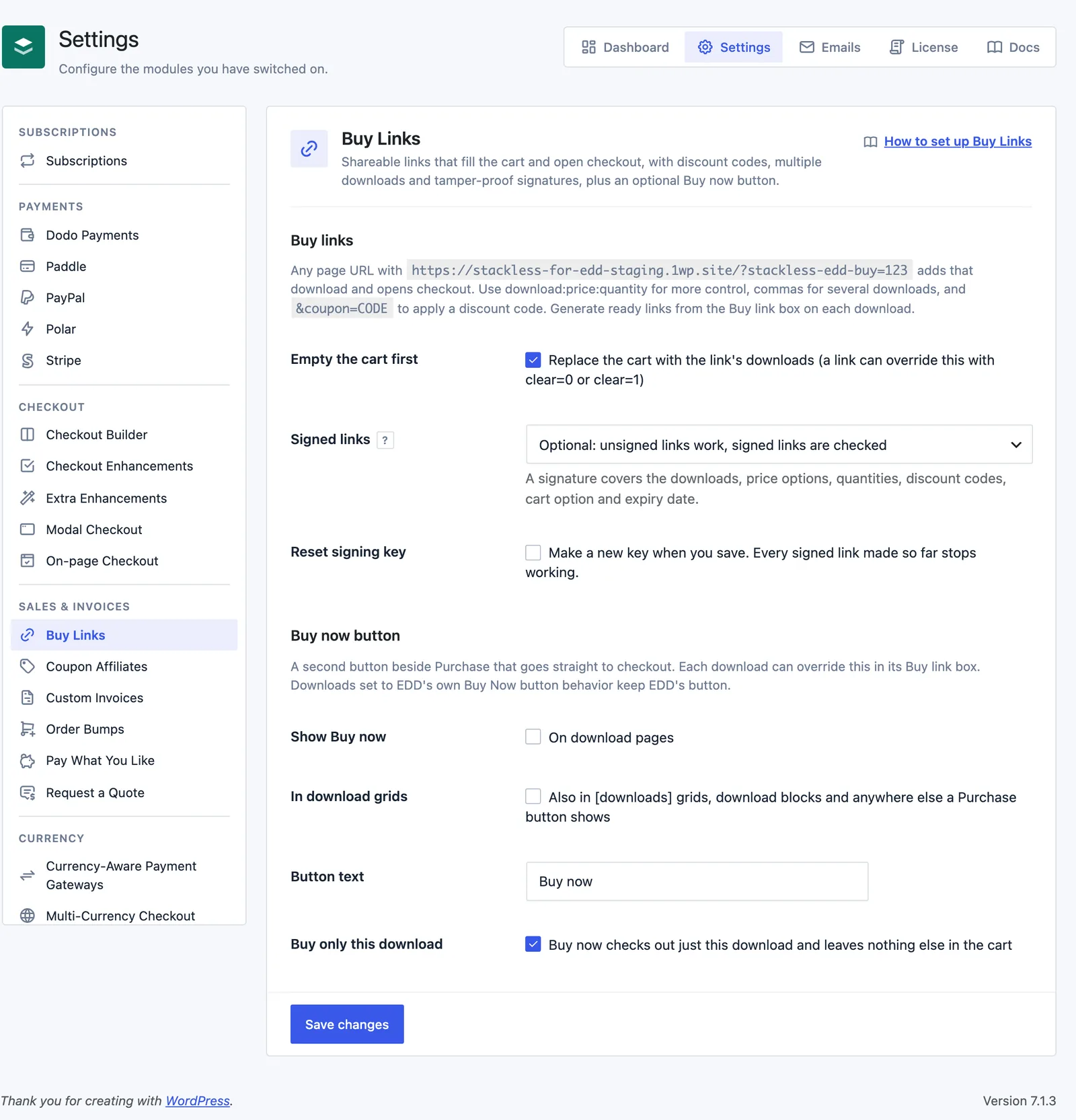
Switch on Buy Links from Stackless → Dashboard. Then go to Stackless → Settings and choose Buy Links under Sales & invoices.
- Empty the cart first: replaces the cart with the link’s downloads. On by default. A link can override it with
clear=0orclear=1. - Signed links: Optional (default) or Required. Optional means unsigned links work and signed links are checked. Required means only signed links work, so nobody can change the quantity or discount.
- Reset signing key: makes a new key when you save. Every signed link made so far stops working.
Make a Link from the Download Screen
Every download edit screen has a Buy link box in the sidebar.
- For a download with variable prices, choose a Price option.
- Set the Quantity.
- Optionally pick other downloads under Also add, and enter a Discount code.
- Set Existing cart: Store default, Empty it first or Keep it.
- Leave Sign the link so it cannot be edited ticked, and pick an Expires (optional) date if you want one.
- Click Make link, then Copy.
Under Also add, a download with variable prices needs a specific price option. Picks without one are left out, and the box tells you how many were skipped. Publish the download before you share its link, because links to drafts only work for store managers.
When Signed links is set to Required, the Sign checkbox is locked on.
How Signing Works
A signed link carries a sig parameter. The signature covers the downloads, price options, quantities, discount codes, cart option and expiry date. If someone edits any of those, the link is rejected.
- Signing uses a secret key stored on your site, created when the module is installed.
- An expiry date only applies to signed links. The link stops working after 23:59:59 on that date, in your site’s timezone.
- When signing is Optional, a link with a
sigis still checked. A bad signature is rejected, not ignored.
What Customers See When a Link Fails
A failed link sends the customer to checkout with a notice:
| Problem | Notice |
|---|---|
| Bad or missing signature | This buy link is not valid. Please ask the store for a new one. |
| Past its expiry date | This buy link has expired. Please ask the store for a new one. |
| No items in the link | This buy link does not include any products. |
| A download is missing, unpublished or can’t be bought | Product #[ID] from this link is not available. |
If some items in a link can’t be read, the rest are added and the customer sees a notice that some were skipped. Discount codes are applied only when at least one download was added and the code is valid.
Add a Buy Now Button
The Buy now button section adds a second button beside Purchase that goes straight to checkout.
- Show Buy now: on download pages. Off by default.
- In download grids: also in
[downloads]grids, download blocks and anywhere else a Purchase button shows. Off by default. - Button text: “Buy now” by default, up to 40 characters.
- Buy only this download: on by default. Buy now checks out just this download and leaves nothing else in the cart.
Each download can override the store setting with the Buy now button field in its Buy link box: Store default, Show on this download or Hide on this download.
The button sits inside EDD’s purchase form, so it sends the chosen price option and quantity along. Pressing it twice doesn’t stack quantities.
Limits
- Downloads set to EDD’s own Buy Now button behavior (Download Details → Button Behavior) keep EDD’s button. The Stackless Buy now button doesn’t show on them.
- A link adds at most 20 items. Extra items are ignored.
- A link request sends no-cache headers and asks caching plugins not to store the page.
- Developers can change the final destination with the
stackless_edd_buy_links_redirectfilter, and react to a processed link with thestackless_edd_buy_links_processedaction.