
Run a Coupon Affiliate Program
Your happiest customers already recommend your downloads. Without a referral program, you can’t thank them, and you can’t tell which mentions turned into sales. A full affiliate plugin with tracking links and cookies is often more than a small store needs.
Coupon Affiliates pays a cash commission on every paid order that uses an affiliate’s discount code. Customers can join from the account page and get a personal code, or you can assign any EDD discount to an account. Commissions wait out a refund hold, and you approve and pay them by hand. Refunds and cancellations adjust them automatically.
How It Works
- An affiliate shares their discount code. A friend uses it at checkout and gets the discount.
- When the order is paid, the affiliate earns the commission rate on the eligible downloads in it.
- The commission sits on hold for the Refund hold period, then waits for your approval.
- You approve it, reserve a payout, send the money your own way and record the transfer.
Attribution comes only from the affiliate’s discount saved on the order. Nothing the browser sends decides who earns. If an order carries several affiliate discounts, the first one wins.
Configure the Program
Go to Stackless → Settings → Coupon Affiliates. The Program section:
- Pause new referrals: affiliate codes stop working at checkout. Holds, approvals, refunds and payouts carry on. Off by default.
- Joining: who can become an affiliate. Defaults to “Customers with a paid order get a code right away”. The other choices are “Customers with a paid order can apply; I approve each one” and “Only accounts I add or assign a discount to”.
- Personal code discount (%): what a friend saves with a new personal code. Defaults to 10, up to 90. Existing codes keep their own amount, and you edit them under Downloads → Discounts.
- Commission (%): of eligible download sales after discounts, before tax and fees. Defaults to 10, up to 90. It applies to new orders.
- Refund hold (days): defaults to 30, between 0 and 365. When the hold ends, a commission is ready for your approval. It’s never approved or paid automatically.
- Minimum payout: in the payout’s own currency. Defaults to 0, which means no minimum.
- Code prefix: letters and numbers put in front of new personal codes, up to 12. For example, REF gives a code like
REFJANE7K2Q. Empty by default. - Excluded downloads: comma-separated download IDs that get no referral discount and earn no commission.
The Account page section:
- Tab label: the name of the account page tab. Defaults to “Refer & Earn”.
- Program terms: shown before customers join. Leave it blank to use the built-in text. Each acceptance records the version of the text, and editing it creates a new version.
- Share message: the ready-to-copy message. Placeholders:
{code},{discount}and{site}. Defaults to “Use my code {code} for {discount} off at {site}.”
Add Affiliates
There are three ways in:
- Customers join themselves. After a paid order, signed-in customers see the Refer & Earn tab, read the terms, tick I have read and accept the program terms. and click Join and get my code. With open joining they get a personal code right away. With approval, they wait until you approve them.
- You add an account. On Stackless → Affiliates, enter an account email or username, keep Create a personal discount code ticked if you want one made, and click Add affiliate.
- You assign a discount. Edit any discount under Downloads → Discounts and pick an account in the Affiliate field. The account becomes an affiliate if it isn’t one yet. Clear the field to stop new commissions. Ones already recorded stay.
Personal codes are regular EDD percentage discounts that apply to the whole cart, with no usage limit. Their description warns that Stackless manages them, so suspend the affiliate instead of deleting the discount.
Set Commission Rates
A rate can be set at three levels. The most specific one wins:
| Level | Where to set it | Applies to |
|---|---|---|
| Discount | Affiliate commission (%) on the discount’s edit screen | Orders placed with that discount |
| Affiliate | The rate box and Set rate on the Affiliates tab | All of that affiliate’s discounts without their own rate |
| Program | Commission (%) in Settings | Everything else |
Rate changes apply to orders placed afterwards. Recorded commissions keep the rate they were earned at.
What Earns a Commission
Commission is the rate times the order’s eligible sales: each download line after every discount, before tax. Fees and tax never earn. Downloads in Excluded downloads don’t count.
Some orders never earn, and they’re marked Rejected with a reason:
- The buyer is the affiliate: the same account, or a matching account or billing email. Checkout also refuses the code with “You cannot use your own referral code.”
- Subscription renewals, subscription switches, invoice payments and linked follow-up orders.
- Orders cancelled or deleted before payment, or where nothing was paid.
Refunds lower the commission. A refund against a line reduces that line exactly. A refund entered as an amount only reduces the remaining sales in proportion. A fully refunded, revoked or failed order earns nothing.
Review and Approve Commissions
Stackless → Affiliates shows four totals at the top: Active affiliates, On hold, Need a decision and Approved to pay. Below them are four tabs: Affiliates, Commissions, Payouts and Program.
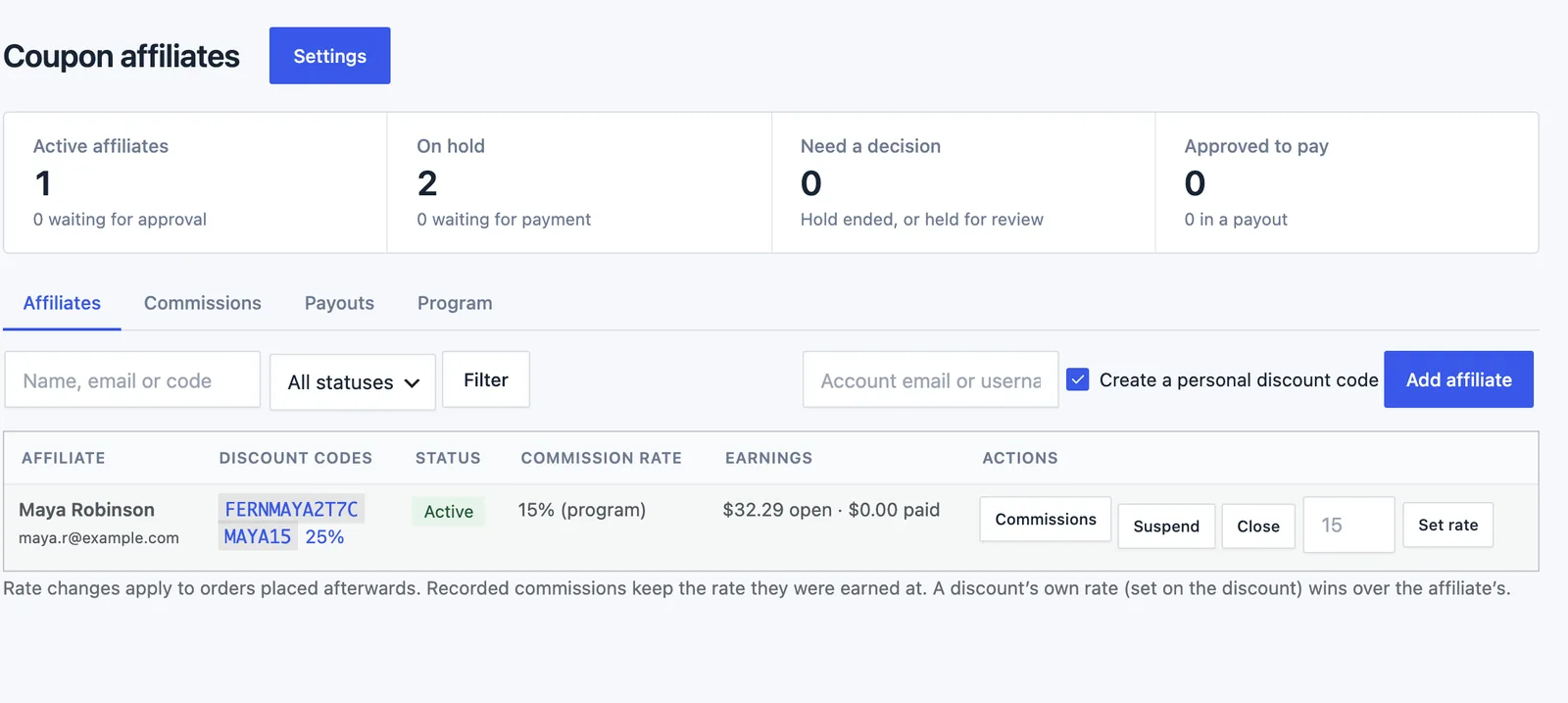
Each commission moves through these statuses:
| Status | What it means |
|---|---|
| Awaiting payment | The order uses an affiliate code but isn’t paid yet. |
| On hold | Paid. The refund hold is running. |
| Ready for approval | The hold ended. It needs your decision. |
| Needs review | Held because another affiliate plugin is active. |
| Approved | Ready to go into a payout. |
| In payout | Reserved in a payout batch. |
| Paid | You recorded the transfer. |
| Reversed | Refunded, cancelled or rejected by you. |
| Rejected | The order didn’t qualify. |
On the Commissions tab, click Approve on a row or Approve every commission ready for approval. Details shows the order lines, eligible sales, rate, hold end date, a ledger and the full history. From there you can also Recheck order or reject the commission with a reason. Both the Commissions and Payouts tabs offer CSV downloads.
Every hour, Stackless rechecks orders waiting for payment, ends holds and catches orders it missed. The Program tab shows the last run, and Run now starts one right away.
Pay Affiliates
- Open the Payouts tab. Ready to pay lists each affiliate and currency with approved commissions, open adjustments and the net amount.
- Click Reserve payout. Downloading the CSV doesn’t mark anything paid.
- Send the money by bank transfer, PayPal or whatever you use.
- Fill in Method, Amount sent, Currency, Date sent and Transfer reference, then click Mark paid. The amount must match the reserved amount exactly.
Release reservation sends the commissions back to Approved. If a refund arrives during a payout, you can release it to recalculate, or record that the transfer was already sent. A refund after payout becomes an adjustment that’s deducted from the affiliate’s next payout.
The Refer and Earn Tab
Affiliates see their codes, earnings and referral orders on the account page tab. It’s also shown to customers who could join.
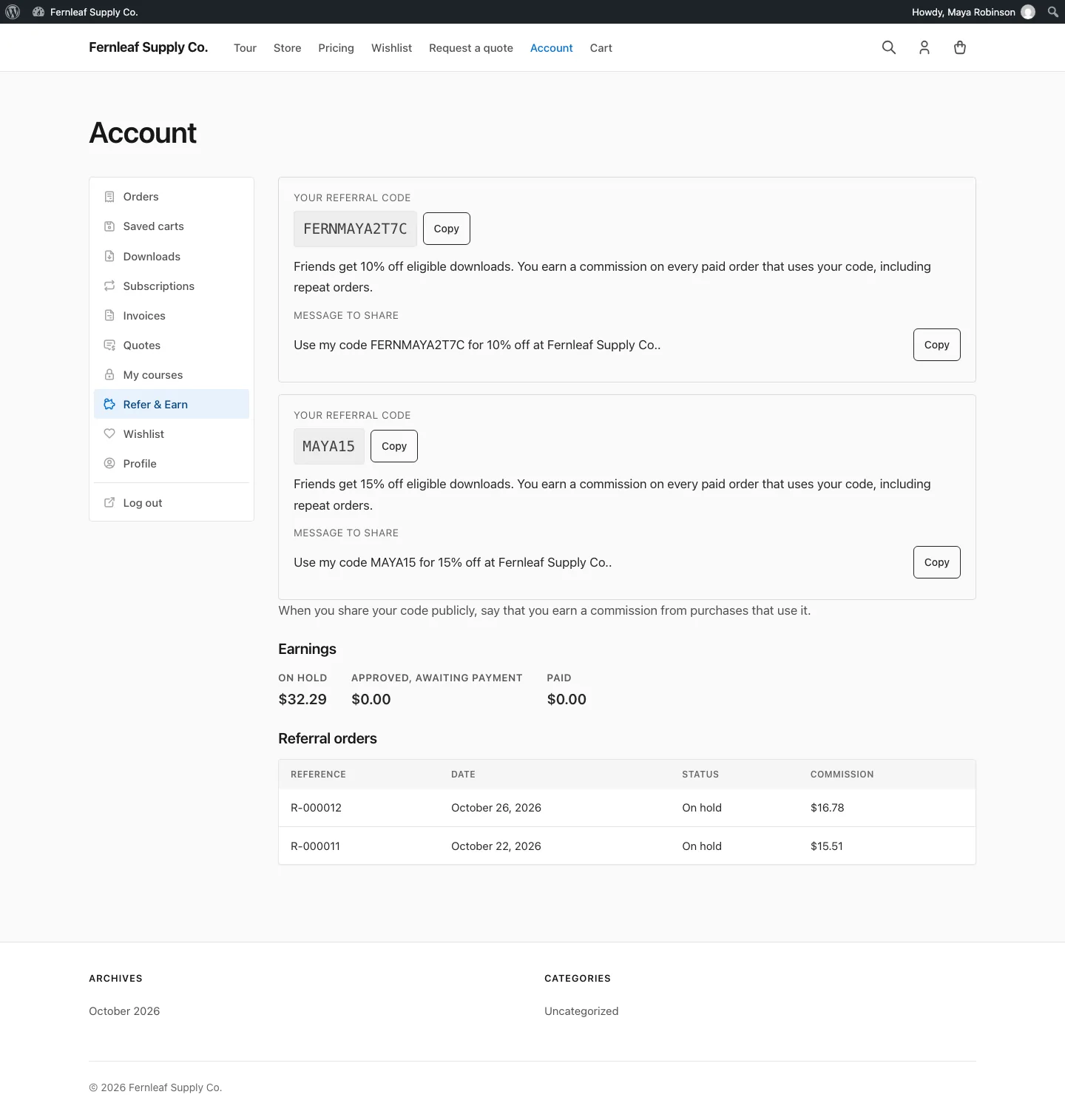
- Your referral code: each active code with a Copy button, what friends save and a message to share.
- Earnings: On hold, Approved, awaiting payment, Paid, plus any refund adjustments to offset.
- Referral orders: the 25 most recent, with an anonymous reference such as R-000012, the date, status and commission.
- Payouts: the 10 most recent paid payouts.
Referred buyers are never identified to the affiliate. There are no names, emails or downloads, only the reference, date, status and amount.
Good to Know
- Suspend or Close an affiliate to switch their discount codes off. Recorded earnings stay.
- EDD discounts outlive the module, so turning the module or the plugin off switches every affiliate code off first. The Program tab has Catch up and reopen the program to turn them back on.
- If AffiliateWP, SliceWP, Solid Affiliate, Easy Affiliate, Affiliates Manager or FluentAffiliate is active, new commissions are held for review. Confirm under Settings that the other plugin doesn’t pay on these codes, and held commissions are released. Coupon Affiliates never switches another plugin off.
- When the buyer shares an IP address with the affiliate, the commission shows “Same IP as the affiliate” for you to check. It isn’t blocked.
- Commissions are recorded in the order’s currency, and payouts are grouped by currency.
- Affiliate data is included in WordPress’s personal data export and erase tools. Erasing closes the referral account but keeps commission and payout records for accounting.