
Sell Add-ons and Add Checkout Fields
Rush delivery, a setup service, extra color palettes, your client’s name pre-filled in a template. Extras like these lift the order value, but EDD has no way to price them on their own, and a variable price for every combination gets out of hand fast.
Fields & Paid Add-ons does two jobs. Download add-ons are extras the customer picks on the download page, priced per item or once per line. Checkout fields collect order details or add a paid extra once per order. Prices are always worked out on the server.
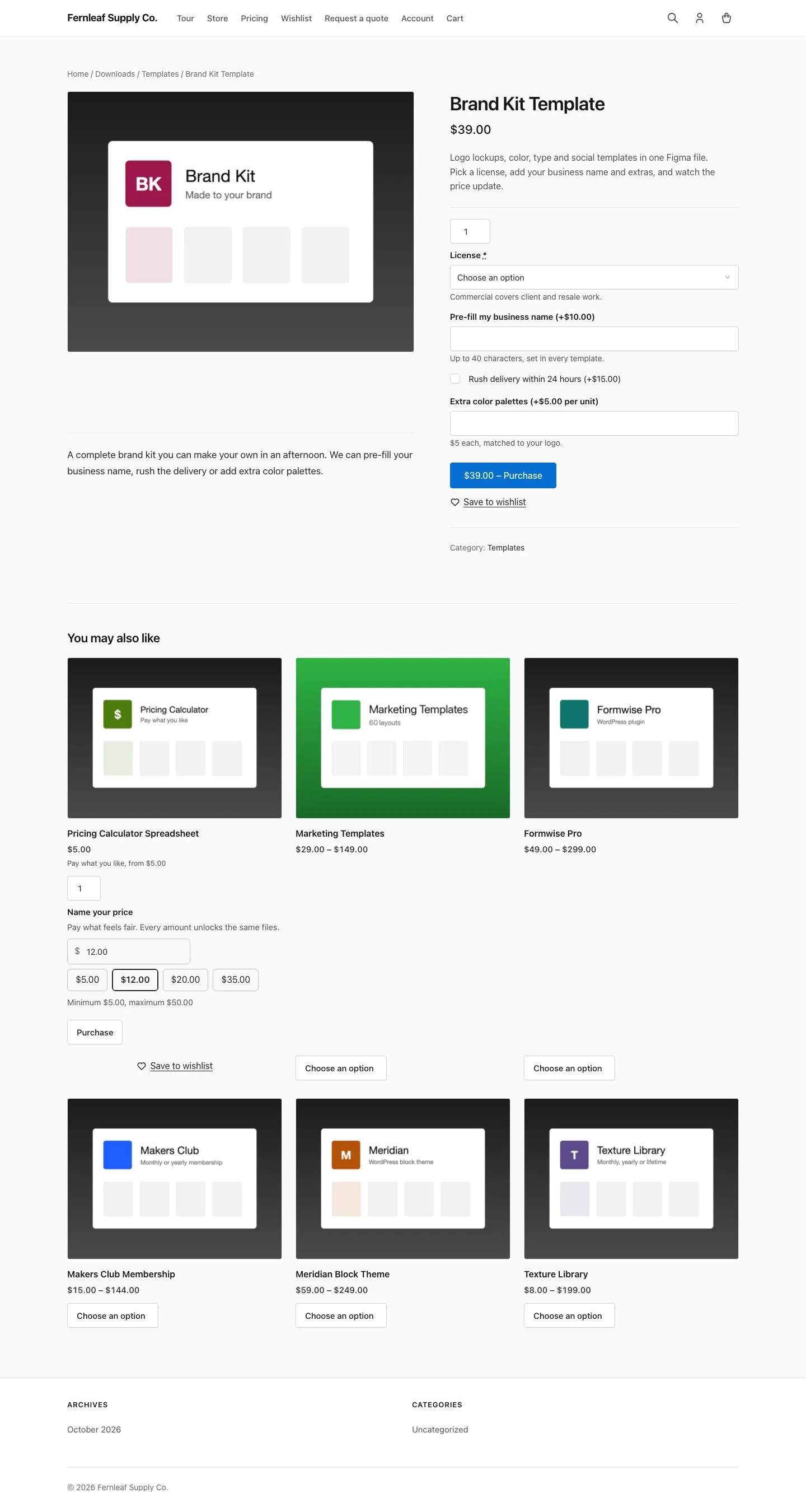
Add Add-ons to a Download
- Edit the download and find the Add-ons box.
- Click Add an add-on.
- Fill in the add-on and update the download.
Each add-on has:
- Label: the name the customer sees.
- Type: Checkbox, Dropdown, Short text, Long text or Number.
- Choices: for dropdowns, one per line. Add a price after a pipe, such as
Large | 4.50. - Price: in your store currency. For a dropdown, it’s added to every choice. Leave it empty to use only the choice prices.
- Charge: Once per line, Per item (× quantity) or Per unit entered (number only).
- Minimum / maximum: for Number add-ons.
- Character limit: for text add-ons, the longest answer a customer can enter. Leave it empty for no extra limit.
- Help text: shown under the field.
- Required: customers must complete it before adding to cart.
Prices follow your tax settings.
How Add-ons Are Charged
- Once per line: charged once whatever the quantity. It shows as a separate fee called “Options for download name”.
- Per item (× quantity): added to the item’s price, so it multiplies with the quantity when EDD’s cart quantities are on.
- Per unit entered (number only): the price times the number the customer typed, added to the item’s price. A value of 0 adds nothing.
The download page shows an “Options total” as the customer chooses. In the checkout cart, each add-on appears under the item with its price, for example “Rush delivery (+$15.00)” or “Setup (+$5.00 each)”. Different choices make separate cart lines.
The choices are saved on the order item. They show on the purchase receipt, in the purchase receipt email and in an Add-ons & checkout fields box when you view the order in the admin.
Where Add-on Fields Show
Add-on fields show in the purchase form on the download’s own page. Elsewhere, such as the [downloads] grid, a download with a required add-on swaps its button for Select options, which links to the download page.
A Buy Now button can’t collect add-on answers, so downloads with add-ons always add to cart instead. Order Bumps never offers a download that has a required add-on.
Create Checkout Fields
Go to Stackless → Checkout fields and click Add a field. Each field has:
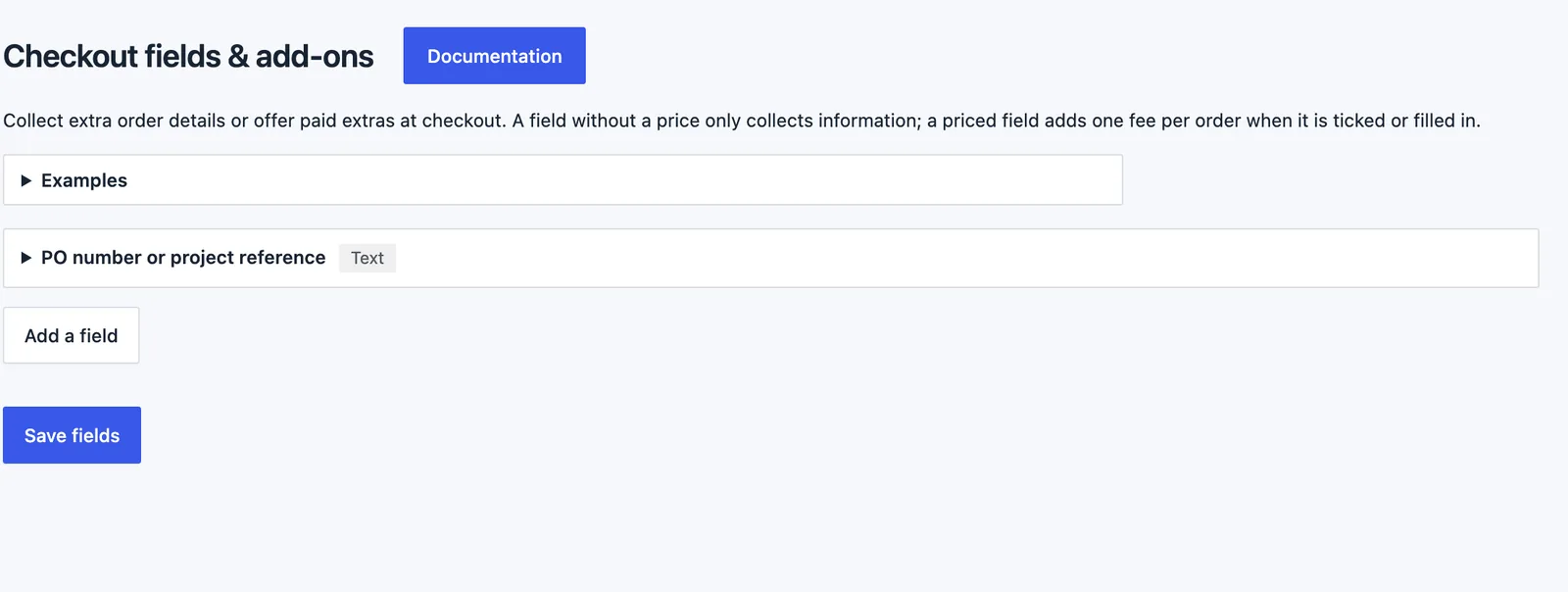
- Label and Type: Checkbox, Dropdown or Text.
- Choices: for dropdowns, one per line. The field price applies to any choice.
- Price with a Taxable box. A field without a price only collects information. A priced field adds one fee per order when it’s ticked or filled in.
- Show for: Every cart, or Carts with a specific download (pick the download next to it).
- Show only when: another field above this one equals a value. Use 1 for a ticked checkbox. Save first before a new field can be picked as a condition.
- Rules: Required.
Click Save fields. The screen’s Examples panel shows the idea: a Priority support checkbox priced at 5.00, and a Project URL text field shown only when Priority support equals 1.
Where Checkout Fields Appear
The fields print in their own section just before the purchase button. That works for both the [download_checkout] shortcode and the Checkout block. Fees and the total update as the customer fills them in.
Two settings at Stackless → Settings → Fields & Paid Add-ons control the section:
- Checkout heading: the section title. Defaults to “Customize your order”.
- Collapsed: start the section collapsed. It opens automatically when something is filled in. On by default.
Each answer is saved on the order, and the order gets a “Customer options” note listing them.
Limits
- Up to 30 add-ons per download and up to 30 checkout fields, with up to 50 choices per dropdown.
- Short text answers take up to 500 characters, and long text up to 2,000.
- Help text is capped at 300 characters.
- Checkout fields can target every cart or carts with one specific download. There are no shipping-based rules, since EDD sells nothing that ships.
- Add-on fields only show on the download’s own page unless a developer opts other purchase forms in with the
stackless_edd_product_addons_show_formfilter.