
Let Buyers Choose What to Pay
A fixed price asks every buyer for the same amount, whether they’d happily pay more or can only spare a little. A free download is worse: a happy user who wants to chip in has nowhere to do it.
Free in Lite: this module is also in Stackless Lite for EDD, the free edition, and works the same way there.
Pay What You Like lets buyers choose what to pay for a download, inside limits you set. The download’s price is the minimum unless you set your own. The chosen amount becomes the cart line’s real price on the server, so discounts, tax, orders and reports all use it.
Turn On Pay What You Like
- Switch on Pay What You Like under Stackless → Dashboard.
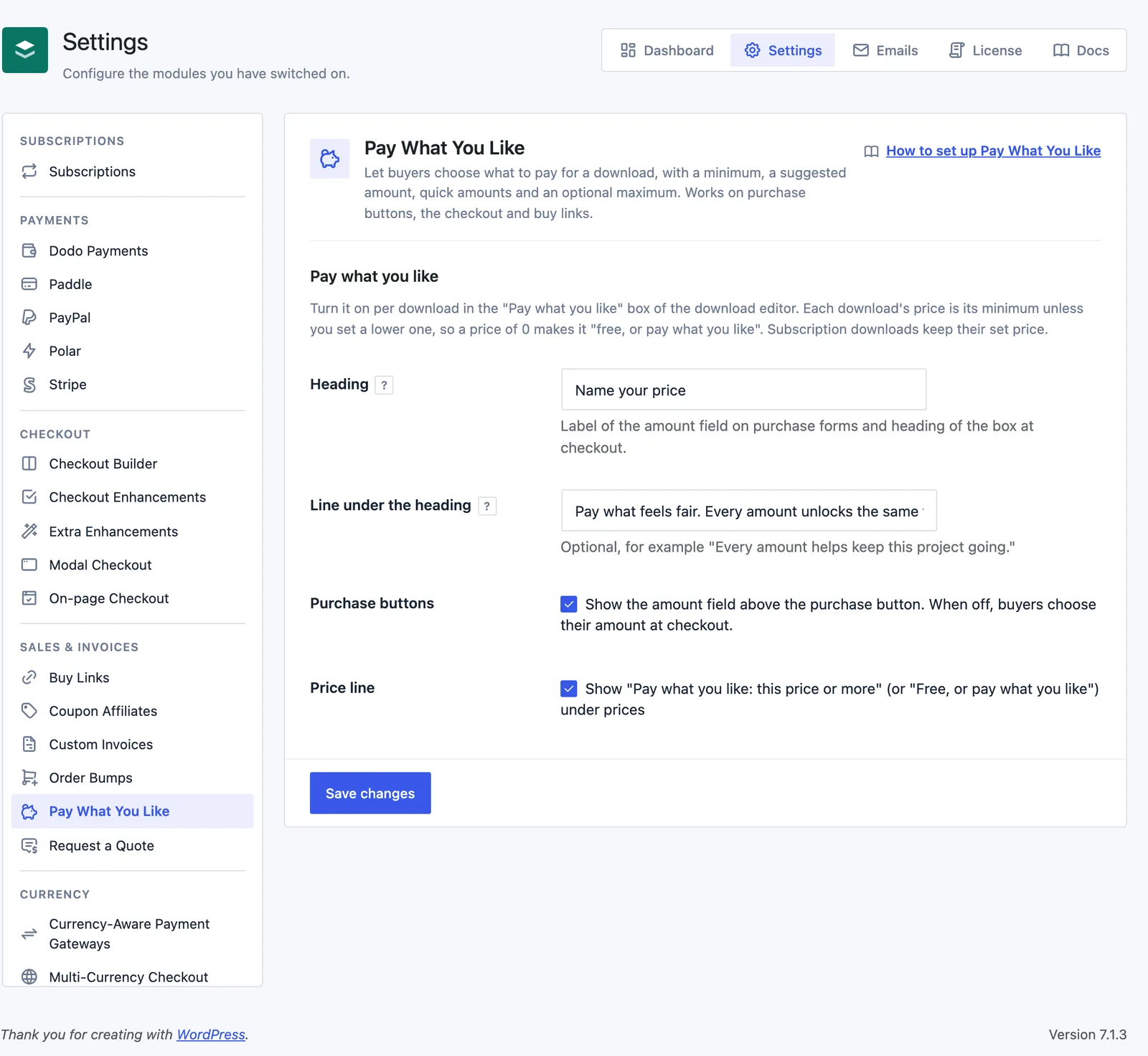
- Set the wording under Stackless → Settings → Pay What You Like. It’s listed under Sales & invoices.
- Edit a download, find the Pay what you like box, tick Let buyers choose what to pay and update the download.
Nothing changes for buyers until you tick that box on a download. The store-wide settings are:
- Heading: labels the amount field on purchase forms and heads the box at checkout. Default “Name your price”.
- Line under the heading: optional text, for example “Every amount helps keep this project going.” Empty by default.
- Purchase buttons: shows the amount field above the purchase button. On by default. When it’s off, buyers choose their amount at checkout.
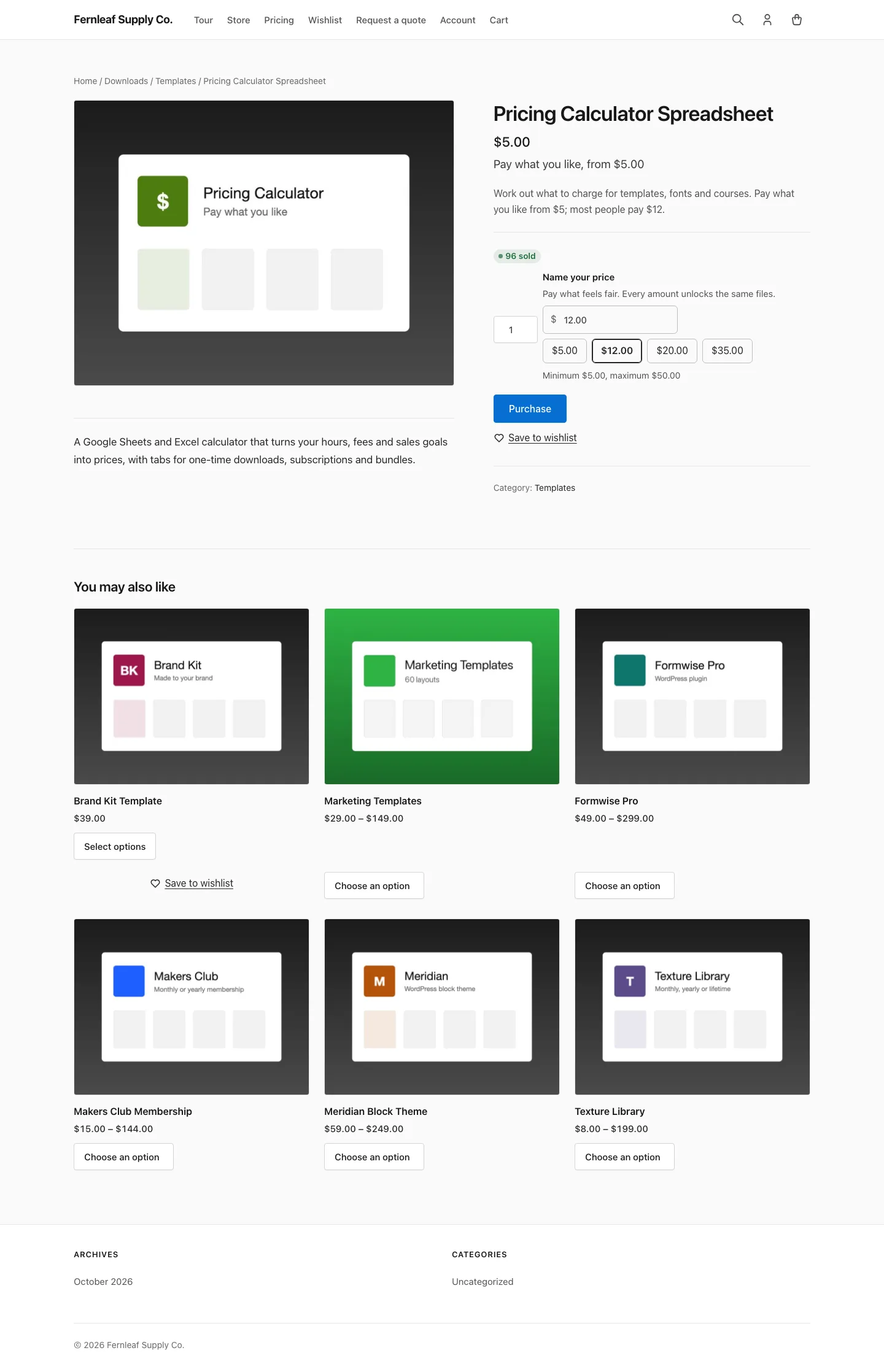
- Price line: adds “Pay what you like: this price or more” under prices. A download with its own minimum shows “Pay what you like, from $5.00”, and a minimum of 0 shows “Free, or pay what you like”. On by default.
Set the Amounts on a Download
Amounts are in your store currency, and each label shows its symbol, for example Minimum ($).
- Minimum: the lowest amount a buyer can enter. Leave it empty to use the download’s price.
- Suggested amount: filled in for the buyer. Leave it empty to start at the download’s price.
- Maximum: the highest amount a buyer can enter. Leave it empty to allow up to 1,000,000.
- Quick amounts: up to four one-tap buttons, such as 0, 5 and 10. A button below the minimum or above the maximum doesn’t show, so 0 only shows when the minimum is 0.
Saving drops what doesn’t fit: an invalid amount, a maximum below the minimum, or a suggested or quick amount above the maximum. Each shows a notice starting “Pay what you like:”.
Variable Pricing
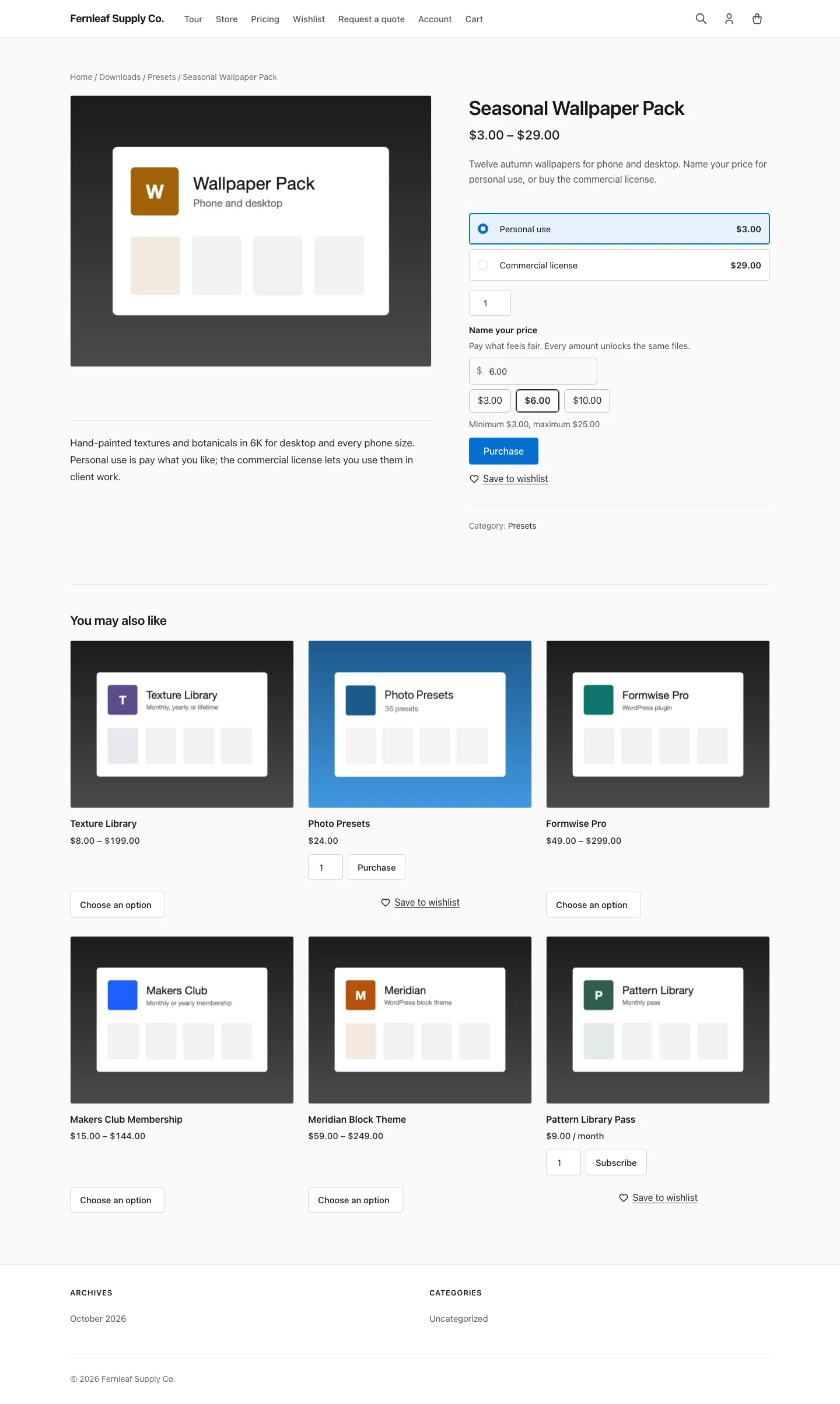
On a download with variable pricing, each price option row gets its own Pay what you like controls:
- Fixed price: “no pay what you like for this price (when the download has it on)”. The option keeps its normal price.
- Pay what you like minimum, Suggested amount and Maximum: override the download’s values for that option. Empty fields use the download setting.
With no minimum anywhere, each price option’s own price is its minimum. Quick amounts always come from the download.
Offer a Download Free, or Pay What You Like
Set the download’s price to 0 and the minimum becomes 0. The price line reads “Free, or pay what you like”, and the help text under the field says “Enter 0 to get it free, or any amount you like.”
To start buyers at a normal price but still allow 0, keep the price and set Minimum to 0. A quick amount of 0 then gives a one-tap free choice.
Where Buyers Choose the Amount
- Purchase forms: the field sits above the purchase button with your Heading, the quick amounts and a help line such as “Minimum $5.00, maximum $50.00”. The button drops its price text. On a download with variable pricing, the field appears once the buyer picks a price option that takes an amount.
- Checkout: a box with your Heading right above the purchase form, with one field per download. It works with the EDD checkout shortcode and the Checkout block. The line price updates as the buyer changes the amount.
An amount outside the limits shows “Enter at least $10.00.” or “Enter at most $50.00.”. At checkout, the purchase stops with a message naming the download until the amount is fixed.
Put an Amount in a Link
Add stackless_edd_price to a checkout link or a Buy Link:
https://example.com/checkout/?stackless_edd_price=25
https://example.com/?stackless-edd-buy=123&stackless_edd_price=25- The amount goes to the first download in the cart that takes a chosen amount.
- It’s kept inside that download’s limits, so
stackless_edd_price=1on a $19 download with no lower minimum still charges $19. - Use a dot for decimals, such as
12.50. - It’s applied once, in the currency the buyer is shopping in, then removed from the address. The buyer can still change it.
That’s how one download gets “Pay $5”, “Pay $10” and “Pay $25” buttons on a sales page. See Buy Links for building the links.
How the Amount Becomes the Price
- Every time EDD reads a cart line’s price, the server works it out from the chosen amount and the download’s current limits. A price sent from the browser is never used.
- Without a chosen amount, the line costs the suggested amount, or the download’s price.
- The amount is per item, so 2 at $15 costs $30.
- Discounts and tax work on it like any other price.
- Each order item keeps the amount, the minimum and the currency. The order gets one “Pay what you like” note with a line such as “Ebook: $15.00 (minimum $10.00)”.
- With Multi-Currency Checkout, your amounts are converted, and a download without its own minimum uses its price in that currency. Switching currency resets the line to the new starting amount.
- If you raise the minimum after a buyer chose, their line is charged inside the new limits, and checkout asks them to fix the amount.
Limits
- Subscription downloads always charge their set price, even with the box ticked. That includes subscription price options.
- Order bump lines always use the bump’s price.
- A download that lets buyers pick several price options at once shows no amount field on its purchase form. Buyers choose at checkout.
- Direct “Buy Now” purchases go through the cart for these downloads, and EDD Stripe’s Apple Pay and Google Pay button on the purchase form is turned off.
- If the EDD Custom Prices plugin is active, the module pauses with “Paused because EDD Custom Prices is active and does the same job.”
- Developers can use the
stackless_edd_pay_what_you_like_settingsfilter and override the templates inyourtheme/stackless-edd/pay_what_you_like/.