
Let Customers Save Carts and Order Again
Repeat buyers often come back for the same set of downloads: a client kit, a seasonal bundle, a renewal of the tools they use every month. Rebuilding that cart from scratch every time is slow, and it’s easy to miss an item.
Free in Lite: this module is also in Stackless Lite for EDD, the free edition, and works the same way there.
Saved Carts & Order Again lets signed-in customers save their cart under a name and restore it later. It also lets them reorder from past orders and puts both in one Saved carts tab on the account page.
Configure the Module
Go to Stackless → Settings → Saved Carts & Order Again:
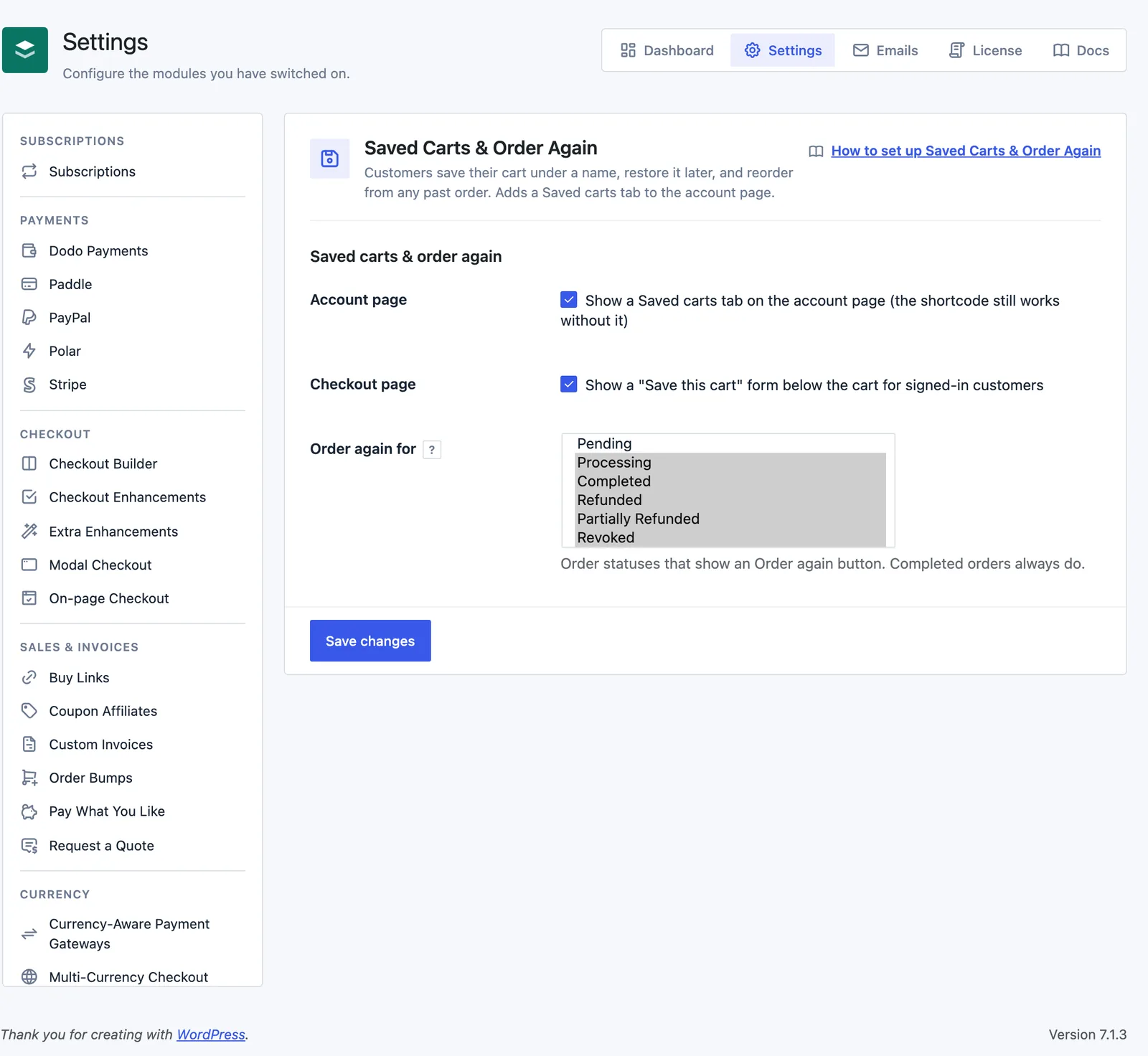
- Account page: show a Saved carts tab on the account page. On by default. The shortcode still works without it.
- Checkout page: show a “Save this cart” form below the cart for signed-in customers. On by default.
- Order again for: order statuses that show an Order again button. Completed orders always do, whatever you pick. The default list is Processing, Completed, On Hold, Refunded, Partially Refunded, Revoked and Failed.
Save a Cart
Signed-in customers can save their cart in two places:
- Below the cart on the checkout page, under Save this cart for later, with a name field and a Save cart button. It works with the
[download_checkout]shortcode and the Checkout block. - On the Saved carts tab, under Save your current cart.
Each cart needs a name, up to 100 characters. A customer can keep up to 10 saved carts, with up to 50 lines in each. Price options and quantities are saved with each line. After saving, they’re taken to the Saved carts tab.
The Saved Carts Tab
The account page gets a Saved carts tab, placed right after Orders. It has three parts:
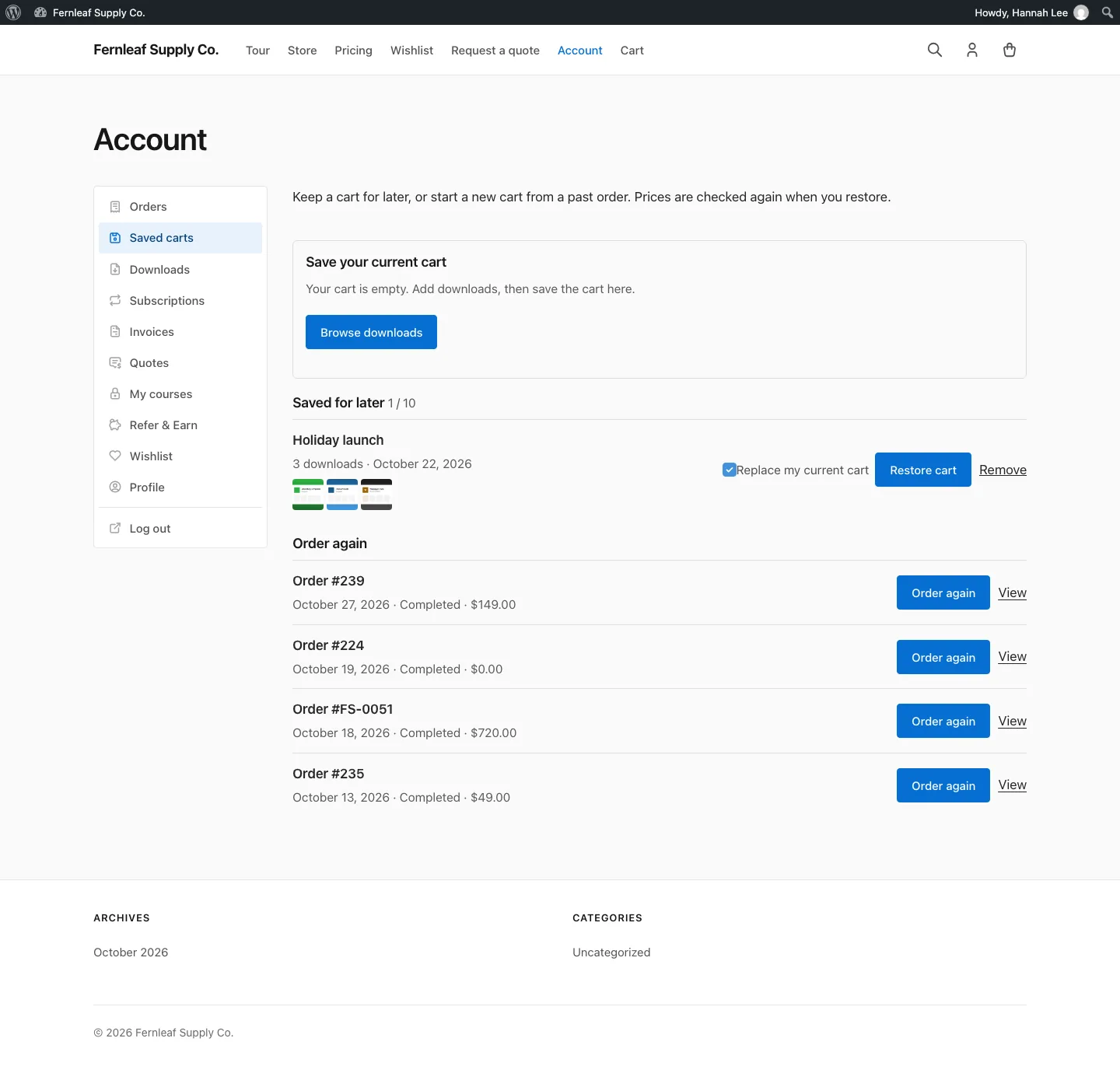
- Save your current cart: the save form, or a Browse downloads button when the cart is empty.
- Saved for later: each saved cart with its name, download count, save date, up to four thumbnails and a count such as “1 / 10”. Restore cart puts the downloads back in the cart, and Replace my current cart (ticked by default) empties the cart first. Remove deletes the saved cart.
- Order again: the customer’s 20 most recent orders in the statuses you allowed, each with its number, date, status and total, an Order again button and a View link to the receipt.
The [stackless_edd_saved_carts] shortcode shows the same screen on any page. Signed-out visitors see a prompt to sign in.
What Happens When a Cart Is Restored
Restoring re-adds each download through EDD’s normal add to cart, so current prices apply:
- Downloads that are deleted, unpublished or can’t be bought are skipped, and so are price options that no longer exist. The customer sees a “Not added” notice listing them.
- If nothing can be added, the customer sees “None of these downloads can be bought right now.”
- On success, the customer lands on checkout with a reminder that current prices apply.
Order again works the same way, with one difference: it empties the cart first, then fills it with the items from that order. Developers can keep the existing cart with the stackless_edd_saved_carts_empty_cart_when_order_again filter.
Good to Know
- Saved carts are stored on the customer’s account, so guests can’t save carts.
- Customers can only reorder their own orders, and only in the statuses you allowed.
- EDD’s own Save cart button, under Downloads → Settings → Misc, keeps working on its own. Turn one off if two save options feel like too many.
- Saved carts are included in WordPress’s personal data export and erase tools.
- The tab, the checkout form and the signed-out prompt can be overridden in your theme under
stackless-edd/saved_carts/.