
 by
A WordPress backup feels like the safest file you have. It’s your site at a good moment, and restoring it is supposed to be the fix. That trust is exactly what WordPress backup malware uses: a restored site runs everything inside the zip the moment WordPress loads, before you have read a single file.
The damage can land in places you don’t expect. One freelancer nearly ran a password stealer on their own laptop from what looked like a normal client export. In another case, a reused backup key ran up about $8,400 on someone’s AWS bill.
My rule is simple. I’d treat any backup I didn’t make myself as code from a stranger and read it before restoring it. I’d also give every backup plugin a key that can reach one bucket and nothing else. Below, I’ll walk you through both, with the exact commands I’d run.
- Most backup malware hides in
wp-content/mu-plugins, the uploads folder and the database, which are the 3 places checksums don’t cover. - A stranger’s backup belongs on a throwaway Linux machine, never your daily laptop.
- Your backup plugin should use a key that can touch one bucket, from one server, and nothing else.
What Was Hidden in the Fake Client’s Export
The best way to understand this attack is to walk through the one that almost worked. A freelancer posted the whole thing on r/WordPress, with file names and hashes. A new client on Upwork sent a WP Migrate export for a “white screen after an Elementor update” rescue. The client asked them to run it on their own computer first, in LocalWP or XAMPP.
WP Migrate is WP Engine’s plugin for moving a WordPress database and files between sites, and its export is a zip of both. The plugin did nothing wrong here. The zip only had to look like an ordinary export, which any WordPress migration plugin can produce.
The client was the bait, and the details give it away once you line them up:
- The Upwork account was 2 days old and sent the same invite to 30 freelancers.
- The budget was $1,600.
- The one hard condition was to run the site locally and send a screenshot with localhost in the address bar before the first milestone was funded.
A brand-new client whose first condition is “run it on your own computer” is asking you to run their code on your machine. That request alone is worth a polite no.
Most of the archive was clean, which is what makes this one clever. All 3,349 core files of WordPress 6.9.5 matched the official checksums, and so did Elementor and 3 other plugins. Two details didn’t add up:
- The database listed 10 active plugins, but the export had folders for only 4.
wp-content/mu-pluginshad 2 genuine Hostinger files and a third one calledcustom-fields-handler.php.
That third file was the loader. It waits for WordPress to start, finds product-detail-mockup-soft-blue-background.jpeg in the uploads folder, renames it to .exe and runs it with PHP’s exec(). If that fails, it tries 8 more methods, including a throwaway .bat file, Windows Script Host and pcntl_exec.
The “image” was a 4.6 MB Windows program. Its first 2 bytes were MZ, the signature every Windows executable starts with. On VirusTotal, 10 of 70 engines flagged it, and Kaspersky named it Vidar, an infostealer that goes after saved passwords, browser sessions and files.
So the target was never a server, since none of it runs on a Linux host. It was aimed at the freelancer’s own Windows laptop, and the first page load in LocalWP would have launched the stealer with access to their browser, email and Upwork login. Whoever wrote 9 different ways to launch one fake JPEG must be having a lot of faith in curious freelancers.
The freelancer’s first scan judged files by their extension, so it passed the fake JPEG as an image. A checksum check would have come back clean too, because the malware sat in the 2 places checksums don’t cover: mu-plugins and uploads.
Why mu-plugins Malware Is Hard to Spot
Before going further, I want to ensure the folder itself is clear, because most of this story turns on it. Must-use plugins are PHP files in wp-content/mu-plugins that WordPress loads on every request. Hosts use them for login helpers, caching and staging tools, which is why a Hostinger or Installatron file there looks normal.
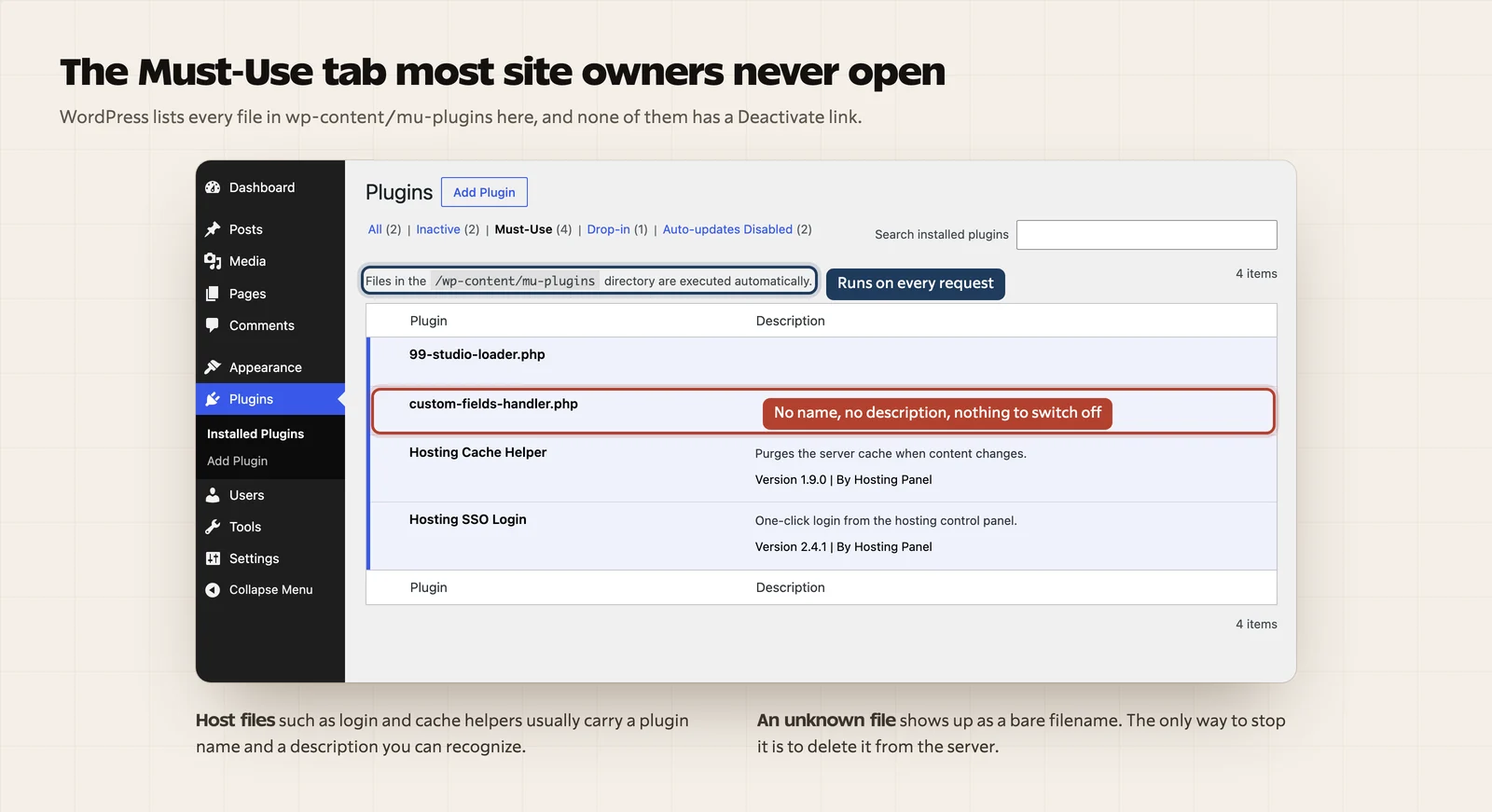
This is what the folder looks like from wp-admin. I set up a test site with 2 host-style files and an unknown one, and the unknown file shows up as a bare filename with nothing to click. Attackers like the folder for these reasons:
- No activation. A file in mu-plugins runs because it exists. Nothing in the database has to switch it on.
- It loads early. WordPress loads must-use plugins before regular plugins, so a regular security plugin starts after it.
- No Deactivate link. The only way to stop one is to delete the file.
- Hardly anyone looks. The files sit under a separate Must-Use tab on the Plugins screen that most site owners never open.
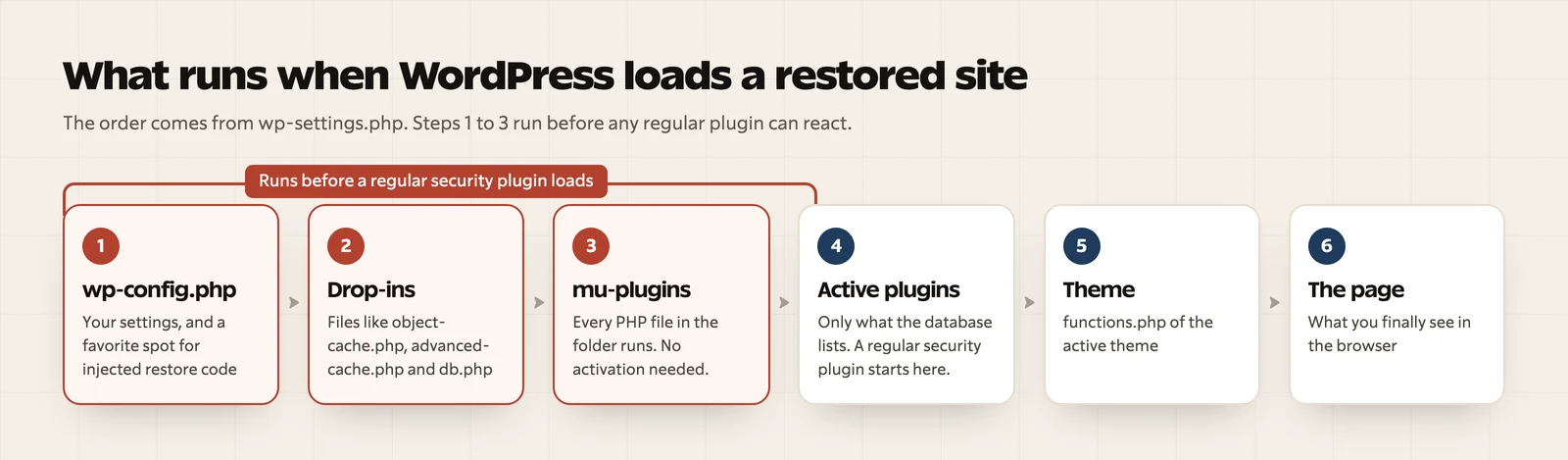
In a backup, the first point matters more than it does on a live site. A regular plugin only runs after a restore if the database lists it as active. A must-use plugin runs on the first page load, with no questions asked.
This trick keeps coming back. In early 2025, Sucuri found 3 malicious must-use files in the wild:
redirect.phpsent visitors to a fake browser update that downloaded malware, and it stayed quiet for logged-in admins and search engine bots.index.phpwas a backdoor that gave remote access to the server.custom-js-loader.phpreplaced page content with spam links and explicit images.
A few months later, Sucuri found a backdoor called wp-index.php in the same folder. It fetched a remote payload, stored it in the database under the option _hdra_core, created a hidden admin named officialwp and reinstalled itself when deleted.
Another r/WordPress post from September described an infection that came back within 24 hours of a manual cleanup. It survived because 3 layers kept restoring each other:
- base64 payloads in
wp_options, stored as transients with names like_site_transient_health_* - fake plugins and must-use files such as
wp-own-assets.php, with copies inwp-includes/assets/anduploads/ - restore code in
wp-config.phpor in a roguewp-content/object-cache.phpthat rewrote the files from the database on every request
A backup taken from a site like that carries all 3 layers. Restoring it restores the infection, which is why a backup made after a hack isn’t a clean backup, however tidy its files look.
Where to Look in a WordPress Backup
Checksums cover WordPress core and the plugins hosted on wordpress.org. Everything else is where malware in a WordPress export hides, so these are the places I’d check in any backup I didn’t make myself:
| Where | What normal looks like | Red flags |
|---|---|---|
wp-content/mu-plugins/ | Empty, or host files you can name | Any file you can’t explain, obfuscated code, exec, eval, base64_decode |
PHP files directly in wp-content/ | index.php and drop-ins you installed, such as object-cache.php or advanced-cache.php | A drop-in you never installed |
wp-content/uploads/ | Images, PDFs, video and audio | Any .php, .exe or .bat file, or an “image” whose real type isn’t an image |
wp-content/plugins/ | A folder for every active plugin | Active plugins with no folder, folders with random suffixes |
| The active theme | Matches a fresh download of the same version | A changed functions.php, PHP files inside js/ or images/ |
| The database dump | Posts, settings and small transients | <?php, eval(, base64_decode, huge transients, admins you don’t know |
wp-config.php and .htaccess | Your settings and the standard rewrite rules | Extra functions, include lines, rules that rewrite image URLs to PHP |
Themes need their own check because wordpress.org doesn’t publish checksums for them. A modified functions.php passes every core and plugin check, so the fix is a plain diff against a fresh copy of the same theme version.
The database deserves the same suspicion as the files. Code Snippets keeps PHP in its own table, and WPCode stores snippets as posts with the post type wpcode. In the Upwork export, one of the 6 active plugins with no folder was insert-headers-and-footers, WPCode’s slug, and the uploads folder had a wpcode folder. Nobody checked the dump before the zip was deleted, so that part of the story stays open.
How to Scan a WordPress Backup Before Restoring
This is the order I’d follow for any export from a client, a marketplace seller or an old host. It looks like a lot written down, but on an ordinary site it’s a few minutes of reading. The commands assume a Linux or macOS terminal inside a throwaway virtual machine or container.
Step 1: A disposable Linux machine. I wouldn’t use my daily laptop for this. The machine should have no saved passwords, no synced browser and no access to your files. The Vidar payload needed Windows, so a Linux box takes that whole class of attack off the table.
Step 2: The archive listed before it’s extracted. These 2 commands show anything in uploads that isn’t a common media file, then every must-use plugin and loose PHP file in wp-content:
unzip -Z1 backup.zip | grep 'wp-content/uploads/' | grep -viE '(/|\.(jpe?g|png|gif|webp|avif|pdf|mp4|webm|mp3))$'
unzip -Z1 backup.zip | grep -E 'wp-content/(mu-plugins/.+|[^/]+\.php)$'
Step 3: Real file types in uploads. An extension is only a name. The file command reads the first bytes instead, so a Windows program shows up as application/x-dosexec (or vnd.microsoft.portable-executable on newer systems) even when it’s called .jpeg:
find wp-content/uploads -type f -exec file --mime-type {} + | grep -vE ': +(image|video|audio)/|: +application/pdf'
find wp-content/uploads -type f -iname '*.php*'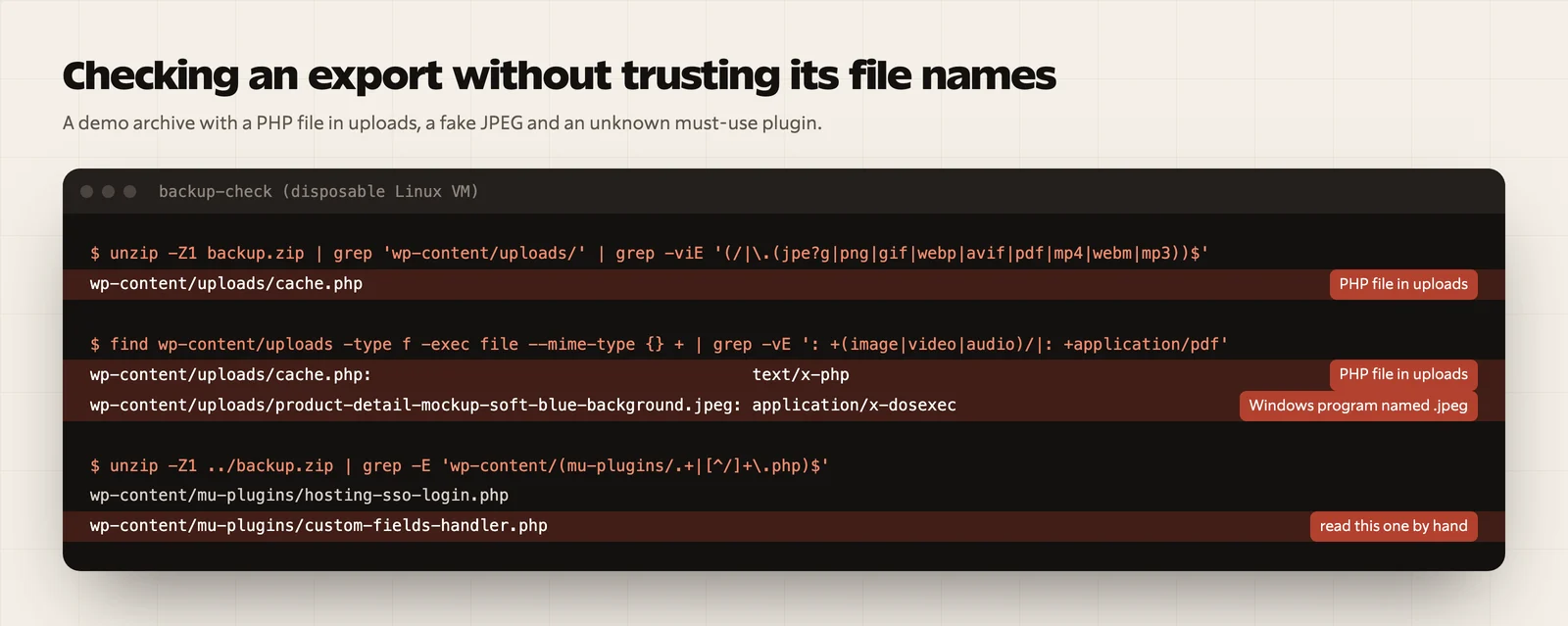
I ran these against a small demo archive with a PHP file in uploads, a fake JPEG that starts with MZ and an unknown must-use file. All 3 came straight to the top, and the real images dropped out of the list.
Step 4: Every must-use plugin and loose PHP file, read by hand. A grep for the usual functions gives you a starting list:
ls -la wp-content/mu-plugins/
find wp-content -maxdepth 1 -type f -name '*.php'
grep -rnE 'exec\(|shell_exec|passthru|proc_open|pcntl_exec|base64_decode|gzinflate|str_rot13|eval\(' wp-content/mu-plugins wp-content/*.php
Legitimate plugins use base64_decode too, so a match isn’t proof and a clean grep isn’t either. Reading the files is the actual check, and it’s how the Upwork freelancer found the loader.
Step 5: Core, plugins and theme compared with fresh copies. I’d download the same versions from wordpress.org and diff them:
diff -rq wordpress/wp-admin site/wp-admin
diff -rq wordpress/wp-includes site/wp-includes
diff -rq fresh-theme/ site/wp-content/themes/your-theme/wp core verify-checksums and wp plugin verify-checksums --all do the same job faster. But WP-CLI boots WordPress for most commands, and booting WordPress runs every must-use plugin. One cleaner in the self-healing thread said running WP-CLI triggered the infection’s self-heal again. I keep WP-CLI away from a backup until the mu-plugins folder has been read and cleared.
Step 6: The database dump, grepped. These 3 lines look for PHP stored as data, list the active plugins and count application passwords:
grep -noE '.{0,60}(<\?php|eval\(|base64_decode|gzinflate).{0,60}' database.sql | head -50
grep -oE "'active_plugins','[^']*'" database.sql
grep -c "_application_passwords" database.sql
The active plugin list is what you match against the plugin folders. Application passwords matter because they survive password resets and keep REST API access open. I’d also read the users table for administrators nobody recognizes.
Step 7: The import, last, with outbound traffic blocked. A loader like Sucuri’s wp-index.php needs to fetch its payload. A container with no outbound network gives it nothing to fetch. Once the site runs, a scanner from my list of WordPress security plugins is the second opinion after the manual read.
How to Store Backup Credentials Safely
The other half of backup security is the key your backup plugin uses to reach cloud storage. People rarely think about it until the bill arrives, and a separate r/WordPress post showed what one careless key costs:
- An AWS alert led to CloudTrail logs showing thousands of Amazon Bedrock calls, running Claude models, made with the account’s root access key.
- The same root key, about 6 years old, sat in UpdraftPlus’s Amazon S3 settings on several sites on one EC2 server.
- The key was first tested with TruffleHog, a secret-scanning tool, and abused about 2 months later.
- The month-to-date bill reached $8,551.31, against $146.09 for the same days the month before.
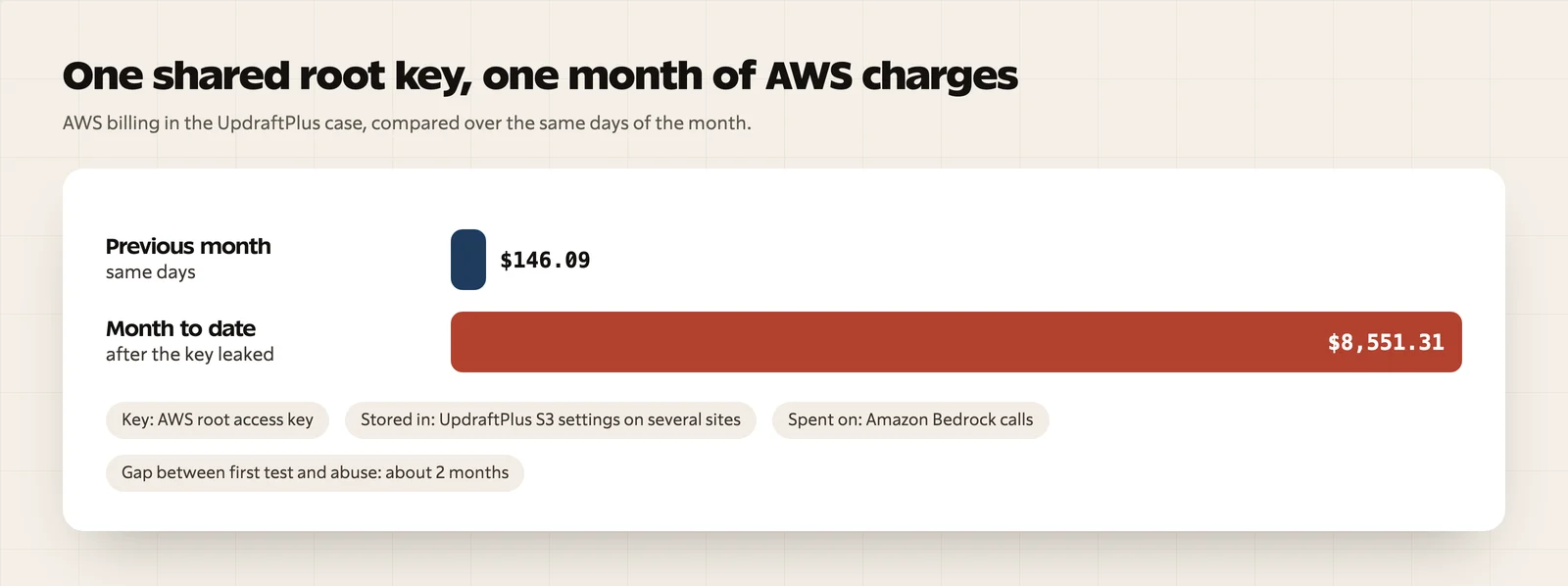
How the key leaked is still unknown. One of the sites ran UpdraftPlus 1.24.3, which falls inside CVE-2026-82841. That bug lets any logged-in user read stored storage keys when a site is left in a post-migration state, and it’s fixed in UpdraftPlus 1.26.8 (2.26.8.26 for Premium). The poster found no proof it was the route, and many admins and contractors had access to those settings anyway.
Someone saved a few minutes by pasting one key into every site, and that shortcut cost about $8,400.
These are the rules I’d hold for any backup key:
- No root keys. AWS recommends never creating access keys for the root user, because root can do everything in the account. No policy can limit it.
- One IAM user per site, one bucket per user. A leaked key then exposes one site’s backups and nothing more.
- Only the actions the plugin needs. Listing, reading and writing the backup bucket. Nothing else in the account.
- The key tied to your server’s IP. An
aws:SourceIpcondition makes a stolen key useless from someone else’s machine, as long as your server has a fixed IP. - Versioning on the bucket. A deleted or overwritten backup can then be recovered.
- Billing and cost anomaly alerts. They warn you about the spending but don’t stop it, so the key rules above still matter.
- Rotation on suspicion. The 2-month gap in that case shows a leaked key can sit unused for weeks before anyone spends it.
- No backup archives in public folders. A full backup includes
wp-config.php, so anyone who downloads it gets your database password and salts too.
This is a starting policy for one site’s IAM user. The bucket name and IP are examples:
{
  "Version": "2012-10-17",
  "Statement": [
    {
      "Effect": "Allow",
      "Action": ["s3:ListBucket", "s3:GetBucketLocation"],
      "Resource": "arn:aws:s3:::example-site-backups",
      "Condition": { "IpAddress": { "aws:SourceIp": "203.0.113.10/32" } }
    },
    {
      "Effect": "Allow",
      "Action": ["s3:PutObject", "s3:GetObject", "s3:DeleteObject"],
      "Resource": "arn:aws:s3:::example-site-backups/*",
      "Condition": { "IpAddress": { "aws:SourceIp": "203.0.113.10/32" } }
    }
  ]
}
s3:DeleteObject lets UpdraftPlus prune old backups under its retention setting. If you remove it, a stolen key can’t wipe your backups, but old archives will pile up. In that case I’d let an S3 lifecycle rule expire them instead.
If you’re still weighing whether a plugin should handle this at all, I explained why a WordPress backup plugin is worth having separately. Whatever runs the backups, the plugin holding the key should stay updated, because the key is only as safe as the code storing it.
A Safe Backup and Restore Checklist
This is the short version I’d keep next to any restore:
-
1
A backup you made yourself
Taken at a point when you know the site was clean.
-
2
Off-site storage with a scoped key
One IAM user per site, versioning on, no archives in public folders and an updated backup plugin.
-
3
A disposable Linux machine for anyone else’s backup
No saved passwords, no synced browser and no access to your own files.
-
4
The archive listed and uploads checked by real file type
Anything in uploads that isn’t an image, PDF or media file gets opened and explained.
-
5
Every must-use plugin and loose PHP file read by hand
A file you can’t name is a file you don’t restore.
-
6
Core, plugins and theme diffed against fresh copies
The same versions, downloaded from wordpress.org or the theme’s own site.
-
7
A database grep and a look at the users
PHP, eval and base64_decode in the dump, plus unknown admins and application passwords.
-
8
The import last, with outbound traffic blocked
Then a security plugin scan as the second opinion.
-
9
New secrets after the restore
New salts, a new database password and new admin passwords.
If the backup comes from a site that was already hacked, my 60-minute recovery plan covers the accounts and passwords around the site as well.
FAQs on WordPress Backup Malware
Can malware survive inside a WordPress backup?
Yes. A backup copies files and the database as they are, so an infected site produces an infected backup. Must-use plugins, PHP in uploads and payloads stored in wp_options all come back with the restore.
Will a security plugin catch malware in a backup?
Not before the restore. Most WordPress security plugins scan the installed site, not a zip archive, and a regular plugin loads after must-use plugins have already run. I’d read the archive first and scan the site after.
Is it safe to run a client’s site in LocalWP or XAMPP?
Only when you trust where the backup came from. A local install runs on your own computer, so a Windows-only payload like the one in the Upwork case reaches your files and browser. A Linux virtual machine is the safer place for a stranger’s export.
Should I delete the mu-plugins folder?
No. Many hosts rely on it for login, caching and staging tools. The folder is only a problem when nobody knows what’s in it, so I’d keep a note of every file your host puts there.
Final Remarks
If all of this feels like overkill for a backup from your own host, I understand. Even for backups I make myself, I’d still open the mu-plugins folder before restoring, because it takes 2 minutes and it’s the one place a restore runs without asking.
For anything that arrives from someone else, I’d treat it as code from a stranger until Steps 2 to 6 say otherwise. And if you do just one thing today, I’d make it this: replace any root or shared key in your backup plugin with one scoped IAM user per site.
Want the notes that don't make it into posts?
From the Workbench is my email for people who run a site or a small product business. Each issue is one of three things:
- Releases: what I shipped, and whether it matters for your site.
- Field notes: what moved in WordPress and search, and what I'd do about it.
- Essays: building, pricing and writing, worked out the slow way.
Free, and it goes out only when there's something worth sending. No fixed schedule, no padding.
Disclaimer: This site is reader-supported. If you buy through some links, I may earn a small commission at no extra cost to you. I only recommend tools I trust and would use myself. Your support helps keep gauravtiwari.org free and focused on real-world advice. Thanks. - Gaurav Tiwari