by
by
FluentCart multi-currency checkout isn’t part of FluentCart itself. The core plugin charges every buyer in the one Checkout Currency you save in Store Setup, so a buyer in Mumbai sees a dollar price, pays a card conversion fee on top of it and can’t pay with UPI, because UPI only works in rupees.
The fix is a currency layer that decides the price, the currency and the payment gateway together, then keeps all three the same through the cart, the order and every renewal. FluentCart doesn’t have that layer yet, so it has to come from an add-on.
I built GT Extensions for FluentCart to be that layer. It’s my add-on for FluentCart Free and Pro, and this store sells in USD, EUR, GBP and INR with it. Its Multi-Currency Checkout module adds:
- a currency price book to every product
- a currency selector for buyers
- exchange-rate conversion for the prices you don’t set by hand
- a payment gateway list for each currency
On WooCommerce? Stackless for WooCommerce, my plugin for WooCommerce stores, does the same job with its Multi-Currency Checkout, Currency-Aware Payment Gateways and Storefront Currency Selector modules: exact prices per currency, one settlement currency per order and gateways chosen by currency.
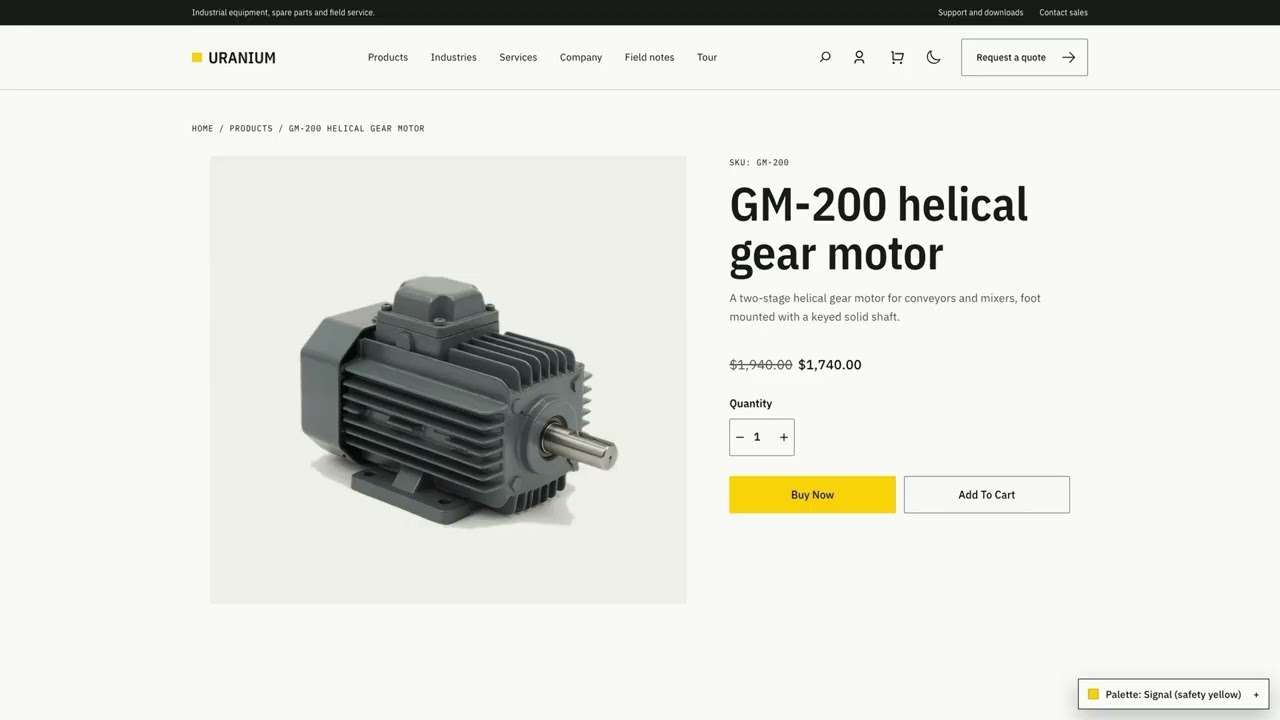
What FluentCart Core Handles Today
FluentCart still runs one store currency. A few things around that currency have changed this year, though, and they decide whether you need an add-on at all:
- One Checkout Currency: Store Setup has a single Checkout Currency field. Every product price, cart and order uses it.
- Razorpay as a free official add-on: FluentCart installs it from Payment Settings, and it brings UPI, cards, netbanking and wallets. An INR-only store needs nothing more.
- Paddle as merchant of record: FluentCart Pro connects Paddle, which handles tax and currency on its own checkout. FluentCart pins that checkout to the order’s currency by default, and Paddle’s automatic local pricing comes back only through a developer filter, at which point Paddle decides the local price and you don’t.
- PDF invoices that follow the order: FluentCart’s editable PDF invoice templates, which need FluentCart Pro, print whatever the order holds. They don’t give the order a second currency.
The FluentCart add-ons on wordpress.org haven’t filled the gap either. As of September 2026 they’re mostly payment gateways, some of them need one fixed store currency (CodifyCore Payments’ bKash, Nagad and EPS options require BDT, for example), and none of them adds a second checkout currency.
There are broadly three ways to handle more than one currency with FluentCart.
You can stay on one currency and let the buyer’s bank convert it. That is simple and it’s right when almost all your sales come from one country, but the foreign buyer pays a conversion fee and sees a number that means nothing to them.
Or, you can sell through Paddle and let a merchant of record own tax and currency. That suits a software seller who doesn’t want to register for VAT in every country they sell to, but Paddle sits between you and your buyer and takes a bigger cut than a plain gateway because it does more work.
Or, you can keep your own gateway accounts and set your own prices per currency with GT Extensions. For a store that sells to 2 or 3 countries, this is the path I’d pick: fixed prices where you actually sell, conversion for everyone else and the gateway each market already trusts.
If you’re still deciding on the platform itself, my FluentCart review covers what the core does well and where it still needs help.
How GT Extensions Adds FluentCart Multi-Currency
GT Extensions treats currency as part of the checkout’s state. One currency is chosen for the cart, and the order, the transactions and any subscription created from that cart keep it. A single order never mixes USD and INR.
The module resolves each product price in this order:
- The native FluentCart price, when the buyer pays in the store’s base currency.
- A fixed price saved for that product variation and currency.
- The base price converted with your rate, markup and rounding.
- A stop, when you set missing prices to block the purchase instead of converting.
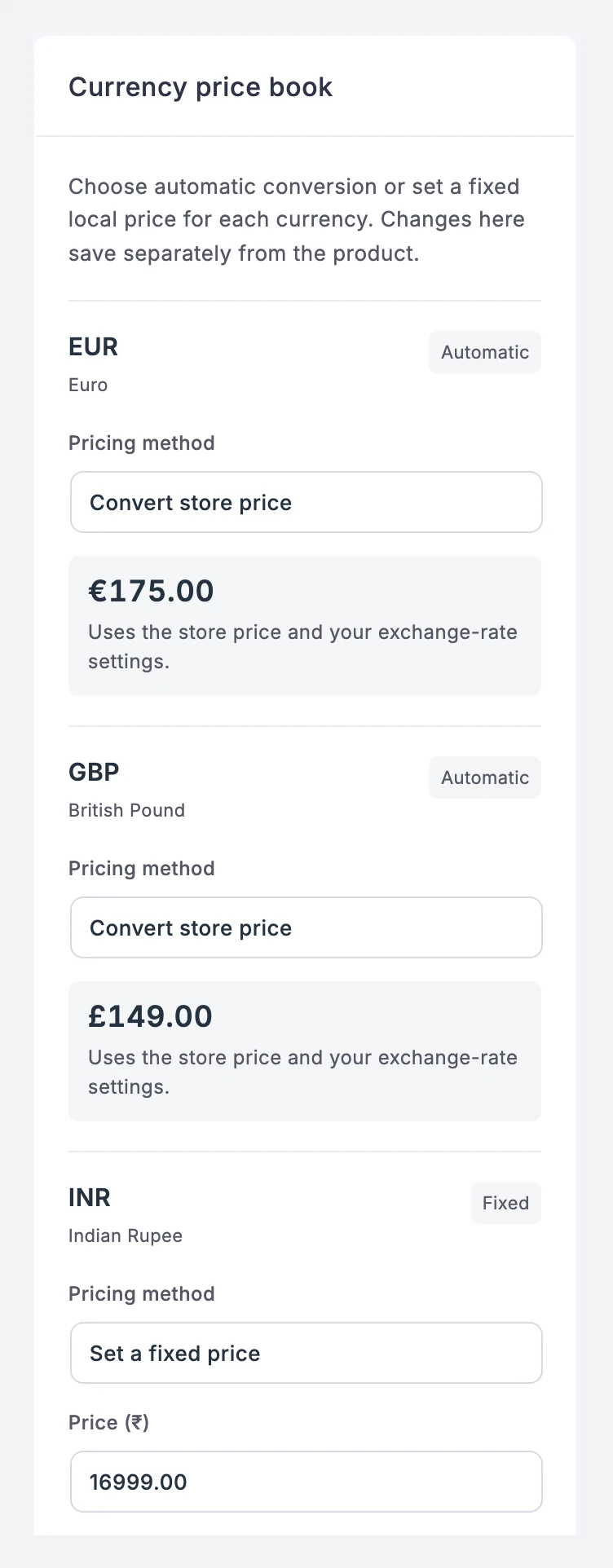
Take the $199 license in that screenshot. At the September 28, 2026 reference rate of ₹95.98 to the dollar, conversion would charge an Indian buyer ₹19,100. The fixed ₹16,999 price overrides it, so the buyer sees the number you chose for India and it doesn’t move every time the rupee does. EUR and GBP stay on conversion, which is fine for markets that send a sale once in a while.
Fixed Prices or Exchange Rates
Fixed prices should be used for the markets you actively sell to. Conversion should cover the long tail, where maintaining another price list costs more than it earns.
The conversion side has 4 settings:
- Rate source: manual rates you type yourself, or daily reference rates from Frankfurter, which needs no API key. Automatic refreshes depend on WordPress scheduled tasks running on time.
- Rate markup: a percentage added to the conversion rate, for example to cover a gateway’s currency fee.
- Rounding: a rounding rule for converted prices, so a buyer sees €175 instead of €174.90.
- Missing price: convert the base price, or block the purchase in that currency.
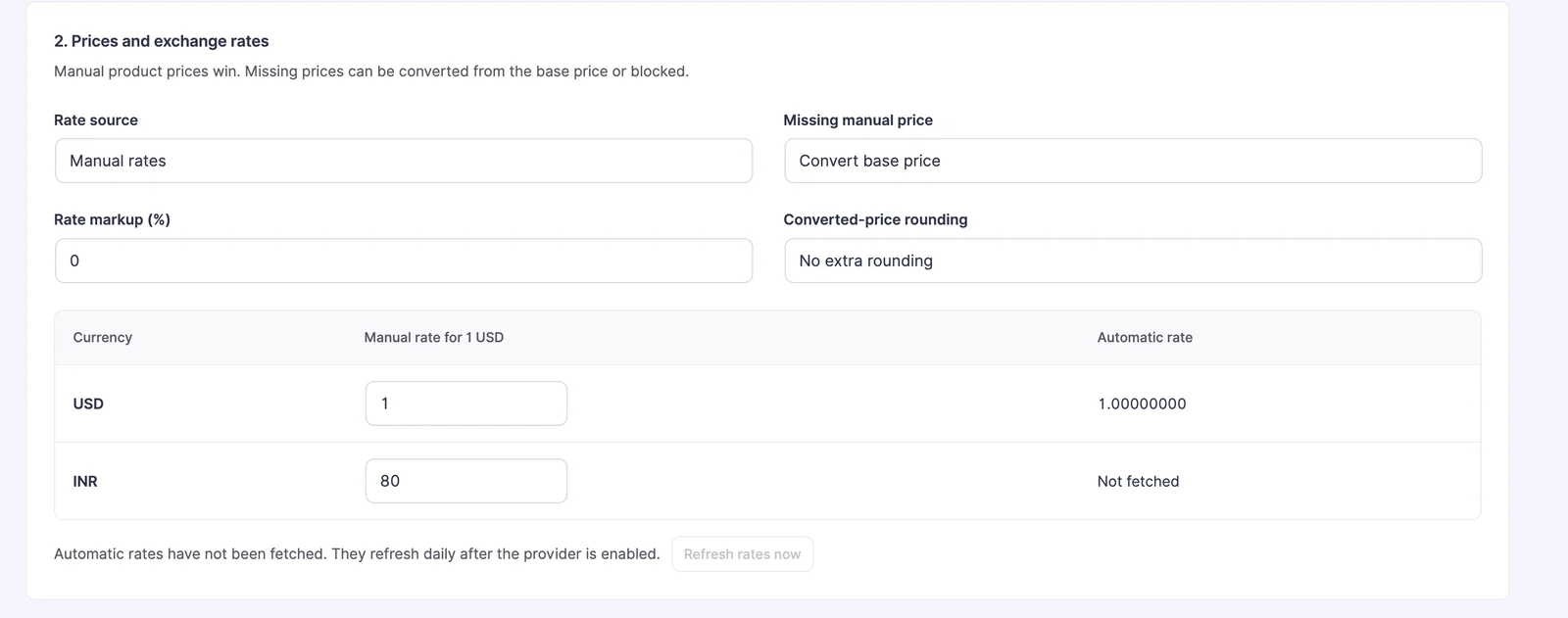
This store runs close to that pattern. USD is the base, EUR, GBP and INR convert from daily reference rates rounded to the nearest whole number, and a few products carry a fixed INR price.
A manual rate is predictable but it goes stale quietly. Whoever set ₹86 to the dollar in 2025 and never opened the screen again must be having very happy Indian customers.
How Buyers Get the Right Currency
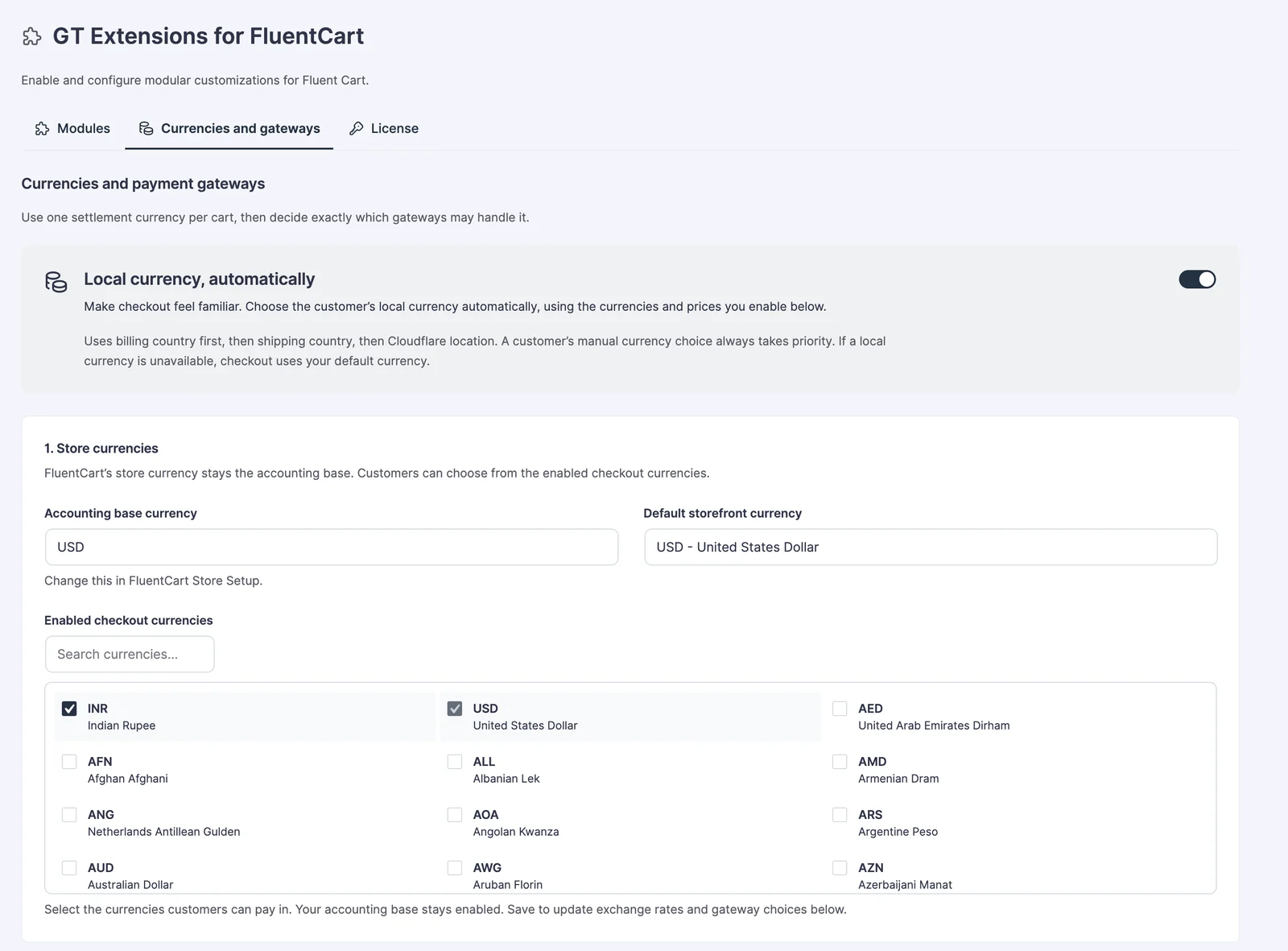
A buyer can arrive at checkout in the right currency without touching anything. When automatic local currency is on, the module checks these in order:
- the billing country entered at checkout
- the shipping country, when there’s no billing country
- Cloudflare’s visitor-country header, when the site is behind Cloudflare
It only picks a currency that’s enabled and that every item in the cart can be priced in. Otherwise checkout uses your default storefront currency. A currency the buyer chooses by hand always wins over location.
The selector can sit above the payment methods at checkout, or you can enable the shortcode and put [gtfc_currency_selector] in a Shortcode block or a block-based header. It shows short codes such as USD and INR, and it disappears when there’s no second currency to offer.
Switching currency reprices the cart on the server, checks coupons again and clears the shipping, tax and fee totals before checkout reloads. The selector also reads its state from an uncached request, so a cached page can’t lock a guest into an old currency. You should still keep cart and checkout pages out of page and CDN caching.
Route Payment Gateways by Currency
The currency also decides which gateways appear. Each enabled currency gets a list of allowed gateways and one preferred gateway, which shows first. GT Extensions checks the submitted gateway again on the server before FluentCart processes the order.
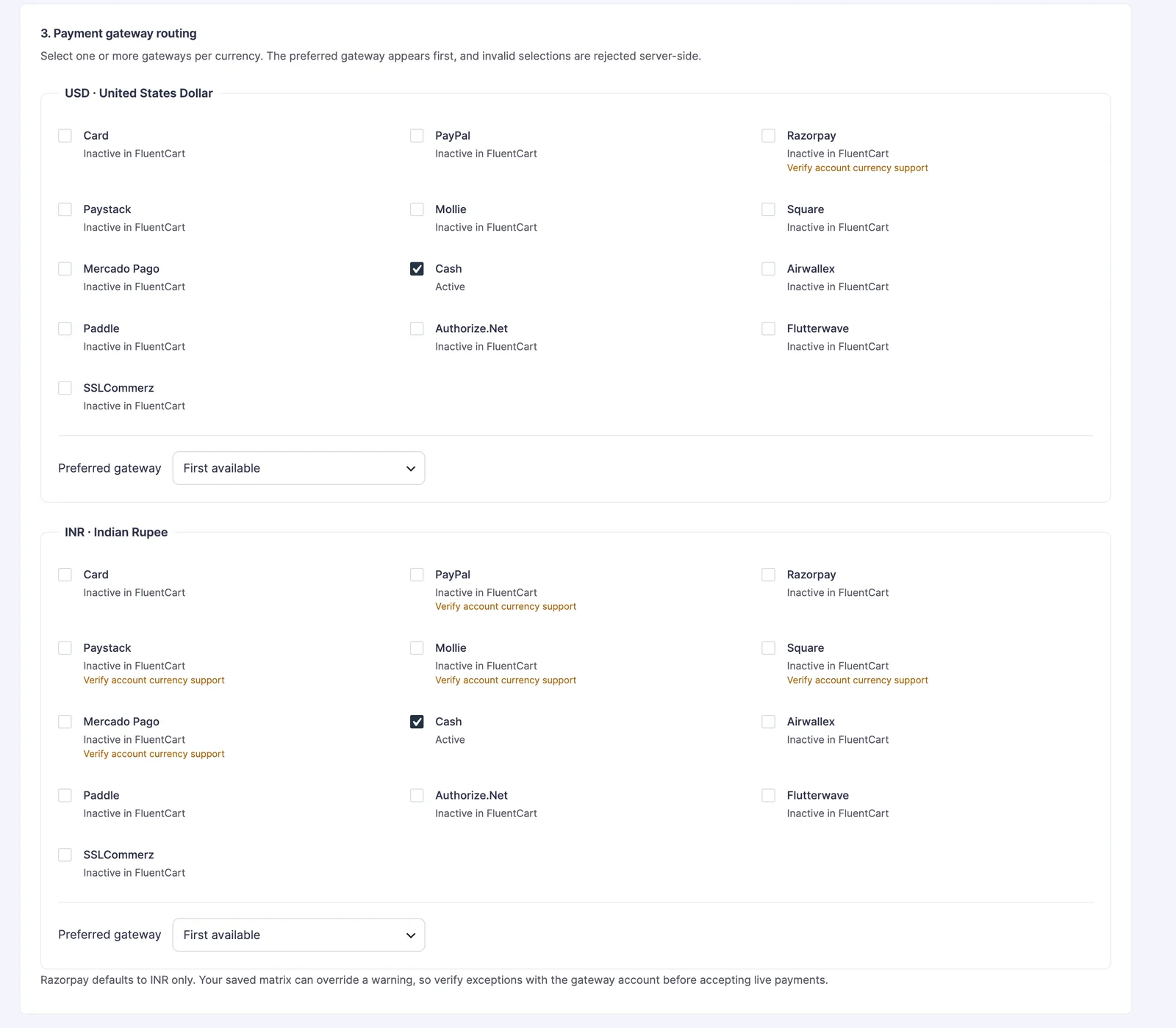
On this store, INR offers Razorpay first with Stripe as the alternative. USD, EUR and GBP offer PayPal first with Stripe beside it, plus Paystack for USD and Mollie for EUR and GBP. Razorpay starts as an INR-only suggestion in GT Extensions, and you can change it if your Razorpay account is approved for international payments.
Routing doesn’t make an account accept a currency it can’t settle. For the Razorpay side of an INR and USD store, the FluentCart Razorpay setup guide covers the account and the settings. My guide to FluentCart payment gateways covers which gateways are free, which need Pro and how the routing checks work.
Set Up FluentCart Multi-Currency
The module needs FluentCart 1.5.5 or newer, Free or Pro, along with WordPress 6.0 and PHP 7.4 or newer. Set it up in FluentCart’s test mode first:
- Check the base currency in FluentCart > Settings > Store Settings > Store Setup. GT Extensions treats this Checkout Currency as the accounting base.
- Enable Multi-Currency Checkout in FluentCart > GT Extensions and open Currencies and gateways.
- Choose the default storefront currency, search for and enable the currencies you’ll accept, then save once so the other controls can use them.
- Choose the rate source, markup, rounding and missing-price behavior.
- Open each product that needs a local price, find Currency price book, choose the variation, select Set a fixed price and click Save price. The price book saves separately from the product form.
- Allow gateways for each currency and pick a preferred one. A gateway must also be active in FluentCart.
- Show the selector at checkout, or enable the shortcode and place it where buyers choose before checkout.
- Place a test order in every currency and gateway pair you plan to offer.
Test Before You Go Live
A correct product price proves very little on its own. The cart, the gateway, the order, the receipt and the renewal all have to agree with it:
- Open each currency as a logged-out buyer on desktop and on mobile.
- Compare a product with a fixed price and one that converts.
- Add a coupon, shipping and tax, switch currency and check that every total recalculated.
- Confirm that only the mapped gateways appear, with the preferred one first.
- Complete a test payment and match the checkout total with the FluentCart order, the gateway dashboard and the receipt.
- Renew a test subscription and check that it kept the original currency.
- Add a product without a fixed price while missing prices are set to block.
A currency should stay disabled until at least one gateway can settle it and every product you sell has a fixed price or a deliberate fallback.
The Limits
Multi-currency checkout solves pricing and routing. It leaves a few things exactly where they were:
- One currency per order: a buyer who wants to pay in two currencies needs two orders.
- Two-decimal currencies: the pricing works in two-decimal amounts, so a zero-decimal currency such as JPY needs its own testing before you offer it.
- Gateway approval: Stripe, PayPal and Razorpay still decide which currencies your account can settle.
- Tax: VAT and GST stay with FluentCart’s tax settings. GT Extensions doesn’t calculate tax.
- Payout rates: reference rates set your prices. The rate your gateway uses to pay you out is its own.
Pricing and Who Should Skip It
GT Extensions costs $39 a year or $99 for a lifetime license. Both cover unlimited sites, both include the same 18 modules and there’s a 14-day refund window. Only the modules you enable load, so multi-currency can be the only one you turn on.
You should skip it in these cases:
- Every buyer pays in one currency. FluentCart alone is enough, with the free Razorpay add-on if that currency is INR.
- You want Paddle to own tax and currency as merchant of record.
- Your gateway accounts can’t settle the extra currencies yet.
FluentCart itself is free on wordpress.org, and FluentCart Pro is needed for gateways such as Paddle and Mollie. GT Extensions works with both.
The Multi-Currency Checkout lesson in the GT Extensions training course walks through every setting with screenshots. If a test order comes out in the wrong currency, my checklist for the wrong FluentCart checkout currency and the checkout currency troubleshooting lesson cover the usual causes.
Tell Google you want more of this.
Add Gaurav Tiwari as a preferred sourceOne tap, and this site shows up more often in your own Top Stories, AI Overviews and AI Mode. Remove it any time.
Disclaimer: This site is reader-supported. If you buy through some links, I may earn a small commission at no extra cost to you. I only recommend tools I trust and would use myself. Your support helps keep gauravtiwari.org free and focused on real-world advice. Thanks. - Gaurav Tiwari