by
by
You can add product reviews in WordPress with core blocks or a dedicated Product Review block. I’d start with core blocks for an occasional review and use a dedicated block when consistent fields would make several reviews easier to maintain.
Prepare your assessment before building the box: a score with a reason, a clear verdict and the limitations a buyer should know. The visible review and any structured data should describe the same product and assessment.
I built the WordPress plugin GT ACF Blocks, used in the second method. This tutorial covers your own editorial reviews. Collecting customer ratings and adding WooCommerce store reviews are separate jobs.
Choose Your Review Method
I’d choose a core-block pattern when you want control over each part of the layout. GT ACF Blocks gives you named fields for the review details instead.
| Method | When It Fits | What You Maintain |
|---|---|---|
| Core blocks and an unsynced pattern | You want a reusable layout without a dedicated review plugin. | The individual blocks and any separately generated review schema. |
| GT ACF Blocks Product Review | You publish reviews regularly and want consistent fields. | The review data, a compatible field framework and the accuracy of the optional schema. |
An unsynced pattern is usually enough if you only need a box. The plugin becomes useful when editing the same set of fields across several reviews saves you work. For a compact buy card without a scored verdict, the product box tutorial is the closer match.
Before You Start
I recommend keeping your review notes beside the editor. The box summarizes your assessment; the notes give you the reasons behind the score.
You’ll need:
- A draft post: build and check the layout before publishing it.
- Your review notes: the intended reader, what you checked and the limitations that affected your verdict.
- A rating with a scale: for example, 4.5 out of 5, with a reason for the score.
- Specific pros and cons: observations a buyer can use, rather than praise copied from the product page.
- An optional product image: one you have permission to publish, uploaded to the Media Library.
- A compatible field framework for the plugin method: ACF Pro or Secure Custom Fields, with only the one your site uses active.
The example in this tutorial is Demo Task Planner, a fictional product. Its features and price illustrate the fields. They aren’t a recommendation, and its review schema stays disabled.
Add Product Reviews With Core Blocks
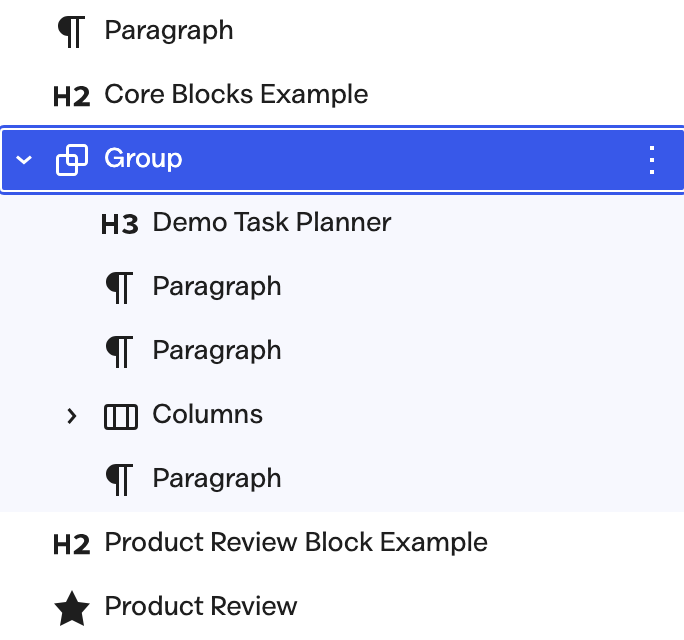
A Group block keeps the review together while you edit or move it, and the rating and verdict stay ordinary editable text. These blocks build the visible review box only. Product or Review JSON-LD, the structured data search engines read, gets added separately.
- Add a Group. Inside it, add a Heading containing the product name. Choose a heading level that fits the article.
- Add the rating and verdict. A Paragraph containing “4.5 out of 5” is readable even without star icons. Follow it with the main reason someone should choose the product and the limitation they should know.
- Add a product image if it helps. Select it from the Media Library and give it useful alt text. Essential review details should remain text outside the image.
- Add Pros and Cons. Use 2 Columns with a Heading and List inside each. Keep stacking on mobile enabled so the lists can move below one another on a phone.
- Add pricing when it matters. A paragraph is enough for a simple price. A small Table works when the reader needs to compare billing terms or plans. Include renewal terms where they change the cost.
- Add an optional button. Select the individual Button inside the Buttons block to edit its link. An affiliate destination needs the appropriate
sponsoredrelationship;nofollow sponsoredis also acceptable.
Save an Unsynced Pattern
Select the outer Group, open its options menu and choose Create pattern. Name it “Editorial review box” and turn Synced off before creating it.
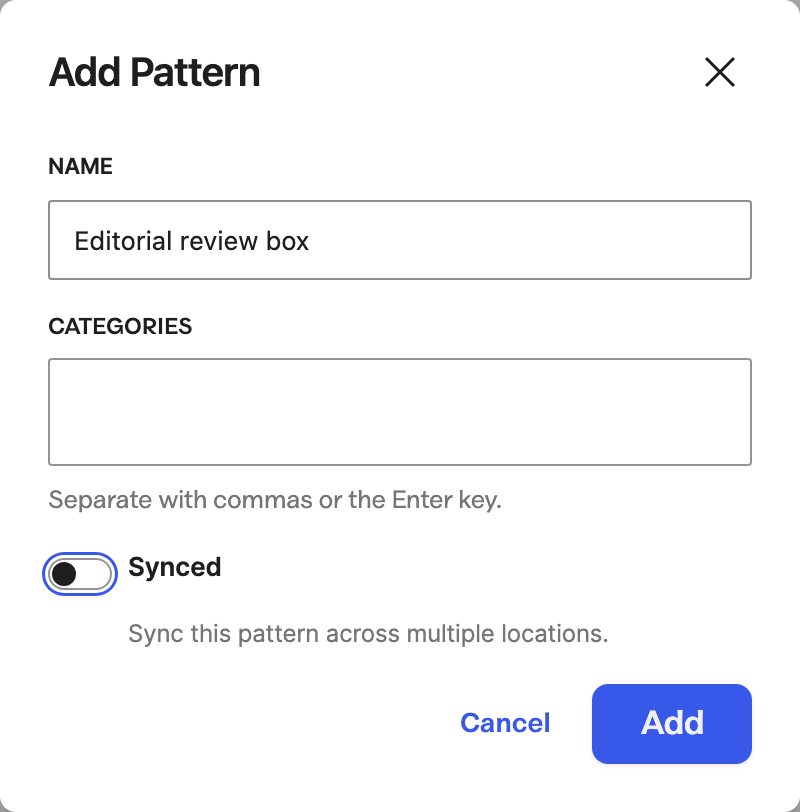
An unsynced pattern inserts an independent copy. You can change one product’s verdict without changing every other review that started from the pattern. A synced pattern shares content between its instances, which is usually the wrong choice for product-specific facts.
Since WordPress 7.0, an inserted unsynced pattern opens with only its text and media editable. To add another pros row or a pricing table, choose Edit pattern or detach the copy first.
To check the distinction, insert your layout twice in a temporary draft and change one product name. The other copy should keep its original name. WordPress’s pattern documentation explains the available pattern workflows.
Add Schema Separately
The core-block route can use an existing schema-capable SEO plugin or the product review schema generator. Choose the integration that can accurately describe your review and maintain it alongside the visible content.
Pasting a script into a Custom HTML block doesn’t work on every site. WordPress permissions or hosting restrictions can remove scripts. A supported schema integration is the better route when that happens.
When you change the rating or price later, check every place you maintain that value. The visible box and separately entered schema don’t automatically update each other.
Add a GT ACF Blocks Product Review
The Product Review block keeps the review details in one interface and can output Product or SoftwareApplication JSON-LD from those fields. I’d check the fields and schema defaults before enabling that output.
You can download the plugin from the GT ACF Blocks product page. The plugin is free. ACF Pro is paid, while Secure Custom Fields provides the supported free dependency route. You don’t need to change your theme to follow this method.
Install and Insert the Block
If GT ACF Blocks is already active, go straight to the block inserter. Otherwise:
- Download the plugin ZIP from your account after the free checkout.
- Open Plugins > Add Plugin > Upload Plugin, install the ZIP and activate it.
- Confirm that your compatible ACF Pro or Secure Custom Fields installation is active. Don’t replace an existing field framework on a production site just to follow a tutorial.
- Open a draft, click the block inserter and search for Product Review. You can also type
/product reviewinside the editor. - Select the block and use its Edit Block toolbar control when the preview is showing instead of the fields. In the current interface, this opens a dialog with the review tabs.
GT ACF Blocks attempts to install Secure Custom Fields if neither supported dependency is installed. Download restrictions or an inactive existing installation can still leave the dependency unavailable, so check the actual activation state.
The interface has 5 tabs:
- Product Info
- Feature Ratings
- Pros & Cons
- Offer/Pricing
- Schema & SEO
For a fictional example, open Schema & SEO first and turn Enable Schema Markup off. Leave it off throughout the demonstration.
Fill the Product Info Fields
Fill in the actual product details before styling the box. Replace the default name and summary with the information from your review notes.
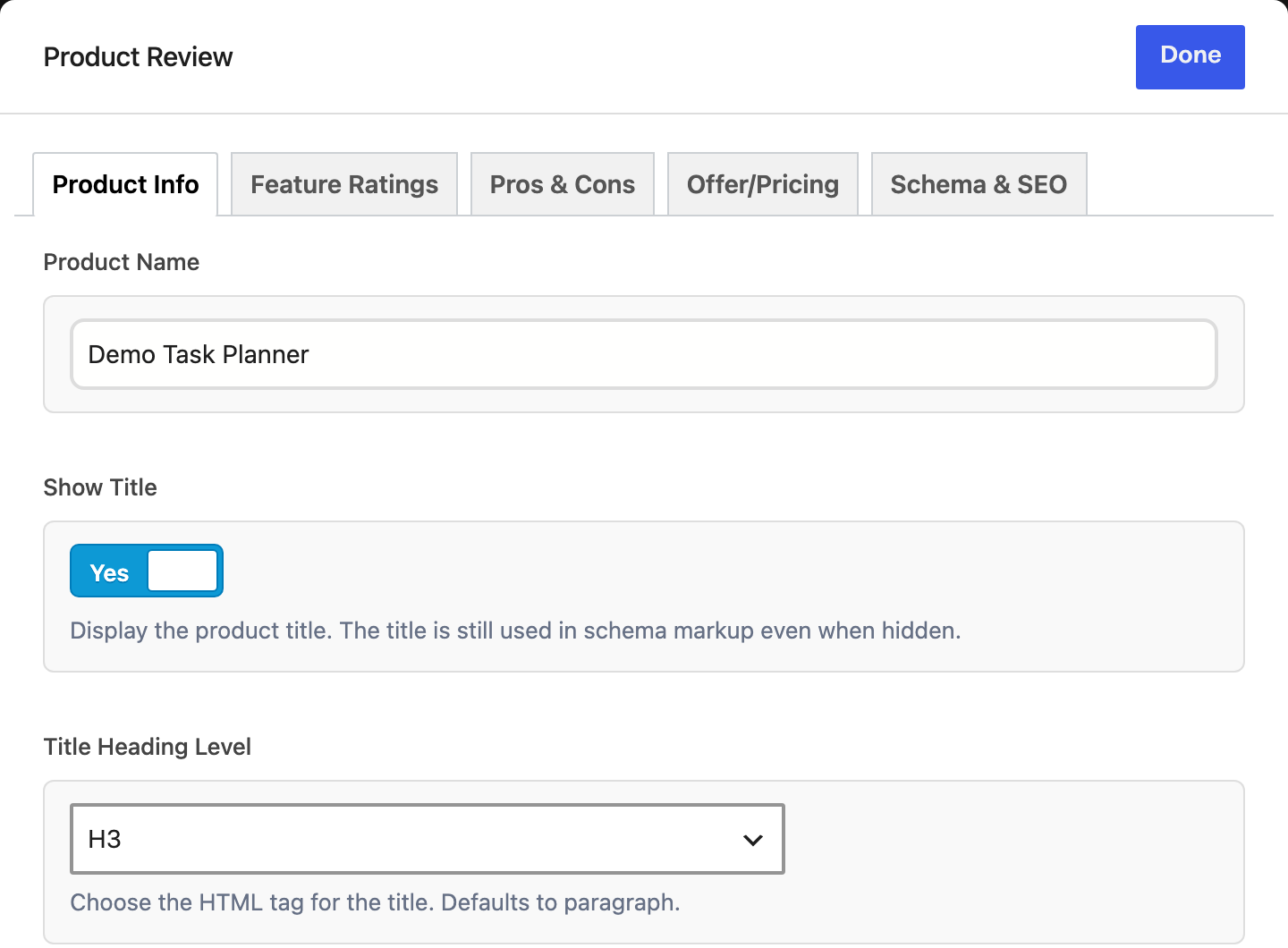
The title setting controls the heading inside the review box, so choose it in the context of the surrounding article.
- Product Name: enter the exact name of the product you’re reviewing.
- Show Title and Title Heading Level: use a suitable heading, or a paragraph if the product already has a heading immediately above the box. The block’s internal section headings are H4s, so an H3 product title under an H2 section gives this example a logical hierarchy.
- Product Image: select an authorized Media Library image. Leave Or Image URL empty unless you deliberately want to override that selection.
- Overall Rating: enter your score from 1 to 5. The field accepts tenths and displays one decimal place.
- Summary: explain who the product fits and its main limitation. Your conclusion belongs here, rather than a copied sales description.
The block uses the product name as its image alternative text. When an image needs a longer explanation, provide that information in nearby prose as well.
Add Feature Ratings, Pros and Cons
Feature ratings should explain the overall judgment. For the fictional planner, these are the example values:
- Ease of use: 4.5/5
- Features: 4.5/5
- Value: 4.0/5
- Setup: 5.0/5
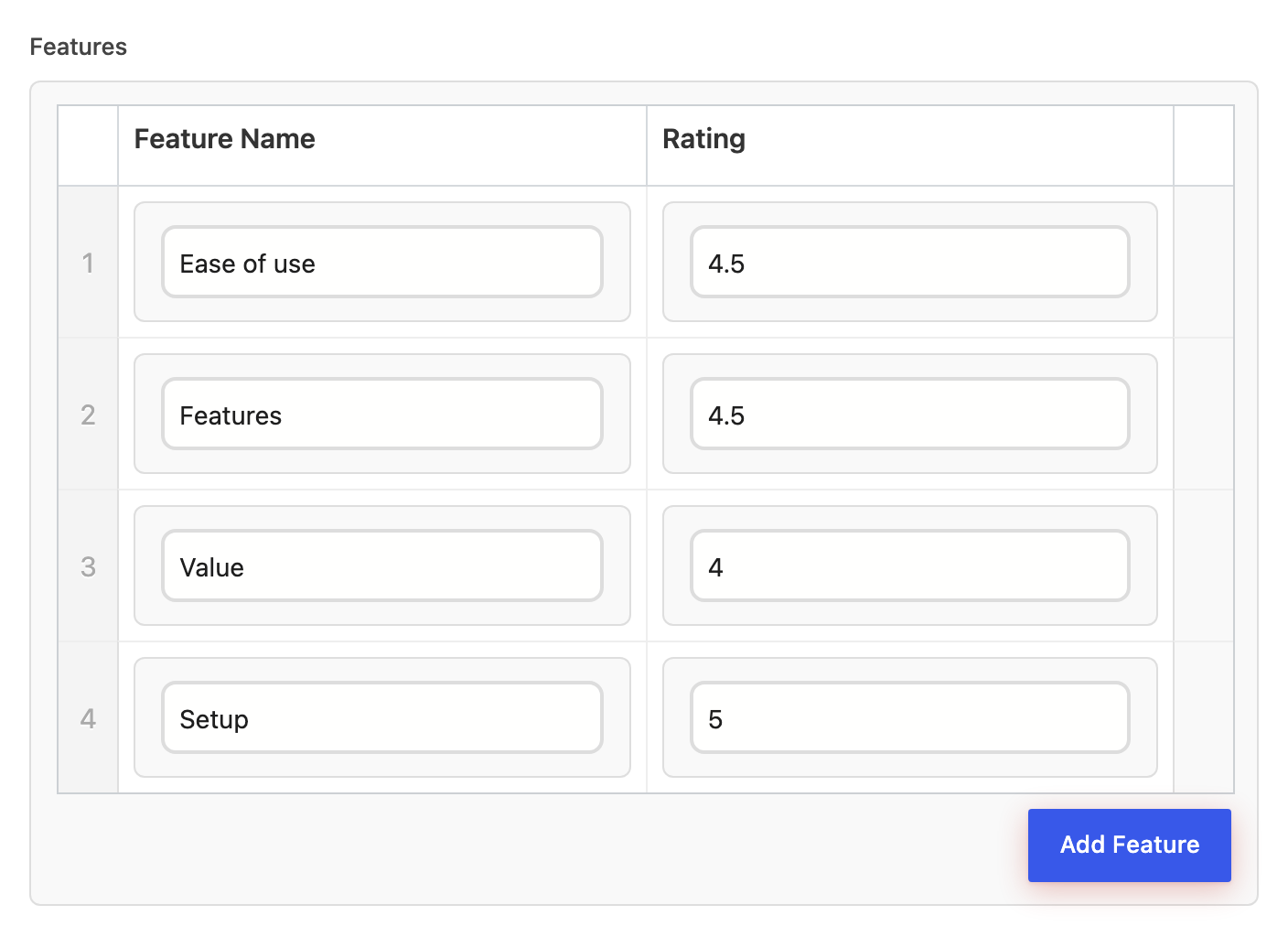
These scores average 4.5, but the block doesn’t calculate that average for you. You enter the overall score yourself. An equal-weight average is one approach; a weighted score or a reasoned editorial judgment also works when the article explains it.
There is a precision difference to keep in mind:
- The overall field accepts 0.1 increments.
- The feature fields accept 0.5 increments.
- The current renderer draws whole and half stars. A 4.3 score shows 4 filled stars beside the numeric 4.3/5.
The number carries the exact overall score. If precise feature scores matter to your explanation, write them in the article too rather than relying only on the icons.
In Pros & Cons, add one observation per row. The example uses “Simple task list” and “CSV export” as pros, with “No team permissions” and “No offline editing” as cons. In an actual review, each claim should come from evidence you can support. The pros and cons tutorial covers writing them and the standalone Pros & Cons block.
Specific rows help a reader judge fit. “CSV export” says more than “great features,” and you don’t need to invent drawbacks to reach a fixed count.
Set the Price and Product Link
The Offer/Pricing tab controls the visible price and button. A neutral label such as “Visit the official site” can be useful even in a critical review, provided the button doesn’t contradict your verdict.
The currency and billing term appear beside the price, which helps readers distinguish a monthly charge from an annual one.
- Offer URL: the button appears only when this field has a destination.
- CTA Button Text: describe where the link leads. The tutorial’s sample button leads to GT ACF Blocks.
- Link Rel Attribute: review the default
nofollow sponsored. An affiliate link needs a suitable relationship attribute and a plain-language disclosure near the recommendation. - Link Target: choose whether the destination opens in the current tab or a new one.
- Currency, Price and Payment Term: enter the actual amount and billing term. The fictional example displays
USD 29 /year (demo). - Price Valid Until: enter an actual offer-expiry date only. It isn’t the date you last checked the price.
Check Schema & SEO
Enable Schema Markup should remain off for a fictional product or layout demonstration. On an actual review, turn it on only when the resulting data accurately describes the product and the assessment on the page.
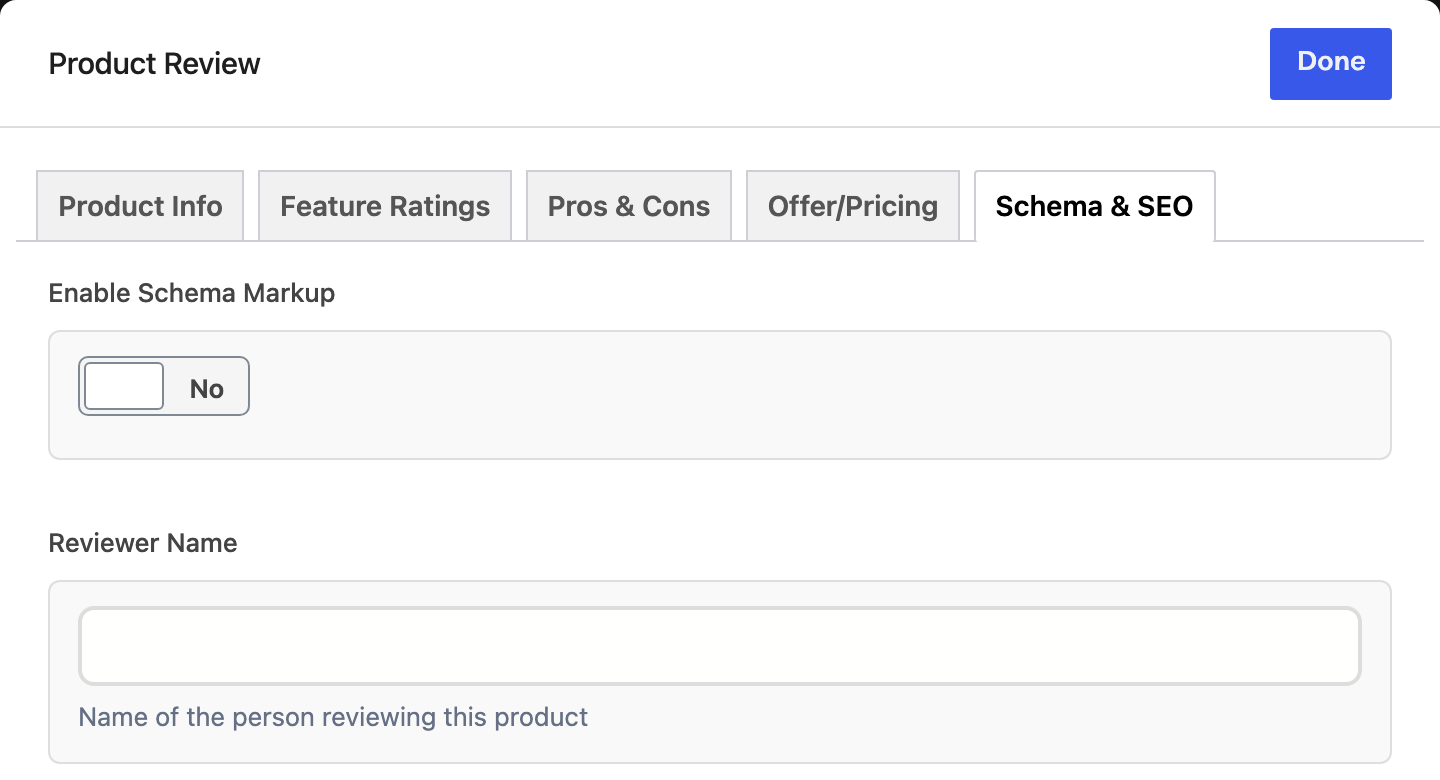
The visible review box still works with schema disabled.
Review these fields before enabling it:
- Product Type: choose Product or Software / SaaS / App according to the subject. A different label doesn’t make an ineligible page eligible for search stars.
- Reviewer Name: enter the real reviewer shown on the page. The block doesn’t automatically use the WordPress byline for this field.
- Review Last Updated: use the date of a substantive review check. Verify that the final schema contains an appropriate ISO date or date-time.
- Application Category and Operating System: choose truthful values for software. Google’s software-app guidance supports categories such as BusinessApplication and DeveloperApplication. WebApplication is an app subtype, not one of that guidance’s supported category values.
- Brand, SKU and Availability: enter facts you know. An empty field is better than an invented identifier.
There are several defaults in GT ACF Blocks 2.11.3 that need particular care:
- A blank price becomes 0 in the generated Offer. An unknown price does not mean a product is free.
- A blank Price Valid Until becomes December 31 of the current year. That fallback is not evidence that an offer lasts until then.
- The template emits return-policy and shipping defaults, including for software when those controls are hidden.
- A zero price doesn’t produce a visible price line. For a genuinely free product, write “Free” in the visible review too.
These behaviors come from the Product Review template. If the block can’t represent the actual offer without adding inaccurate details, keep its schema disabled and use a separately verified implementation. You can still use the block for the visible review.
Product Review Example
Here is the same fictional planner in a working Product Review block. The sample button leads to the block plugin; the planner’s features and price are demonstration values.
Demo Task Planner
Pros
- Simple task list
- CSV export
Cons
- No team permissions
- No offline editing
Summary
Demo Task Planner illustrates a lightweight planner for solo projects. This sample has a simple task list and CSV export, but no team permissions or offline editing. It is a fictional layout example, not a tested product.
Price: USD 29 /year (demo)
Get the Review BlockFor an example in an actual article, see the review box in my SureCart review. Its saved fields and rendered layout illustrate how the block fits inside a longer assessment. A functioning layout still needs its schema checked separately.
Check the Review Before Publishing
I recommend saving the draft and reopening it before publishing. Confirm that the fields survived the save, then check the reader-facing layout, because the front end can differ from the editor preview.
Use this checklist:
- Saved details: confirm the product name, rating, summary and image selection remain correct.
- Mobile layout: check a narrow phone width and an intermediate tablet width. Pros and cons should remain readable without horizontal clipping.
- Accessible content: keep the numeric rating visible, use logical headings and check that the button has a visible keyboard-focus indicator.
- Links: confirm the destination and saved relationship attributes, including affiliate attributes where needed.
- Structured data: compare the generated name, author, rating, dates and offer details with the visible review.
- Other schema sources: look for conflicting descriptions of the same product or review. Article and breadcrumb markup can coexist with review markup; multiple JSON-LD scripts are not automatically an error.
For a real review, use Google’s Rich Results Test. You can test an accessible URL or paste the relevant rendered HTML into its Code input. A private draft doesn’t need to be published just to run a test. Keep credentials and private admin data out of the input.
Fix critical errors and assess warnings individually. A passing result checks markup requirements; it doesn’t verify the review’s claims or guarantee that Google will display stars.
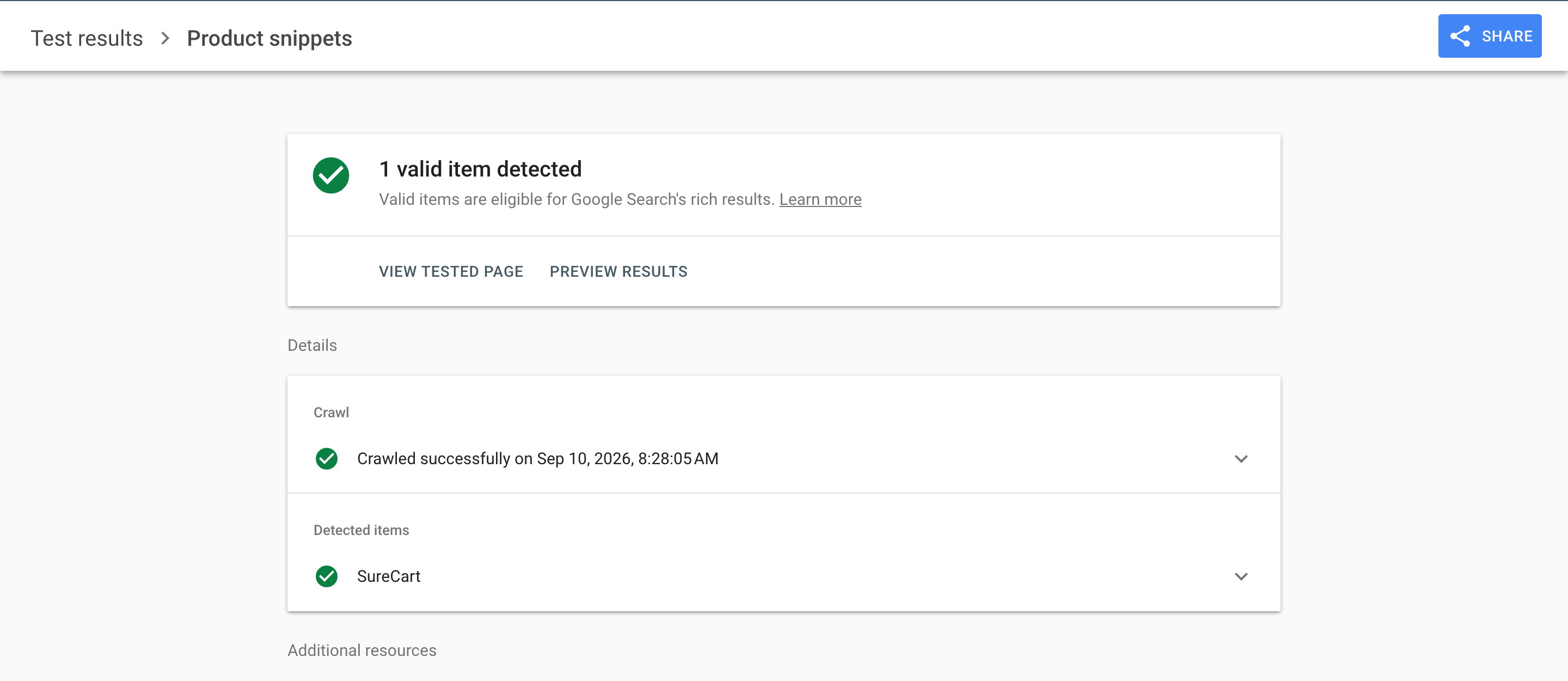
The SureCart example is detected as a valid Product snippet. The separate merchant-listing result has non-critical issues, so each detected feature still needs its own review.
Understand Search Eligibility
Visible ratings and search-result stars are separate things. Google’s product-snippet guidance and review-snippet guidance set the relevant boundaries:
- Product snippets focus on a single product or its variants. A roundup of unrelated products is a different use case.
- A Product can meet the relevant property requirement through a Review without an Offer. An editorial review doesn’t need a made-up price.
- The editorial pros-and-cons enhancement needs at least 2 statements in total across positive and negative notes. It doesn’t require 2 cons, and that enhancement doesn’t apply to merchant pages or customer reviews.
- One author’s assessment is a Review. Feature scores aren’t separate customers and must not become a fabricated AggregateRating.
- Article or BlogPosting alone is not a supported reviewed-item type for review stars.
- Software-app rich results have their own requirements, including an offer price. Zero is appropriate only when the app is available without payment.
My guide to star ratings in Google Search covers the broader search-result questions. Keep this tutorial’s fictional demo out of that testing: it intentionally produces no product-review schema. Reader votes are a separate job, covered in the star ratings tutorial.
Troubleshoot the Review Box
I’d start with the symptom and check the field or setting that controls it. The table gives you a starting point for each case:
| Problem | What to Check | Next Action |
|---|---|---|
| Product Review is missing | Plugin and dependency activation, block settings and editor restrictions. | Resolve the registration issue without replacing the field framework blindly. |
| You can’t add a block inside the pattern | WordPress 7.0 content-only editing for unsynced patterns. | Choose Edit pattern or detach the copy, then add the block. |
| Editing one review changes another | Whether the pattern is synced. | Detach the instance or use an unsynced pattern for product-specific content. |
| The old image still appears | The Or Image URL field. | Clear an unwanted override, save and check the image again. |
| The stars look lower than the number | Whole and half-star rendering. | Keep the numeric score visible and use half-point steps for feature scores. |
| The schema has no reviewer | The Reviewer Name field. | Enter the real reviewer; the post byline alone doesn’t fill it. |
| Schema shows zero or an unsupported expiry | Blank offer fields and template defaults. | Enter truthful values, or disable this schema source when it can’t omit inaccurate details. |
| The layout clips on a phone | Columns, long text, image sizing and theme styles. | Fix the layout rather than shrinking the text until it is hard to read. |
Questions About Maintaining Reviews
Does This Block Collect Visitor Ratings?
No. Product Review displays the author’s editorial score. Visitor votes and customer reviews need a separate system with their own collection and moderation settings.
What Happens If I Deactivate the Plugin?
The saved field data is not a guaranteed readable front-end fallback. Back up the post and test a conversion to core blocks on staging before removing GT ACF Blocks or its field framework.
Can I Change Themes After Adding Reviews?
You can, but the new theme can change typography and spacing around the block. Check the review on desktop and mobile with the required plugins still active before changing the production theme.
Final Remarks
Your review box should let someone understand the verdict and its limits quickly. Use the rest of the article to show the evidence and reasoning behind that judgment.
Keep the publishing checklist with your review notes and run through it whenever a price or rating changes. You can reuse the layout for the next product, but every judgment needs its own support.
Start with one review you can explain properly, then build from there.
Tell Google you want more of this.
Add Gaurav Tiwari as a preferred sourceOne tap, and this site shows up more often in your own Top Stories, AI Overviews and AI Mode. Remove it any time.
Disclaimer: This site is reader-supported. If you buy through some links, I may earn a small commission at no extra cost to you. I only recommend tools I trust and would use myself. Your support helps keep gauravtiwari.org free and focused on real-world advice. Thanks. - Gaurav Tiwari