by
by
A reader comparing products skims a review for the verdict and the catch. When the tradeoffs sit in the middle of paragraphs, the limitation that could change their mind is the easiest thing to miss.
They either buy the wrong thing or stop trusting the review. Search adds a second trap: a list that looks right on the page can still be invisible to Google’s product snippet, because that depends on schema the list doesn’t print.
Pros and cons in WordPress fix the first problem with a two-column list, built from core blocks or with the Pros & Cons block in GT ACF Blocks. The second problem is a schema question, and I’ll keep the two apart all the way through.
I built GT ACF Blocks, a free plugin that adds 29 ACF blocks to the editor. Its Pros & Cons block is a layout tool with no schema, while its Product Review block has its own tradeoff lists and optional structured data.
What Pros and Cons Do in a Review
A pros and cons list does 2 jobs, and most reviews only think about the first one.
The first job is to make tradeoffs visible. Put the most decision-relevant limitation where readers can find it, and support both praise and criticism with evidence. One substantial limitation can be more useful than five invented minor complaints.
The second job is for search, and it only applies to some pages. Google’s product snippet can show pros and cons under a listing, taken from the review’s schema. The rules for it are short:
- only editorial product review pages qualify. Merchant pages and customer reviews don’t
- the pros and cons must be visible on the page, in the same words as the schema
- the schema needs at least 2 statements across the 2 lists, as
positiveNotesandnegativeNotesinside the Review - the page must be about 1 product, because product snippets don’t apply to lists
- Google never guarantees the result, even on a page that passes every test
The visible list and the search appearance are separate questions. A block controls only what it prints; whether Google shows anything depends on the page, its structured data and Google’s own rules.
Before You Start
- you are on the block editor
- you have specific benefits and limitations supported by your notes. Don’t invent a con or a test result to reach a quota
- you know what the reader needs from the list; choose the visible layout and any structured-data implementation separately
- for an actual review with schema, you have a suitable implementation and a way to check its output. The product review tutorial covers the block and core-layout alternatives
- for the plugin route, the site has ACF Pro 6.0 or newer or the free Secure Custom Fields, and GT ACF Blocks attempts to install Secure Custom Fields when neither supported dependency is installed; check that it’s active
Add Pros and Cons With Core Blocks
Core Columns with a heading and a List in each column give you a reusable layout without a dedicated plugin. A Group around them makes selection and styling easier.
- Add a Columns block and pick the 2-column layout.
- In each column, add a heading and a List: Pros on one side and Cons on the other. Choose the heading level from the article’s outline rather than always using H4.
- Type the items. Keep each one to 1 line. A pro that needs 2 sentences is a paragraph in the review, not a bullet here.
- Select each Column to set its spacing and background. The Pros and Cons headings carry the meaning, so the colors only need to support them; check the contrast in your theme.
- Select the whole Columns block, open the options menu and create an unsynced pattern called “Pros and cons”. Test two inserted copies to confirm that editing one product’s list doesn’t change another.
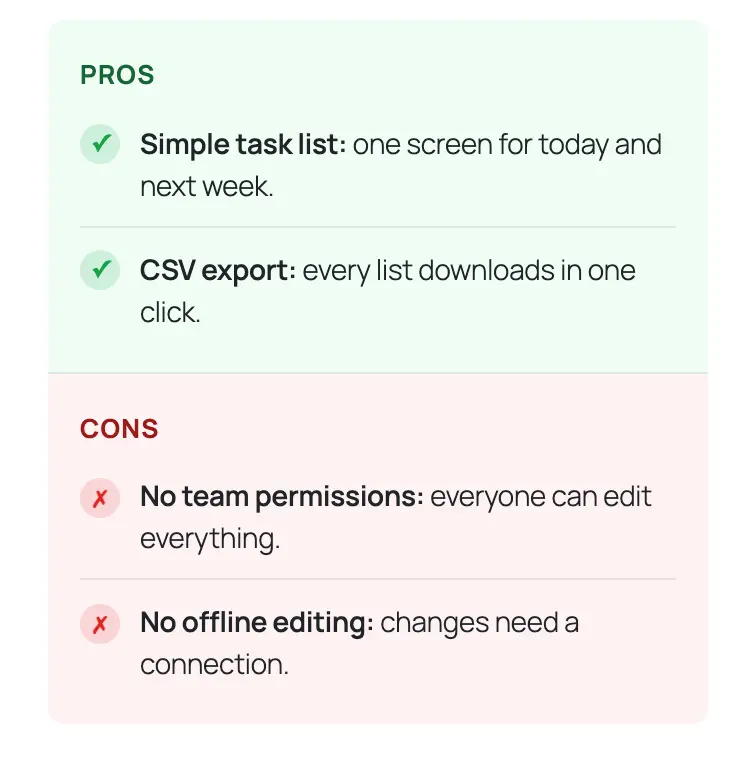
Columns stack on phones by default through the Stack on mobile setting, so check the front end at a narrow width and confirm the pros still come first.
Core lists print no Review JSON-LD. Icons are fine as decoration, as long as the text makes sense without them. If the page qualifies for review schema, that comes from a separate integration that repeats the same visible points.
Add a Pros and Cons Block With GT ACF Blocks
GT ACF Blocks is my free, GPL-licensed plugin. Two of its blocks provide different workflows for tradeoff lists:
- the Pros & Cons block draws the 2-column list with icons and colors, and writes no schema
- the Product Review block draws a full scorecard with its own pros and cons and optional structured data that still needs checking
This section covers the first one. Get the plugin from the GT ACF Blocks product page, upload the ZIP under Plugins, Add New, then activate it. Use one active compatible ACF Pro or Secure Custom Fields installation. If the block is missing, check that the field plugin is active; the automatic install doesn’t always succeed.
Insert the Block
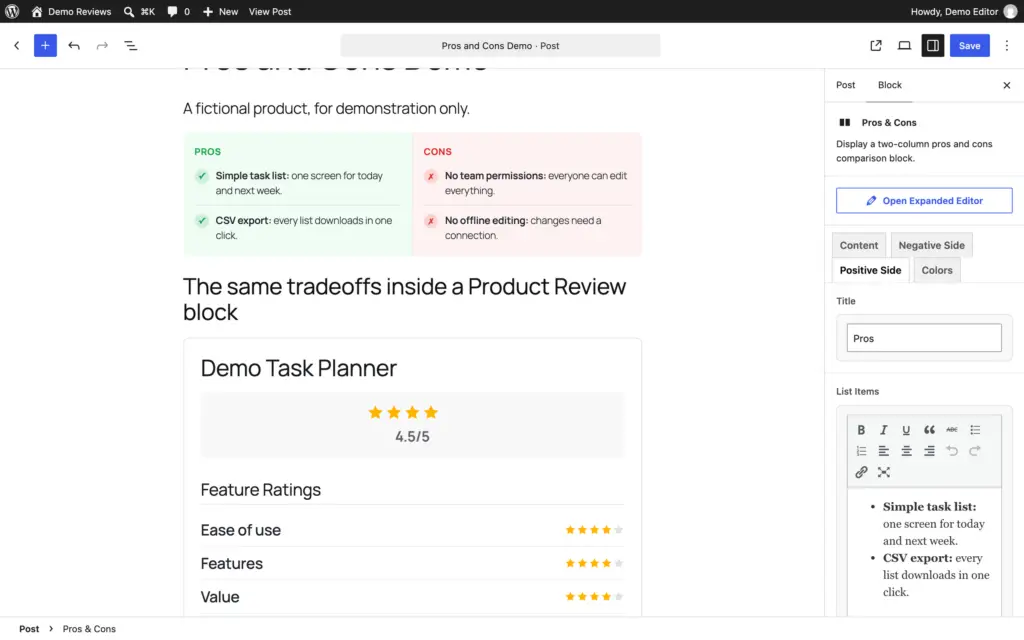
Put the cursor where the list should go, open the inserter, expand ACF Blocks and click Pros & Cons, or type /pros in an empty paragraph. Select it, and its fields appear in the sidebar under 4 tabs: Content, Negative Side, Positive Side and Colors. Open Expanded Editor gives them a larger panel.
Fill the Fields
- Show First, on the Content tab, decides which column sits on the left. It defaults to Negative (Cons), so switch it to Positive (Pros) for the usual layout. Cons first is a choice you make when the verdict is a warning.
- Title, on each side’s tab, defaults to “Pros” or “Cons”. “What works” and “What doesn’t” read more like a person, if that suits the review. Both titles print as H3 headings, which matters when your table of contents collects H3s.
- List Items on each side is a rich text field. Add a bulleted list and type 1 item per line. Bold a phrase inside an item if a reader needs to catch it at a glance, and don’t bold whole lines.
- The 8 color fields, for the background, border, title and icon of each column, default to a green set and a red set. Leave them unless your theme’s palette fights them. Check the text and icon contrast on your own theme’s front end.
Check It on the Front End
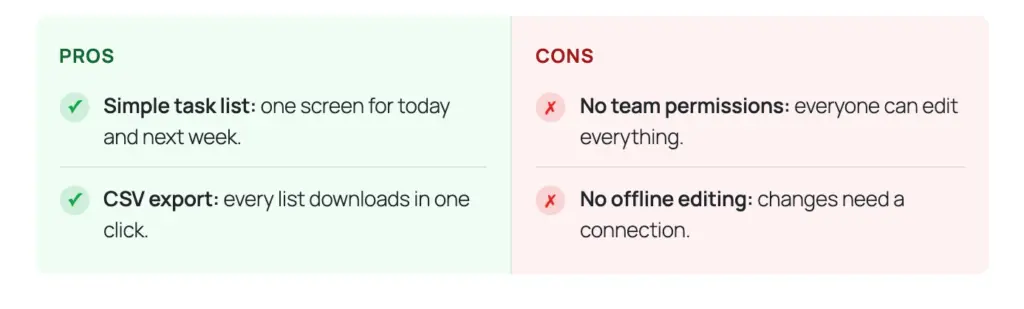
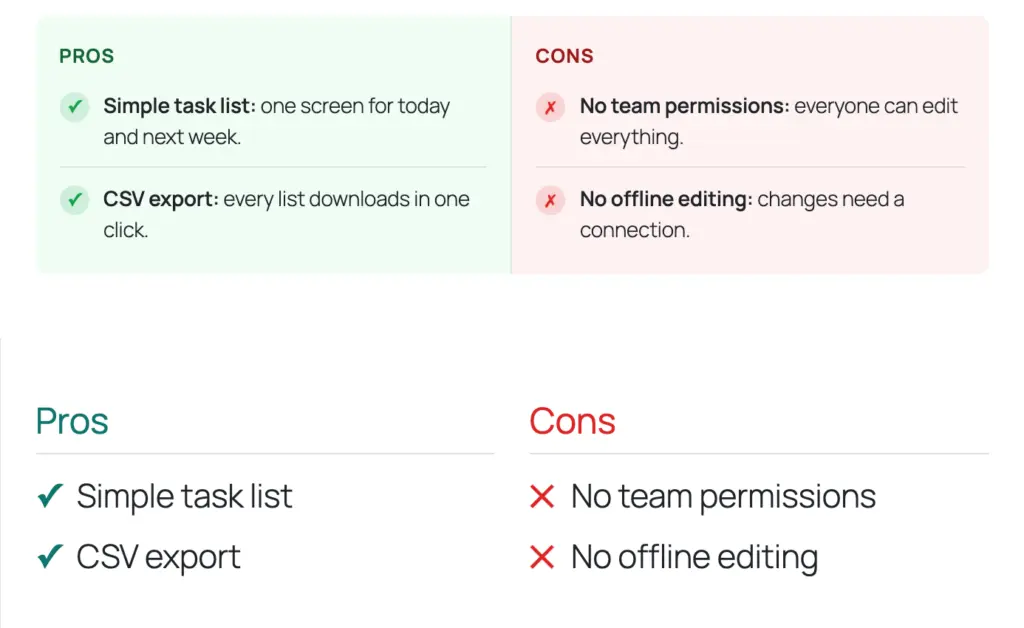
Save the draft and preview it. You should see 2 columns flush against each other with rounded outer corners, a small uppercase title over each, a check mark before every pro and a cross before every con and a thin line between items. At phone width the columns stack, with the Show First side on top, so open the preview in a narrow window too and check that both lists stay readable.
Pros
- Simple task list: one screen for today and next week.
- CSV export: every list downloads in one click.
Cons
- No team permissions: everyone can edit everything.
- No offline editing: changes need a connection.
Demo Task Planner is a fictional product, so the block above shows the layout, not a verdict. It prints no schema.
Separate the Visible List From Review Schema
This is the part I most want you to walk away with, because the 2 blocks look similar on the page and behave differently in the page source.
The Pros & Cons block writes nothing to the schema. It is a layout block. Use it wherever pros and cons help a reader: a comparison section, an entry in a roundup, a “should you upgrade” section in a tutorial, a service page. Its lack of review markup makes visual reuse simpler, but the content and any other schema on the page still need to be accurate.
When enabled, the Product Review block can include its own lists as positiveNotes and negativeNotes in a nested Review. Sharing the fields means you type each point once. You still need to check the block’s price, date and merchant fields before publishing.
A standalone Pros & Cons block with schema from another source works too. The right setup is the one you can keep accurate, without two lists saying the same thing.
If you write your schema some other way, with Rank Math’s generator or with the product review schema generator on this site, the same rule holds. The pros and cons in the JSON-LD must be the ones visible on the page, word for word, and the page must be about 1 product. The guide to star ratings in search results covers what to do when the markup is valid and the result still doesn’t appear.
How to Write Pros and Cons That Help
The layout is the easy part. The list itself is where most reviews go soft, and a few rules fix most of it:
- write each item as a claim with a specific in it: “Live chat answered in under a minute both times”, not “Great support”
- group comparable observations where useful, but don’t force a matching con in the same category when the evidence points to a different limitation
- put the con that changes the decision first, because a reader who skims reads the first line of each list and stops
- distinguish product-specific limitations from category-wide requirements. A category limitation may still matter to the reader; label it honestly rather than presenting it as a unique flaw
- avoid the vendor’s feature list. If a pro appears on the product’s own homepage, rewrite it as what that feature did for you or cut it
- include as many items as the decision needs, then remove duplicates and minor points that obscure the meaningful tradeoffs
A test that catches most of this: swap another product’s name into the list. If the pros still read fine, they weren’t about this product.
The Limits
The Pros & Cons block can’t earn the rich result on its own. It has no schema, by design. Pros and cons for Google go through the Product Review block or through hand-written JSON-LD that matches the visible list.
Even with the schema right, Google shows the pros and cons appearance only for editorial reviews of a single product, and only when it decides to. A valid page with no pros and cons in the listing is normal.
The block draws 2 columns and nothing else. There is no third column for “neutral” and no rating per item. If you need scored criteria, that is the Product Review block’s feature ratings.
And it depends on ACF Pro or Secure Custom Fields, like every block in the plugin. Remove the field plugin and the block stops rendering until it is back.
What Quietly Ruins It
Updating the visible list but forgetting separately maintained schema. Include both in the same review-update checklist when the fields aren’t shared.
Padding the cons to make the columns look balanced. The evidence should decide how long each column is.
Copying the vendor’s bullets. The reader came to you to get away from the vendor’s page, and a pro that could sit on the product’s homepage tells them nothing they didn’t have.
Leaving Product Review schema on for a demo, or on a page that isn’t a single-product review. With schema off, the scorecard is only a layout.
Burying the limitations while the benefits get the spotlight. A reader who finds the catch later stops trusting the rest of the review.
FAQs on Pros and Cons in WordPress
Does the Pros & Cons block add schema?
No, it is a layout block with icons and colors. Pros and cons reach Google’s product snippet through the Product Review block’s own pros and cons repeaters, or through hand-written Review schema that matches the visible list.
How many pros and cons should a review have?
As many as the decision needs. For Google’s pros and cons appearance, the schema needs at least two statements across both lists combined, so one pro and one con is the minimum there.
Can I use pros and cons on a roundup?
Yes, with the Pros & Cons block or core columns, for the reader. Not with the Product Review block’s schema, because product snippets only apply to pages about 1 product.
Do pros and cons need a plugin in WordPress?
No, a Columns block with 2 lists does the visible job, and it saves as a reusable pattern. A dedicated block adds ready-made styling and fields; schema is a separate choice either way.
Make the Tradeoffs Useful
Use core lists when they cover the job, a dedicated Pros & Cons block when its layout fields help or the Product Review lists when they belong inside a fuller verdict.
Whichever you pick, keep each point specific and backed by what you saw, and update any separate schema whenever the visible list changes.
Tell Google you want more of this.
Add Gaurav Tiwari as a preferred sourceOne tap, and this site shows up more often in your own Top Stories, AI Overviews and AI Mode. Remove it any time.