by
by
Long pages mix content everyone needs with details only some readers want, like FAQs, platform-specific steps and optional notes. Put all of it in the open and the answer gets lost in a long scroll.
Reaching for a page builder just for that adds a whole plugin, with its own scripts and styles, to fix a few collapsible sections.
A WordPress accordion handles related questions and optional details, and tabs handle alternative views such as instructions for two operating systems. Both exist as core blocks now. I’ll show the core routes first, then where the GT ACF Blocks versions fit.
I built GT ACF Blocks, a free plugin that adds 29 ACF blocks to the editor, including the Accordion and Tabs blocks in the second half of this guide. The content structure comes first; the block choice follows it.
Choose Details, an Accordion or Tabs
The smallest interaction that helps readers find things is the right one. Required steps, prices and product limitations should stay in the open, even when hiding them makes the page look shorter.
| Layout | Useful for | Main limitation |
|---|---|---|
| Core Details | One optional explanation or disclosure | It isn’t a coordinated multi-item tab system |
| Accordion | Several related questions or independently useful sections | Repeated expansion can be cumbersome for content everyone needs |
| Tabs | Alternative views with comparable structure | Readers may miss content in other panels; narrow labels need testing |
There’s no fixed maximum of three or four tabs; label length, content and screen width decide it. When readers need to see every option at once, a comparison table works better than tabs.
Check the Available Core Blocks
The core Accordion documentation covers a coordinated group of headings and panels. Accordion is available from WordPress 6.9. The current Tabs documentation requires WordPress 7.1 or later.
Use Details for a single collapsible section. It supplies a summary and content area without requiring a field framework.
Check your WordPress version and inserter before following a screenshot. If a block is missing, update WordPress through your usual backup and staging routine rather than adding the Gutenberg plugin to a live site.
Build a Core Accordion
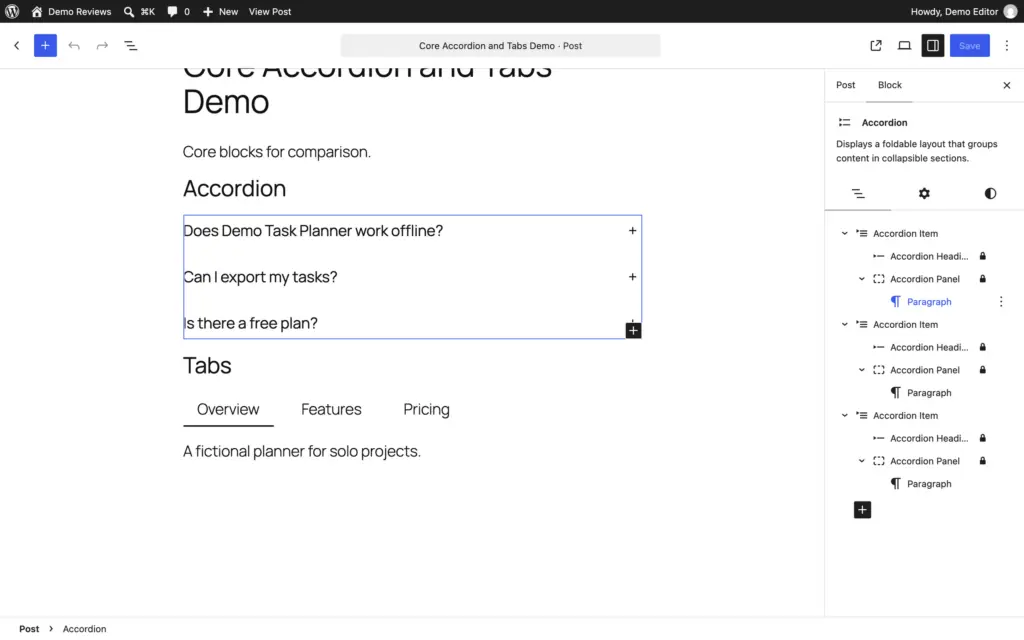
Start with three short, practical questions. The screenshots use three about the fictional Demo Task Planner.
- Insert Accordion and fill the first item’s heading and panel.
- Add the remaining items with the Add Item control. Use List View to confirm the grouping and reorder the items.
- Choose heading levels that fit the article’s outline.
- Decide whether opening another item should close the previous one. The block’s Auto-close setting controls that.
- Check the initial-open state and icon placement in the preview.
- Save and reopen the draft before testing the front end.
Core accordion panels can hold nested blocks. That helps when an answer needs an image, a list or a table. Converting an accordion to another block can drop styles, so try it on a copy first.
Use Details for One Optional Note
Insert Details, write a meaningful summary and add the supporting content inside. Preview the open and closed states. Avoid putting a separate button or link inside the clickable summary; place those actions in the content area.
An unsynced pattern suits a reusable layout; a synced one only makes sense when the content must match everywhere.
Build Core Tabs
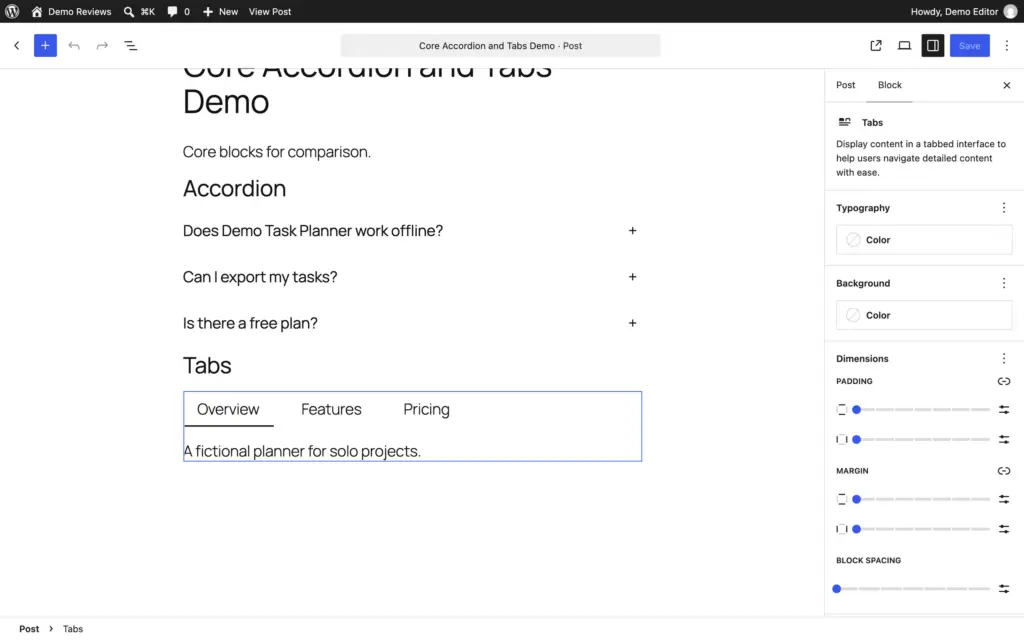
Use views with comparable content, such as Windows and macOS instructions, or the Overview, Features and Pricing panels of the fictional Demo Task Planner in the screenshot below. Don’t invent commands for a real product to fill an example.
Insert Tabs on WordPress 7.1 or later, name the tabs and add ordinary blocks inside each panel. The core structure includes a Tab List and corresponding Tab Panels. Use List View to see which controls and content belong together.
Add or reorder a tab through the block’s controls, then verify its label still selects the matching panel. Give the Tab List a meaningful accessible label, such as “Platform instructions”. Keep the content outline comparable across the tabs.
Test the keyboard and screen-reader behavior on the published page, because ARIA attributes in the source don’t prove it works. Check how the labels wrap on a phone too.
Use the ACF Versions When Their Content Model Fits
The GT ACF Blocks plugin versions suit sites that prefer fields over nested blocks. They need ACF Pro or Secure Custom Fields active, so check that after installing.
For one simple collapsible note, core Details is enough, and a site that already runs ACF Pro or Secure Custom Fields should keep the one it has.
Add the ACF Accordion
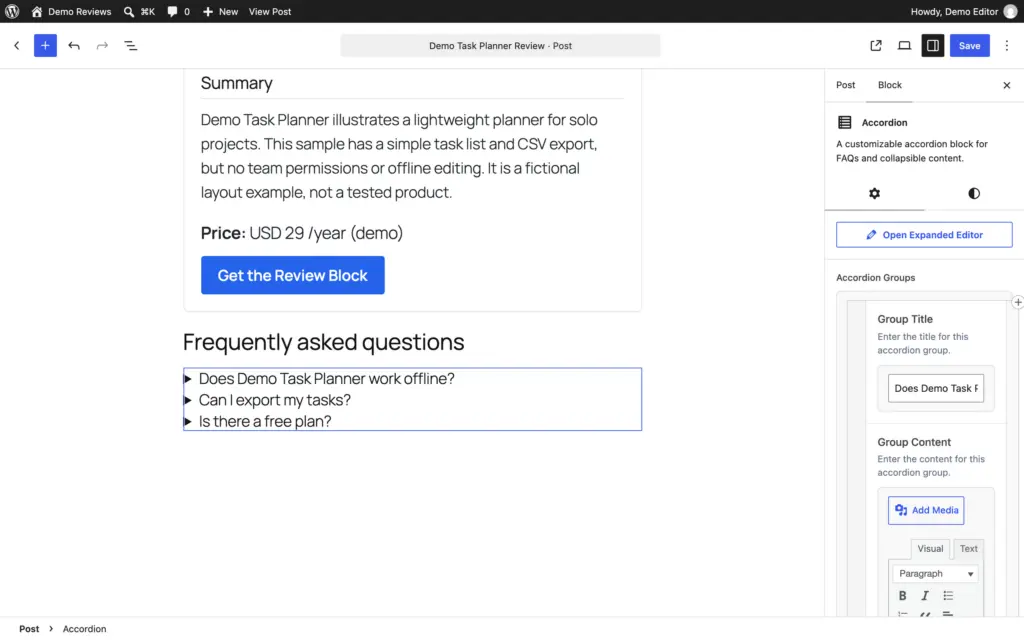
Select the ACF Accordion in the inserter. Add a repeater row per item, with a title and formatted content. Use the same three questions as the core example so the comparison stays meaningful.
The Accordion template renders native details and summary elements and opens the first item initially. Its toggle doesn’t need a custom JavaScript handler. Each answer is a rich text field, so it can’t hold nested blocks the way core Accordion can.
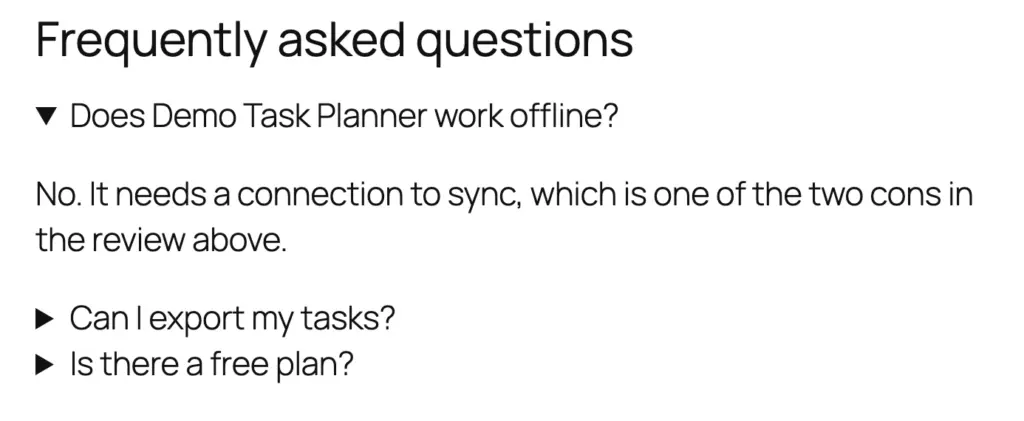
Here’s a live ACF Accordion with three questions about building one:
What should I prepare before adding an accordion?
Three questions your readers actually ask, each with an answer that makes sense on its own.
Can I edit the answers later?
Yes. Select the block, change any row in the sidebar and update the post.
How do I check the result?
Preview the post, open and close every item, then press Tab through the titles to confirm each one shows a focus outline.
Native elements mean one less script to break, but a theme stylesheet can still hide the toggle or its focus outline, so test the published page.
Add the ACF Tabs
Add rows for the tab titles, optional icons and formatted content. Pick a Tab Style: Default, Pills, Underline or Boxed. Then save and preview. A panel is a rich text field, so core Tabs is the better choice when a panel needs images, columns or other blocks.
The Tabs template initially selects the first tab, relates buttons to panels with IDs and hides inactive panels. Switching tabs depends on a separate script, so check what readers see if that script fails to load.
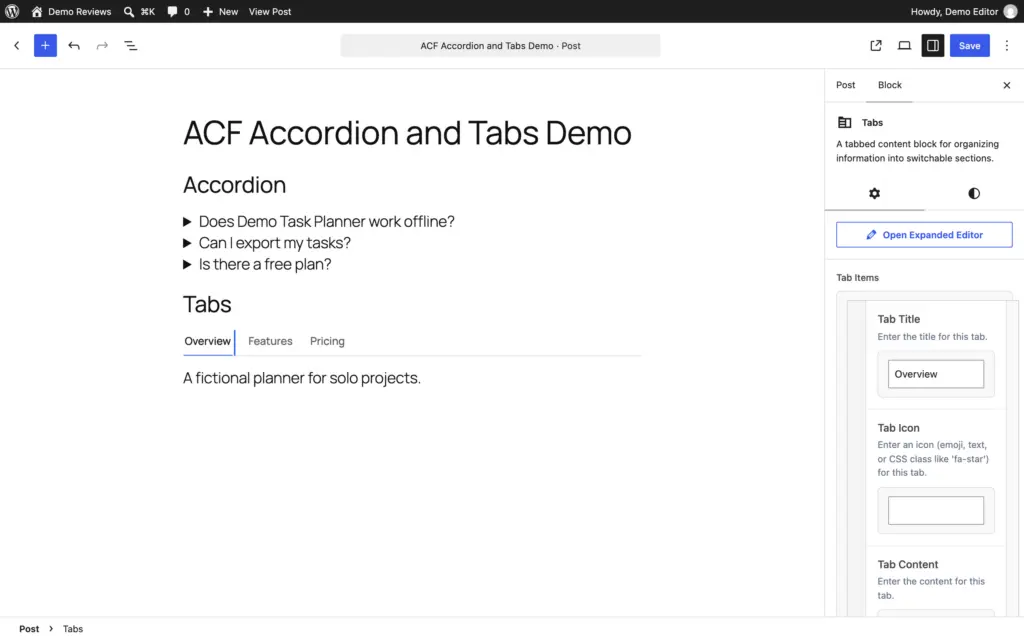

And a live ACF Tabs block in the Underline style, with export steps for the fictional Demo Task Planner:
Open Demo Task Planner from the Start menu, choose File, then Export and save the CSV.
Open Demo Task Planner from Applications, choose File, then Export and save the CSV.
Keep FAQs Separate From Google Rich-Result Promises
Google’s documentation changelog says FAQ rich results stopped appearing on May 7, 2026. The ACF Accordion has printed no FAQPage JSON-LD since version 2.9.1. Questions and answers on a page no longer earn an expandable search result.
The retirement affects that one search feature. Article and breadcrumb markup still do their job, and an accordion doesn’t stop a page from appearing in ordinary search.
Build the FAQ for readers. The FAQ schema guide covers what’s left of FAQ markup after the change.
Test More Than the Click
Tab through every interactive control and confirm visible focus, understandable labels and a sensible route into the active panel. Check arrow-key behavior where the tabs implementation provides it, and make sure two copies on one page don’t cross-control each other’s content.
Test browser Find with a term that exists only in a closed section, then inspect print preview with every panel’s content accounted for. Browsers and blocks handle both differently, so check rather than assume.
Preview at 390 and 320 CSS pixels and an intermediate width. Check label wrapping, overflow, touch targets and long answers. If the content disappears without JavaScript, switch to a simpler layout.
For important deep links, check whether a fragment opens the relevant hidden panel and lands on visible content. The table of contents tutorial covers keeping those anchors stable.
Questions About Accordions and Tabs
Can I add an accordion without a plugin?
Yes, with core Details for one section or core Accordion on a compatible WordPress version.
Can ACF Tabs contain the same blocks as core Tabs?
No. ACF Tabs panels hold formatted text from a field, while core Tabs panels hold nested blocks.
Does native accordion markup guarantee accessibility?
No. It provides useful browser semantics, but labels, focus styles, content order and the actual theme still need testing.
Should I add FAQ schema to recover the retired FAQ result?
No. Adding markup can’t restore a Google feature that has been retired. Keep other accurate page data intact.
Organize Supporting Detail Without Hiding the Answer
Details suits a small optional note, an accordion suits related sections and tabs suit alternative views. The main answer and its limitations belong in the open either way.
A compact layout only helps when readers can still reach what they need, so test the published page before calling it done.
Tell Google you want more of this.
Add Gaurav Tiwari as a preferred sourceOne tap, and this site shows up more often in your own Top Stories, AI Overviews and AI Mode. Remove it any time.