by
by
Choosing FluentCart payment gateways got more confusing this year, because the list now comes in four groups. Some gateways are built into FluentCart, some install as free official add-ons, some need FluentCart Pro and a few come from third-party plugins on wordpress.org. Pick without checking and you find out at launch that Mollie needs Pro, or that your rupee-only Razorpay route can’t take a dollar order.
For a store that sells in one currency, the answer is short: enable the gateway your buyers already use, test it and launch. A store that sells in two or more currencies has one more job, which is deciding which gateway appears for which currency, and FluentCart doesn’t do that part on its own.
That routing is what the gateway map in GT Extensions for FluentCart handles. It’s my add-on for FluentCart Free and Pro, and it shows only the gateways you allow for the buyer’s currency, puts your preferred one first and rejects any other gateway on the server before the order is created.
On WooCommerce? Stackless for WooCommerce, my plugin for WooCommerce stores, ships its own Stripe, PayPal, Polar and Paddle gateways that renew subscriptions automatically, and its Currency-Aware Payment Gateways module does the same per-currency routing.
FluentCart Payment Gateways by Plan
FluentCart lists 13 gateways in Payment Settings. This is how they split:
- Built in: Stripe, PayPal and cash on delivery.
- Free official add-ons, installed from Payment Settings: – Razorpay for UPI, cards, netbanking and wallets – Paystack for cards, bank transfer, USSD and mobile money – Mercado Pago for cards, Pix, Boleto and OXXO – Flutterwave for cards, bank transfer and mobile money – SSLCommerz for cards, mobile banking and internet banking
- FluentCart Pro: Paddle, Mollie, Authorize.Net and Square.
- Coming soon: Airwallex.
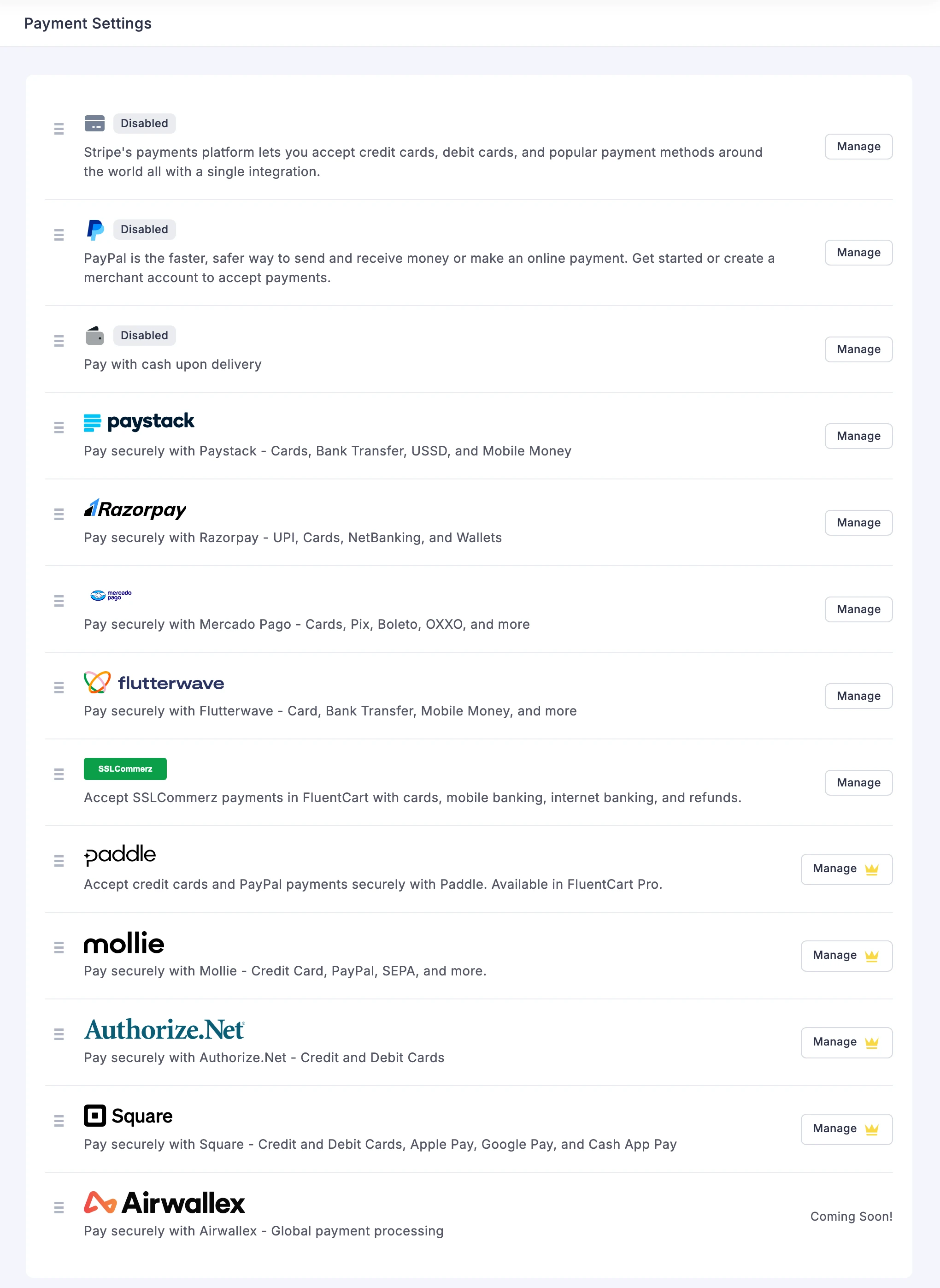
Razorpay is the change that matters most for Indian stores. It installs as a free official add-on, so a store on FluentCart Free can take UPI and Indian cards without buying Pro. My FluentCart Razorpay setup guide covers the account side.
Paddle is different from the rest. It’s a merchant of record, which means Paddle sells to your buyer, collects and remits the sales tax and pays you out. It costs more per sale than a plain gateway, and it suits software sellers who would rather not handle VAT and GST themselves.
Beyond the official list, wordpress.org has third-party gateway plugins built for FluentCart:
- CHIP, Billplz and Bayarcash for Malaysia
- ShaplaPay for bKash in Bangladesh
- ifthenpay for Multibanco and MB WAY in Portugal
- WPKJ for Alipay and WeChat Pay
- Bitcoin and Lightning Payments, and Boriable for other cryptocurrencies
Most of these show fewer than 10 active installs on wordpress.org, and some expect one fixed store currency. You should run one in test mode and check who maintains it before you trust it with revenue.
Do You Need GT Extensions for Payment Gateways?
You don’t need GT Extensions to connect Stripe, PayPal, Razorpay or any other supported gateway. You need it when the buyer’s currency should decide which gateway they see.
| Store setup | What you need |
|---|---|
| One currency with Stripe and PayPal | FluentCart alone |
| INR only, with UPI and cards | FluentCart and the free Razorpay add-on |
| Euro store with SEPA payments | FluentCart Pro for Mollie |
| A merchant of record that handles tax | FluentCart Pro for Paddle |
| INR through Razorpay and USD through Stripe or PayPal | FluentCart gateways and GT Extensions routing |
| A gateway account that needs international payments activated | Your payment provider |
GT Extensions decides when an enabled gateway appears. It can’t create an account or set credentials and webhooks, and it can’t approve a currency that your Stripe, PayPal or Razorpay account doesn’t support.
How Currency-Based Routing Works
GT Extensions gives each enabled currency a list of allowed gateways and one optional preferred gateway. At checkout it works through these steps:
- It resolves the cart’s currency from the cart, a validated request, the secure currency cookie or the default.
- It filters FluentCart’s active gateways down to the list you allowed for that currency.
- It moves the preferred gateway to the top.
- It checks the submitted gateway again before FluentCart processes the order.
- It writes the same currency to the order, its transactions and any subscription.
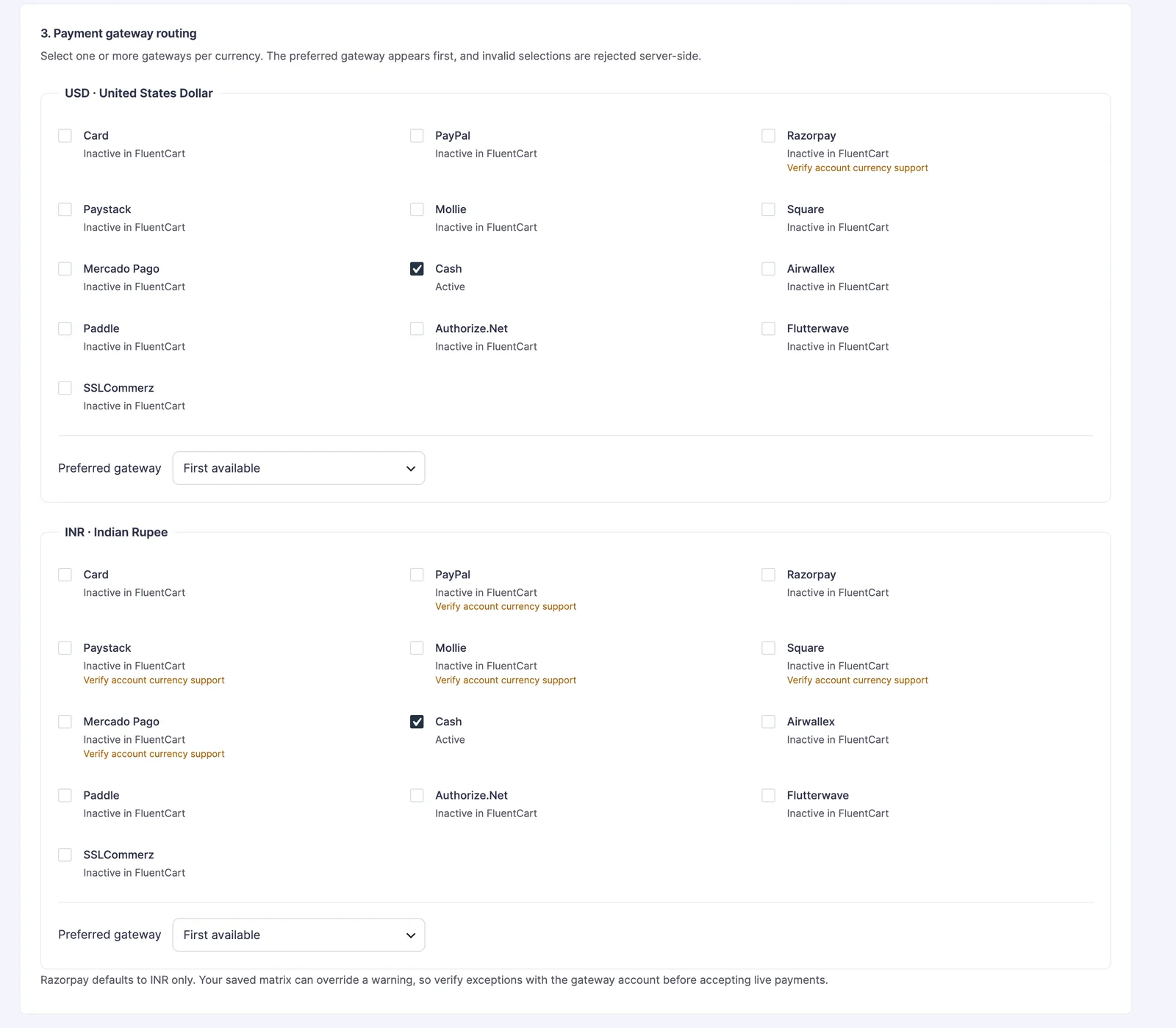
Step 4 matters more than it looks. A buyer can leave a checkout tab open, switch currency in another tab and submit the old form with a gateway that no longer fits. Hiding the button in the browser doesn’t stop that submission. The server check does, and the checkout is refused before an inconsistent order exists.
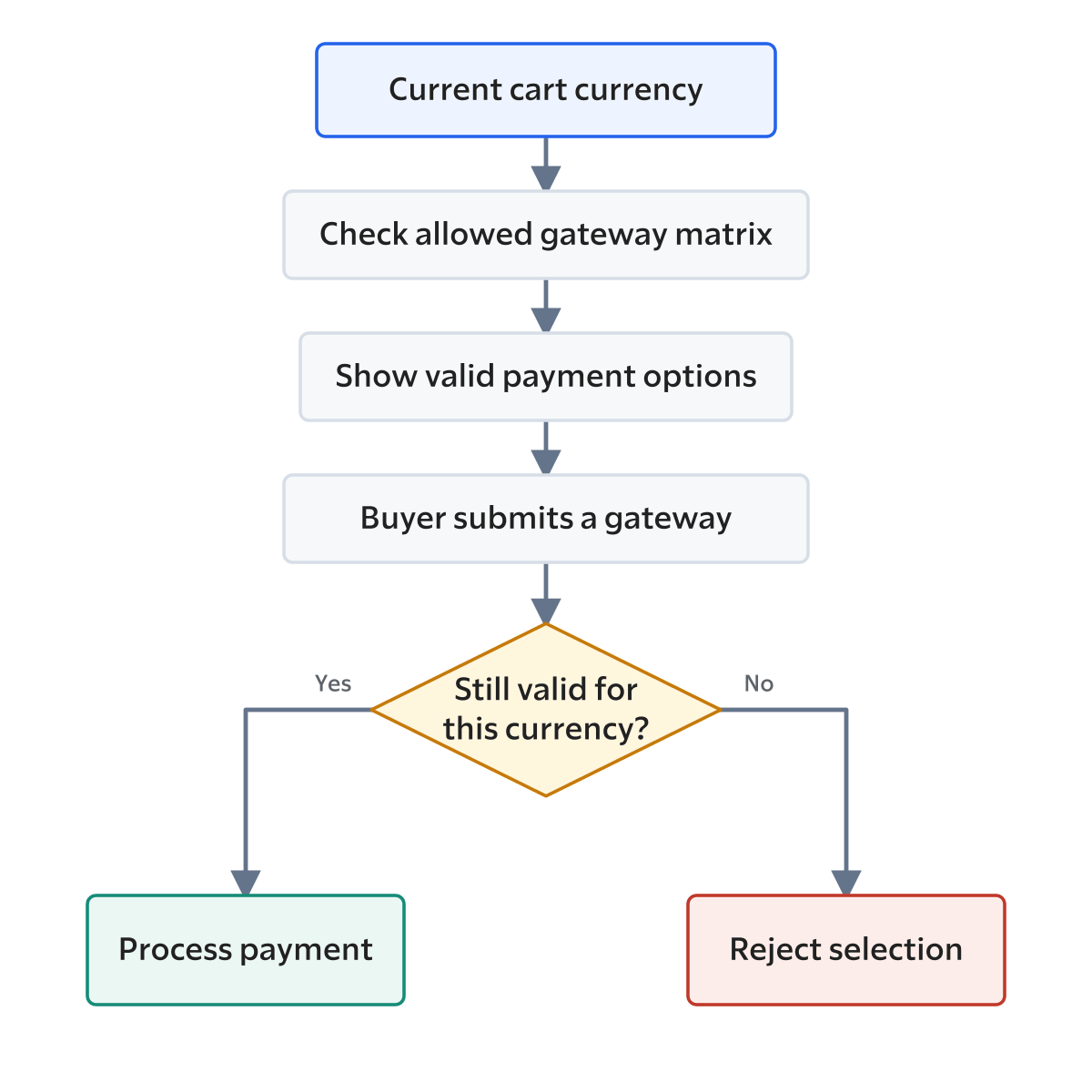
On this store, INR shows Razorpay first with Stripe as the alternative. USD, EUR and GBP show PayPal first with Stripe beside it, plus Paystack for USD and Mollie for EUR and GBP. GT Extensions starts Razorpay as an INR-only suggestion, because a Razorpay account needs international payments approved before it can take other currencies. You can change that suggestion if your account is approved.
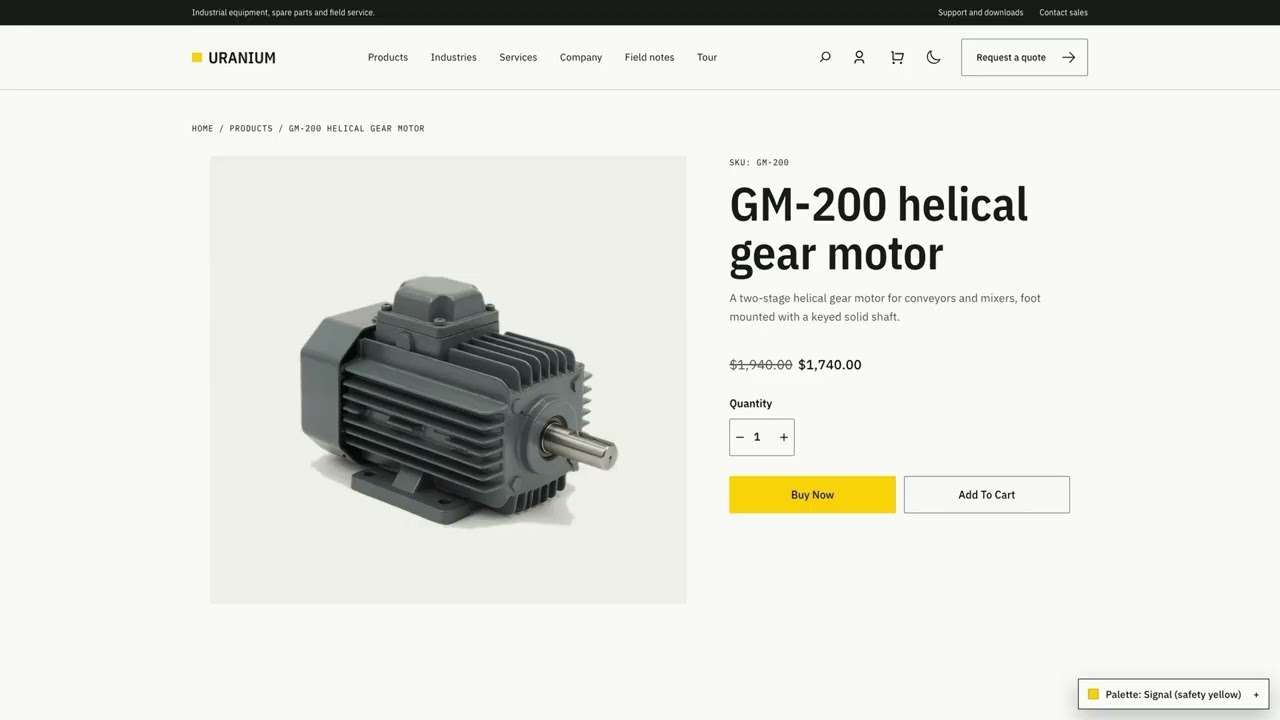
Set Up Gateway Routing
Routing comes last. Each gateway should complete a normal payment on its own before you decide which currency it serves:
- Enable the gateway in FluentCart’s Payment Settings and add its test credentials.
- Set up the webhook the gateway’s settings screen asks for.
- Complete one successful test payment through it.
- Enable your currencies and prices in GT Extensions under Currencies and gateways, as covered in my FluentCart multi-currency guide.
- Tick the allowed gateways for each currency and choose a preferred one.
- Switch currency at checkout and watch the gateway list change.
- Complete a test order for every currency and gateway pair you plan to offer.
If a currency has no gateway that can settle it, keep that currency disabled. A payment button that fails at the last step is worse than no button at all.
Test the Whole Payment Path
The gateway logo appearing at checkout is only the first check. The money has to arrive in the right currency and come back the same way:
- a successful payment in every enabled currency
- a failed or cancelled payment
- the webhook updating the correct FluentCart order
- a full and a partial refund in the original currency
- a subscription renewal, where you sell subscriptions
- a stale checkout tab submitted after the currency changed
- a logged-out checkout on desktop and on mobile
Test mode proves the wiring, but live approval, fraud rules and webhook delivery on your real account only show up with a real payment. One small live order through each gateway is worth the fee.
Pricing and Next Steps
GT Extensions costs $39 a year or $99 for a lifetime license, covers unlimited sites and includes all 18 modules, with multi-currency checkout and gateway routing in the same module. There’s a 14-day refund window.
FluentCart Free covers Stripe, PayPal and the free add-ons. FluentCart Pro is needed for Paddle, Mollie, Authorize.Net and Square. If you’d rather hand the accounts, credentials, webhooks and live tests to someone else, my payment gateway setup service covers exactly that.
The Multi-Currency Checkout lesson in the GT Extensions training course covers the currency and gateway settings screen by screen.
Tell Google you want more of this.
Add Gaurav Tiwari as a preferred sourceOne tap, and this site shows up more often in your own Top Stories, AI Overviews and AI Mode. Remove it any time.
Disclaimer: This site is reader-supported. If you buy through some links, I may earn a small commission at no extra cost to you. I only recommend tools I trust and would use myself. Your support helps keep gauravtiwari.org free and focused on real-world advice. Thanks. - Gaurav Tiwari