
 by
by
FluentCart Razorpay integration is a free official add-on, and it already handles INR payments for an India-first store. If every customer pays in INR, configure Razorpay in FluentCart, add the webhook, test a payment, and stop there. You do not need a multi-currency extension for that setup.
GT Extensions for FluentCart becomes useful when the same FluentCart store must also charge USD, EUR, GBP, or another currency. It adds exact local price books and routes each checkout currency to eligible gateways, such as Razorpay for INR and Stripe or PayPal for USD.
On WooCommerce? Keep the Razorpay plugin for WooCommerce and add Stackless for WooCommerce, my plugin for WooCommerce stores. Its Currency-Aware Payment Gateways module shows Razorpay to rupee buyers and Stripe or PayPal to everyone else, while Multi-Currency Checkout holds the exact INR prices.
Do You Need GT Extensions for FluentCart Razorpay?
Quick answer: Use FluentCart’s Razorpay integration by itself for an INR-only store. Add GT Extensions for FluentCart only when one store needs multiple checkout currencies, exact regional prices, or different gateways for different currencies.
| Store requirement | What you need |
|---|---|
| All products and payments use INR | FluentCart Razorpay integration |
| INR products use Razorpay and USD products use another gateway | FluentCart, the gateways, and GT Extensions |
| One product needs an exact INR price and an exact USD price | GT Extensions price books |
| Razorpay must accept foreign cards | International Payments activation in Razorpay |
| The store needs GST rules or invoices | FluentCart tax settings and qualified tax advice |
This boundary matters. GT Extensions controls prices, currency selection, and gateway visibility. Razorpay controls whether your merchant account can accept a payment method or international card.
How to Connect Razorpay to FluentCart
The FluentCart Razorpay setup uses separate test and live credentials plus a webhook secret. Start in test mode and move to live credentials only after FluentCart receives the expected payment events.
- Open FluentCart > Settings > Payment Settings and click Manage beside Razorpay. This works on FluentCart Free as well as Pro.
- Install the free Razorpay add-on from that screen. FluentCart installs it for you, and then you enable Payment Activation.
- Create test and live API keys in the Razorpay dashboard and add the Key ID and Key Secret to FluentCart.
- Copy the FluentCart webhook URL into Razorpay and create a webhook secret.
- Enable the payment, refund, and subscription events required by the products you sell.
- Save the same webhook secret in FluentCart, then complete a test or live order.
FluentCart’s Razorpay setup guide lists the current credential fields and webhook events. Use that list instead of copying keys or event names from an old tutorial.
Keep test and live credentials separate. A successful test order does not prove that the live account, webhook, foreign card, or settlement path has been approved.
How to Add INR and USD Checkout to One Store
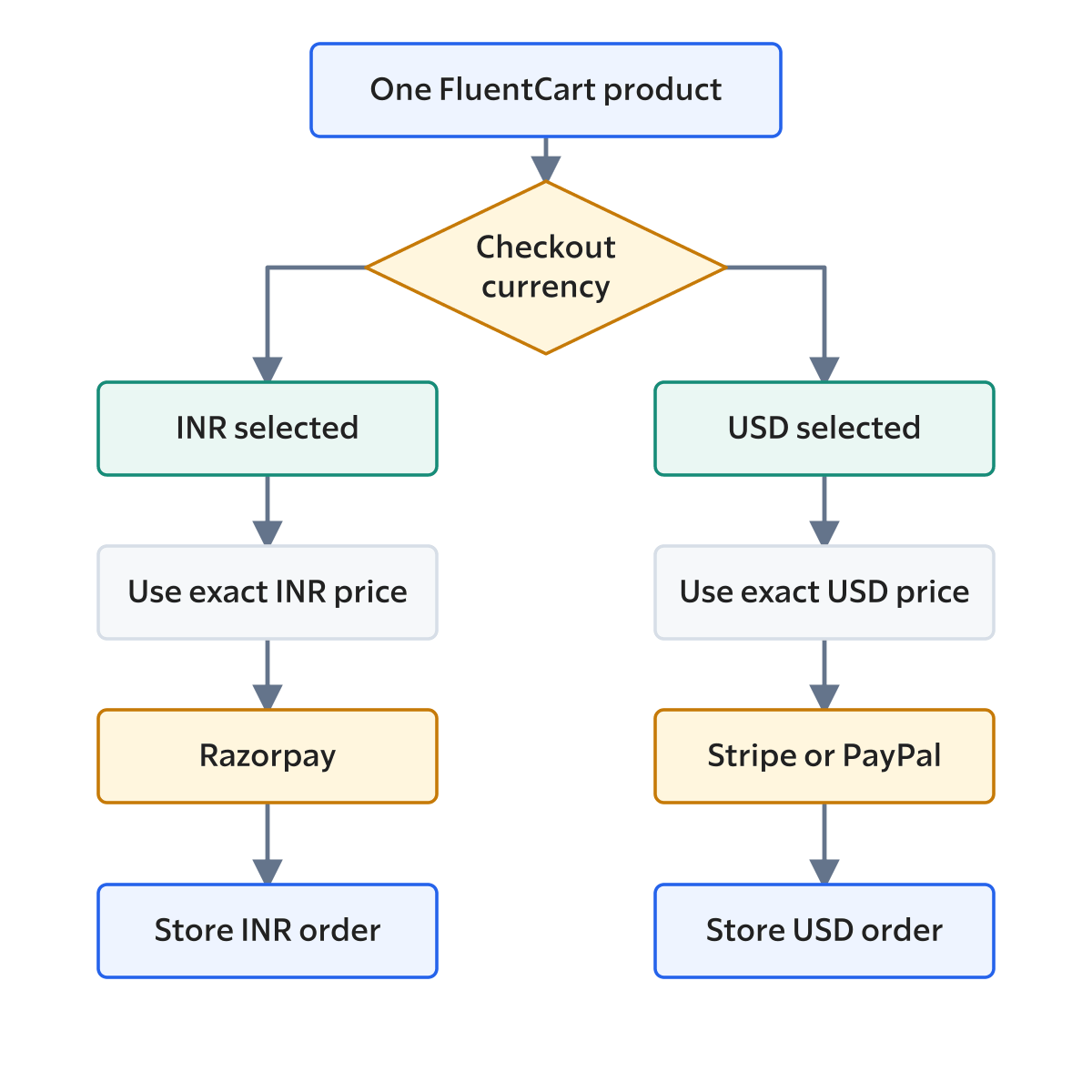
FluentCart has one checkout currency. GT Extensions adds the second pricing and routing layer needed for INR plus USD checkout in the same catalog.
- Keep the correct base checkout currency in FluentCart Store Settings.
- Enable INR and USD in the GT Extensions Multi-Currency Checkout module.
- Save exact INR and USD prices for the product variations you sell.
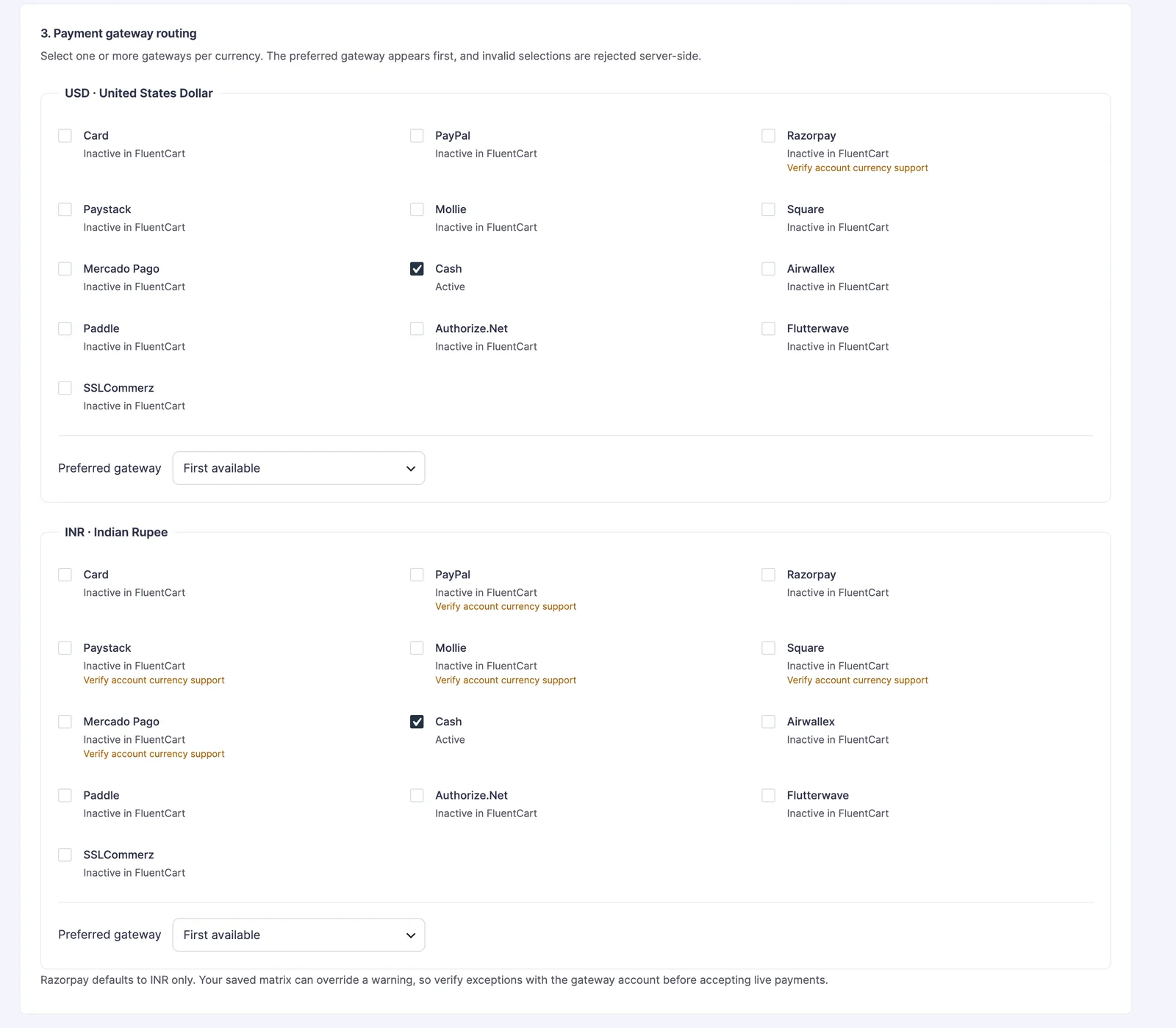
- Set INR to allow or prefer Razorpay. GT Extensions suggests Razorpay for INR only by default, and you can widen that if your Razorpay account is approved for international payments.
- Set USD to allow Stripe, PayPal, or another gateway approved for the merchant account.
- Choose whether a missing local price should convert from the base price or block the purchase.
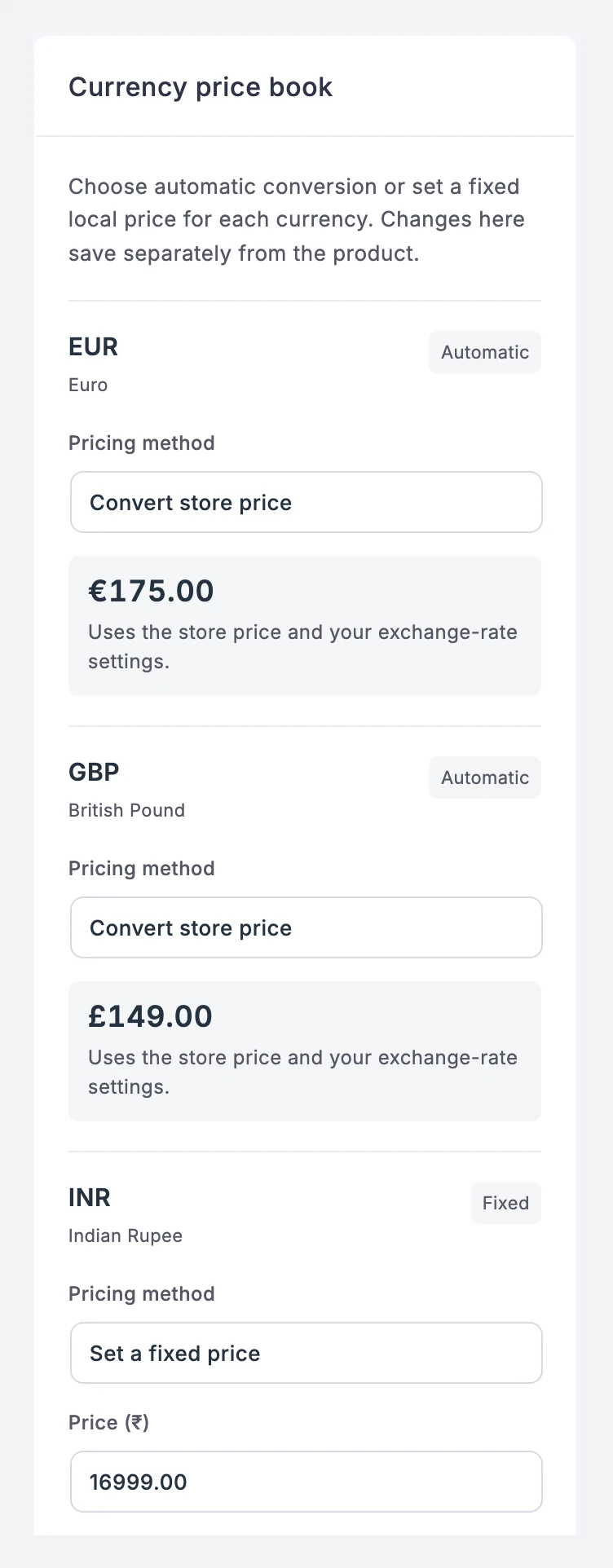
A product can cost $199 in USD and a fixed ₹16,999 in INR, while EUR and GBP convert from the dollar price. The INR amount is a deliberate offer, not an exchange-rate twin: at September 2026 rates, the same $199 converts to about ₹19,100. When the customer selects INR, GT Extensions uses the INR amount and the INR gateway rules. Selecting USD restores the USD amount and its allowed gateways.
Use conversion only for secondary currencies you do not want to maintain manually. An exact price saved for a product variation takes priority over the conversion fallback.
Can Razorpay Accept International Payments?
Razorpay supports international payments for eligible accounts, but the feature must be activated in the Razorpay dashboard. Connecting Razorpay to FluentCart does not automatically enable foreign cards or international currencies.
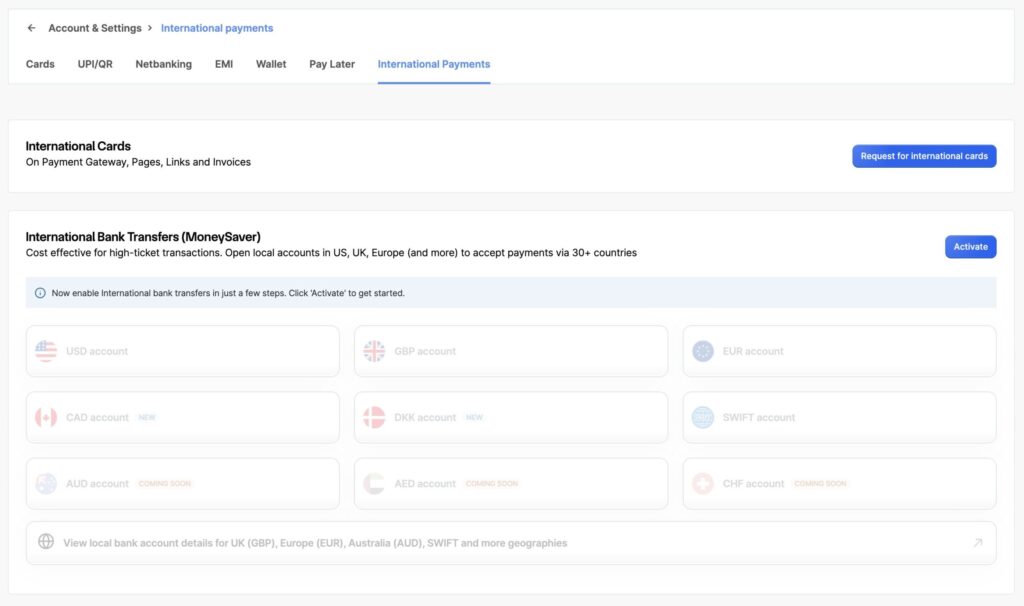
Existing Razorpay merchants can check Account & Settings > International payments and request activation for the required method. Razorpay may ask for business details, KYC, purpose codes, or other documents before approval.
You can still choose a simpler route: use Razorpay for INR and a separate approved gateway for USD or EUR. GT Extensions supports either model because the gateway matrix is editable per currency.
Do not assume availability from the gateway logo. Confirm the currency and payment method inside the merchant dashboard, then run an approved low-value live payment.
What Should You Test Before Accepting Payments?
Test one complete order for every checkout currency and gateway combination you plan to offer. The product price, cart total, hosted payment screen, FluentCart order, receipt, and gateway transaction must agree.
| Test | Expected result |
|---|---|
| India guest selects INR | Exact INR price and Razorpay appear |
| International guest selects USD | Exact USD price and approved USD gateways appear |
| Product has no INR price | The configured conversion or block rule runs |
| Razorpay payment succeeds | Webhook updates the correct FluentCart order |
| Payment fails or is refunded | Gateway and FluentCart show matching status and currency |
| Customer returns in a fresh session | The correct amount and gateway remain available |
Run these cases in FluentCart test mode first. Before launch, make one controlled low-value live payment and refund through each real gateway. Never expose API keys, webhook secrets, or customer details in screenshots.
Which Setup Should You Choose?
Keep an INR-only store simple: FluentCart plus Razorpay is enough. Choose GT Extensions when international buyers must see and pay exact prices in another currency from the same store. My FluentCart multi-currency guide walks through that setup, and the FluentCart payment gateways guide covers the other gateways you can pair with Razorpay.
GT Extensions costs $39 a year or $99 for a lifetime license, covers unlimited sites and includes all 18 modules, with multi-currency checkout and gateway routing in one of them. It works with FluentCart Free and Pro, and so does the Razorpay add-on, which FluentCart installs for free from Payment Settings.
If you are still choosing the commerce platform, get FluentCart through my affiliate link. If FluentCart is already running, go straight to GT Extensions or use my payment gateway setup service when credentials, webhooks, and live test transactions need to be handled for you.
FluentCart Razorpay FAQs
These answers cover the decisions that affect the setup.
Does FluentCart support Razorpay?
Yes. FluentCart documents a Razorpay integration with separate test and live credentials, a webhook secret, and payment, refund, and subscription events. It installs as a free official add-on from the FluentCart Payment Settings screen and works on FluentCart Free and Pro.
Do I need GT Extensions to use Razorpay with FluentCart?
No. An INR-only store can use FluentCart and Razorpay without GT Extensions. Add GT Extensions when the same store needs multiple checkout currencies, exact regional prices, or different gateway rules for INR and USD.
Can I use Razorpay for INR and Stripe for USD?
Yes. GT Extensions can map INR to Razorpay and USD to Stripe, PayPal, or another enabled gateway. Each route must still be supported by the connected merchant account.
Can Razorpay accept international cards in FluentCart?
Razorpay supports international payments for eligible accounts, but you must request or activate the feature in the Razorpay dashboard. FluentCart and GT Extensions cannot grant a merchant capability that Razorpay has not approved.
Does GT Extensions calculate GST?
No. GT Extensions handles currency prices, selection, and gateway routing. Configure taxes in FluentCart and have a qualified adviser review GST registration, place-of-supply, invoice, and tax-display decisions.
Why is Razorpay missing from FluentCart checkout?
Check that Razorpay is active, credentials match the current test or live mode, the cart currency is allowed, and the merchant account supports the requested payment path. Then test again in a fresh customer session.
Tell Google you want more of this.
Add Gaurav Tiwari as a preferred sourceOne tap, and this site shows up more often in your own Top Stories, AI Overviews and AI Mode. Remove it any time.
Disclaimer: This site is reader-supported. If you buy through some links, I may earn a small commission at no extra cost to you. I only recommend tools I trust and would use myself. Your support helps keep gauravtiwari.org free and focused on real-world advice. Thanks. - Gaurav Tiwari