by
by
A private trade or member catalog on FluentCart runs into one problem early: FluentCart shows every price to everyone. Your wholesale price sits on a public product page for any visitor or competitor to read, and a guest can buy at a price that was meant only for approved accounts.
To hide prices until login properly, you need two things. The price has to be replaced with a login prompt for the wrong visitors, and the cart has to refuse those visitors on the server, because a hidden number on the page does nothing if the add-to-cart request still goes through.
GT Extensions for FluentCart, my add-on for FluentCart Free and Pro, does both with its Hide Price Until Login module. Other modules in the same plugin cover the rest of a small B2B catalog:
- minimum and maximum quantities
- quote requests
- invoices with payment links
- saved carts and wishlists for reorders
On WooCommerce? Stackless for WooCommerce, my plugin for WooCommerce stores, hides prices and buying from guests store-wide, by category or per product, with a login link in place of the price.
What FluentCart Core Offers B2B Stores
FluentCart has real B2B features, and they cover tax and paperwork:
- EU reverse charge: B2B orders with VAT number validation, reverse-charge declarations and B2B badges in the order list.
- VAT lines: per-rate VAT lines on checkout, emails, PDF receipts and order screens.
- PDF invoices: editable invoice templates for placed orders, which need FluentCart Pro.
- Manual orders: orders created from the admin for sales that come in by phone or email.
FluentCart doesn’t hide prices from guests, limit purchasing to certain user roles, enforce a minimum order quantity or take quote requests. Its product editor can limit a product to 1 item per order, and that’s the only quantity rule in core.
The wordpress.org add-ons don’t cover access control either. GoWishCart adds free wishlists to FluentCart, with guest lists, saved variations and price-drop and back-in-stock alerts, and its Pro version adds multiple and shared lists. That helps a retail store. On a private catalog, you should test that its price-drop emails and wishlist page don’t show the prices your login gate is meant to hide.
Hide Prices Until Login

Enable Hide Price Until Login in FluentCart > GT Extensions and open Configure. The first setting, Apply to, decides whether the rule covers every product or only the products you mark. New setups start with marked products only, and a store that already used the module stays on all products after updating, so no hidden price becomes visible.
The module has these settings:
- Apply to: all products, or only products with Login to purchase turned on.
- Hidden Price Text: the message shown in place of the price, such as “Log in to see trade pricing”.
- Make text clickable: turns that message into a link to the login page.
- Hide add to cart for guests: leaves Buy Now, Add to Cart and the quantity selector out of the page for restricted visitors.
- Redirect back after login: returns the buyer to the product after they sign in.
- Hide for Roles: roles that keep seeing the login prompt even when signed in.
- Show for Roles: when set, only these roles see prices.
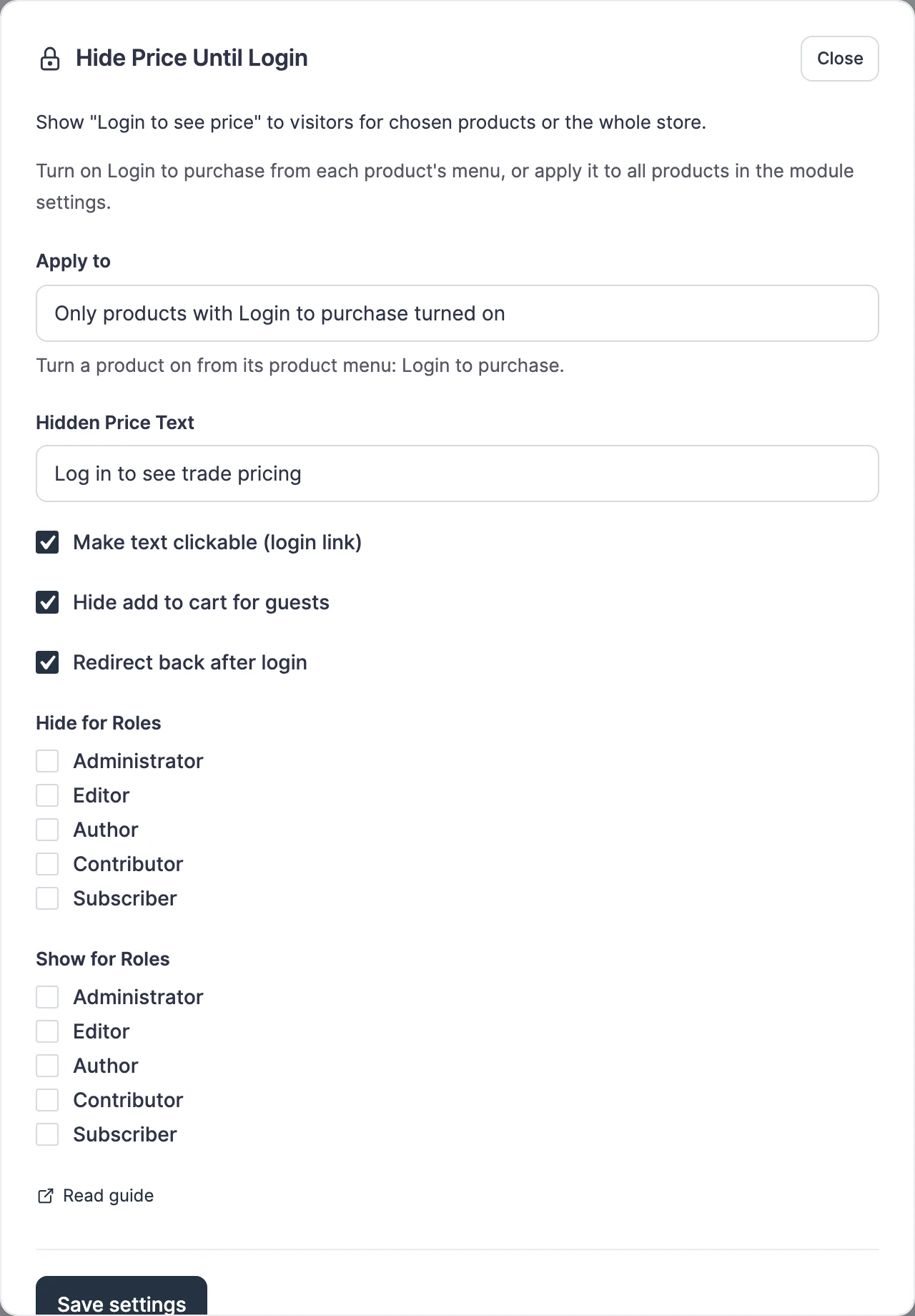
With both role lists empty, any logged-in user sees prices and guests don’t. A role in Hide for Roles wins over the same role in Show for Roles, so a restricted role can’t slip through an allow list.
Put Only Trade Products Behind Login
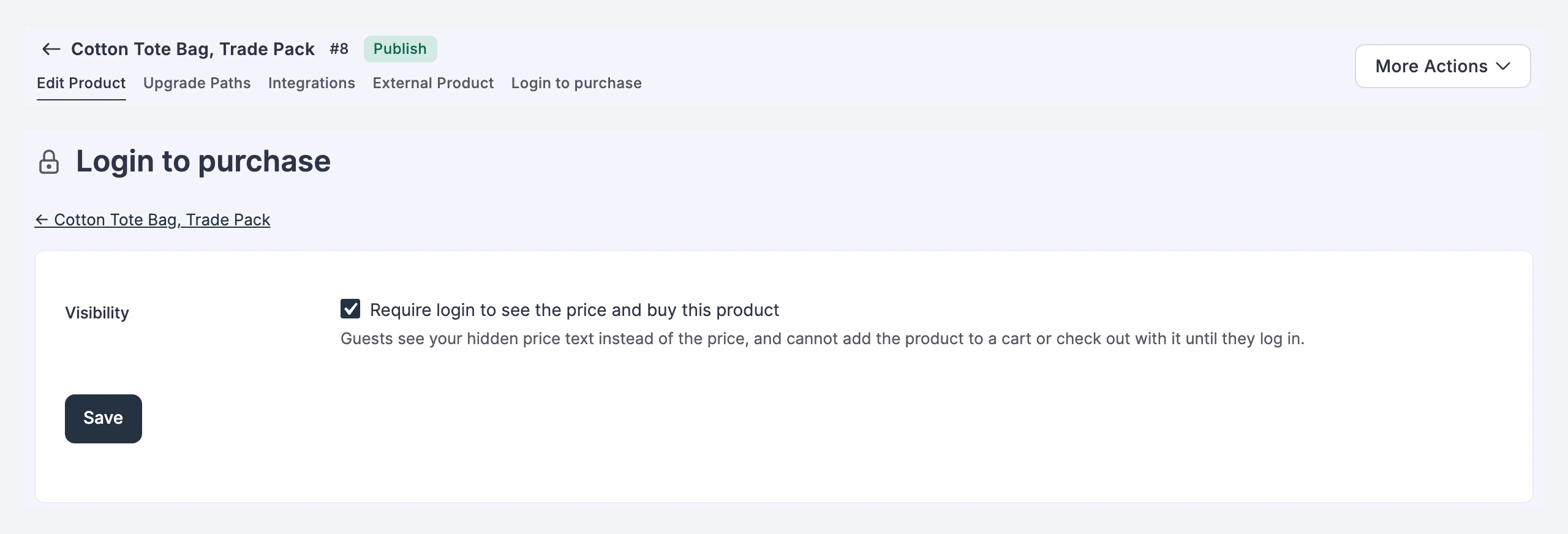
Most stores that sell to trade buyers also sell to the public. To put a single product behind login, open it in FluentCart and choose Login to purchase from the product menu, next to Edit Product and Integrations. Tick Require login to see the price and buy this product and save.
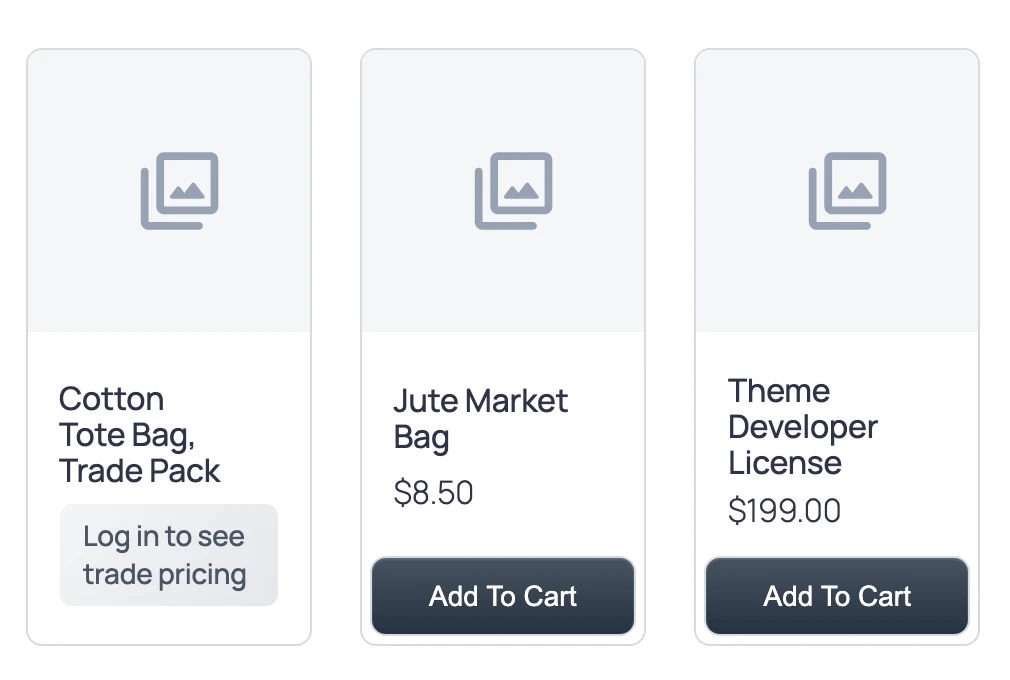
The retail range stays public and the trade range asks for a login, on the same shop page.
What a Guest Receives
The price never reaches a guest’s browser. GT Extensions removes it before the page leaves the server, so it isn’t in the page source, product cards, variant data, search results or FluentCart’s public product API, and pages built with FluentCart’s product shortcodes get the same treatment. It holds on stores running multi-currency checkout as well.
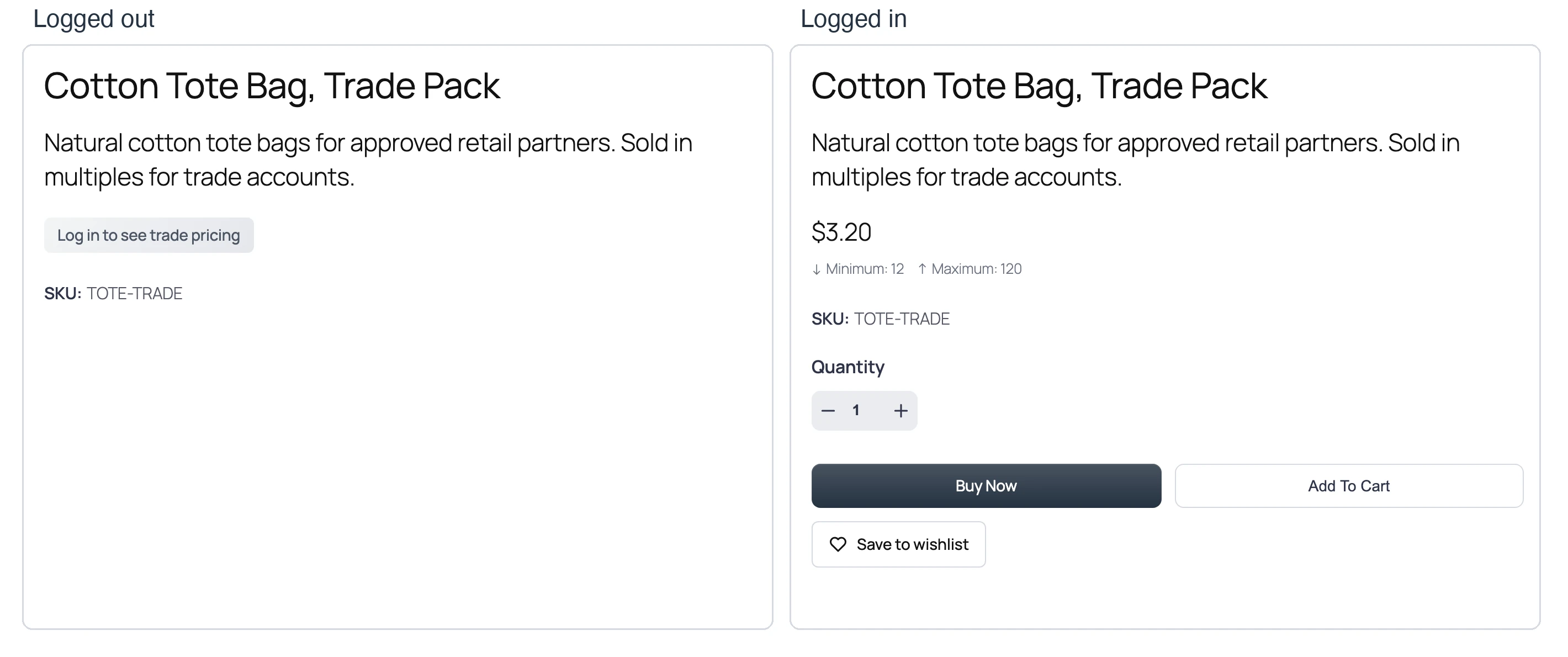
Buying is closed at every entry point too:
- Buy Now, Add to Cart and the quantity selector are left out of the page.
- An add-to-cart request is refused with “Please login to purchase this product.”
- A Buy Now or instant-checkout link is refused.
- Modal checkout shows the login prompt.
- Checkout rejects an order containing a login-only product when the buyer isn’t logged in, which catches carts created before the product required login.
Invoice payment links and payments for existing orders aren’t affected. These protections need GT Extensions 2.6.5 or newer.
For a custom landing page or a trade-only page built outside the product template, the module also has a shortcode:
[gtfc_login_to_see_price text="Sign in to view pricing"]Give Approved Buyers a Role
WordPress doesn’t approve trade accounts for you, and neither does GT Extensions. The usual pattern is a role such as “Trade customer”, created by a membership or role plugin and given to approved buyers by hand. Select that role in Show for Roles, then compare the product page as a guest, as an ordinary subscriber and as an approved buyer.
Don’t test only as the administrator. The admin account is always logged in, so it tells you nothing about what a subscriber sees.
Set Minimum and Maximum Quantities
The Min/Max Quantity module sets a minimum and a maximum per product or per variation, and a default for everything else. It shows the limits under the price and checks them on the server whenever an item is added or its quantity changes in the cart. Guests don’t see the limits on a login-only product, because they sit inside the hidden price block.
- Minimum: 12 units for a carton, so nobody orders 1 tote bag at trade price.
- Maximum: 120 units per order for a product with limited stock.
- Per variation: different limits for different sizes or pack types.
- Stock cap: when FluentCart manages stock, the maximum never goes above what’s available.
That’s enough for a catalog with one shared trade price and sensible order sizes.
Take Quote Requests for Custom Orders
Some trade orders don’t fit the catalog: a volume deal, a custom print run or a mix of products with its own price. The Request a Quote module handles those. The buyer fills in a form, you review the request, prepare a proposal and send it, and the buyer’s acceptance turns it into a payable invoice with a normal FluentCart order behind it.
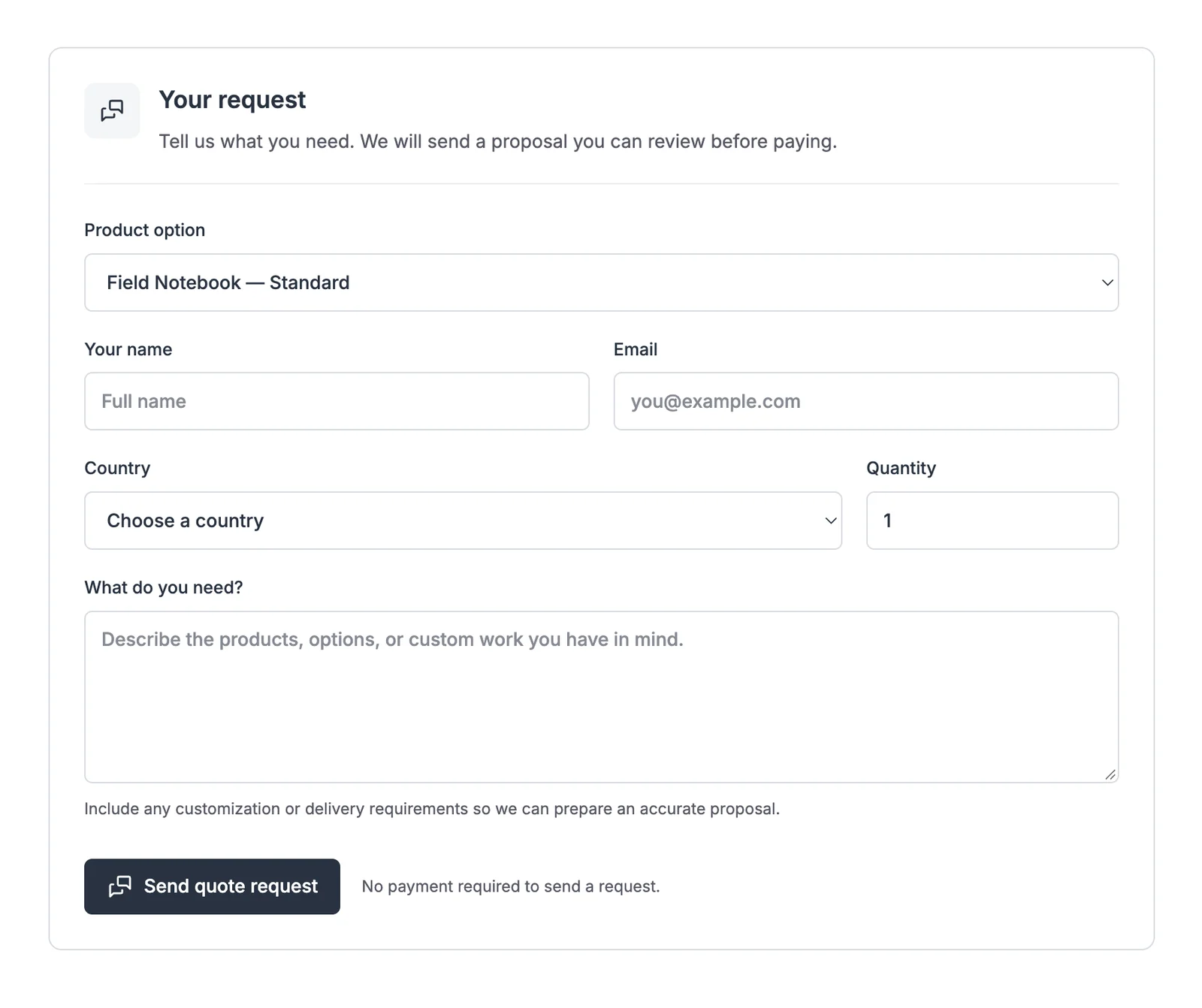
Add the form with the Request a Quote block, or with a shortcode. This one ties the form to a single product, and 123 is that product’s ID:
[gtfc_request_quote product="123"]The quote workflow needs FluentCart 1.6.4 or newer, and it switches on Custom Invoices automatically because an accepted proposal becomes an invoice. My guides on adding Request a Quote to FluentCart and creating custom invoices in FluentCart cover both modules step by step. FluentCart’s PDF invoice templates format an order the buyer has already placed. A GT Extensions invoice starts the sale from your side, with its own payment link, and creates the FluentCart order when you issue it.
Let Buyers Reorder
Trade buyers tend to order the same things again. Two modules make that faster:
- Saved Carts and Order Again: logged-in buyers save a cart and restore it later at current prices and stock. Items that are no longer available are explained instead of silently dropped.
- Wishlist: buyers save the exact product option they picked. The wishlist respects your hidden-price rules and stock restrictions, and a guest list merges into the account after sign-in.
What This Setup Can’t Do
This is a lean private catalog. It’s the right size for a small wholesaler, a member store or a supplier with a few dozen approved retailers, and it stops short of a full B2B platform:
- One price per product: everyone who can see the price sees the same price. There are no per-role or per-customer price tiers.
- No company accounts: there’s no parent account with several buyers, credit limits or net-30 terms.
- One-time invoices: invoices are paid online in full. Recurring invoices and online collection of a partial balance aren’t included.
- No approval workflow: roles come from WordPress or another plugin.
- Page caching: the price is removed on the server for guests, so a page cached while a buyer was logged in would carry it. Keep restricted pages out of shared page caches, and check anything else that prints prices, such as product feeds from other plugins.
When customer-specific pricing, company hierarchies and payment terms are part of the requirement, WooCommerce with a mature B2B extension is the more economical foundation. Building those features around FluentCart costs more than the platform saves.
Test the Private Catalog
A private catalog passes only when the page and the cart follow the same rule. You should run these checks with real customer accounts:
| Test | Expected result |
|---|---|
| Guest opens a trade product | Login prompt in place of the price, and no purchase buttons |
| Guest opens the shop page | Trade products show the prompt, and retail products show prices |
| Guest uses the login link | Login, then back to the same product |
| Guest opens a Buy Now link for a trade product | Checkout refuses the product |
| Buyer with an allowed role signs in | Price and purchase buttons appear |
| Buyer with a hidden role signs in | Price stays hidden |
| Buyer adds fewer than the minimum | Cart refuses the quantity |
| Guest opens the wishlist page | Restricted prices stay hidden |
Run the guest checks in a private window and view the page source of one trade product. The trade price shouldn’t appear anywhere in it.
Pricing and Next Steps
GT Extensions costs $39 a year or $99 for a lifetime license, covers unlimited sites and includes all 18 modules, so hide price, quantity limits, quotes, invoices and saved carts come in the same license. There’s a 14-day refund window. If you need account approval, custom roles or the whole private catalog built for you, my FluentCart store development service covers that.
The GT Extensions training course has a lesson for each part of this setup: Hide Price Until Login, Min/Max Quantity and Request a Quote. Start with the first one, because a trade price that guests can still buy costs you money from the very first order.
Tell Google you want more of this.
Add Gaurav Tiwari as a preferred sourceOne tap, and this site shows up more often in your own Top Stories, AI Overviews and AI Mode. Remove it any time.
Disclaimer: This site is reader-supported. If you buy through some links, I may earn a small commission at no extra cost to you. I only recommend tools I trust and would use myself. Your support helps keep gauravtiwari.org free and focused on real-world advice. Thanks. - Gaurav Tiwari