
 by
by
A FluentCart request-a-quote form helps when the customer can’t choose a price from your catalog yet. GT Extensions lets you collect the request, prepare a linked proposal and turn acceptance into a payable invoice, with the payment handled through FluentCart.
I’d use this for a service whose scope changes from one customer to another. You’ll still need to agree on the work and price with the buyer; the form gives them a way to start that conversation.
On WooCommerce? Stackless for WooCommerce, my plugin for WooCommerce stores, has a Request a Quote module: customers ask for a quote from any page or product, you reply with a proposal they accept online, and accepting it issues the invoice and takes them to payment.
When a Quote Helps
Before adding a quote form, I’d identify what you need to agree on with the buyer. A quote helps when the product options in your catalog can’t describe the sale clearly enough.
Typical reasons include:
- Variable scope: A website migration might involve a small content site or a store with customer records.
- A custom combination: The buyer needs selected services combined into one agreed job.
- Approval before payment: The customer wants to review the scope and amount before paying.
If the scope and price are fixed, a normal product checkout is usually the shorter path. A quote form adds a wait, and someone has to respond to it.
FluentCart’s native manual-order workflow already provides a way to prepare sales outside normal checkout. GT Extensions for FluentCart, my add-on, adds a connected request and proposal workflow when you need customer acceptance before the invoice becomes payable.
Enable Request a Quote
The quote workflow requires FluentCart 1.6.4 or newer. It also depends on Custom Invoices, because an accepted proposal becomes a payable invoice through that module.
The setup is:
- Open FluentCart > GT Extensions.
- Enable Request a Quote.
- Notice that Custom Invoices is enabled with it.
- Save the module settings.
- Open Quote requests for the form instructions and incoming requests.
Custom Invoices stays required while Request a Quote is enabled. If you later want to disable invoices, turn off Request a Quote first. Disabling a module retains its existing settings and records.
Add the Quote Form
You can place a general inquiry form or associate the form with a particular catalog product. Choose the general form when the visitor hasn’t selected an offering; choose the product-specific form when the page already establishes what they’re asking about.
For a general form, add a WordPress Shortcode block containing:
[gtfc_request_quote]That gives the request a place on a normal page without tying it to a selected product.
For a product-specific form, use:
[gtfc_request_quote product="123"]Replace 123 with the product’s WordPress product ID. It is not a variation ID copied from a checkout button.
If you prefer a native block, insert Request a Quote and use its searchable product picker. You can search by product name or ID, or clear the selection to create a general form.
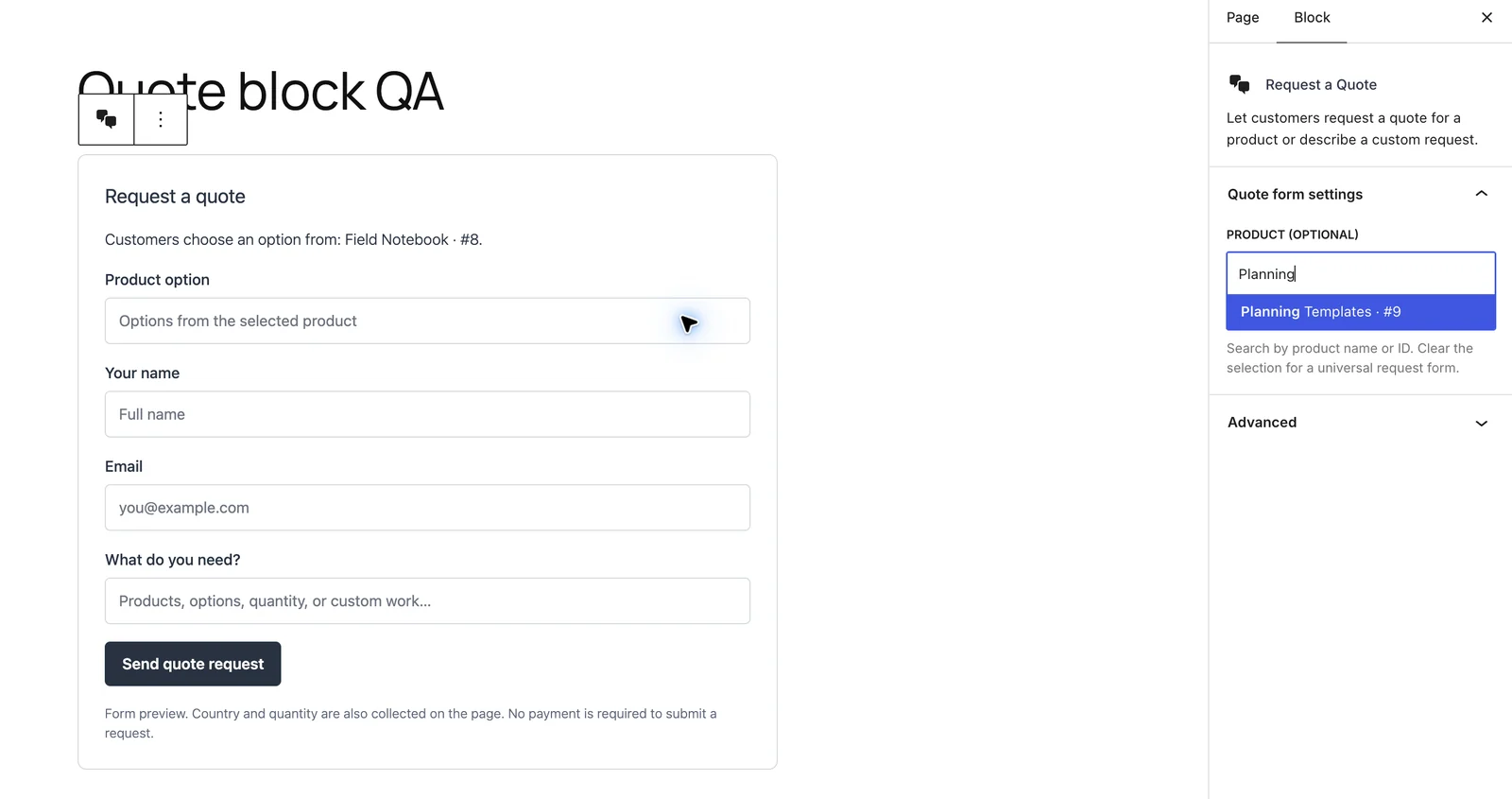
The words around the form should set an expectation you can actually meet. For example:
Tell us what you need and any deadline that affects the work. We’ll review the request and send a proposal for you to consider before payment.
Your customer knows they’ll receive a proposal to consider before payment. Only promise a response time if you can meet it.
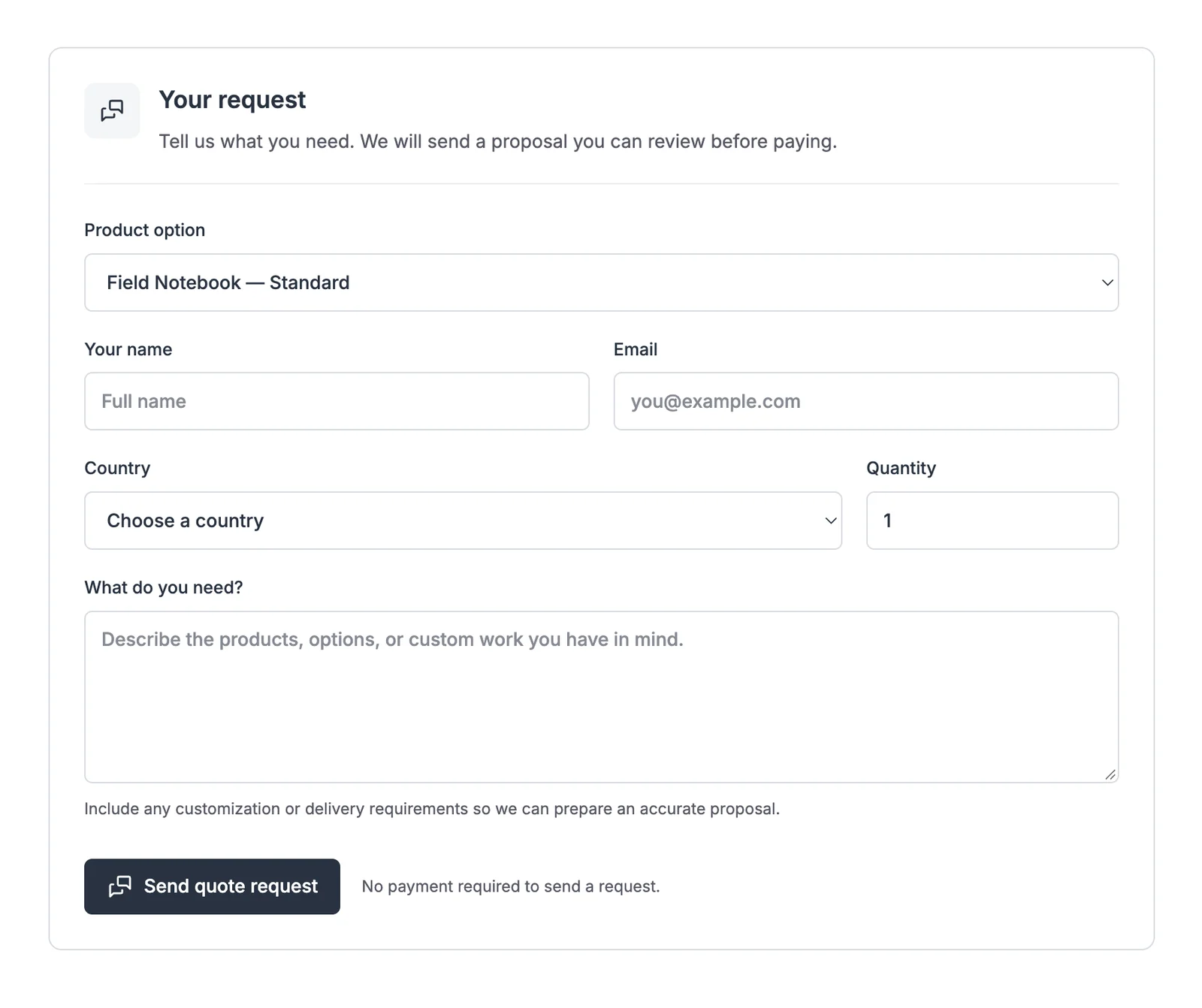
Review the Request Before Pricing
The quality of the proposal depends on the information you have. For a website migration, a useful follow-up might ask:
- Which site is moving and where it will move.
- Whether it has orders or other changing customer data.
- Which parts of the migration the customer expects you to handle.
- Whether a launch date constrains the work.
You may need to ask the buyer these follow-up questions after reading the form submission.
I’d resolve missing scope details before sending a price. Your proposal should name the work you’re agreeing to do.
Prepare and Link the Proposal
The invoice draft holds the proposed items and amounts. The quote request keeps that draft connected to the inquiry that prompted it.
The working sequence is:
- Review the incoming request in Quote requests.
- Prepare or edit the invoice draft with the agreed scope and customer details.
- Use Linked quote request to associate the draft with the request.
- Check the items and totals before returning to the quote workspace.
- Set a valid-through date if the price won’t hold indefinitely, then send the proposal for the customer to accept.
The linked request must use the same customer email, and a request can have one proposal invoice. If the wrong request doesn’t appear as a valid link, check the email rather than creating another customer record to work around it.
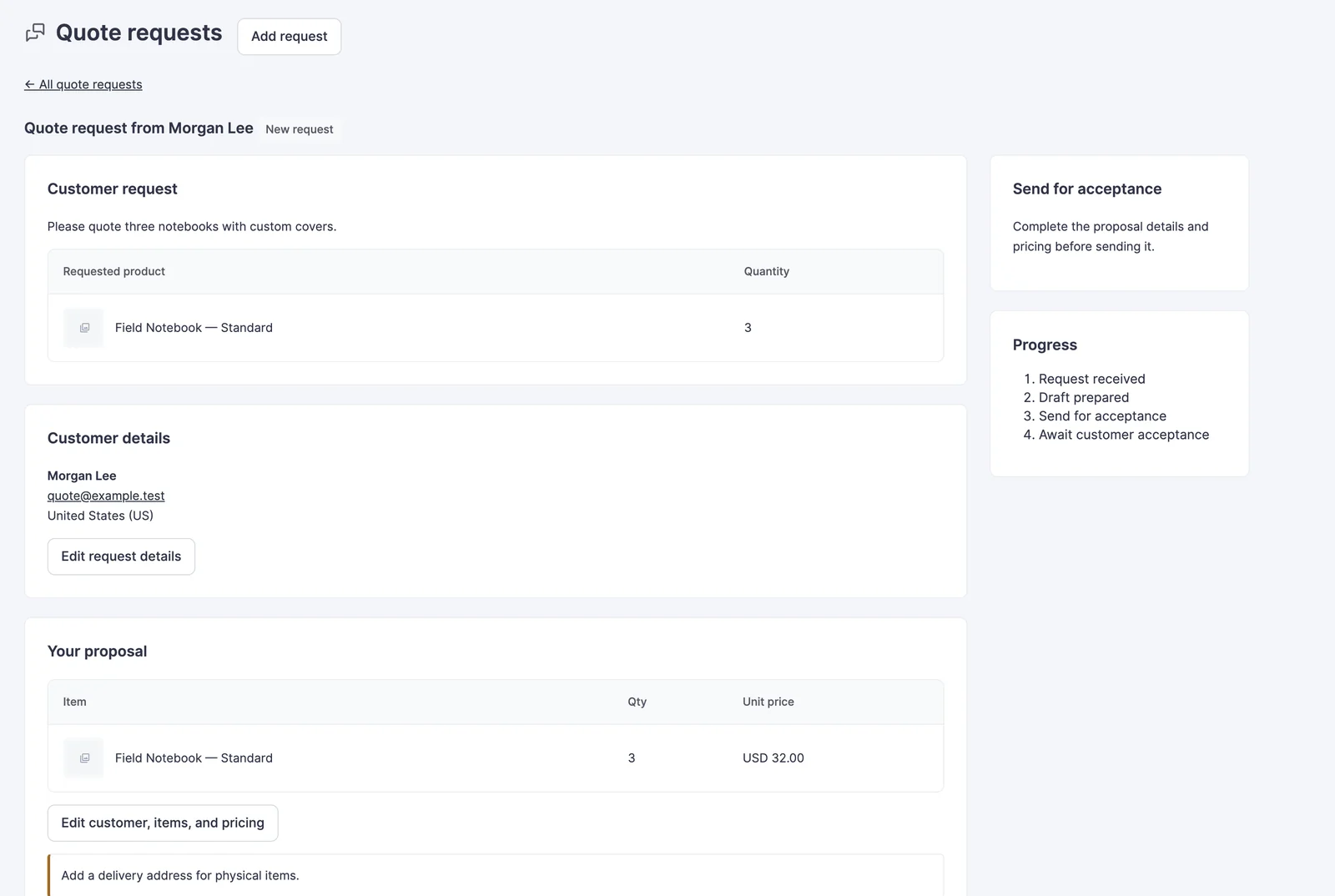
A sent proposal must be withdrawn before changing its link. That protects the connection between the proposal the customer received and the request you’re working on.
Understand Acceptance and Payment
Acceptance creates the payable invoice. It does not mean that the customer has paid.
There are separate events to follow:
- Request received: The customer has described a need.
- Proposal sent: The customer has something specific to consider.
- Proposal accepted: The workflow creates the payable invoice.
- Payment confirmed: FluentCart records the payment against the native order.
If your service starts after payment, check the payment record before beginning work. The customer’s acceptance confirms agreement to the proposal; payment is a separate step.
The full flow is request, proposal, acceptance, invoice and payment. Each transition has a different meaning, so your customer messages should name the next action plainly.
Keep the Follow-Up Manageable
A request form needs a person responsible for the reply. Before putting it on every product page, decide who will review requests and where they will record unanswered scope questions.
Moving every fixed-price sale into a quote queue is usually unnecessary. The form should appear where a conversation improves the agreement, otherwise you’re asking the buyer to wait for an answer your catalog could already give.
Another avoidable problem is sending a replacement proposal without explaining the change. If the scope changes, the customer needs to know which proposal now reflects the job. A working payment system can’t settle an unclear agreement for you.
The Limits
The quote module connects a customer’s inquiry and acceptance to a one-time invoice.
It doesn’t provide:
- Automatic calculation of a custom service price from an open-ended request.
- A recurring invoice schedule through Custom Invoices.
- Online collection of a deposit followed by the remaining invoice balance.
- A complete project-management or contract-negotiation system.
Email delivery also needs to work on your WordPress site. A sent action in the admin is not, on its own, proof that the customer’s inbox received the proposal.
Start With One Offer
Choose the service that needs the most clarification before purchase and add the form there first. Give the customer a clear description of what happens after submitting it, then keep the proposal focused on work you can actually deliver.
The GT Extensions training course provides the product-specific setup reference. The useful habit to keep is separating agreement from payment so you always know which step is waiting on whom.
Tell Google you want more of this.
Add Gaurav Tiwari as a preferred sourceOne tap, and this site shows up more often in your own Top Stories, AI Overviews and AI Mode. Remove it any time.