
 by
by
A site I manage had 1,400 posts and somewhere north of 9,000 outbound links. A client wanted bulk nofollow applied to every external link except a short whitelist of partners. The “right” way, per most tutorials, is to open each post and edit each link by hand. That’s a few weeks of mind-numbing clicking, and you’ll still miss some.
There’s a faster way, and it doesn’t involve a single manual edit. You flip one toggle and every external link on the site gets rel="nofollow" at render time, with a whitelist for the ones you actually vouch for. When you genuinely need the attribute written into the post HTML, a second tool rewrites them in the database in batches. Both live in one plugin, and I run this exact setup on gauravtiwari.org right now.
This guide walks through both methods, the whitelist that keeps your affiliate and partner links clean, the helper for page builders that the usual filters miss, and the developer hooks if you want to script it. No code required for the basics. Some code available when you want it.
What “bulk nofollow” actually means (and when to use it)
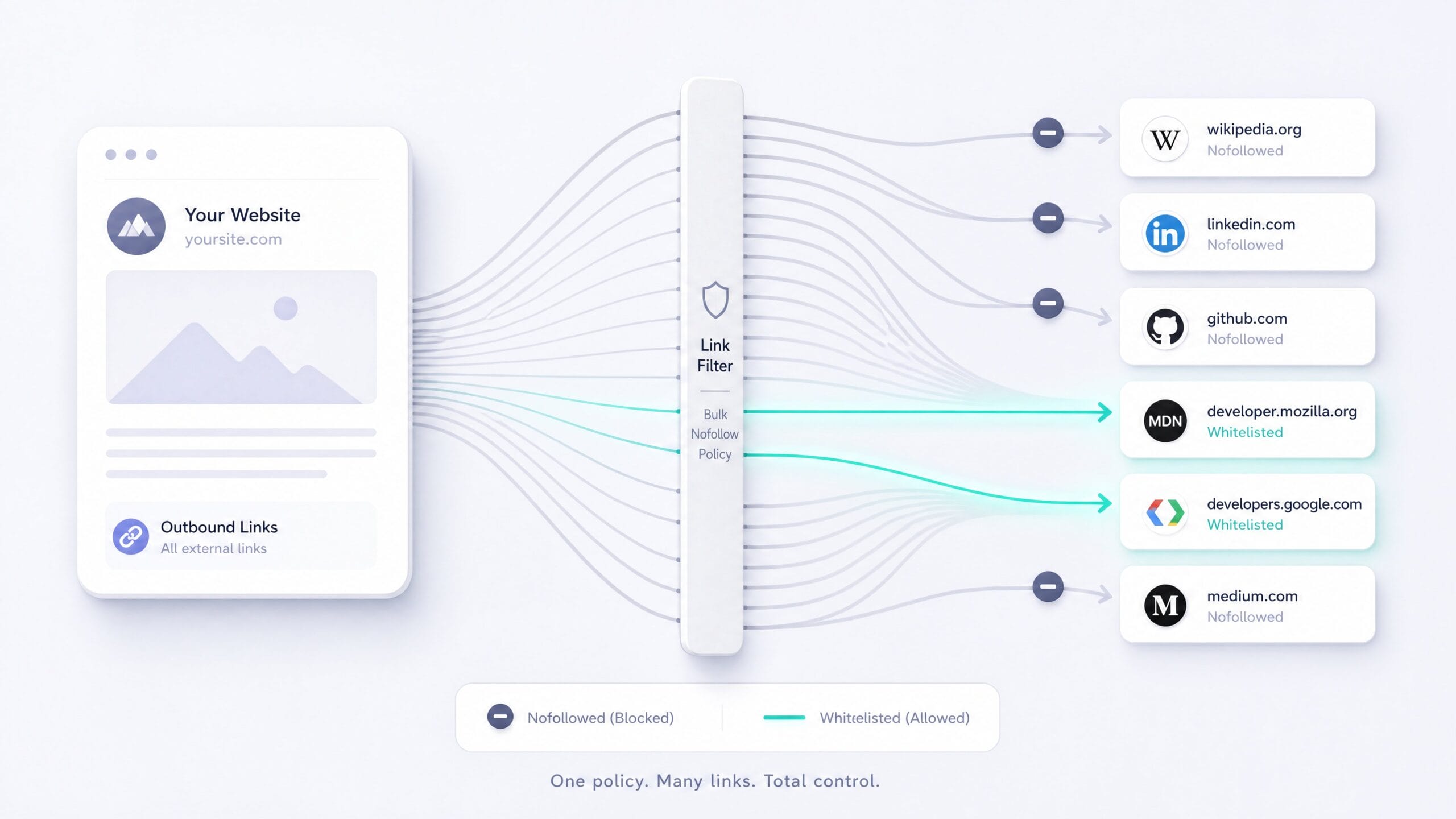
Bulk nofollow means adding the rel="nofollow" attribute to many outbound links at once instead of one at a time. Google reads nofollow as a hint, not a hard command, since the 2019 change that also introduced rel="sponsored" and rel="ugc". It still does real work: it tells search engines you don’t necessarily endorse a destination, it’s the expected signal on paid and affiliate links, and it keeps comment and forum spam from passing your authority around.
You bulk-nofollow in three common situations. First, a blanket policy: every external link is nofollow by default, and you whitelist the few you trust. Second, a specific domain: you linked to a site 80 times, something changed, and you want all 80 marked nofollow without hunting them down. Third, a cleanup: a sponsored campaign ended, or you inherited a site stuffed with un-attributed outbound links and need to fix the lot.
Here’s the rule I follow, and it saves people from the most common mistake. Nofollow external links, not internal ones. Your own links between your own pages are how PageRank flows through your site. Nofollowing them tells Google to ignore your internal structure, which is the opposite of what you want. Every method below targets external links only, by design.
The tool: one module instead of a plugin stack
The whole job runs on the Link Management module inside Dynamic Functionalities, a plugin I build and maintain. It replaces the single-purpose link plugins (External Links, WP External Links, and the various nofollow managers) with one module that loads zero frontend assets and runs a strpos() check before it ever touches a regex or the DOM. Disabled, it loads nothing. Enabled, it adds a few microseconds to output and that’s it.

Dynamic Functionalities
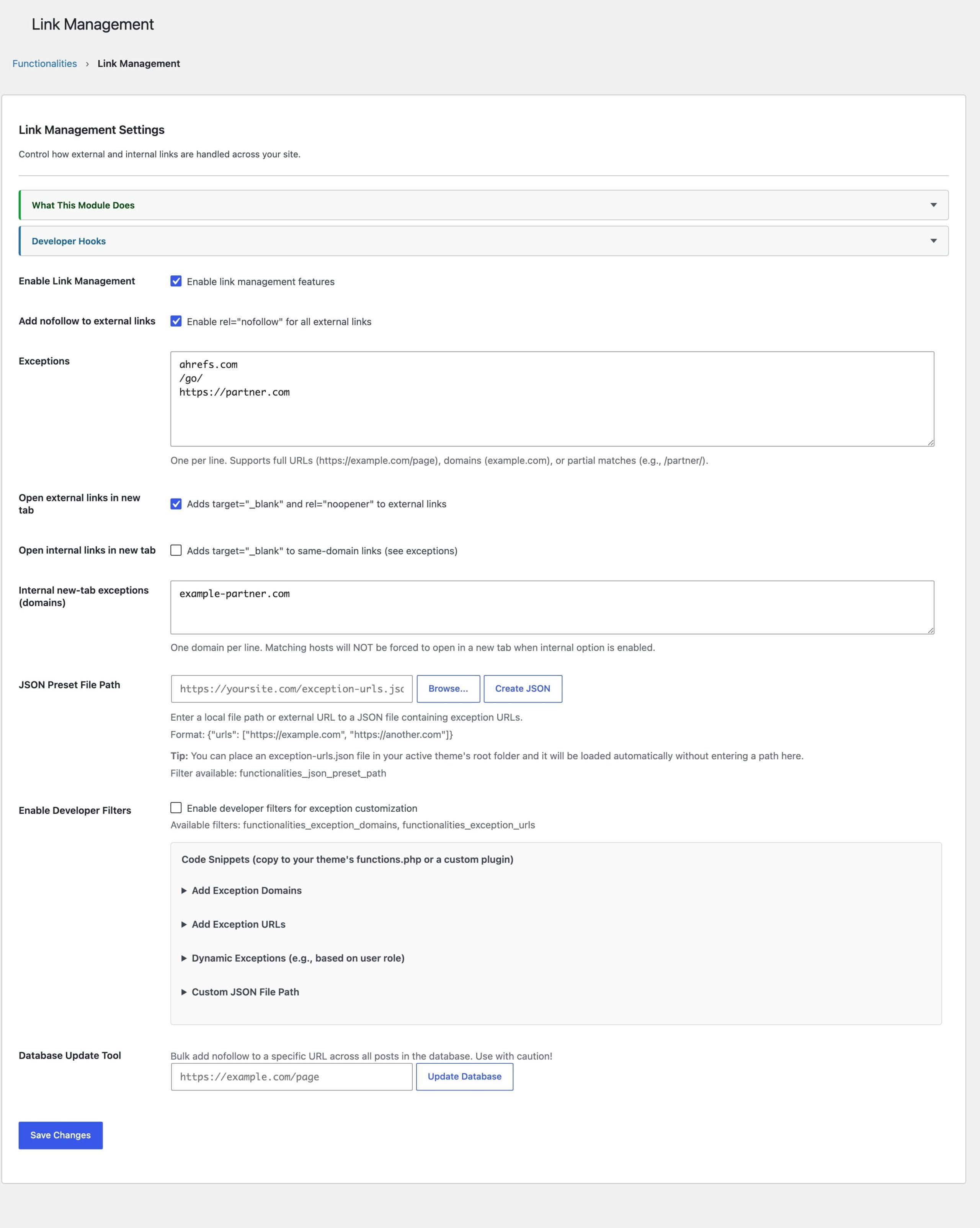
If you don’t have it yet, install Dynamic Functionalities from the WordPress plugin directory the same way you’d install anything else: Plugins, Add New, search, activate. Then open the Functionalities menu in your admin sidebar. Everything below happens on the Link Management tab, under the heading “Link Management Settings,” which describes itself plainly: “Control how external and internal links are handled across your site.”
Turn the module on first. Check “Enable link management features.” Nothing happens yet, because the individual behaviors are still off. That’s deliberate. The module does nothing until you tell it what to do.
Method 1: Nofollow every external link automatically
The fastest bulk nofollow in WordPress is a single checkbox. With the module enabled, tick “Add nofollow to external links” (the label reads Enable rel="nofollow" for all external links) and save. Done. Every external link in your post content, text widgets, and comments now renders with rel="nofollow".
The important detail is what it does NOT do. This method is non-destructive. It adds the attribute on output, through the the_content, widget_text, and comment_text filters, while the HTML stored in your database stays exactly as you wrote it. Untick the box and every link goes back to normal instantly. No content was harmed. That’s the behavior I want on a live site, because a setting I can reverse in one click is a setting I can experiment with.
It only touches external links. The module compares each link’s host against your site’s host, so anything pointing back to your own domain is left alone. Anchor links, mailto:, and tel: are skipped too. And it’s careful with existing attributes: if a link already has rel="noopener", it appends nofollow rather than overwriting, so you end up with rel="noopener nofollow", not a clobbered mess.
For most sites, that one checkbox is the entire job. But “every external link” is rarely the real policy, which is where the whitelist comes in.
The whitelist: keep your affiliate and partner links clean
A blanket nofollow with no exceptions is a blunt instrument. You don’t want nofollow on the affiliate links you earn from, the partners you genuinely endorse, or the authoritative sources you cite to build trust. The Exceptions box handles all of those.
It sits right under the nofollow toggle. Drop one entry per line, and the module supports three match styles, which the field documents inline: “Supports full URLs (https://example.com/page), domains (example.com), or partial matches (e.g., /partner/).”
ahrefs.com
https://example.com/specific-page
/go/
A bare domain like ahrefs.com whitelists that domain and its subdomains. A full URL whitelists exactly that page. A partial fragment like /go/ whitelists every link whose URL contains that string, which is the trick I use for affiliate redirects: all my affiliate links run through gauravtiwari.org/go/, so a single /go/ line keeps every one of them follow while everything else goes nofollow. My actual exceptions list on this site is a mix of all three, a handful of trusted tools and partners I’ve decided are worth a clean link.
Match the policy to your strategy. If you’re cautious, nofollow everything and whitelist nothing. If you run affiliates, whitelist the redirect path. If you cite research, whitelist the domains you quote so the trust signal stays intact.
Sync one whitelist across many sites with a JSON preset
If you manage more than one site, retyping the same exceptions on each one is exactly the kind of busywork this plugin exists to kill. The JSON Preset File Path field takes either a local file path or a URL to a JSON file, and the module merges those URLs into your exceptions automatically.
The format is simple, and the field shows it to you: {"urls": ["https://example.com", "https://another.com"]}. A flat array works too. Host that file once, point every site’s preset field at the URL, and updating the whitelist everywhere becomes a one-file edit instead of a per-site chore.
There’s a zero-config option as well. Drop an exception-urls.json file in your active theme folder and the module finds it on its own, no settings needed. The lookup order runs custom path first, then a developer filter, then child theme, then parent theme, then the plugin default, so you can override at whatever level fits your workflow. The settings screen even detects a theme file and tells you it’s loaded.
Method 2: Write nofollow into the database permanently
Sometimes you don’t want a render-time filter. You want the rel="nofollow" baked into the post content itself, so it’s there in the HTML whether or not the plugin stays active, or so another tool that reads raw content sees it. That’s what the Database Update Tool does, and it’s the second way to bulk-nofollow.
You’ll find it at the bottom of the Link Management settings, labeled honestly: “Bulk add nofollow to a specific URL across all posts in the database. Use with caution!” Paste a URL into the field, click “Update Database,” confirm the prompt (“This will update all posts containing this URL. Are you sure?”), and the tool scans every post for links matching that URL and rewrites them with rel="nofollow" in place.
It’s built to be safe on big sites. It processes 100 posts per run, so it won’t time out on a 5,000-post archive, and when there’s more to do it tells you: “There may be more posts, run again to continue.” It’s idempotent, so a link that already has nofollow is skipped, not double-tagged. And it only matches the exact URL you give it, so you’re rewriting the links you meant to, not guessing.
One serious caveat, because this one earns the “use with caution” label. This method edits your post content in the database. Back up first. Test on staging if the site matters. Unlike Method 1, you can’t untick a box to undo it, the change is written into your content, and reversing it means another pass or a restore. I reach for this only when a URL needs nofollow permanently, like a domain I’ve stopped vouching for. For everything else, the render-time filter is safer.
Which method should you use?
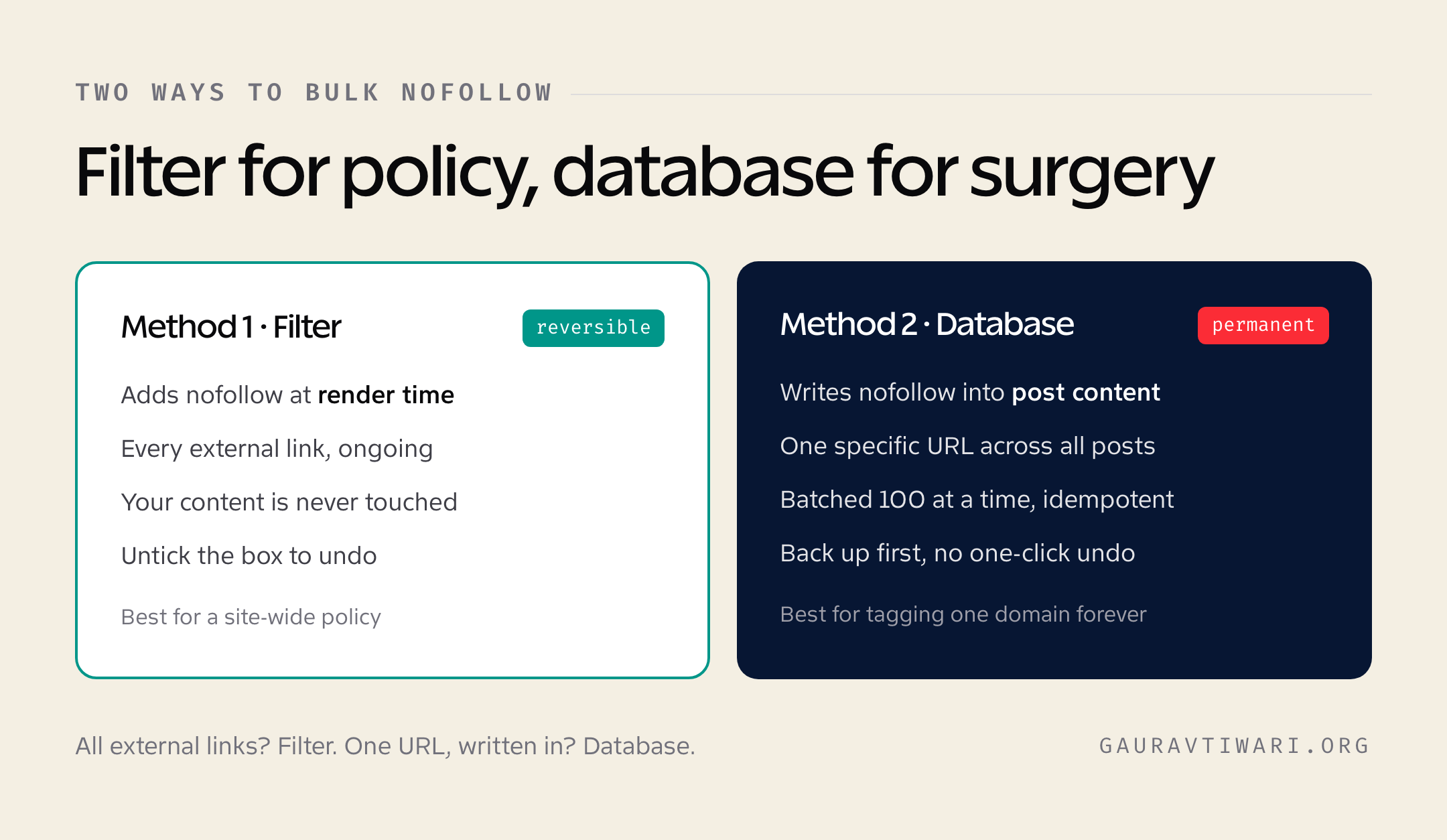
Both add bulk nofollow. They’re built for different jobs, and picking the wrong one is the only real mistake here.
| Method 1: Automatic filter | Method 2: Database tool | |
|---|---|---|
| What it changes | Output only, at render time | Your post content in the database |
| Scope | Every external link, ongoing | One specific URL across all posts |
| Reversible | Yes, untick the box | No, it’s written into your content |
| Best for | A site-wide nofollow policy | Tagging one domain or URL permanently |
| Risk | None, non-destructive | Edits the database, back up first |
| Where to find it | “Add nofollow to external links” toggle | “Database Update Tool” button |
The short version: filter for policy, database for surgery. If your answer is “all external links, ongoing,” use Method 1 and never think about it again. If your answer is “this one URL, written into my content, permanently,” use Method 2 and back up first.
Page builders, ACF, and shortcodes: the gap most filters miss
Here’s a problem nobody warns you about. The automatic nofollow filter hooks the_content, which covers normal post and page content. It does not cover text rendered by Elementor, Bricks, an ACF WYSIWYG field, or a shortcode that builds its own HTML. Those bypass the_content entirely, so their links never get filtered. Most nofollow plugins quietly leave those links un-tagged and you never notice until an audit.
The Link Management module exposes a public helper for exactly this case. Wrap any HTML string in Link_Management::process_content() and it applies the same nofollow and new-tab rules, with the same exceptions, to that markup.
// An ACF WYSIWYG field
echo \Functionalities\Features\Link_Management::process_content( get_field( 'my_wysiwyg' ) );

// Shortcode output
echo \Functionalities\Features\Link_Management::process_content( do_shortcode( $content ) );

// Any HTML string in a custom template
echo \Functionalities\Features\Link_Management::process_content( $html );
Drop that into your template where the builder or field renders, and the links inside finally obey your policy. This is the piece that makes “bulk nofollow” actually mean every link, not just the ones in the classic editor.
One safety note built into the helper: it detects Vue and React directives (v-if, :class, @click, {{ }}) and skips that content untouched, because running it through a DOM parser would corrupt the framework syntax. If you run a theme like MyListing with interactive Vue pages, this is why they don’t break.
Developer filters for the people who want them
If you’d rather express your exceptions in code, or you’re wiring this into a deployment, flip on “Enable Developer Filters” and four hooks become available.
// Add exception domains programmatically
add_filter( 'functionalities_exception_domains', function( $domains ) {
    $domains[] = 'trusted-partner.com';
    return $domains;
} );

// Add exception URLs (partial or full)
add_filter( 'functionalities_exception_urls', function( $urls ) {
    $urls[] = '/go/';
    return $urls;
} );

// Point the JSON preset at a custom path
add_filter( 'functionalities_json_preset_path', function() {
    return '/var/www/shared/exception-urls.json';
} );

// Raise or lower the database-tool batch size (default 100)
add_filter( 'functionalities_link_update_batch_limit', function() {
    return 250;
} );
The filters stay dormant until you enable them, so there’s no overhead for people who never touch code. That’s the pattern across the whole plugin: simple by default, scriptable when you ask.
Best practices I’d actually follow
A few hard-won rules, because bulk-editing links is the kind of thing that’s easy to get subtly wrong.
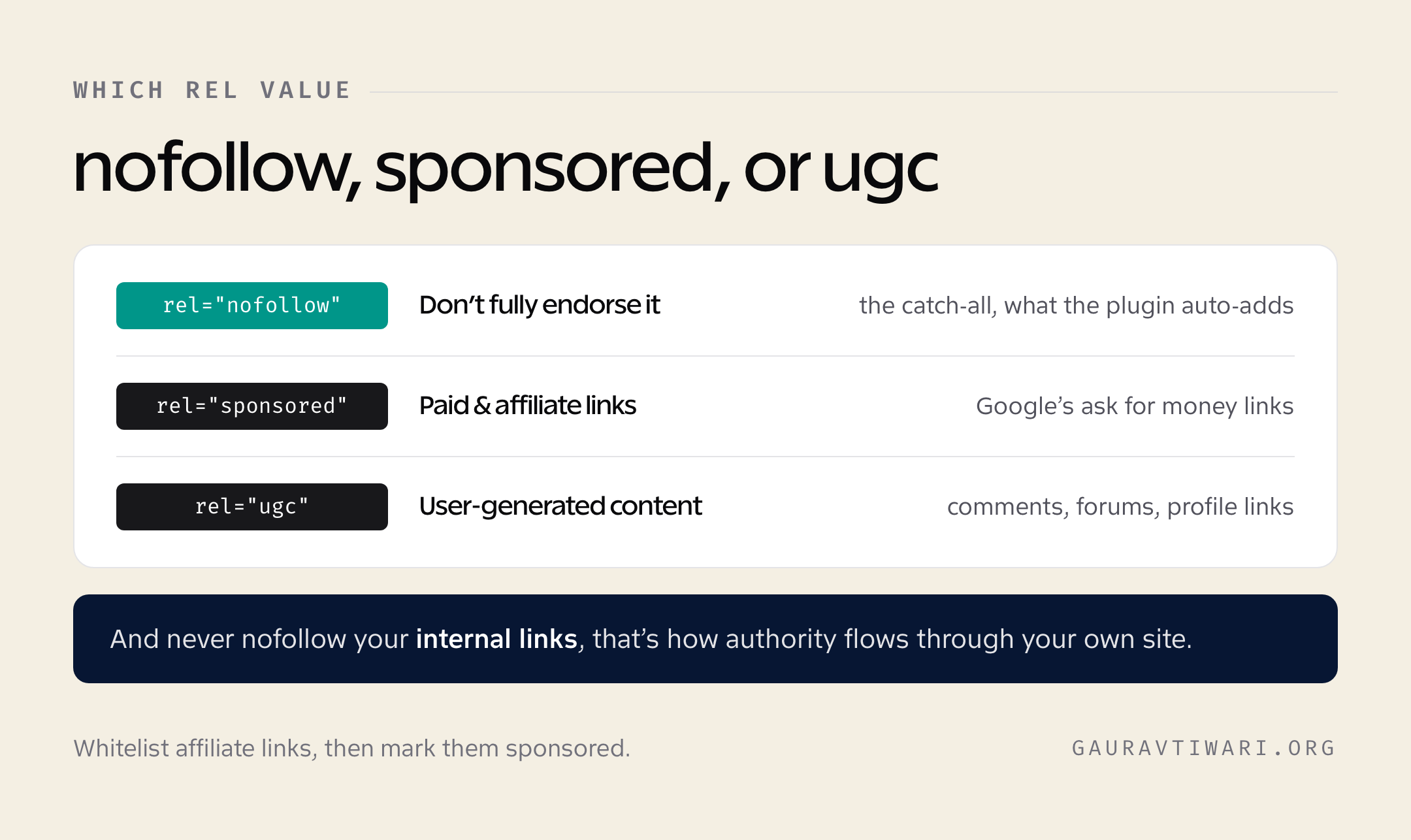
Use the right rel value for the job. The plugin’s automatic feature adds nofollow, which is correct for general “I don’t fully endorse this” links and still works as the catch-all. For paid placements and affiliate links, Google asks specifically for rel="sponsored", and for user-generated content like comments, rel="ugc". If you run affiliates, the clean pattern is to whitelist your affiliate path so the auto-nofollow skips it, then add sponsored to those links yourself. Don’t let “nofollow everything” become an excuse to skip proper attribution on paid links.
Never nofollow internal links. I’ll say it twice because I’ve watched it tank crawl efficiency on real sites. The module already protects you by only touching external hosts, but if you ever hand-build exceptions or filters, keep your own domain out of the nofollow path.
Test the database tool on staging. Method 1 is reversible, so experiment freely on production. Method 2 writes to your content, so treat it like any database operation: back up, run on staging if the site earns money, then run on production.
Remember nofollow is a hint. Since 2019, Google may still crawl and even index a nofollowed link. The attribute is about attribution and control, not a wall. Use it to shape signals, not as a security measure.
Frequently asked questions
What is the fastest way to nofollow all external links in WordPress?
Enable the Link Management module in Dynamic Functionalities and tick “Add nofollow to external links.” That’s one checkbox. Every external link in your content, widgets, and comments renders with rel="nofollow", it applies at render time so your content isn’t touched, and you can reverse it instantly by unticking the box.
Does bulk nofollow change my actual post content?
It depends on the method. The automatic filter (Method 1) is non-destructive: it adds the attribute on output and leaves the HTML in your database untouched. The Database Update Tool (Method 2) does rewrite the links in your post content, so back up before you run it.
How do I keep my affiliate and partner links followed?
Add them to the Exceptions box under the nofollow toggle. It accepts a bare domain (ahrefs.com), a full URL, or a partial fragment. The fragment trick is the useful one: since affiliate links usually share a path like /go/, a single /go/ line whitelists every affiliate redirect at once while everything else stays nofollow.
Should I nofollow internal links too?
No. Internal links are how authority flows through your own site, and nofollowing them tells Google to ignore your structure. The module only touches external hosts by design, so your internal links are safe. If you ever build custom exceptions, keep your own domain out of any nofollow rule.
Nofollow, sponsored, or ugc for affiliate links?
Google asks specifically for rel="sponsored" on paid and affiliate links, and rel="ugc" on user-generated content like comments. The plugin’s automatic feature adds nofollow, which is the right catch-all. For affiliates, whitelist your affiliate path so auto-nofollow skips it, then add sponsored to those links yourself.
Does this work with Elementor, Bricks, or ACF fields?
The automatic filter covers the_content, which page builders and ACF WYSIWYG fields bypass. For those, call Link_Management::process_content( $html ) in your template on the builder or field output. It applies the same nofollow rules, with the same exceptions, to that markup.
Will bulk nofollow slow down my site?
Barely. The module loads zero frontend assets and runs a strpos() check before any regex or DOM parsing, so links-free content exits in microseconds. On a page with links, the cost is a single DOM pass at output, which you won’t measure.
Does nofollow still matter in 2026?
Yes, as a hint rather than a directive. Since 2019 Google may still crawl and even index a nofollowed link, so it’s not a wall. But it remains the expected signal on paid, affiliate, and untrusted links, and it controls how your site’s authority flows outward, which is exactly what bulk nofollow is for.
The setup in one breath
Install Dynamic Functionalities, open Link Management, enable the module, tick “Add nofollow to external links,” and add your affiliate path and trusted domains to the Exceptions box. That covers 95 percent of sites in about ninety seconds, with zero edits to your content and a one-click undo. When you need a specific URL nofollowed permanently in the HTML, the Database Update Tool handles it in batches. When your page builder hides links from the normal filter, process_content() reaches them.
That’s the whole thing. One toggle for the policy, one whitelist for the exceptions, one tool for the surgical jobs. No spreadsheet of links, no afternoon of manual editing, no second plugin. I built it because I got tired of doing this by hand, and now I never do.
Tell Google you want more of this.
Add Gaurav Tiwari as a preferred sourceOne tap, and this site shows up more often in your own Top Stories, AI Overviews and AI Mode. Remove it any time.