
 by
by
A Halloween sale needs a page that does one job: show the offer with its deadline and send the visitor to checkout. Most free Halloween landing page templates for WordPress come tied to a page builder or a block add-on, so a one-week campaign leaves you with an extra plugin on the site long after the pumpkins are gone.
I made a Halloween landing page template that needs none of that. It is built from core WordPress blocks and imports as a pattern, so it works on Twenty Twenty-Five with no plugin installed, and it stacks cleanly on a phone. There is also an optional countdown that hides the buy buttons once your real deadline passes, so nobody clicks into an offer that has already ended.
Every value you have to change in the template sits inside square brackets, so you can see at a glance what still needs your offer.
What the Landing Page Needs
A Halloween sale landing page works when it sells one offer to one kind of visitor and asks for one action. If you are new to the idea, my guide on what landing pages are and why they convert covers the basics. For a seasonal sale, a visitor decides quickly, so the page has to say what they get and how long the price lasts before anything else.
Before going into the import, I want to ensure your offer is settled, because no template can fix a vague offer. Keep these details ready:
- The offer in one line, such as 30% off every annual plan
- The regular price and the Halloween price
- The start and end dates, with a timezone
- Who qualifies, such as new customers only
- The URL the button should open: a checkout link, a product page or a signup form
- Your refund policy, if you offer one
The template puts those details into five sections, and each section answers one question a buyer has before clicking.
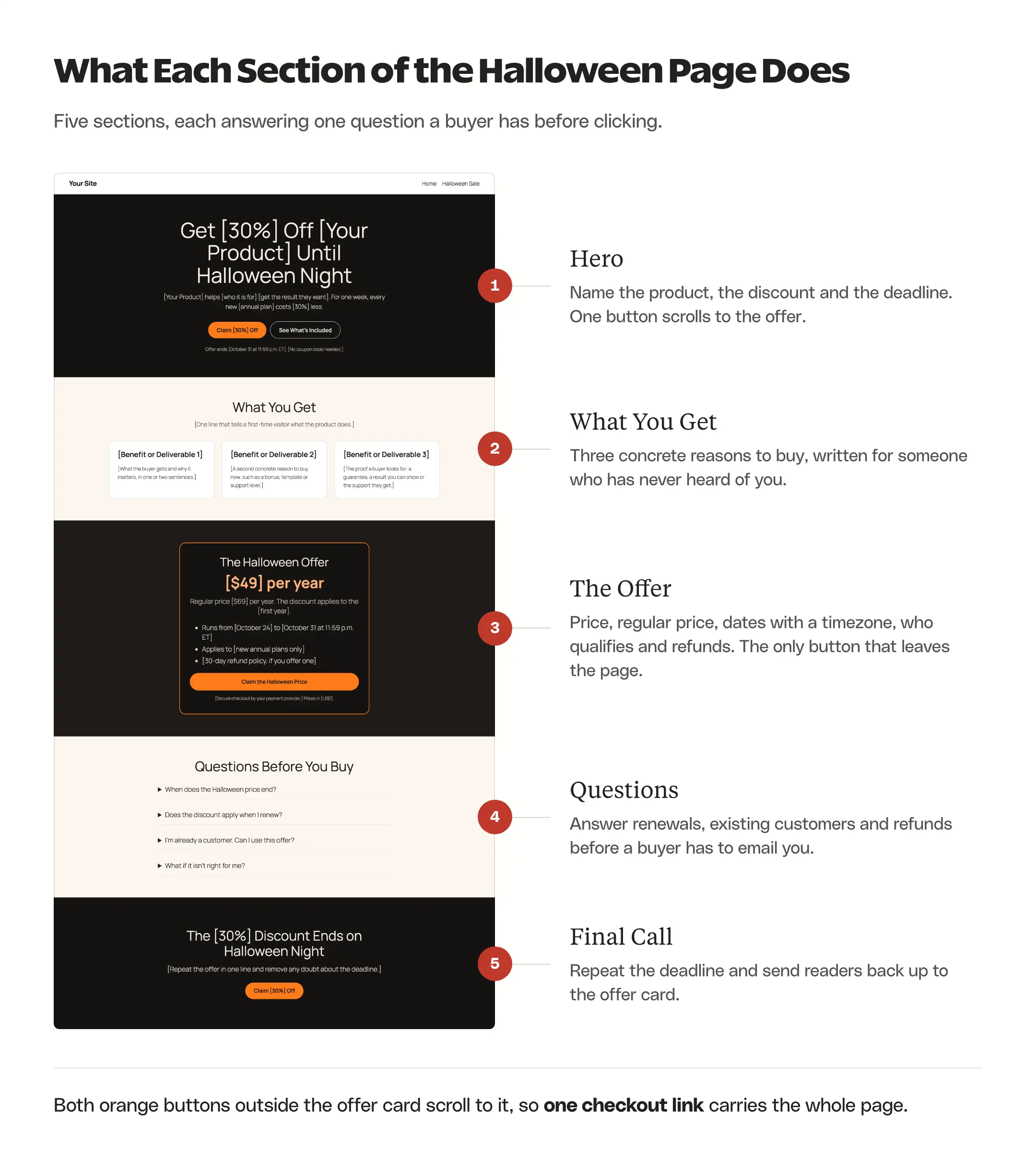
Two of the three orange buttons scroll down to the offer card instead of leaving the page, and that is deliberate. A visitor who clicks “Claim 30% Off” in the hero should see the price, dates and terms before reaching checkout, and you only have one outbound link to replace and test.
Choose the WordPress Setup
There are broadly three ways people build a seasonal page in WordPress.
You can import a Halloween kit for a page builder such as Elementor. It is quick if the builder already runs your site. If it does not, you are installing a builder and its styles for one week of selling.
Or, you can hand-code the page in a Custom HTML block. You get full control, but nobody else on the team can change a date without touching code, and that is exactly when mistakes happen.
Neither extreme is a good idea for a short campaign. Core blocks sit in the middle: the page stays editable in the normal editor, it uses your theme’s fonts and there is nothing to uninstall in November. If your site already runs on a builder, my roundup of landing page builders compares the options, and it is wise to use the kit your builder already has.
This template needs:
- WordPress with the block editor and a block theme. I built it on Twenty Twenty-Five, and it renders correctly on Twenty Twenty-Four too. Other block themes change the fonts and spacing but keep the layout.
- No plugins. Every section uses core blocks: Cover, Group, Columns, Heading, Paragraph, List, Buttons and Details.
- An Administrator account only if you want the countdown. WordPress lets a user save scripts only with the
unfiltered_htmlcapability, which Administrators have on a single site and only Super Admins have on a multisite network. - On a classic theme, the full-width color bands depend on the theme supporting wide and full alignment. Check one section before you build the whole page.
None of this needs a paid tool. If the sale itself is for a WordPress product, or you are buying a checkout or form plugin for it anyway, my list of WordPress Halloween deals tracks this year’s discounts in one place.
Import the Halloween Template
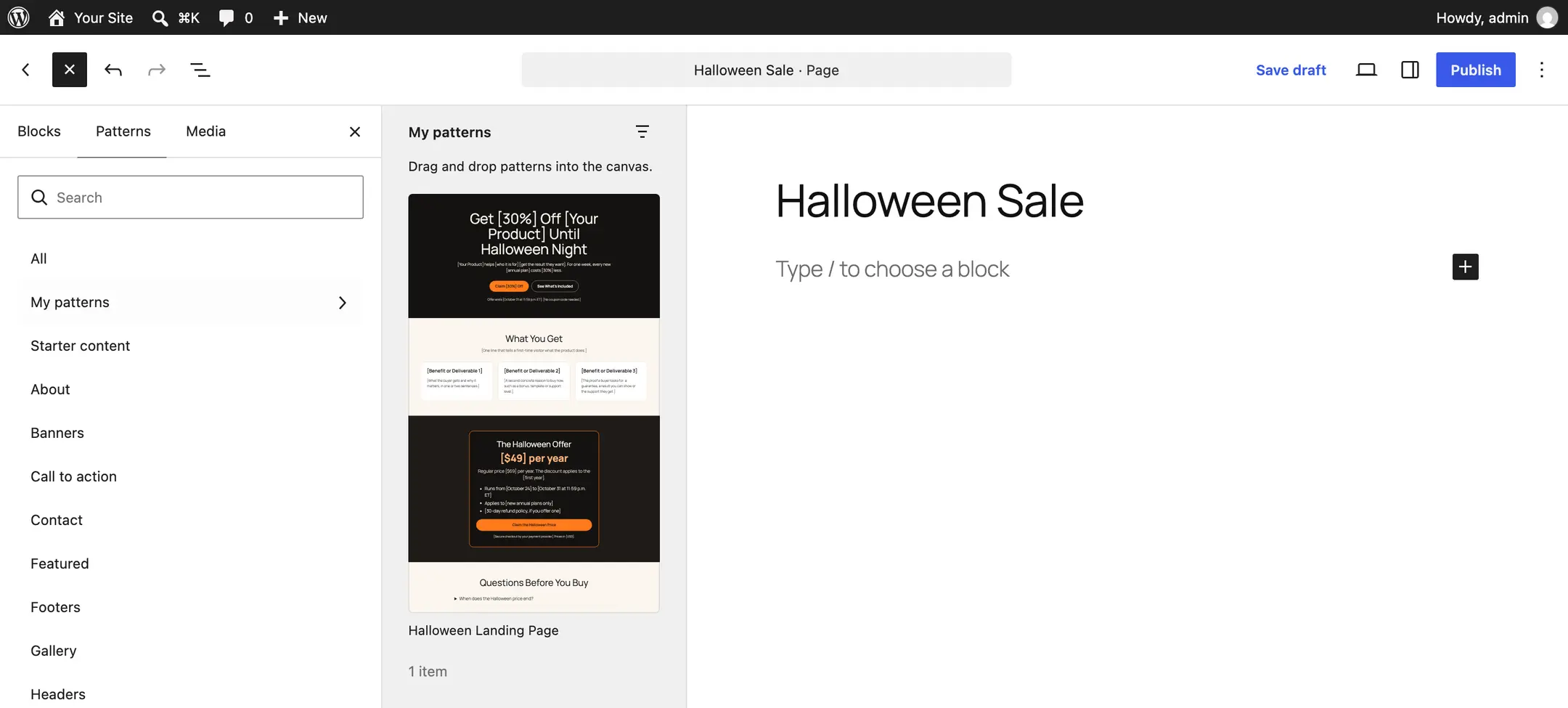
The pattern file is the cleanest way to install this Halloween WordPress landing page template, because the page becomes a reusable pattern. You import it once and can drop it into any page, including next year’s sale. WordPress calls these block patterns, and an imported pattern sits under My patterns in the block inserter.
- Download the kit and unzip it.
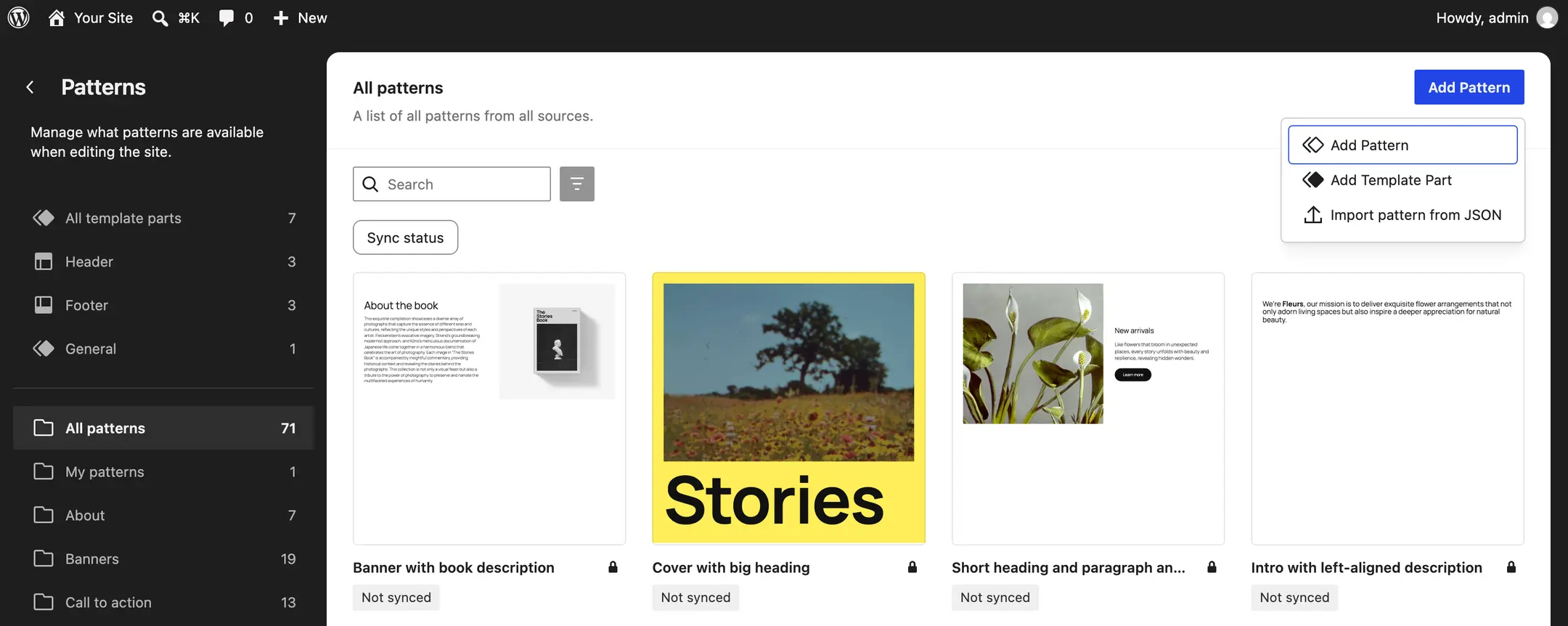
- In your dashboard, go to Appearance > Editor > Patterns.
- Click Add Pattern and choose Import pattern from JSON.
- Select
halloween-landing-page-pattern.json. It imports as an unsynced pattern called Halloween Landing Page.
- Create a new page, open the block inserter and switch to Patterns > My patterns.
- Click Halloween Landing Page to insert all five sections.
- In the page settings sidebar, change Template to Page No Title, so the hero headline is the only H1 on the page.
Unsynced matters here. Each page gets its own copy of the blocks, so editing this year’s offer never changes the pattern you saved for the next sale.
On a clean Twenty Twenty-Five install, the JSON file imports as one unsynced pattern and the inserted page loads as 47 valid blocks, with no “unexpected or invalid content” warnings in the editor.
Paste the Block Markup Instead
If you would rather not keep a pattern around, paste the markup straight into a page. Create a new page, open the Options menu (the three dots at the top right) and choose Code editor. Paste the full contents of halloween-landing-page-blocks.html from the kit, or copy it from the box below, then click Exit code editor. The same 47 blocks appear, ready to edit.
<!-- wp:cover {"customOverlayColor":"#141210","isUserOverlayColor":true,"minHeight":560,"minHeightUnit":"px","isDark":true,"align":"full","style":{"spacing":{"margin":{"top":"0","bottom":"0"},"padding":{"top":"5rem","bottom":"5rem","left":"1.5rem","right":"1.5rem"}},"color":{"text":"#f6efe6"},"elements":{"link":{"color":{"text":"#f6efe6"}}}},"layout":{"type":"constrained","contentSize":"760px"}} -->
<div class="wp-block-cover alignfull is-dark has-text-color has-link-color" style="color:#f6efe6;margin-top:0;margin-bottom:0;padding-top:5rem;padding-right:1.5rem;padding-bottom:5rem;padding-left:1.5rem;min-height:560px"><span aria-hidden="true" class="wp-block-cover__background has-background-dim-100 has-background-dim" style="background-color:#141210"></span><div class="wp-block-cover__inner-container"><!-- wp:heading {"textAlign":"center","level":1,"style":{"typography":{"fontSize":"clamp(2.4rem, 6vw, 4.25rem)","lineHeight":"1.08"},"color":{"text":"#f6efe6"}}} -->
<h1 class="wp-block-heading has-text-align-center has-text-color" style="color:#f6efe6;font-size:clamp(2.4rem, 6vw, 4.25rem);line-height:1.08">Get [30%] Off [Your Product] Until Halloween Night</h1>
<!-- /wp:heading -->

<!-- wp:paragraph {"align":"center","style":{"typography":{"fontSize":"1.25rem","lineHeight":"1.6"},"color":{"text":"#e9dfd2"}}} -->
<p class="has-text-align-center has-text-color" style="color:#e9dfd2;font-size:1.25rem;line-height:1.6">[Your Product] helps [who it is for] [get the result they want]. For one week, every new [annual plan] costs [30%] less.</p>
<!-- /wp:paragraph -->

<!-- wp:buttons {"layout":{"type":"flex","justifyContent":"center"},"style":{"spacing":{"margin":{"top":"2rem"},"blockGap":"0.75rem"}}} -->
<div class="wp-block-buttons" style="margin-top:2rem"><!-- wp:button {"style":{"color":{"background":"#ff7a1a","text":"#141210"},"border":{"radius":"999px"},"spacing":{"padding":{"top":"0.9rem","bottom":"0.9rem","left":"1.75rem","right":"1.75rem"}},"typography":{"fontWeight":"600"}},"className":"hlp-offer-cta"} -->
<div class="wp-block-button hlp-offer-cta"><a class="wp-block-button__link has-text-color has-background wp-element-button" href="#offer" style="border-radius:999px;color:#141210;background-color:#ff7a1a;padding-top:0.9rem;padding-right:1.75rem;padding-bottom:0.9rem;padding-left:1.75rem;font-weight:600">Claim [30%] Off</a></div>
<!-- /wp:button -->

<!-- wp:button {"style":{"color":{"text":"#f6efe6"},"border":{"radius":"999px","width":"1px","color":"#f6efe6"},"spacing":{"padding":{"top":"0.9rem","bottom":"0.9rem","left":"1.75rem","right":"1.75rem"}},"typography":{"fontWeight":"600"}},"className":"is-style-outline"} -->
<div class="wp-block-button is-style-outline"><a class="wp-block-button__link has-text-color has-border-color wp-element-button" href="#included" style="border-color:#f6efe6;border-width:1px;border-radius:999px;color:#f6efe6;padding-top:0.9rem;padding-right:1.75rem;padding-bottom:0.9rem;padding-left:1.75rem;font-weight:600">See What's Included</a></div>
<!-- /wp:button -->
</div>
<!-- /wp:buttons -->

<!-- wp:paragraph {"align":"center","style":{"typography":{"fontSize":"0.95rem"},"color":{"text":"#cfc4b6"},"spacing":{"margin":{"top":"1.5rem"}}}} -->
<p class="has-text-align-center has-text-color" style="color:#cfc4b6;margin-top:1.5rem;font-size:0.95rem">Offer ends [October 31 at 11:59 p.m. ET]. [No coupon code needed.]</p>
<!-- /wp:paragraph --></div></div>
<!-- /wp:cover -->

<!-- wp:group {"anchor":"included","align":"full","style":{"spacing":{"margin":{"top":"0","bottom":"0"},"padding":{"top":"4.5rem","bottom":"4.5rem","left":"1.5rem","right":"1.5rem"}},"color":{"background":"#fbf6ef","text":"#1c1917"},"elements":{"link":{"color":{"text":"#c2410c"}}}},"layout":{"type":"constrained","contentSize":"1080px"}} -->
<div id="included" class="wp-block-group alignfull has-text-color has-background has-link-color" style="color:#1c1917;background-color:#fbf6ef;margin-top:0;margin-bottom:0;padding-top:4.5rem;padding-right:1.5rem;padding-bottom:4.5rem;padding-left:1.5rem"><!-- wp:heading {"textAlign":"center","style":{"typography":{"fontSize":"clamp(1.9rem, 4vw, 2.75rem)","lineHeight":"1.15"},"color":{"text":"#1c1917"}}} -->
<h2 class="wp-block-heading has-text-align-center has-text-color" style="color:#1c1917;font-size:clamp(1.9rem, 4vw, 2.75rem);line-height:1.15">What You Get</h2>
<!-- /wp:heading -->

<!-- wp:paragraph {"align":"center","style":{"color":{"text":"#57534e"},"typography":{"fontSize":"1.2rem"}}} -->
<p class="has-text-align-center has-text-color" style="color:#57534e;font-size:1.2rem">[One line that tells a first-time visitor what the product does.]</p>
<!-- /wp:paragraph -->

<!-- wp:columns {"style":{"spacing":{"margin":{"top":"2.5rem"},"blockGap":{"left":"1.5rem","top":"1.5rem"}}}} -->
<div class="wp-block-columns" style="margin-top:2.5rem"><!-- wp:column {"style":{"spacing":{"padding":{"top":"1.75rem","bottom":"1.75rem","left":"1.75rem","right":"1.75rem"}},"color":{"background":"#ffffff"},"border":{"radius":"16px","width":"1px","color":"#e7ddd0"}}} -->
<div class="wp-block-column has-border-color has-background" style="border-color:#e7ddd0;border-width:1px;border-radius:16px;background-color:#ffffff;padding-top:1.75rem;padding-right:1.75rem;padding-bottom:1.75rem;padding-left:1.75rem"><!-- wp:heading {"level":3,"style":{"typography":{"fontSize":"1.5rem","fontWeight":"600","lineHeight":"1.25"},"color":{"text":"#1c1917"}}} -->
<h3 class="wp-block-heading has-text-color" style="color:#1c1917;font-size:1.5rem;font-weight:600;line-height:1.25">[Benefit or Deliverable 1]</h3>
<!-- /wp:heading -->

<!-- wp:paragraph {"style":{"color":{"text":"#44403c"},"typography":{"fontSize":"1.05rem","lineHeight":"1.6"}}} -->
<p class="has-text-color" style="color:#44403c;font-size:1.05rem;line-height:1.6">[What the buyer gets and why it matters, in one or two sentences.]</p>
<!-- /wp:paragraph --></div>
<!-- /wp:column -->

<!-- wp:column {"style":{"spacing":{"padding":{"top":"1.75rem","bottom":"1.75rem","left":"1.75rem","right":"1.75rem"}},"color":{"background":"#ffffff"},"border":{"radius":"16px","width":"1px","color":"#e7ddd0"}}} -->
<div class="wp-block-column has-border-color has-background" style="border-color:#e7ddd0;border-width:1px;border-radius:16px;background-color:#ffffff;padding-top:1.75rem;padding-right:1.75rem;padding-bottom:1.75rem;padding-left:1.75rem"><!-- wp:heading {"level":3,"style":{"typography":{"fontSize":"1.5rem","fontWeight":"600","lineHeight":"1.25"},"color":{"text":"#1c1917"}}} -->
<h3 class="wp-block-heading has-text-color" style="color:#1c1917;font-size:1.5rem;font-weight:600;line-height:1.25">[Benefit or Deliverable 2]</h3>
<!-- /wp:heading -->

<!-- wp:paragraph {"style":{"color":{"text":"#44403c"},"typography":{"fontSize":"1.05rem","lineHeight":"1.6"}}} -->
<p class="has-text-color" style="color:#44403c;font-size:1.05rem;line-height:1.6">[A second concrete reason to buy now, such as a bonus, template or support level.]</p>
<!-- /wp:paragraph --></div>
<!-- /wp:column -->

<!-- wp:column {"style":{"spacing":{"padding":{"top":"1.75rem","bottom":"1.75rem","left":"1.75rem","right":"1.75rem"}},"color":{"background":"#ffffff"},"border":{"radius":"16px","width":"1px","color":"#e7ddd0"}}} -->
<div class="wp-block-column has-border-color has-background" style="border-color:#e7ddd0;border-width:1px;border-radius:16px;background-color:#ffffff;padding-top:1.75rem;padding-right:1.75rem;padding-bottom:1.75rem;padding-left:1.75rem"><!-- wp:heading {"level":3,"style":{"typography":{"fontSize":"1.5rem","fontWeight":"600","lineHeight":"1.25"},"color":{"text":"#1c1917"}}} -->
<h3 class="wp-block-heading has-text-color" style="color:#1c1917;font-size:1.5rem;font-weight:600;line-height:1.25">[Benefit or Deliverable 3]</h3>
<!-- /wp:heading -->

<!-- wp:paragraph {"style":{"color":{"text":"#44403c"},"typography":{"fontSize":"1.05rem","lineHeight":"1.6"}}} -->
<p class="has-text-color" style="color:#44403c;font-size:1.05rem;line-height:1.6">[The proof a buyer looks for: a guarantee, a result you can show or the support they get.]</p>
<!-- /wp:paragraph --></div>
<!-- /wp:column --></div>
<!-- /wp:columns --></div>
<!-- /wp:group -->

<!-- wp:group {"anchor":"offer","align":"full","style":{"spacing":{"margin":{"top":"0","bottom":"0"},"padding":{"top":"4.5rem","bottom":"4.5rem","left":"1.5rem","right":"1.5rem"}},"color":{"background":"#1f1b18","text":"#f6efe6"},"elements":{"link":{"color":{"text":"#ffb27a"}}}},"layout":{"type":"constrained","contentSize":"620px"}} -->
<div id="offer" class="wp-block-group alignfull has-text-color has-background has-link-color" style="color:#f6efe6;background-color:#1f1b18;margin-top:0;margin-bottom:0;padding-top:4.5rem;padding-right:1.5rem;padding-bottom:4.5rem;padding-left:1.5rem"><!-- wp:group {"style":{"spacing":{"padding":{"top":"2.5rem","bottom":"2.5rem","left":"2rem","right":"2rem"}},"border":{"radius":"20px","width":"2px","color":"#ff7a1a"},"color":{"background":"#141210"}},"layout":{"type":"constrained"}} -->
<div class="wp-block-group has-border-color has-background" style="border-color:#ff7a1a;border-width:2px;border-radius:20px;background-color:#141210;padding-top:2.5rem;padding-right:2rem;padding-bottom:2.5rem;padding-left:2rem"><!-- wp:heading {"textAlign":"center","style":{"typography":{"fontSize":"clamp(1.75rem, 4vw, 2.4rem)","lineHeight":"1.15"},"color":{"text":"#f6efe6"}}} -->
<h2 class="wp-block-heading has-text-align-center has-text-color" style="color:#f6efe6;font-size:clamp(1.75rem, 4vw, 2.4rem);line-height:1.15">The Halloween Offer</h2>
<!-- /wp:heading -->

<!-- wp:paragraph {"align":"center","style":{"typography":{"fontSize":"clamp(2.2rem, 6vw, 3rem)","fontWeight":"700","lineHeight":"1.1"},"color":{"text":"#ffb27a"}}} -->
<p class="has-text-align-center has-text-color" style="color:#ffb27a;font-size:clamp(2.2rem, 6vw, 3rem);font-weight:700;line-height:1.1">[$49] per year</p>
<!-- /wp:paragraph -->

<!-- wp:paragraph {"align":"center","style":{"color":{"text":"#cfc4b6"}}} -->
<p class="has-text-align-center has-text-color" style="color:#cfc4b6">Regular price [$69] per year. The discount applies to the [first year].</p>
<!-- /wp:paragraph -->

<!-- wp:list {"style":{"color":{"text":"#e9dfd2"},"spacing":{"margin":{"top":"1.5rem","bottom":"1.5rem"}}}} -->
<ul style="color:#e9dfd2;margin-top:1.5rem;margin-bottom:1.5rem" class="wp-block-list has-text-color"><!-- wp:list-item -->
<li>Runs from [October 24] to [October 31 at 11:59 p.m. ET]</li>
<!-- /wp:list-item -->

<!-- wp:list-item -->
<li>Applies to [new annual plans only]</li>
<!-- /wp:list-item -->

<!-- wp:list-item -->
<li>[30-day refund policy, if you offer one]</li>
<!-- /wp:list-item --></ul>
<!-- /wp:list -->

<!-- wp:buttons {"layout":{"type":"flex","justifyContent":"center"}} -->
<div class="wp-block-buttons"><!-- wp:button {"width":100,"style":{"color":{"background":"#ff7a1a","text":"#141210"},"border":{"radius":"999px"},"spacing":{"padding":{"top":"1rem","bottom":"1rem"}},"typography":{"fontWeight":"600","fontSize":"1.1rem"}},"className":"hlp-offer-cta"} -->
<div class="wp-block-button has-custom-width wp-block-button__width-100 has-custom-font-size hlp-offer-cta" style="font-size:1.1rem;font-weight:600"><a class="wp-block-button__link has-text-color has-background wp-element-button" href="https://example.com/replace-with-your-checkout-link" style="border-radius:999px;color:#141210;background-color:#ff7a1a;padding-top:1rem;padding-bottom:1rem">Claim the Halloween Price</a></div>
<!-- /wp:button --></div>
<!-- /wp:buttons -->

<!-- wp:paragraph {"align":"center","style":{"typography":{"fontSize":"0.9rem"},"color":{"text":"#cfc4b6"},"spacing":{"margin":{"top":"1rem"}}}} -->
<p class="has-text-align-center has-text-color" style="color:#cfc4b6;margin-top:1rem;font-size:0.9rem">[Secure checkout by your payment provider.] Prices in [USD].</p>
<!-- /wp:paragraph --></div>
<!-- /wp:group --></div>
<!-- /wp:group -->

<!-- wp:group {"align":"full","style":{"spacing":{"margin":{"top":"0","bottom":"0"},"padding":{"top":"4.5rem","bottom":"4.5rem","left":"1.5rem","right":"1.5rem"}},"color":{"background":"#fbf6ef","text":"#1c1917"},"elements":{"link":{"color":{"text":"#c2410c"}}}},"layout":{"type":"constrained","contentSize":"760px"}} -->
<div class="wp-block-group alignfull has-text-color has-background has-link-color" style="color:#1c1917;background-color:#fbf6ef;margin-top:0;margin-bottom:0;padding-top:4.5rem;padding-right:1.5rem;padding-bottom:4.5rem;padding-left:1.5rem"><!-- wp:heading {"textAlign":"center","style":{"typography":{"fontSize":"clamp(1.9rem, 4vw, 2.75rem)","lineHeight":"1.15"},"color":{"text":"#1c1917"}}} -->
<h2 class="wp-block-heading has-text-align-center has-text-color" style="color:#1c1917;font-size:clamp(1.9rem, 4vw, 2.75rem);line-height:1.15">Questions Before You Buy</h2>
<!-- /wp:heading -->

<!-- wp:details {"style":{"spacing":{"padding":{"top":"1rem","bottom":"1rem"}},"border":{"bottom":{"color":"#e7ddd0","width":"1px"}}}} -->
<details class="wp-block-details" style="border-bottom-color:#e7ddd0;border-bottom-width:1px;padding-top:1rem;padding-bottom:1rem"><summary>When does the Halloween price end?</summary><!-- wp:paragraph {"placeholder":"Type / to add a hidden block"} -->
<p>[At 11:59 p.m. ET on October 31. After that, the regular price applies.]</p>
<!-- /wp:paragraph --></details>
<!-- /wp:details -->

<!-- wp:details {"style":{"spacing":{"padding":{"top":"1rem","bottom":"1rem"}},"border":{"bottom":{"color":"#e7ddd0","width":"1px"}}}} -->
<details class="wp-block-details" style="border-bottom-color:#e7ddd0;border-bottom-width:1px;padding-top:1rem;padding-bottom:1rem"><summary>Does the discount apply when I renew?</summary><!-- wp:paragraph {"placeholder":"Type / to add a hidden block"} -->
<p>[Say exactly what renews at which price.]</p>
<!-- /wp:paragraph --></details>
<!-- /wp:details -->

<!-- wp:details {"style":{"spacing":{"padding":{"top":"1rem","bottom":"1rem"}},"border":{"bottom":{"color":"#e7ddd0","width":"1px"}}}} -->
<details class="wp-block-details" style="border-bottom-color:#e7ddd0;border-bottom-width:1px;padding-top:1rem;padding-bottom:1rem"><summary>I'm already a customer. Can I use this offer?</summary><!-- wp:paragraph {"placeholder":"Type / to add a hidden block"} -->
<p>[Explain whether existing customers can upgrade or extend at the Halloween price.]</p>
<!-- /wp:paragraph --></details>
<!-- /wp:details -->

<!-- wp:details {"style":{"spacing":{"padding":{"top":"1rem","bottom":"1rem"}},"border":{"bottom":{"color":"#e7ddd0","width":"1px"}}}} -->
<details class="wp-block-details" style="border-bottom-color:#e7ddd0;border-bottom-width:1px;padding-top:1rem;padding-bottom:1rem"><summary>What if it isn't right for me?</summary><!-- wp:paragraph {"placeholder":"Type / to add a hidden block"} -->
<p>[State your refund window and how to ask for a refund.]</p>
<!-- /wp:paragraph --></details>
<!-- /wp:details --></div>
<!-- /wp:group -->

<!-- wp:cover {"customOverlayColor":"#141210","isUserOverlayColor":true,"isDark":true,"align":"full","style":{"spacing":{"margin":{"top":"0","bottom":"0"},"padding":{"top":"4.5rem","bottom":"4.5rem","left":"1.5rem","right":"1.5rem"}},"color":{"text":"#f6efe6"}},"layout":{"type":"constrained","contentSize":"700px"}} -->
<div class="wp-block-cover alignfull is-dark has-text-color" style="color:#f6efe6;margin-top:0;margin-bottom:0;padding-top:4.5rem;padding-right:1.5rem;padding-bottom:4.5rem;padding-left:1.5rem"><span aria-hidden="true" class="wp-block-cover__background has-background-dim-100 has-background-dim" style="background-color:#141210"></span><div class="wp-block-cover__inner-container"><!-- wp:heading {"textAlign":"center","style":{"typography":{"fontSize":"clamp(1.9rem, 4vw, 2.75rem)","lineHeight":"1.15"},"color":{"text":"#f6efe6"}}} -->
<h2 class="wp-block-heading has-text-align-center has-text-color" style="color:#f6efe6;font-size:clamp(1.9rem, 4vw, 2.75rem);line-height:1.15">The [30%] Discount Ends on Halloween Night</h2>
<!-- /wp:heading -->

<!-- wp:paragraph {"align":"center","style":{"color":{"text":"#e9dfd2"}}} -->
<p class="has-text-align-center has-text-color" style="color:#e9dfd2">[Repeat the offer in one line and remove any doubt about the deadline.]</p>
<!-- /wp:paragraph -->

<!-- wp:buttons {"layout":{"type":"flex","justifyContent":"center"},"style":{"spacing":{"margin":{"top":"1.75rem"}}}} -->
<div class="wp-block-buttons" style="margin-top:1.75rem"><!-- wp:button {"style":{"color":{"background":"#ff7a1a","text":"#141210"},"border":{"radius":"999px"},"spacing":{"padding":{"top":"0.9rem","bottom":"0.9rem","left":"1.75rem","right":"1.75rem"}},"typography":{"fontWeight":"600"}},"className":"hlp-offer-cta"} -->
<div class="wp-block-button hlp-offer-cta"><a class="wp-block-button__link has-text-color has-background wp-element-button" href="#offer" style="border-radius:999px;color:#141210;background-color:#ff7a1a;padding-top:0.9rem;padding-right:1.75rem;padding-bottom:0.9rem;padding-left:1.75rem;font-weight:600">Claim [30%] Off</a></div>
<!-- /wp:button --></div>
<!-- /wp:buttons --></div></div>
<!-- /wp:cover -->
Replace the Offer and Event Details
Every value you must change is wrapped in square brackets, so nothing half-finished looks finished. Before publishing, search the page for an opening bracket with Ctrl+F (Cmd+F on a Mac). If the search finds one, the page is not ready yet.
Here is what changes in each section:
- Hero: the product name, the discount and who it is for, plus the end date line and whether a coupon code is needed.
- What You Get: three concrete reasons to buy. A bonus template, a support level or a guarantee works better than a feature list.
- The Offer: the Halloween price, the regular price, the start and end dates, who qualifies, the refund line and the currency.
- Questions: answers that match your own renewal, upgrade and refund rules.
- Final Call: the discount and the deadline, repeated in one line.
The regular price has to be a price you have actually charged. A “regular price $69” that nobody ever paid is the fastest way to lose a buyer’s trust, and consumer protection rules in many countries treat a made-up former price as deceptive pricing.
Write the timezone every time a date appears. “Ends October 31” means three different moments for buyers in New York, London and Mumbai, and the buyer who misses it by a few hours will email you about it.
Connect the Signup or Purchase Action
The button inside the offer card is the only link that leaves the page, and it ships pointing at https://example.com/replace-with-your-checkout-link. Select the button text, click the link icon in the block toolbar (or press Ctrl+K, Cmd+K on a Mac) and paste the URL that should open. What that URL should be depends on what you sell.
- WooCommerce: a sharable checkout link fills the cart and applies the coupon in one click, for example
/checkout-link/?products=123:1&coupon=HALLOWEEN30. WooCommerce documents the format in its sharable checkout URL guide, including variation IDs. - Another checkout plugin or a hosted cart: use its direct checkout or payment link with the discount already applied, so the buyer sees the Halloween price on the first screen.
- A signup, waitlist or free event: point the button at the page with your form, or replace the button with your form plugin’s block inside the offer card. Core Forms, the form plugin I built, adds its form as a block, and so do most form plugins.
Before you share the page, open it in a private window and click every button. The two hero buttons should scroll down the page, and the offer button should land on a checkout that already shows the Halloween price. Then run one order through your payment gateway’s test mode and check that the buyer gets what the page promised.
A WooCommerce coupon stops working on its expiry date, not at the end of that day. For a discount that runs through October 31, set the expiry date to November 1.
Add a Countdown When Needed
A countdown belongs on the page only when the deadline is real and the price goes up after it. A timer that restarts on every visit, or one that runs out while the price stays the same, teaches buyers to ignore your next deadline too. Stores that reset the timer on every refresh must be having very forgiving customers.
If your deadline is real, add the countdown in three steps:
- Add a Custom HTML block under the hero buttons.
- Paste the snippet below, which is also
optional-countdown-block.htmlin the kit. - Change
data-deadlineto your end time anddata-endedto the sentence visitors should see after it.
<!-- wp:html -->
<div class="hlp-countdown" data-deadline="2026-10-31T23:59:00-04:00" data-ended="The Halloween price ended on October 31." style="max-width:460px;margin:1.5rem auto 0;padding:0.9rem 1.25rem;border:1px solid rgba(246,239,230,0.35);border-radius:14px;text-align:center">
  <p class="hlp-countdown__time" role="timer" style="margin:0;font-size:1.15rem;font-weight:600;font-variant-numeric:tabular-nums">Offer ends October 31 at 11:59 p.m. ET</p>
</div>
<script>
(function () {
  function start() {
    var box = document.querySelector('.hlp-countdown');
    if (!box) return;
    var out = box.querySelector('.hlp-countdown__time');
    var deadline = new Date(box.getAttribute('data-deadline')).getTime();
    if (isNaN(deadline)) return;
    var timer;
    function plural(n, word) { return n + ' ' + word + (n === 1 ? '' : 's'); }
    function tick() {
      var left = deadline - Date.now();
      if (left <= 0) {
        out.textContent = box.getAttribute('data-ended');
        document.querySelectorAll('.hlp-offer-cta').forEach(function (el) { el.hidden = true; el.style.display = 'none'; });
        clearInterval(timer);
        return;
      }
      var m = Math.floor(left / 60000);
      var d = Math.floor(m / 1440), h = Math.floor((m % 1440) / 60), mm = m % 60;
      out.textContent = plural(d, 'day') + ', ' + plural(h, 'hour') + ' and ' + plural(mm, 'minute') + ' left';
    }
    timer = setInterval(tick, 30000);
    tick();
  }
  if (document.readyState === 'loading') {
    document.addEventListener('DOMContentLoaded', start);
  } else {
    start();
  }
})();
</script>
<!-- /wp:html -->
The deadline needs its UTC offset, so the countdown ends at the same moment for every visitor wherever they are. For 11:59 p.m. on October 31:
2026-10-31T23:59:00-04:00for US Eastern time, which is still on daylight time because US clocks change on November 12026-10-31T23:59:00+00:00for London, which is back on GMT by then2026-10-31T23:59:00+05:30for India
Here is what the countdown does once it is on the page:
- It shows days, hours and minutes left and updates every 30 seconds.
- It uses
role="timer", so screen readers don’t announce every change. - At the deadline, it swaps to your ended message and hides every button with the
hlp-offer-ctaclass. All three orange buttons in the template carry that class. - Visitors with JavaScript turned off see the static end date instead.
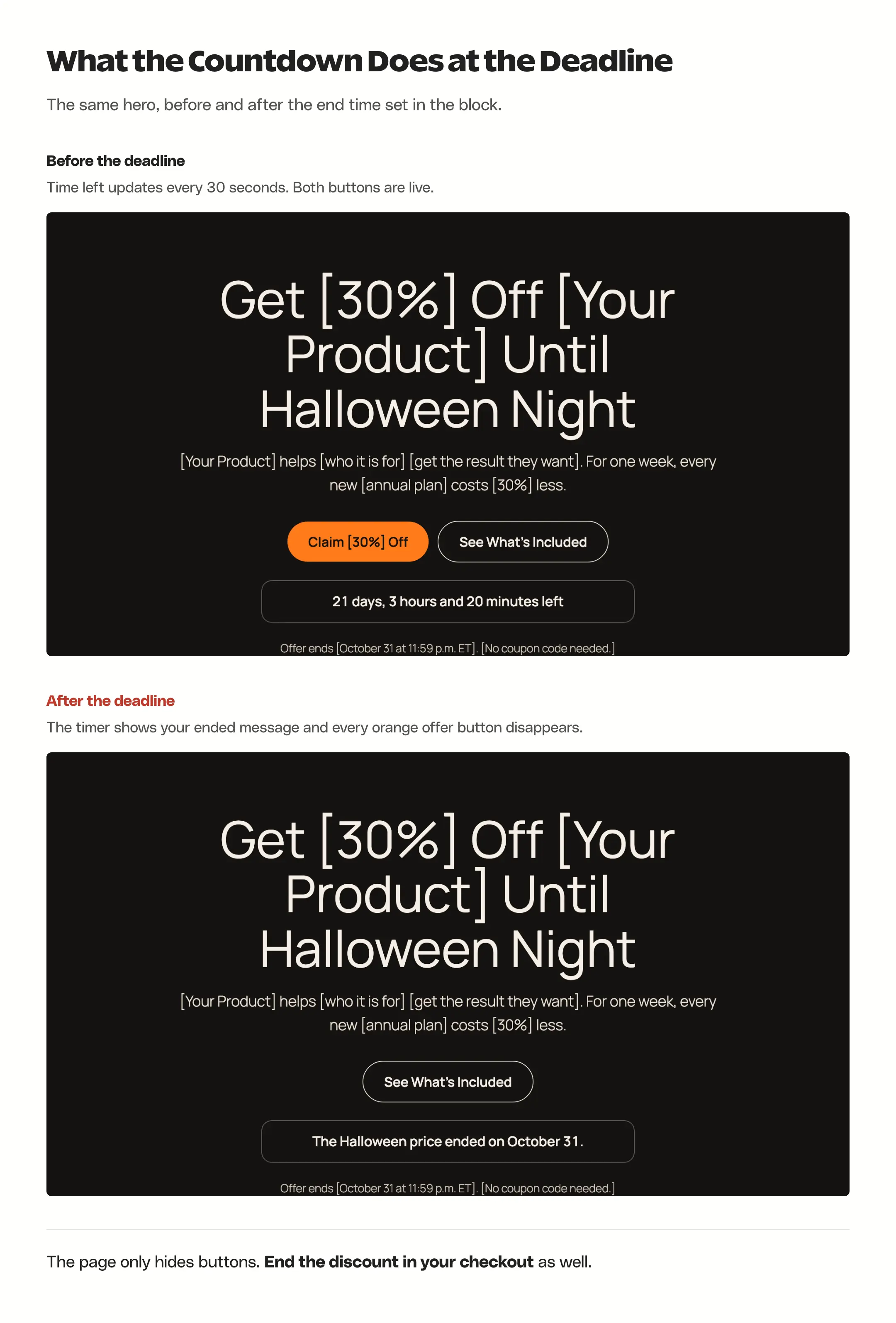
The countdown only changes what visitors see. It cannot stop your checkout from charging the Halloween price, so end the coupon or the sale price in your store as well. It also reads the visitor’s device clock, so a phone set to the wrong time shows the wrong time left.
The morning after the sale, edit the page to say the offer has ended or take it down. The countdown hides the buttons, but the price, dates and terms stay on the page until you change them.
Check Mobile and Dark Mode
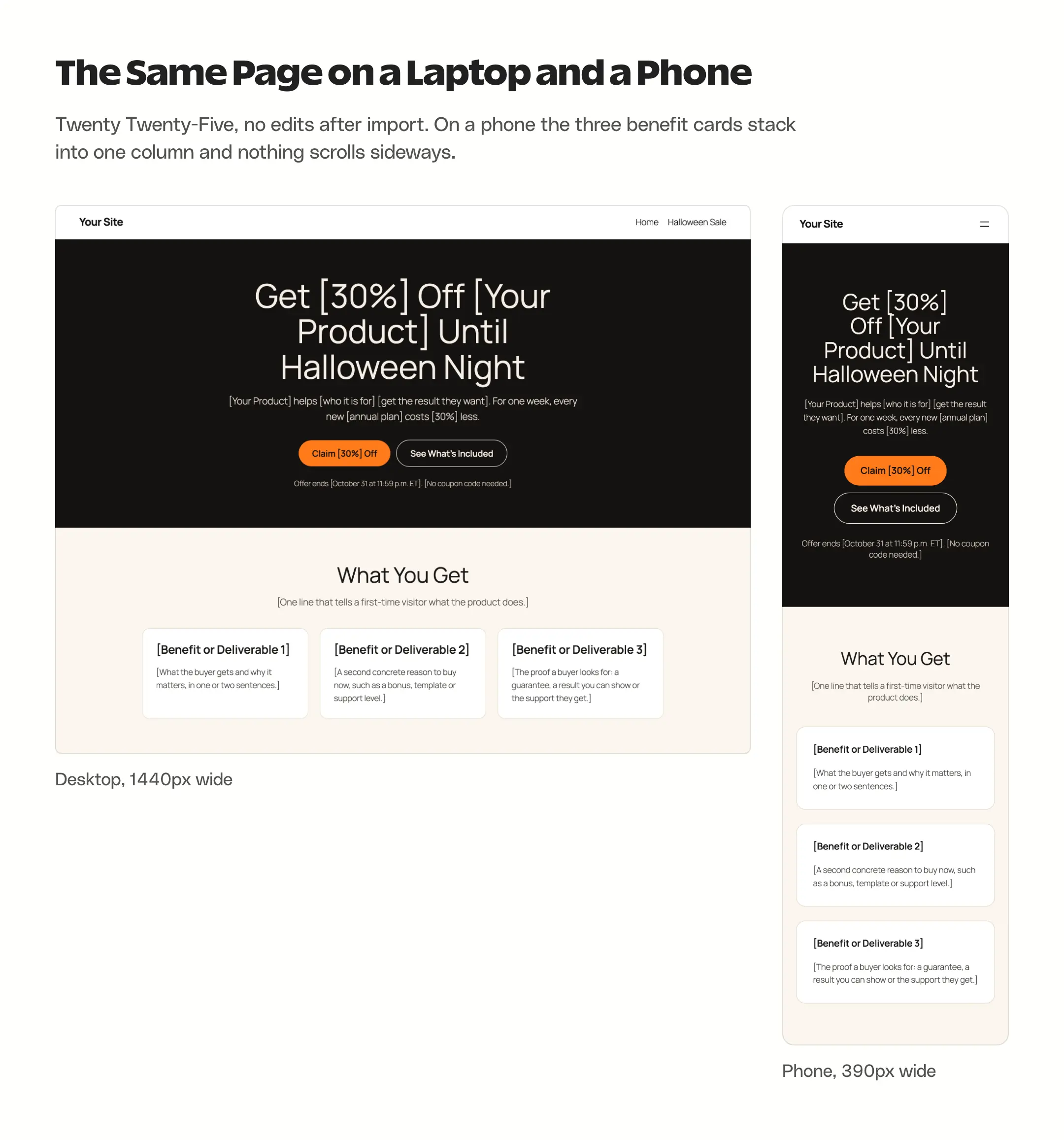
At 1440px on a desktop and 390px on a phone, on both Twenty Twenty-Five and Twenty Twenty-Four, the template behaves like this:
- On a phone, the three benefit cards stack into one column, the hero buttons stack and the page has no sideways scroll.
- Every text and background pair in the template clears a 7:1 contrast ratio, the stricter WCAG AAA level. The orange button with near-black text is 7.2:1.
- The page has exactly one H1 when you use the Page No Title template.
- The questions use the core Details block, which opens with a keyboard and works with screen readers without extra code.
Twenty Twenty-Five does not switch with your phone’s dark mode. It uses style variations instead, and on the dark Evening variation only the header and footer turn dark. The landing page sections keep their own colors because each one sets its own background and text color, so a dark variation cannot leave light text on a light band.
Your own copy still needs one last look on a real phone after you fill it in. A long product name can push the hero headline to five lines, and a large image in a benefit card can take over the whole screen on mobile.
FAQs on Halloween Landing Pages
No. This template uses only core WordPress blocks, so it works on a block theme such as Twenty Twenty-Five with no plugin installed. You only need a plugin for what happens after the click, such as a checkout or a signup form.
Not inside their editors. The template is block editor markup, so it renders on any page you edit with the WordPress block editor. If your site is built in Elementor or Divi, use a page that is edited with the block editor for the sale, or use your builder’s own template kit.
Yes. The pattern is unsynced, so every page gets its own copy. Insert it on a new page, replace the bracketed text, dates and checkout link, and change the orange accent if the new campaign needs a different color.
Yes. Replace the price block with what the visitor gets, point the offer button at your signup page, or swap the button for your form plugin’s block inside the offer card.
Import the pattern, replace every bracket and the one checkout link, then run a single test order before you share the URL. A page that looks finished and sends buyers to the wrong price is worse than no page at all.
Tell Google you want more of this.
Add Gaurav Tiwari as a preferred sourceOne tap, and this site shows up more often in your own Top Stories, AI Overviews and AI Mode. Remove it any time.
Disclaimer: This site is reader-supported. If you buy through some links, I may earn a small commission at no extra cost to you. I only recommend tools I trust and would use myself. Your support helps keep gauravtiwari.org free and focused on real-world advice. Thanks. - Gaurav Tiwari