
 by
by
Halloween coding activities for kids often come as a video or a list of ideas. Someone builds a spooky game on screen, the kids watch it work and then nobody in the room can rebuild it. One block lands in the wrong place, the score carries over from the last game, the ghost keeps flying after time is up and there is no finished file to compare against.
This guide gives you 3 Halloween Scratch projects that fix that. Every project comes as a starter file to build in and a finished file to check against, each one teaches a different coding idea, none of them needs a Scratch account and all 3 run on a tablet because they use clicks, taps and typed answers instead of keyboard keys.
Choose a Halloween Coding Activity
Each project teaches one idea properly, so pick by the idea your kids are ready for. Scratch itself is designed for ages 8 to 16, so these sit best with that range.
| Activity | What kids make | Coding ideas | Start here if |
|---|---|---|---|
| Animated Pumpkin | A jack-o-lantern that flickers and jumps when clicked | Events, costumes, forever and repeat loops | It is their first Scratch project |
| Ghost Catcher | A 30-second game: click the ghost, beat your score | Variables, a timer, broadcasts, a clean game over | They have dragged blocks before and want a real game |
| Spooky Story | A choose-your-path story with 4 endings | Ask and answer, if-else, broadcasts, backdrop changes | They like writing more than games |
I’d start with the pumpkin even for kids who have used Scratch before. It has the fewest blocks, and the 2 habits it builds, starting every script from a known state and putting a wait inside a loop, are the same 2 habits that keep the game and the story from breaking later.
For kids aged 5 to 7, ScratchJr is the better tool. It uses picture blocks instead of words, and these projects lean on reading.
Start a Scratch Project
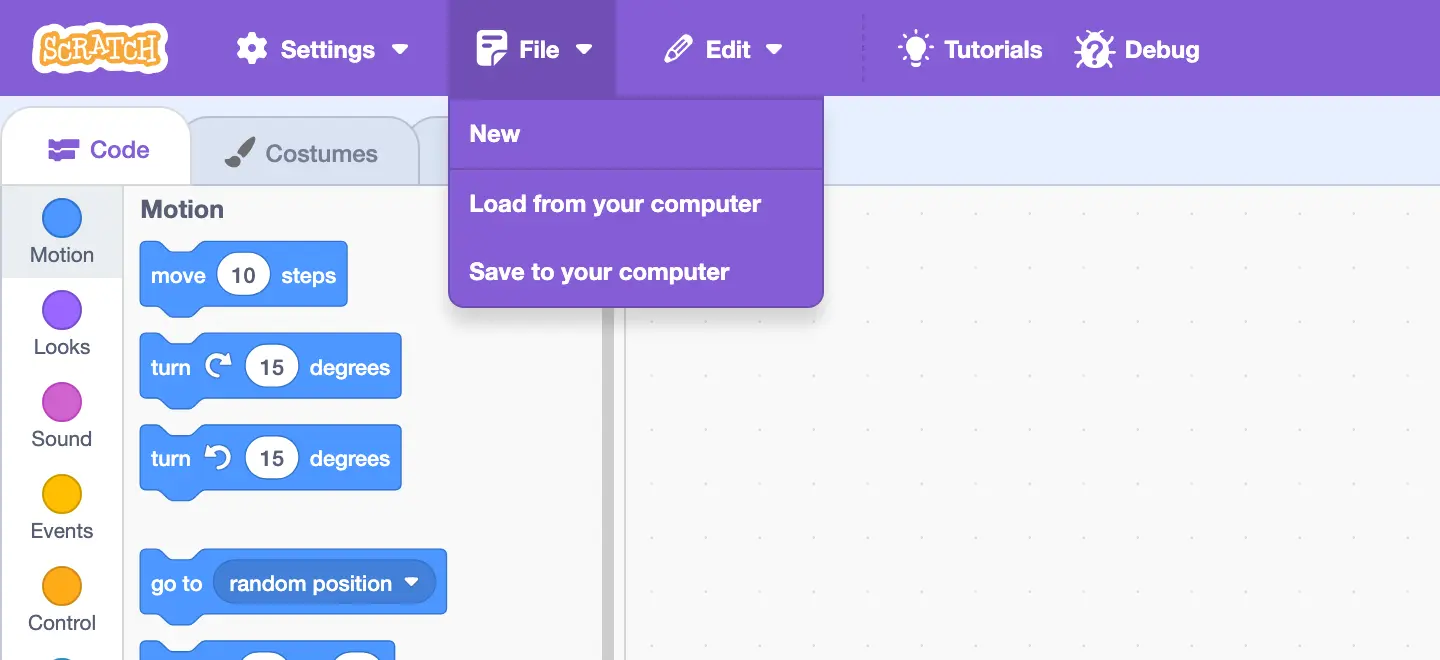
You don’t need an account to build these. The Scratch online editor opens straight to a blank project, and a project file from your computer loads into it in 3 clicks.
- Download the zip above and unzip it. Each activity has a starter file and a finished file ending in
.sb3. - Open the Scratch editor and click File > Load from your computer.
- Pick the starter file for your activity. If Scratch asks whether to replace the current project, say yes.
- Click the green flag above the stage to run a project and the red stop sign to stop it.
- Before closing the tab, click File > Save to your computer. Without an account nothing is saved online, so this file is the only copy.
Check the devices before a class session. This is what Scratch supports today:
- Scratch runs in current Chrome, Edge, Firefox and Safari on desktops, laptops and tablets.
- On phones, Scratch can play projects but cannot create or edit them.
- On tablets, “when key pressed” blocks and right-click menus don’t work. None of these 3 projects uses either.
- The free Scratch app works offline on Windows, macOS, ChromeOS and Android tablets and opens the same files. There is no Linux app.
Those limits come from the Scratch system requirements page, which is worth a look before you book a computer lab.
Scratch Words Kids Will Hear
A handful of words cover everything in these projects. It helps to point at each one on screen before the first activity:
- Stage: the window where the project plays, 480 steps wide and 360 tall.
- Sprite: a character or object on the stage, like the pumpkin or the ghost.
- Costume: one picture of a sprite. Switching costumes is how sprites animate.
- Backdrop: the picture behind everything. The Stage can switch backdrops to change scenes.
- Script: a stack of blocks that runs together, always starting from a hat block such as “when green flag clicked”.
- Variable: a named box that holds a number or word, like the score.
- Broadcast: a message one script sends so that scripts in other sprites can start.
Animate a Pumpkin
The pumpkin is the easiest of the 3 Halloween Scratch activities, and it teaches what makes a script start, what keeps it running and what stops it. The finished project is a jack-o-lantern that sits dark for a second, then flickers through 3 costumes like a candle and jumps with a boing when someone clicks it.
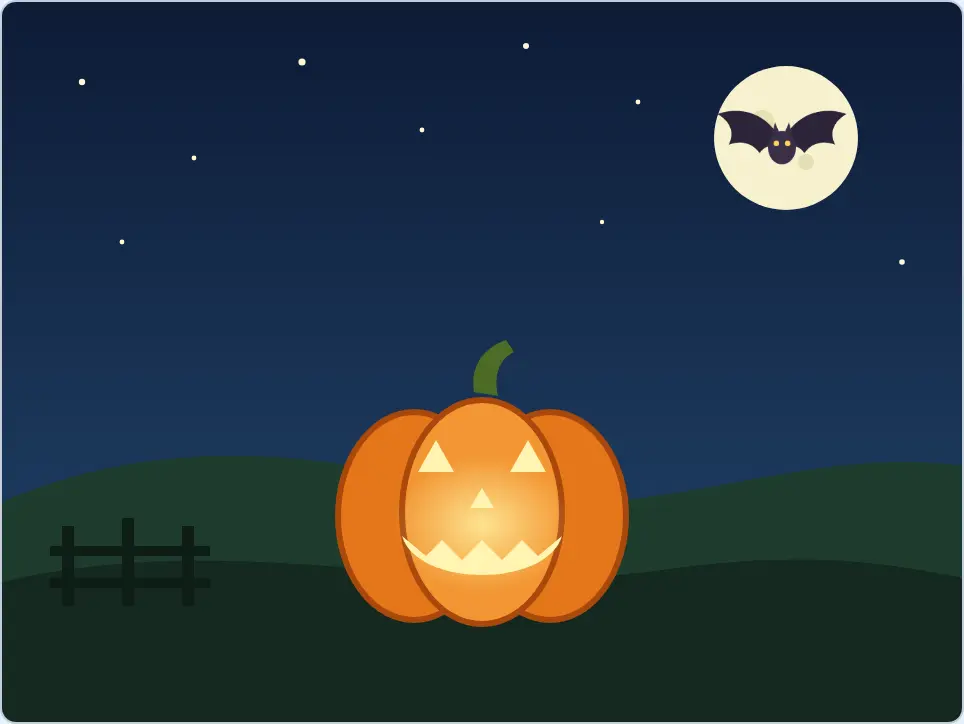
The starter file already has the pumpkin with its 3 costumes (unlit, glow and bright), the boing sound, a night backdrop and a bat for later. Only the code is missing. Download the pumpkin files (ZIP) if you want this activity on its own.
Build the Flicker Script
Click the Pumpkin sprite in the sprite list first, so the blocks land on the right sprite. Then drag these blocks into the code area and snap each one under the last:
- Events: “when green flag clicked”.
- Looks: “switch costume to”, and pick unlit from the menu.
- Looks: “set size to 100 %”.
- Control: “wait 1 seconds”.
- Control: “forever”. Inside it, put Looks: “next costume”, then Control: “wait”, changed to 0.3 seconds.
Click the green flag. The pumpkin should stay dark for a second and then flicker until you click the stop sign.
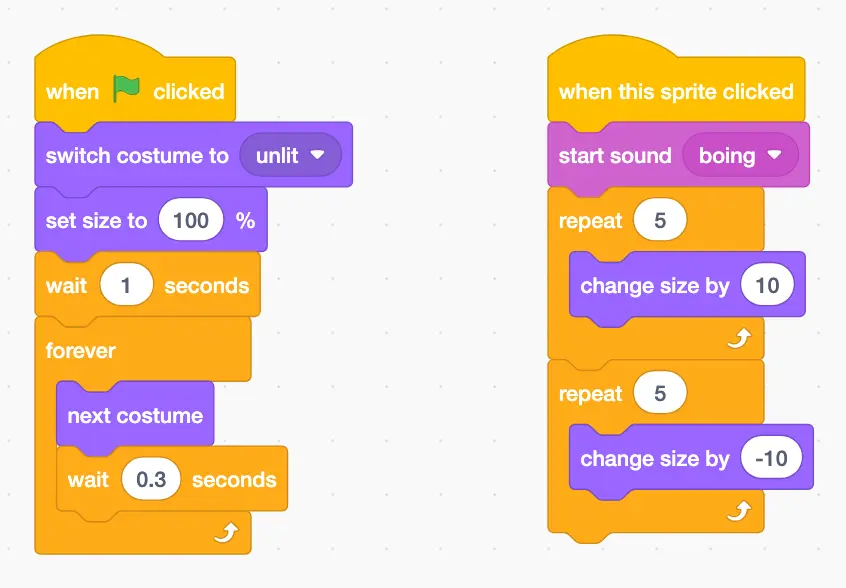
3 blocks here deserve a sentence each, because they are the whole lesson:
- “switch costume to unlit” and “set size to 100 %” are reset blocks. Scratch remembers where a sprite was when you pressed stop, so without them the pumpkin starts each run on whatever costume or size it stopped on.
- “forever” never finishes, which is why it has no notch at the bottom. Nothing can be snapped under it.
- “wait 0.3 seconds” sets the speed. Scratch redraws the stage about 30 times a second, so a loop with no wait flips costumes so fast it looks like a blur.
Make It Jump When Clicked
The second script starts from a different hat block, so it runs alongside the flicker instead of waiting for it:
- Events: “when this sprite clicked”.
- Sound: “start sound boing”.
- Control: “repeat”, set to 5, with Looks: “change size by 10” inside.
- A second “repeat 5” with “change size by -10” inside.
Each click grows the pumpkin to 150% and brings it back to 100%. On a tablet, a tap does the same thing as a click.
Build a Ghost-Catching Game
Plenty of Halloween coding games stop at a sprite that moves around. Ghost Catcher is a real game with a score, a 30-second clock and an ending. A ghost drifts and bounces around a graveyard, every click on it adds a point and when the clock hits zero the ghost disappears and a Game Over panel reports the score.
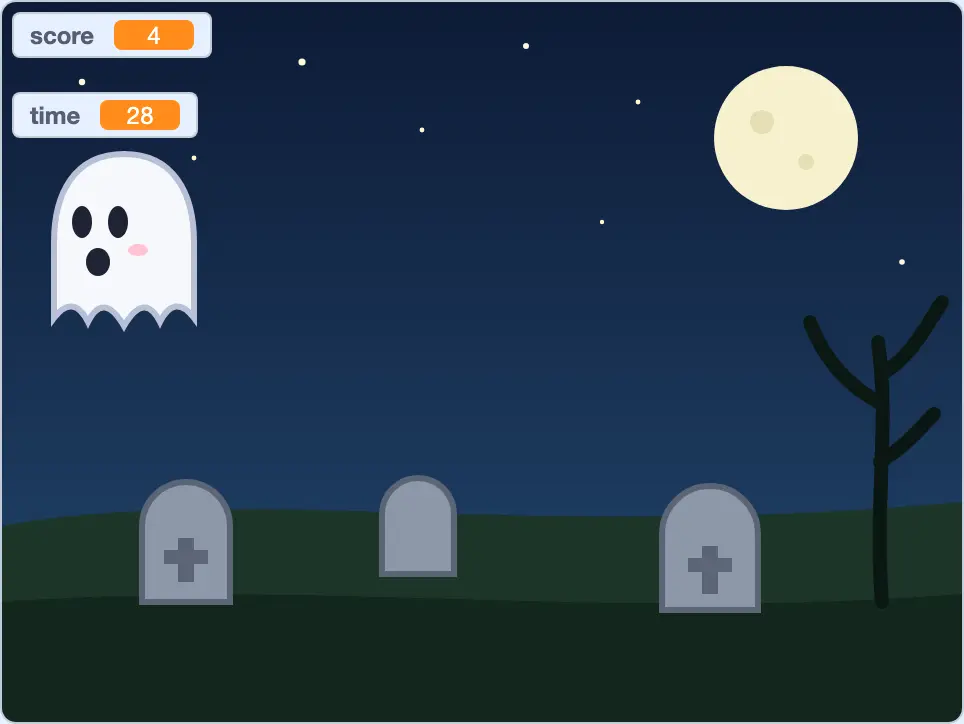
The starter file has the ghost with a pop sound, a hidden Game Over panel and the graveyard backdrop. You build the variables and all 5 scripts. Download the Ghost Catcher files (ZIP) to run only this activity.
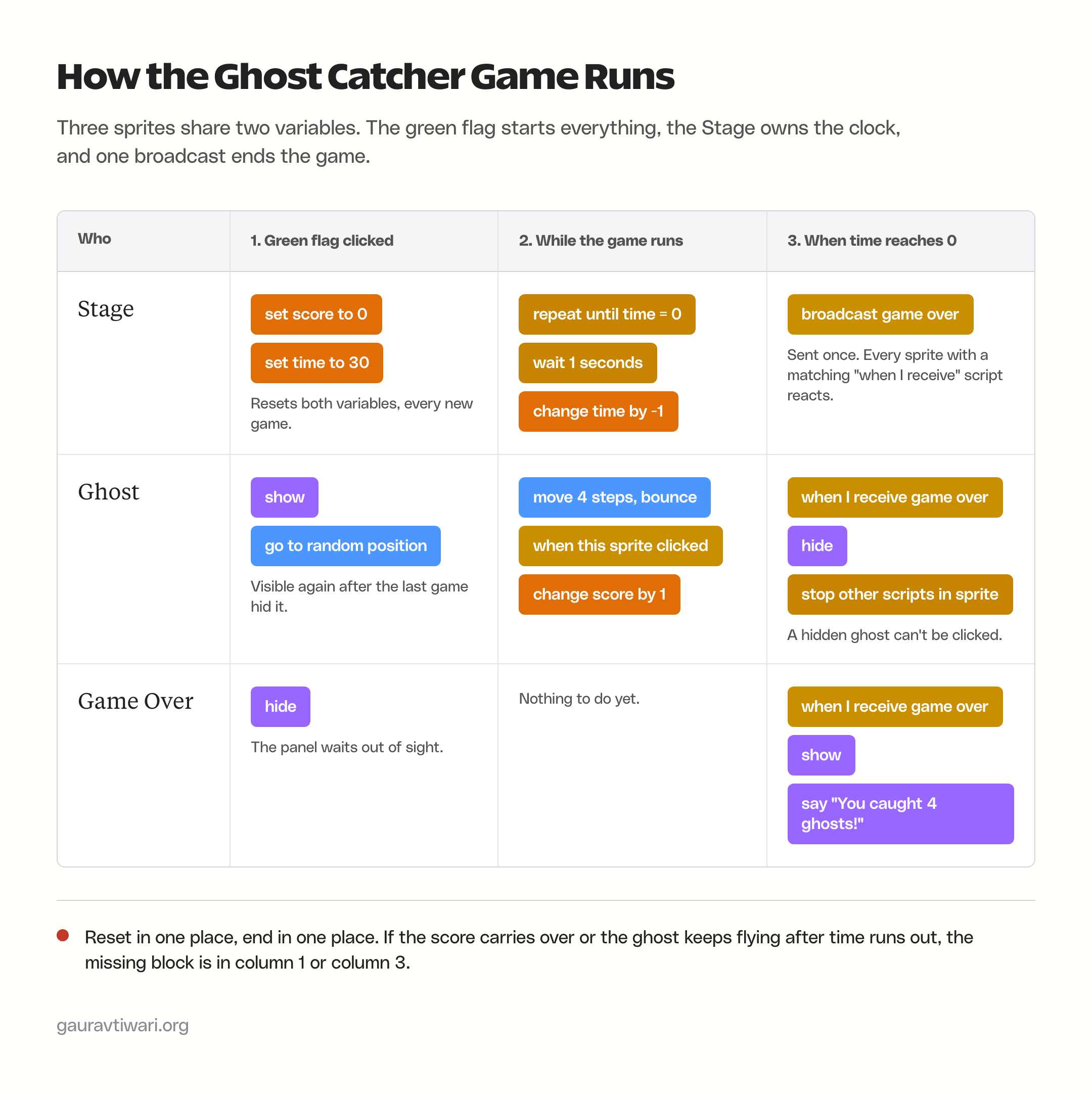
Here is how the 3 parts share the work before you build any of them. Keep this picture in mind, because most bugs in this game come from a block missing in the first or last column.
Make the Score and Timer
Open the Variables category and click Make a Variable. Name it score and keep “For all sprites” selected. Do it again for time. “For all sprites” matters: the Stage changes the time and the ghost changes the score, so both need to see the same box.
Now click the Stage (the backdrop tile at the bottom right of the editor) and build the clock:
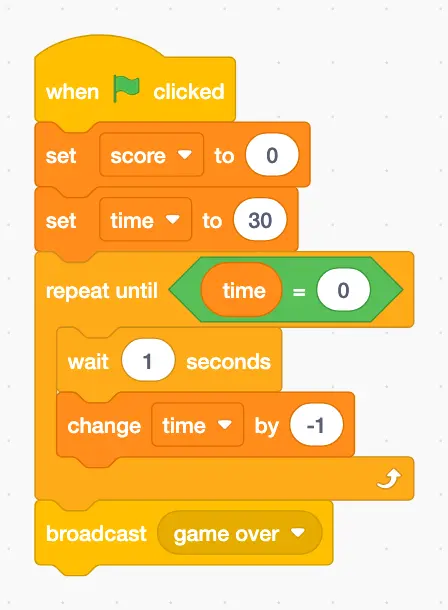
- “set score to 0” and “set time to 30” run at the start of every game. Variables keep their values after a game ends, so skipping these is why a score carries over.
- “repeat until time = 0” is the timer. The green “=” block comes from Operators and the “time” block from Variables.
- “broadcast game over” sits under the loop, so it runs exactly once, when the loop ends. Make the message from the broadcast menu with New message.
A “forever” loop would be the wrong choice here. It never ends, so the clock would count past zero into negative numbers, and nothing could ever sit under it to end the game.
Program the Ghost
Select the Ghost sprite. Its first script sets it moving:
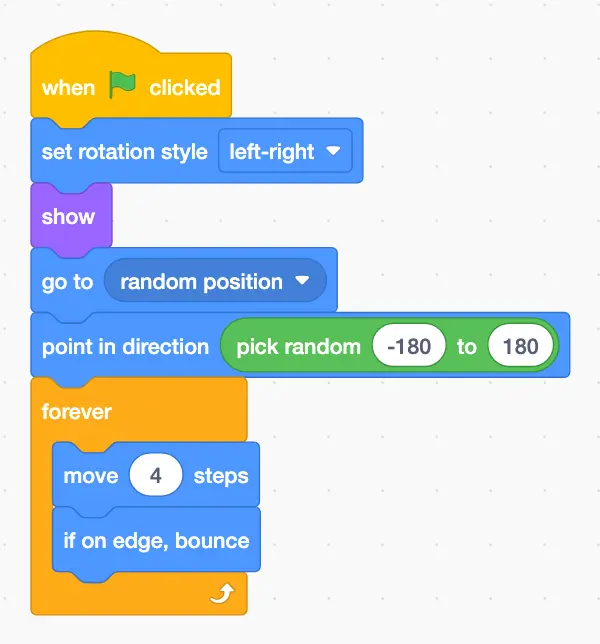
“set rotation style left-right” stops the ghost from flying upside down after it bounces, and “show” brings it back if the last game hid it. “pick random -180 to 180” is in Operators and points the ghost a different way every game.
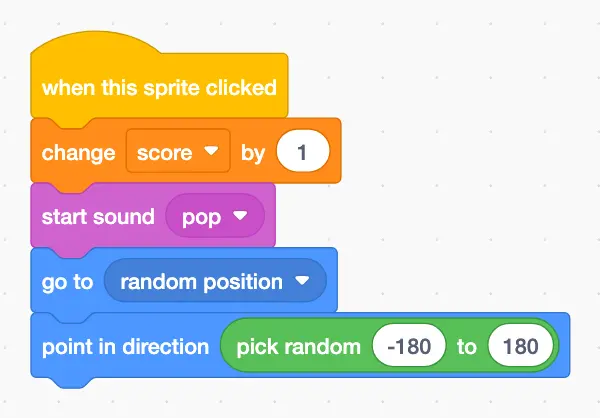
The second script is the catch. It adds the point and moves the ghost somewhere new, so one click can only ever score once:
The third script ends the ghost’s part of the game when the Stage broadcasts:
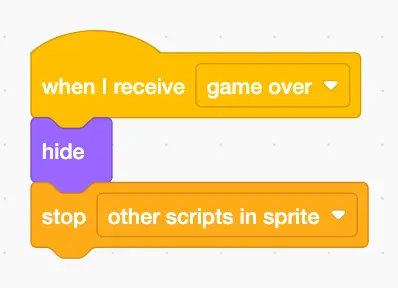
“hide” matters more than it looks. A hidden sprite can’t be clicked, so nobody can keep scoring after the clock runs out, and “stop other scripts in sprite” ends the forever loop that was moving it.
Show the Final Score
Select the Game Over sprite and give it 2 short scripts:
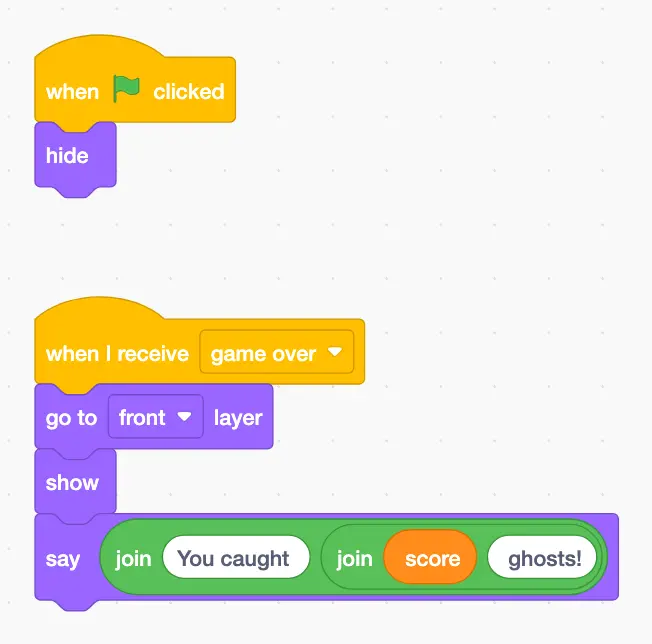
The “join” blocks from Operators glue text and the score together. Type a space after “You caught” and before “ghosts!”, otherwise the message reads “You caught4ghosts!”. “go to front layer” keeps the panel on top of the gravestones.
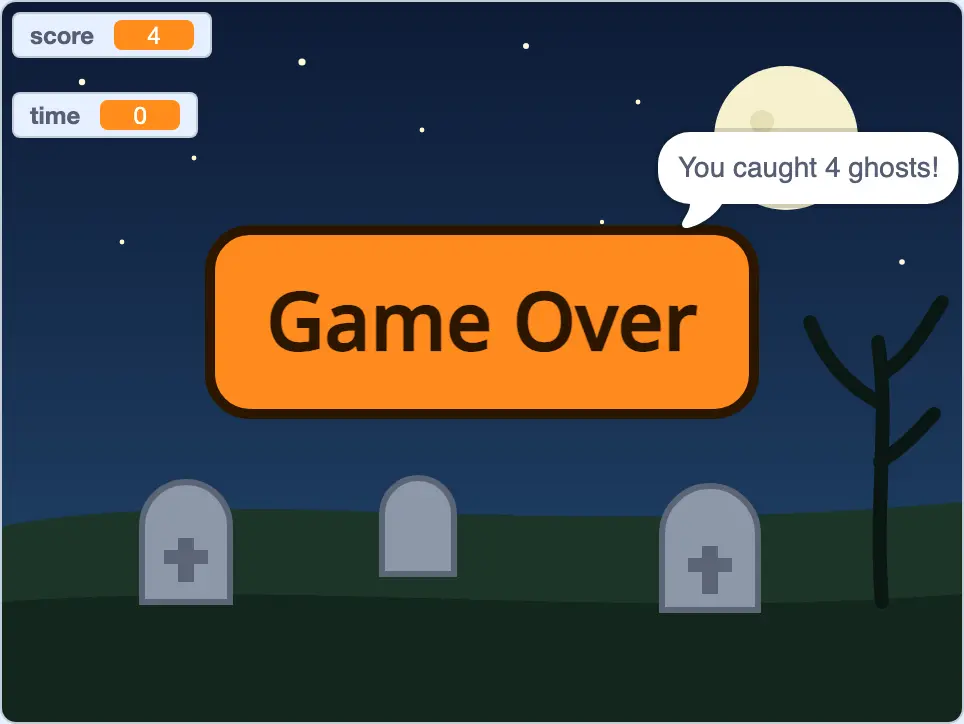
Click the green flag twice in a row to test the reset. The second game should start at score 0 and time 30, with the ghost visible and the panel hidden. If any of those 4 things is wrong, the matching block in a “when green flag clicked” script is missing.
Make an Interactive Halloween Story
The story activity is for kids who would rather write than play. An owl in a witch hat stands where a path splits, asks the reader where to go and the answer decides the scene and the ending. There are 2 choices with 2 endings each, so 4 stories come out of 3 short scripts.
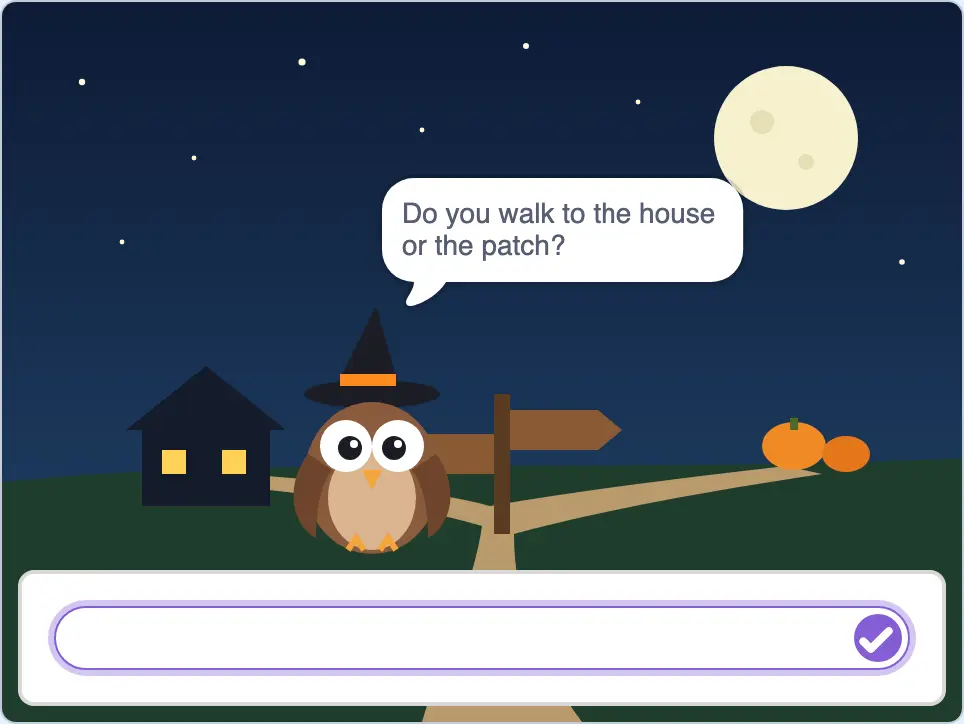
The starter file has the owl and 3 backdrops named path, haunted house and pumpkin patch. Download the Spooky Story files (ZIP) for this activity alone.
Ask the First Question
Select the owl and build the opening scene. The “ask and wait” block and the blue “answer” block are in Sensing:
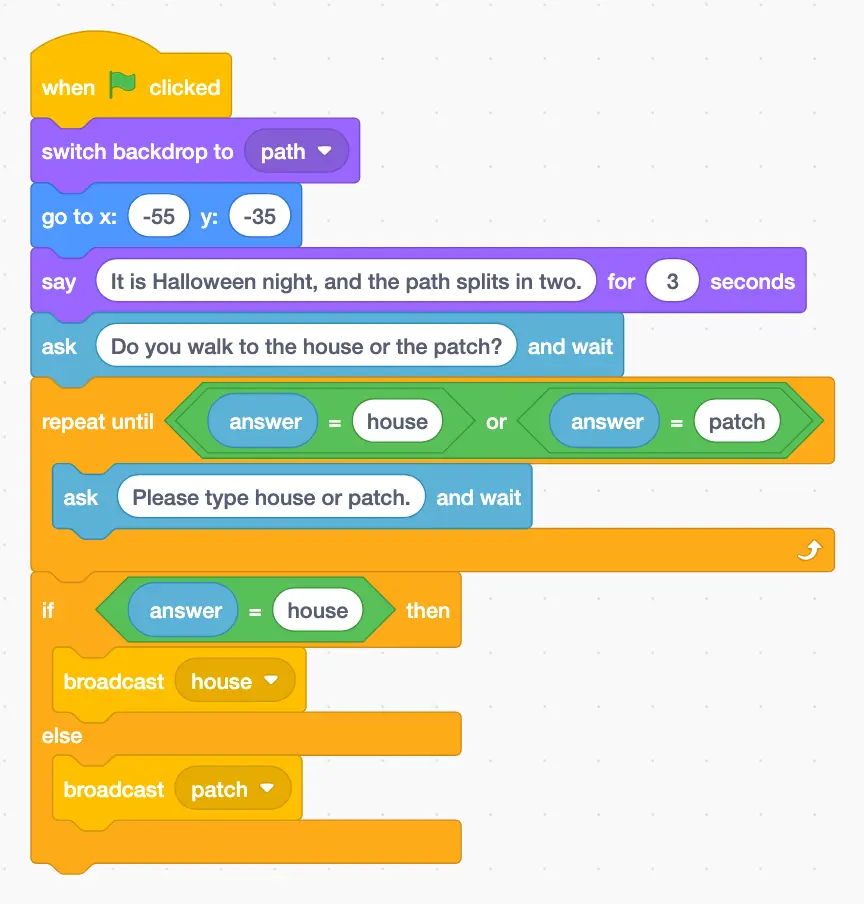
The owl asks once, and then the “repeat until” loop keeps asking until the answer is one the story understands. Someone who types “banana” just gets asked again. Scratch’s “=” block ignores capital letters, so “HOUSE” and “House” both work, but it doesn’t ignore spaces, so “house ” with a stray space gets asked again too. That is the loop doing its job.
The “if-else” then sends one of 2 broadcasts, house or patch. Make both messages from the broadcast menu before you build the next scripts.
Write Each Scene
Each scene is its own script that starts when its broadcast arrives. Here is the haunted house:
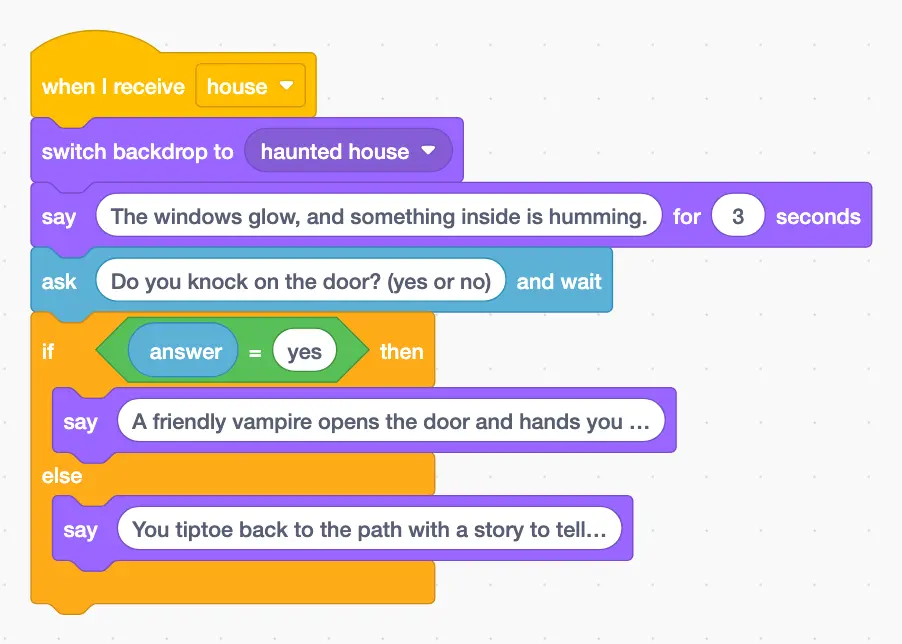
The pumpkin patch script has the same shape. Start it with “when I receive patch”, switch to the pumpkin patch backdrop, ask “Do you try to carry it home? (yes or no)” and write 2 endings. In both scenes, “yes” picks the first ending and any other answer picks the second, which is a fair rule for a yes-or-no question.
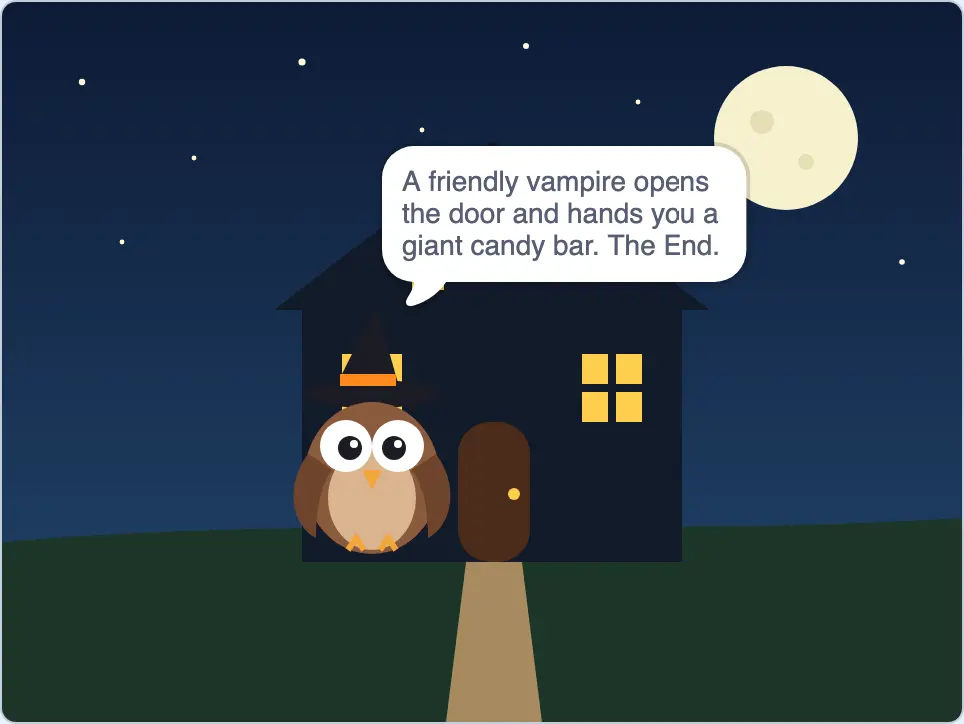
Splitting the story into one script per scene keeps it easy to grow. A new path needs a new broadcast and a new “when I receive” script, and nothing already written has to change. The thing to avoid is a second “when green flag clicked” script that also asks a question. Scratch lines questions up one after another, so the second script’s question pops up in the middle of the first scene and the story stops making sense.
Fix Common Project Errors
Most broken versions of these projects come down to a short list of problems, and each one traces back to a single block. When kids get stuck, open the finished file next to theirs and compare the same script:
- The score doesn’t reset. The “set score to 0” block is missing from the green flag script. Variables keep their last value until a block changes them.
- The timer goes below zero. The clock uses “forever” instead of “repeat until time = 0”, so it never stops and the broadcast under it never runs.
- One click scores 2 points. There are 2 copies of the “when this sprite clicked” script, usually from right-click duplicating. Scratch runs every copy. Delete one.
- The ghost keeps flying after Game Over. Its “when I receive game over” script is missing “stop other scripts in sprite”, or the broadcast name doesn’t match exactly.
- Game Over shows at the start. The panel’s “when green flag clicked, hide” script is missing.
- The ghost turns upside down. “set rotation style left-right” is missing, so the bounce flips it.
- The pumpkin starts glowing or huge. The reset blocks at the top of the flicker script are missing.
- The story asks questions out of order. More than one “when green flag clicked” script uses “ask”. Keep one starting script and move the rest behind broadcasts.
- A block won’t snap where you want. It is the wrong shape. Pointy blocks like “=” only fit pointy holes, and nothing snaps under “forever”.
Loading a file with File > Load from your computer replaces whatever is open. Save the current project first if it matters.
Change the Project Yourself
The best check of understanding is a change nobody walked them through. Each project has a small one that reuses the idea it just taught, and a kid who manages it without help has understood the idea behind the blocks:
- Pumpkin: make the bat fly. The bat already has 2 wing costumes. A forever loop with “next costume” and “wait 0.15 seconds” flaps it. A second green flag script with “glide 2 secs to random position” inside a forever loop moves it. One sprite can run 2 scripts at once, which is the point of the exercise.
- Pumpkin: wire up a real pumpkin. A Makey Makey turns anything slightly conductive into a keyboard key. Clip a real pumpkin to its SPACE input, hold the earth wire and add a “when space key pressed” script with the same 2 repeat loops. Touching the real pumpkin now makes the Scratch one jump. This needs a laptop, desktop or Chromebook, because Scratch ignores key presses on tablets.
- Pumpkin: shake to jump. With a BBC micro:bit connected, add the micro:bit extension and put the jump blocks under its “when moved” block. Shaking the board makes the pumpkin jump.
- Ghost: speed it up as the score rises. Replace the 4 in “move 4 steps” with an Operators block: 4 plus score divided by 5. Every 5 catches adds a step, so the game gets harder by itself.
- Ghost: add a decoy. Paint or add a second sprite, such as a pumpkin, that does “change score by -1” when clicked. Players now have to aim.
- Story: add a third path. Draw a new backdrop, add “graveyard” to the first question and to the “repeat until” check, put a second “if-else” inside the first one’s else slot and write a “when I receive graveyard” script.
If the coding sticks, why coding belongs in a homeschool curriculum covers how to keep it going after Halloween, and the Halloween science experiments make a good hands-on pair for the same week.
Running This in a Classroom
These Halloween coding activities were built so a teacher can run them without accounts or setup on the day. A few things make the session smoother:
- Put the unzipped folder on a shared drive or Google Classroom before the lesson, so nobody waits on a download.
- Hand out the starter file and keep the finished file as your answer key. It doubles as the fastest way to unstick a pair.
- Each starter file has a yellow note in the code area that lists the scripts to build, so kids who skip ahead still know the target.
- I’d pair students up: one reads the steps, the other drags the blocks and they swap at each script.
- Ask everyone to use File > Save to your computer at the end. Without accounts, closing the tab loses the work.
- Scores make a natural bridge into the Halloween math worksheets if you want a math follow-up.
Take It Further
Everything above runs on a screen. These 4 picks either add a physical controller to the same projects or give a kid the next set of projects once these 3 are done:
Makey Makey
Makey Makey is a small JoyLabz board that plugs in over USB and behaves like a keyboard and mouse. Alligator clips turn fruit, foil or a carved pumpkin into keys, which is how the pumpkin extension above works. It is also the easiest way to give the story a physical choice: clip one object to the left arrow and another to the right, and use 2 “when key pressed” scripts to broadcast house or patch instead of typing an answer.
Before buying, plan for one limit: Makey Makey sends key presses, and Scratch ignores those on tablets, so this one needs a laptop, desktop or Chromebook.
BBC micro:bit V2 Go Kit
The BBC micro:bit is a pocket-sized board with 2 buttons, a 5×5 LED display and a motion sensor, and Scratch has an official extension for it. This Keyestudio kit includes a micro:bit V2.2, a battery holder and a USB cable, so the board can be shaken around without a cable attached.
The setup is longer than a Makey Makey. The board needs a one-time Scratch HEX file copied over USB, then it connects by Bluetooth through Scratch Link on Windows or macOS, or through the Scratch app on Android tablets and Chromebooks. The Scratch micro:bit page walks through it. iPads are not on that list.
The Official Scratch Coding Cards
The Official Scratch Coding Cards are a deck of short activities written by Natalie Rusk and the Scratch Team for Scratch 3. Each card is one small project with the blocks pictured, which suits a kid who just finished the pumpkin and wants the next quick win without a long tutorial.
Coding Games in Scratch
Coding Games in Scratch is DK’s step-by-step book of complete games, in a 2024 edition. It is the natural next step after Ghost Catcher for a kid who enjoyed building the score and the clock, because every game in it is built one block at a time with pictures of each script.
FAQs on Halloween Coding Activities
Yes. Scratch is free to use online and as an app. It is built and run by the Scratch Foundation, a nonprofit.
Sharing needs a free Scratch account. Once signed in, load the .sb3 file with File > Load from your computer and click Share. All sprites, backdrops and sounds in these files are original, so they are fine to share and remix.
Yes. The Scratch app for Windows, macOS, ChromeOS and Android tablets opens the same .sb3 files through File > Load from your computer, and none of the projects needs an internet connection to run.
Yes, in Safari through the Scratch website. The Scratch editor works on tablets, and these projects avoid the 2 things tablets can’t do: key-pressed blocks and right-click menus. Phones can play Scratch projects but not edit them.
Final Remarks
Download the starter files, build the pumpkin first and then change one number on your own – the wait inside the forever loop is a good one. A kid who can predict what 0.1 seconds will do before clicking the flag is already thinking like a programmer.
Tell Google you want more of this.
Add Gaurav Tiwari as a preferred sourceOne tap, and this site shows up more often in your own Top Stories, AI Overviews and AI Mode. Remove it any time.
Disclaimer: This site is reader-supported. If you buy through some links, I may earn a small commission at no extra cost to you. I only recommend tools I trust and would use myself. Your support helps keep gauravtiwari.org free and focused on real-world advice. Thanks. - Gaurav Tiwari